
1. Introduction
Thank you for choosing the COZYINN Walking Pad with Incline. This manual provides essential information for the safe and effective operation, setup, and maintenance of your new walking pad. Please read this manual thoroughly before initial use and retain it for future reference.
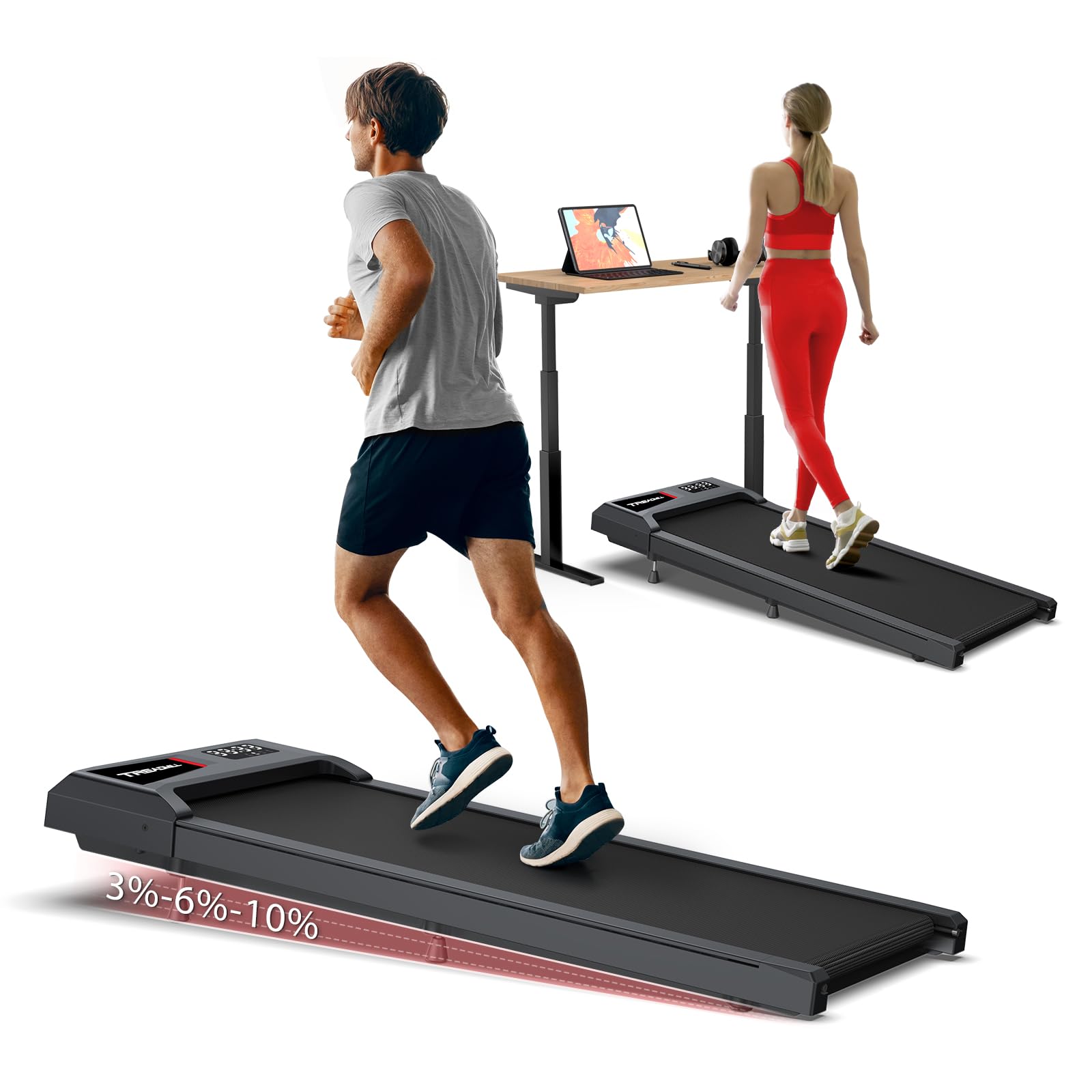
Image 1.1: The COZYINN Walking Pad with Incline, demonstrating its dual functionality for running with incline and walking under a desk.
2. Safety Information
To ensure safe operation and prevent injury, please adhere to the following safety guidelines:
- Weight Capacity: Do not exceed the maximum user weight of 265 lbs (120 kg).
- Clearance: Maintain a clear area of at least 2 feet (0.6 meters) behind and on each side of the walking pad during operation.
- Power Cord: Ensure the power cord is not pinched or damaged. Keep it away from hot surfaces.
- Supervision: Children and individuals with reduced physical capabilities should be supervised when near the walking pad.
- Stable Surface: Always place the walking pad on a flat, stable, and non-slip surface.
- Emergency Stop: Familiarize yourself with the emergency stop function on the remote control.
- Maintenance: Perform regular maintenance as described in this manual to ensure optimal performance and safety.
3. Package Contents
Verify that all components are present upon unpacking:
- COZYINN Walking Pad (CZGYUS)
- Remote Control
- Silicone Lubricant
- Warranty Card
- User Manual (this document)
4. Setup
Follow these steps for initial setup:
- Unpacking: Carefully remove the walking pad and all accessories from the packaging.
- Placement: Position the walking pad on a level, hard surface. Ensure there is adequate space around the unit for safe operation.
- Power Connection: Plug the power cord into a grounded electrical outlet. Ensure the power switch on the walking pad is in the 'OFF' position before plugging in.
- Initial Inspection: Before first use, inspect the running belt for any signs of damage or misalignment.

Image 4.1: Proper placement of the walking pad under a standing desk for home or office use.
5. Operating Instructions
This section details how to operate your COZYINN Walking Pad.
5.1 Power On/Off
- Locate the main power switch on the walking pad and switch it to 'ON'.
- The LED display will illuminate.
- To turn off, switch the main power switch to 'OFF'.
5.2 Remote Control
The included remote control allows for convenient adjustment of speed and operation.
- Start/Stop: Press the 'Start' button to begin operation. Press 'Stop' to pause or end your workout.
- Speed Adjustment: Use the '+' and '-' buttons to increase or decrease the walking pad's speed. The speed range is 1 to 4 MPH.
- Mute: Some models may include a mute function for audio feedback.
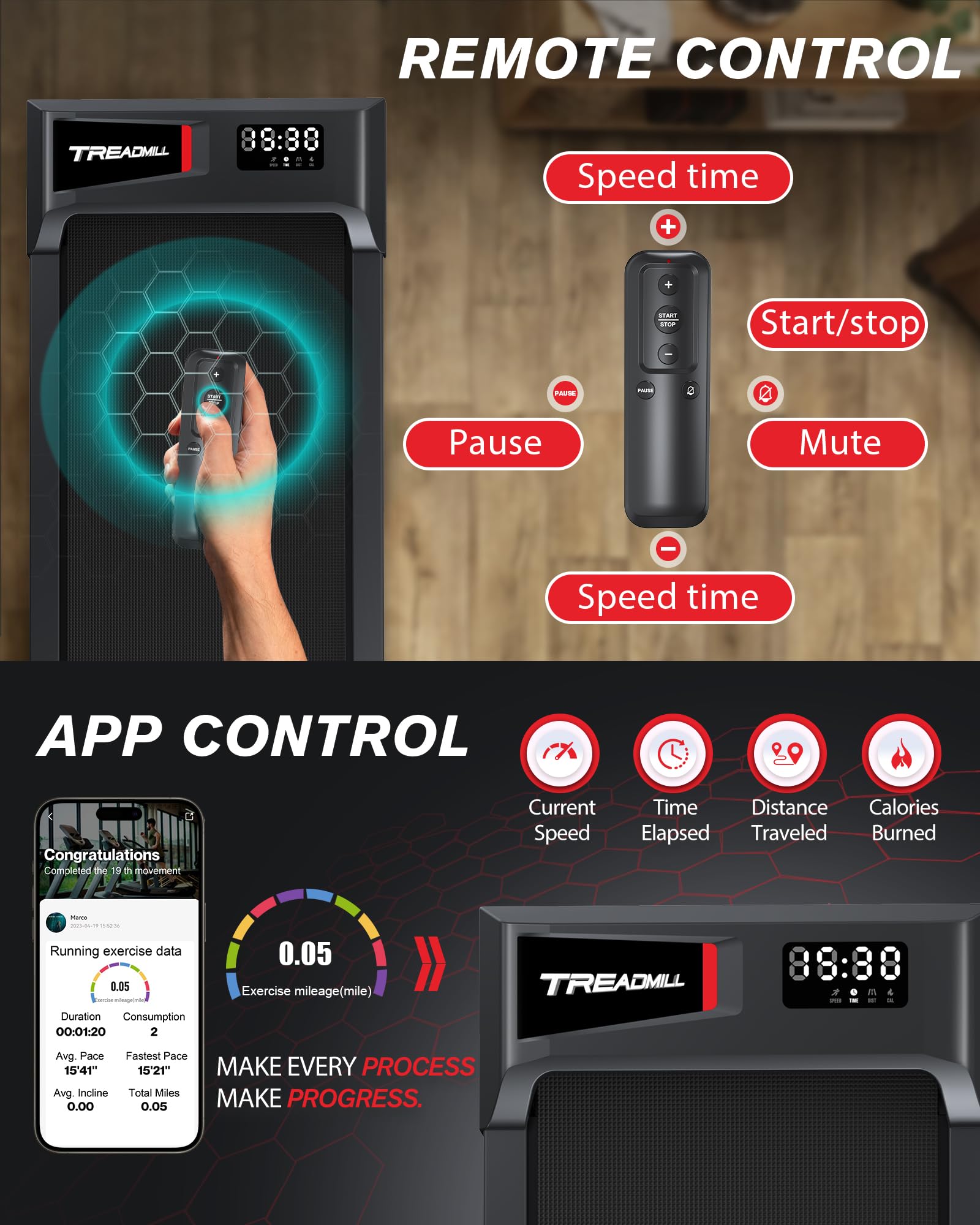
Image 5.1: The remote control and integrated LED display for monitoring workout data.
5.3 Manual Incline Adjustment
The walking pad features a manual incline adjustment to vary your workout intensity.
- The incline can be manually set to 0%, 6%, or 10%.
- To adjust the incline, ensure the walking pad is powered off and unplugged.
- Locate the incline adjustment mechanism (typically at the rear of the unit) and follow the instructions provided on the unit itself to change the incline level.
- Always ensure the incline is securely locked into position before use.
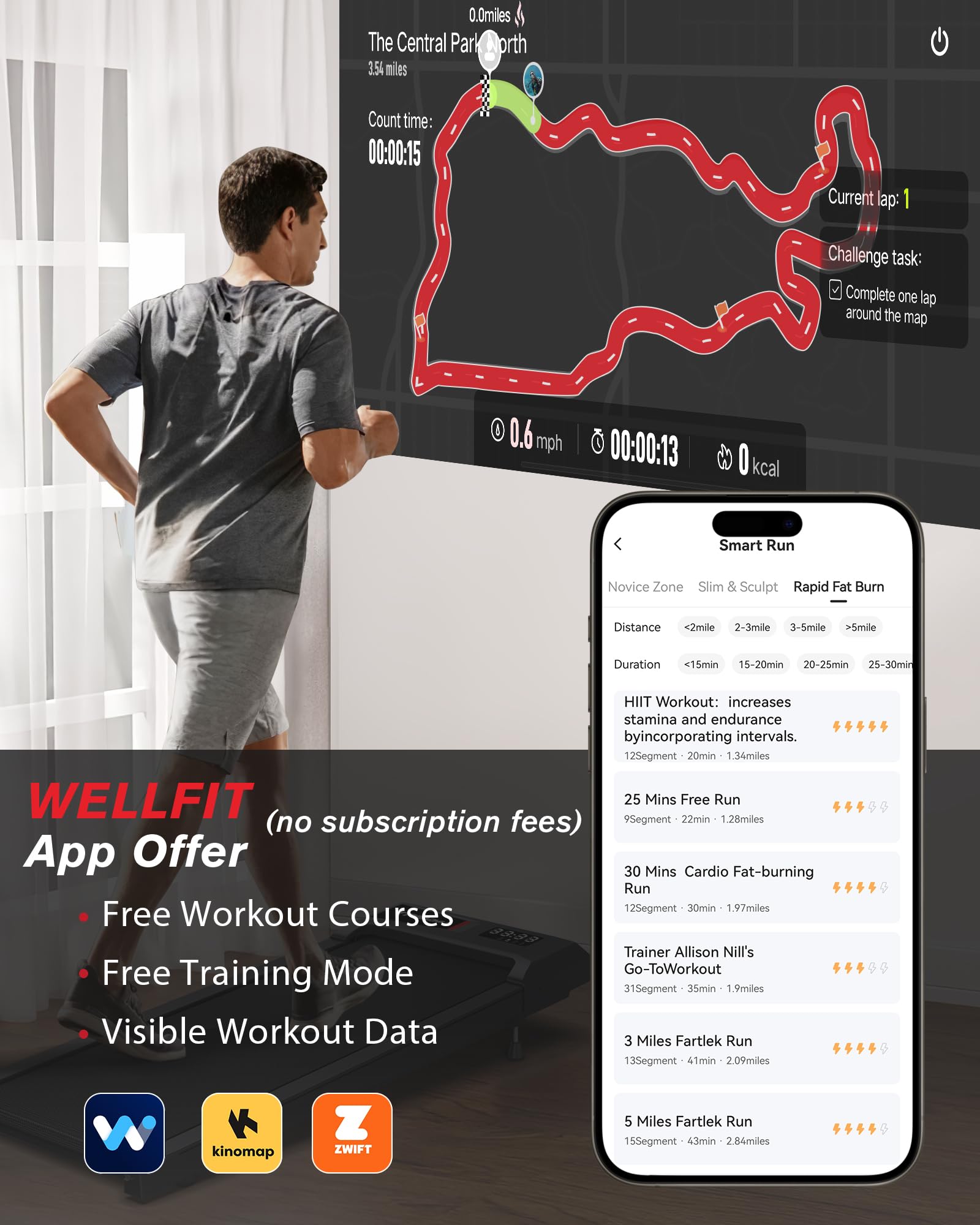
Image 5.2: The walking pad demonstrating its manual incline capability for varied exercise.
5.4 LED Display
The integrated LED display provides real-time workout feedback:
- Speed: Current speed in Miles Per Hour (MPH).
- Distance: Total distance covered during the current session.
- Time: Elapsed workout time.
- Calories: Estimated calories burned.
5.5 App Control and Connectivity
Enhance your workout experience by connecting your walking pad to compatible fitness applications via Bluetooth.
- The COZYINN Walking Pad works with WELLFIT, Kinomap, and Apple Health Apps.
- Download the desired app from your device's app store.
- Enable Bluetooth on your device and follow the app's instructions to pair with your walking pad.
- These apps offer features such as free workout courses, training modes, and visible workout data tracking.
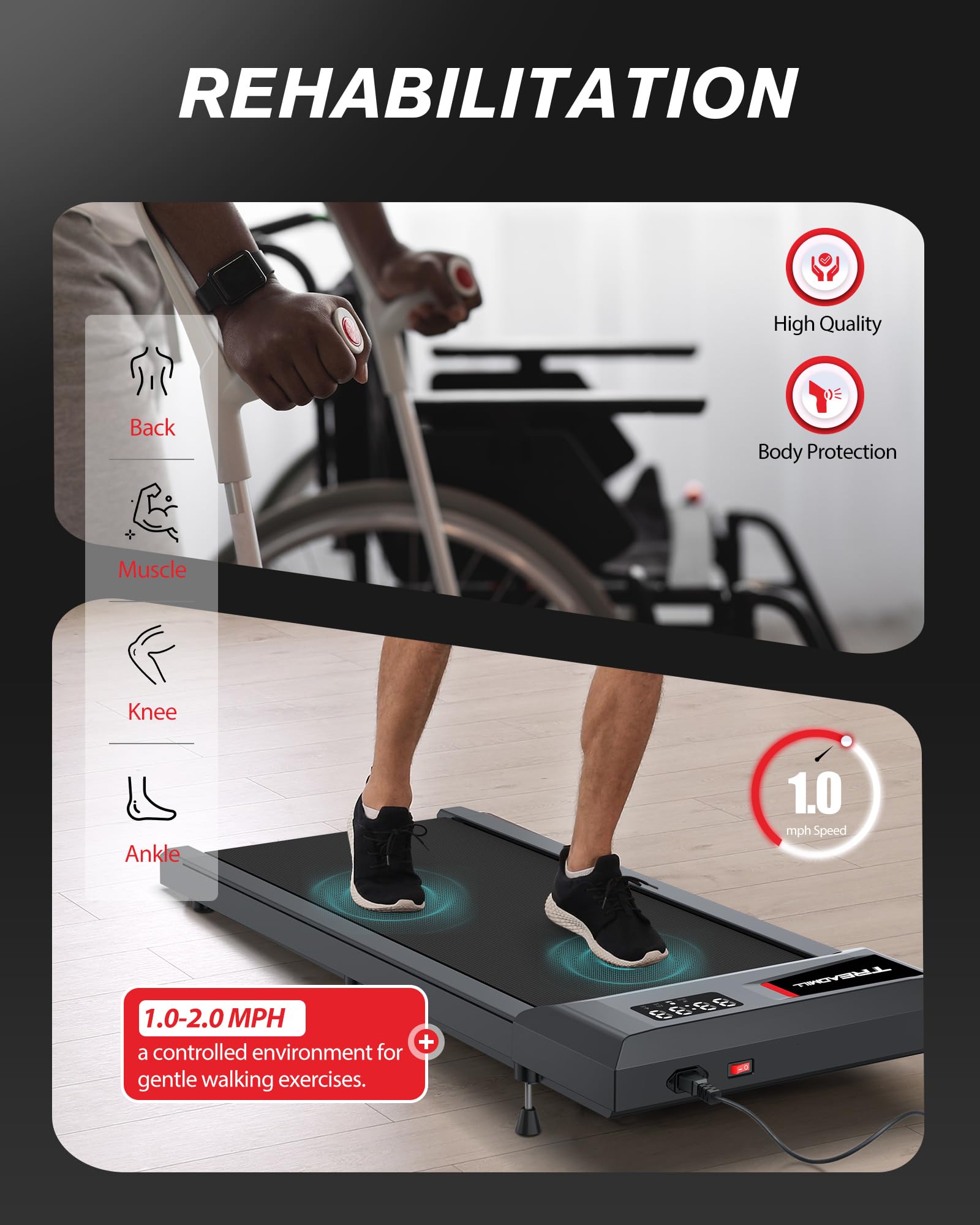
Image 5.3: The WELLFIT app interface, showcasing workout programs and data tracking capabilities.
6. Features
The COZYINN Walking Pad is designed with several features to optimize your fitness routine:
- Manual Incline: Adjustable incline settings (0-6%-10%) allow for varied muscle engagement and increased calorie expenditure.
- Under Desk Design: Compact and low-profile design suitable for use under standing desks, promoting movement during work.
- High Weight Capacity: Supports users up to 265 lbs (120 kg).
- Quiet Operation: Engineered for low noise levels (below 40 dB), making it suitable for home and office environments without causing disturbance.
- Portability and Storage: Lightweight (approximately 35 lbs) and designed for easy movement and storage, either upright or under furniture.
- App Integration: Compatibility with WELLFIT, Kinomap, and Apple Health for enhanced tracking and guided workouts.

Image 6.1: Demonstrating the walking pad's easy storage options, upright or under a sofa.

Image 6.2: The walking pad's lightweight design makes it easy to move and reposition.

Image 6.3: The walking pad integrates seamlessly into home or office environments for workplace wellness.
Image 6.4: The walking pad can be used for gentle exercises, supporting rehabilitation for various body parts.
7. Maintenance
Regular maintenance ensures the longevity and optimal performance of your walking pad.
7.1 Cleaning
- Always unplug the walking pad before cleaning.
- Wipe down the unit with a damp cloth. Avoid using abrasive cleaners or solvents.
- Keep the area around the running belt free of dust and debris.
7.2 Lubrication
The running belt requires periodic lubrication to reduce friction and extend its lifespan.
- Use the provided silicone lubricant.
- Refer to the specific instructions on the lubricant bottle or the walking pad for application frequency and method. Generally, lift the belt slightly and apply a thin line of lubricant to the deck underneath.
7.3 Belt Adjustment
If the running belt begins to slip or drift to one side, it may require adjustment.
- Consult the specific instructions in the quick start guide or contact customer support for detailed belt adjustment procedures. Incorrect adjustment can damage the belt.
8. Troubleshooting
If you encounter issues with your walking pad, refer to the following common problems and solutions:
| Problem | Possible Cause | Solution |
|---|---|---|
| Walking pad does not power on. | Power cord not connected, main switch off, power outlet issue. | Ensure power cord is securely plugged in. Check main power switch. Test outlet with another device. |
| Running belt slips or stops. | Belt too loose, insufficient lubrication, motor overload. | Adjust belt tension (refer to manual). Apply silicone lubricant. Ensure user weight is within capacity. |
| Remote control not responding. | Low battery, remote out of range, interference. | Replace remote control batteries. Ensure remote is pointed at the walking pad's receiver. Reduce interference. |
| Abnormal noise during operation. | Loose components, belt misalignment, motor issue. | Inspect for loose screws. Check belt alignment and adjust if necessary. If noise persists, contact customer support. |
If the problem persists after attempting these solutions, please contact COZYINN customer support for assistance.
9. Specifications
Key technical specifications for the COZYINN Walking Pad (Model: CZGYUS):
- Brand: COZYINN
- Model Name: CZGYUS
- Product Dimensions: 42.91"D x 18.31"W x 4.13"H
- Item Weight: 35 Pounds
- Material: Alloy Steel
- Maximum Speed: 4 Miles per Hour
- Minimum Speed: 1 Miles per Hour
- Maximum Incline Percentage: 10% (Manual Adjustment: 0%, 6%, 10%)
- Maximum Horsepower: 2.5 HP
- Maximum Weight Recommendation: 265 Pounds
- Deck Length: 36.03 Inches
- Deck Width: 15 Inches
- Connectivity Technology: Bluetooth
- Power Source: Corded Electric
- Included Components: Treadmill, remote control, silicone lubricant, warranty card
- Assembly Required: No
10. Warranty and Support
Your COZYINN Walking Pad is covered by a warranty to ensure your satisfaction.
- Warranty Period: 24 Months from the date of purchase.
- Support: For warranty claims, technical assistance, or any questions not covered in this manual, please refer to the contact information provided on your warranty card or visit the official COZYINN website.