
EWLSAC Android 13.0 Double Din Car Stereo (7-Inch HD Touch Screen)
EWLSAC Android 13.0 Car Stereo User Manual
Model: 7-Inch HD Touch Screen Multimedia Receiver for GM-C Vehicles
1. Introduction
This manual provides detailed instructions for the installation, operation, and maintenance of your EWLSAC Android 13.0 Double Din Car Stereo. Please read this manual thoroughly before using the product to ensure proper function and safety. This multimedia receiver is designed for specific GM-C vehicles, including Chevrolet Yukon, Sierra, and Acadia models, featuring a 7-inch HD touch screen with integrated CarPlay and Android Auto.
2. Safety Information
- Always ensure the vehicle is parked and the engine is off before performing any installation or wiring.
- Consult a professional for installation if you are unsure about any steps. Incorrect installation can damage the vehicle's electrical system or the stereo unit.
- Do not operate the device in a manner that distracts you from driving. Always prioritize road safety.
- Avoid exposing the unit to extreme temperatures, direct sunlight for prolonged periods, or excessive moisture.
- Use only approved accessories and wiring harnesses.
3. Package Contents
Verify that all items are present in the package before beginning installation.
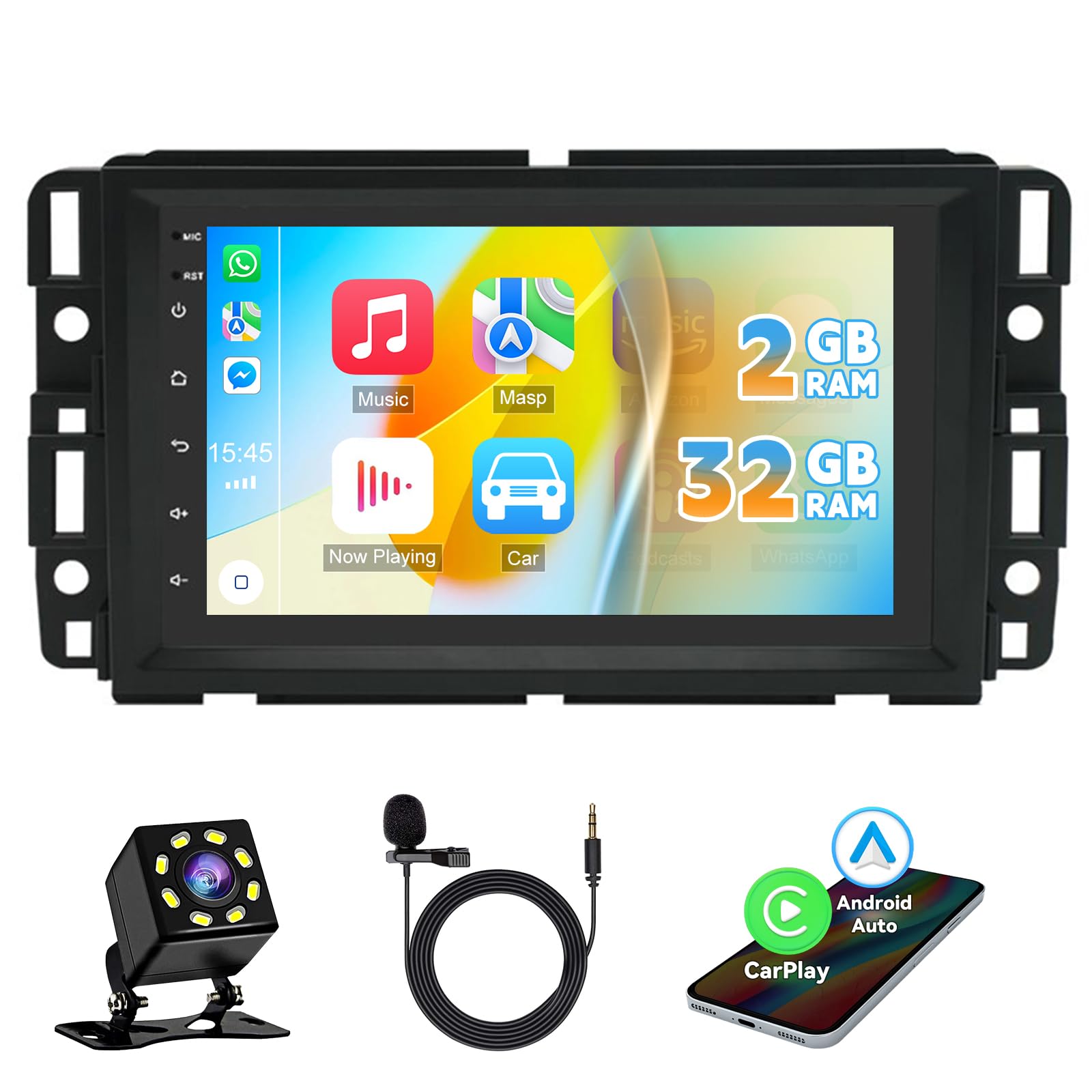
Image: Overview of the EWLSAC car stereo unit and included accessories. This image displays the main head unit, power cable, RCA input/output cables, USB cables, camera input cable, radio adapter, GPS antenna, instruction manual, sound amplifier, and Canbus Box.
- EWLSAC Android 13.0 Car Stereo Unit (7-inch HD Touch Screen)
- Power Cable
- RCA Input/Output Cables
- 2 USB Cables
- Camera Input Cable
- Radio Adapter
- GPS Antenna
- Instruction Manual (this document)
- Sound Amplifier
- Canbus Box
- Rear View Backup Camera (if included in your specific package)
4. Vehicle Compatibility
This car stereo is designed for specific GM-C vehicle models and years. Please verify your vehicle's compatibility before installation.
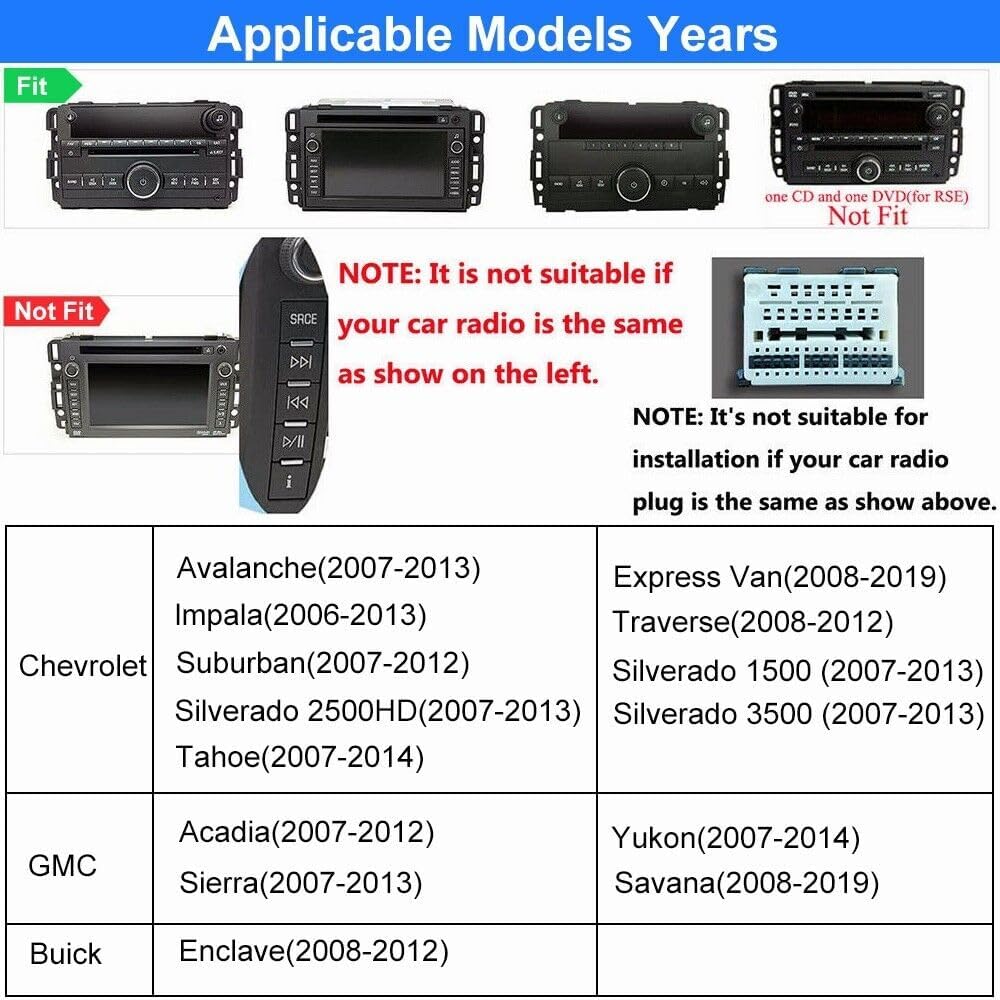
Image: A chart detailing compatible and incompatible car radio types and vehicle models. It shows examples of "Fit" and "Not Fit" car radio designs and a table of compatible Chevrolet, GMC, and Buick models with their respective year ranges.
Compatible Models:
| Brand | Model | Years |
|---|---|---|
| Chevrolet | Avalanche | 2007-2013 |
| Chevrolet | Impala | 2006-2013 |
| Chevrolet | Suburban | 2007-2012 |
| Chevrolet | Silverado 2500HD | 2007-2013 |
| Chevrolet | Tahoe | 2007-2014 |
| Chevrolet | Express Van | 2008-2019 |
| Chevrolet | Traverse | 2008-2012 |
| Chevrolet | Silverado 1500 | 2007-2013 |
| Chevrolet | Silverado 3500 | 2007-2013 |
| GMC | Acadia | 2007-2012 |
| GMC | Sierra | 2007-2013 |
| GMC | Yukon | 2007-2014 |
| GMC | Savana | 2008-2019 |
| Buick | Enclave | 2008-2012 |
Important: This unit is not suitable if your original car radio or wiring plug matches the "Not Fit" examples shown in the image. Always compare your vehicle's existing setup with the provided images to ensure compatibility.
5. Setup and Installation
Professional installation is recommended. Disconnect the vehicle's battery before starting any electrical work.
5.1 Wiring Diagram
Refer to the included wiring diagram for specific connections. Ensure all wires are securely connected to prevent short circuits or malfunctions.
5.2 Physical Installation
- Carefully remove the existing car stereo and trim panels.
- Connect the main power harness, RCA cables, USB cables, GPS antenna, and camera input cable to the new EWLSAC unit.
- Install the Canbus Box as per the wiring diagram to ensure proper communication with the vehicle's systems (e.g., steering wheel controls).
- Mount the new stereo unit into the dashboard opening.
- Reinstall trim panels and test all functions before fully securing.

Image: Three examples of the EWLSAC car stereo unit correctly installed within different vehicle dashboards, indicated by green checkmarks and dashed green outlines around the stereo area.
5.3 Initial Power-On
After installation, reconnect the vehicle's battery. The unit should power on automatically or by pressing the power button. Follow any on-screen prompts for initial setup, such as language selection and time zone.
6. Operating Instructions
6.1 Touch Screen Interface
The unit features a 7-inch HD capacitive touch screen with a resolution of 1024x600 pixels. Navigate through menus and applications by tapping, swiping, and pinching gestures.
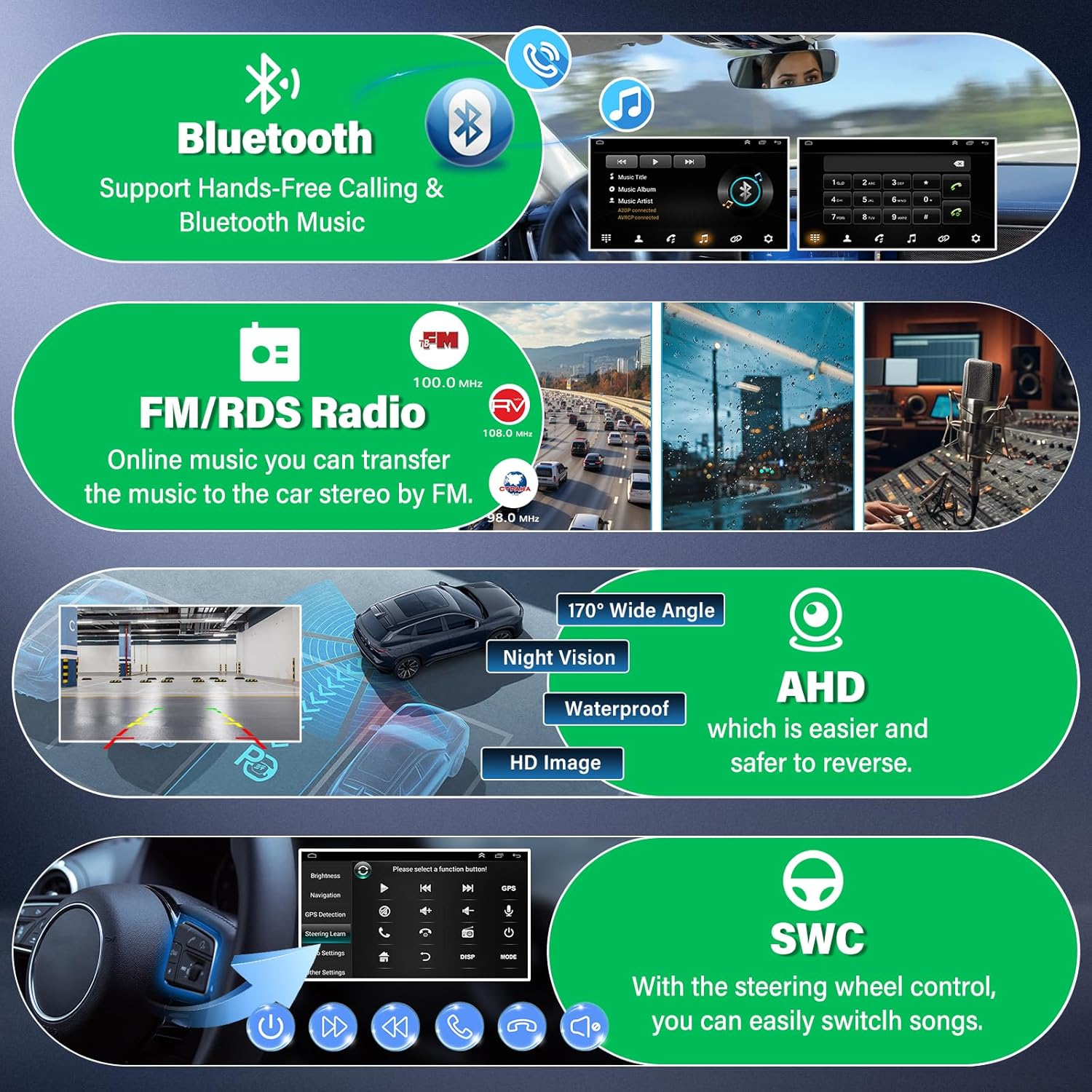
Image: A visual representation of the 7-inch IPS touchscreen, highlighting its 2.5D screen and glass+glass touch screen technology, along with its 1024x600 resolution for 1080P video playback.
6.2 Wireless CarPlay and Android Auto
Connect your smartphone wirelessly or via USB to access CarPlay (for Apple devices) or Android Auto (for Android devices). This allows for hands-free calls, music playback, map navigation, and voice control.
- Wireless Connection: Enable Bluetooth and Wi-Fi on your smartphone. Pair your phone with the car stereo via Bluetooth. Follow the on-screen prompts to activate CarPlay or Android Auto.
- Wired Connection: Connect your smartphone to one of the stereo's USB ports using a compatible USB cable.
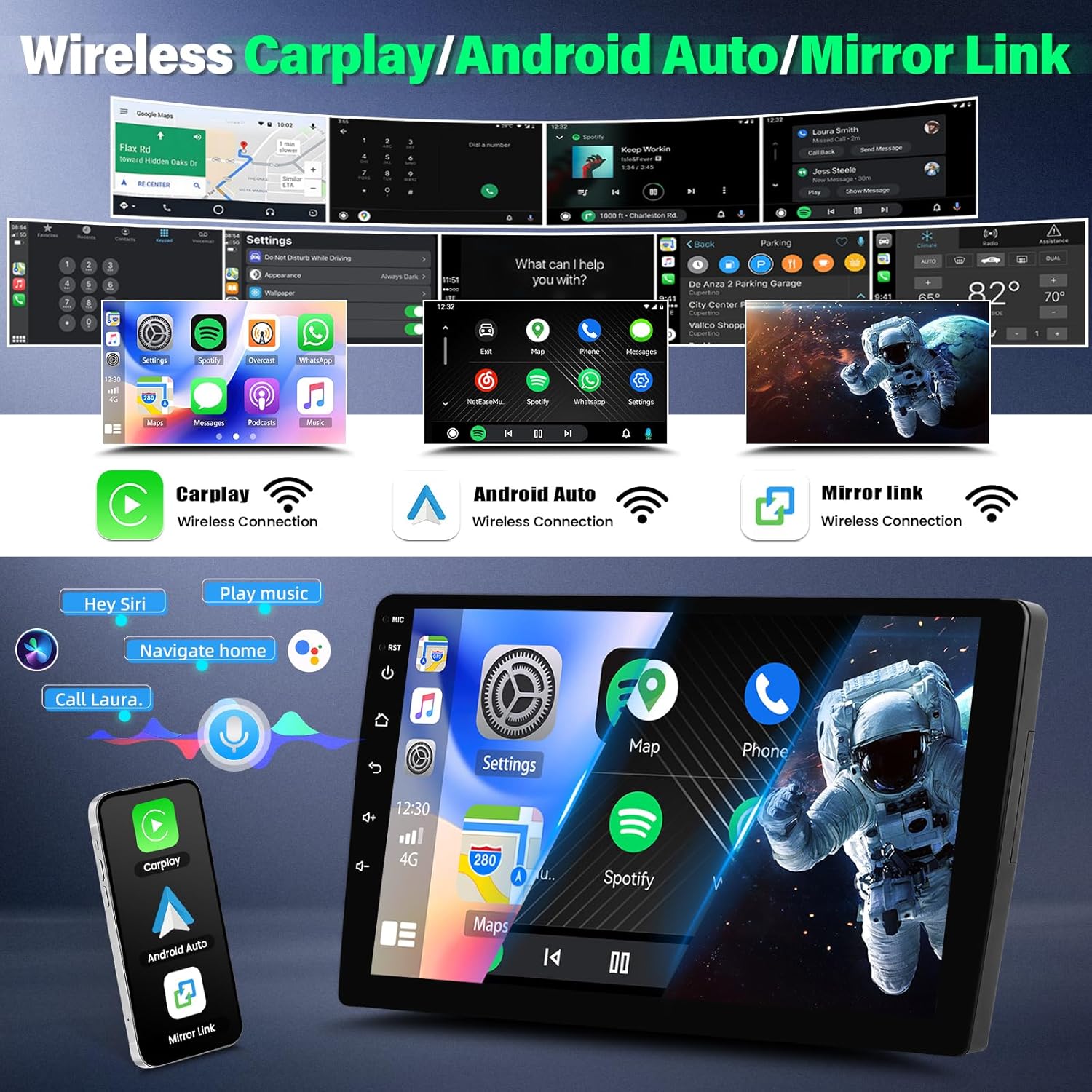
Image: Screenshots demonstrating the user interface for Wireless CarPlay and Android Auto, showing various apps like maps, music, phone, and settings, along with voice command examples like "Hey Siri" and "Call Laura."
6.3 GPS Navigation and Wi-Fi
The unit has built-in GPS and Wi-Fi. Connect to a Wi-Fi hotspot (e.g., from your phone) to use online maps (Google Maps, Waze, Here Maps) or download offline maps from the app store. The GPS antenna ensures accurate positioning.
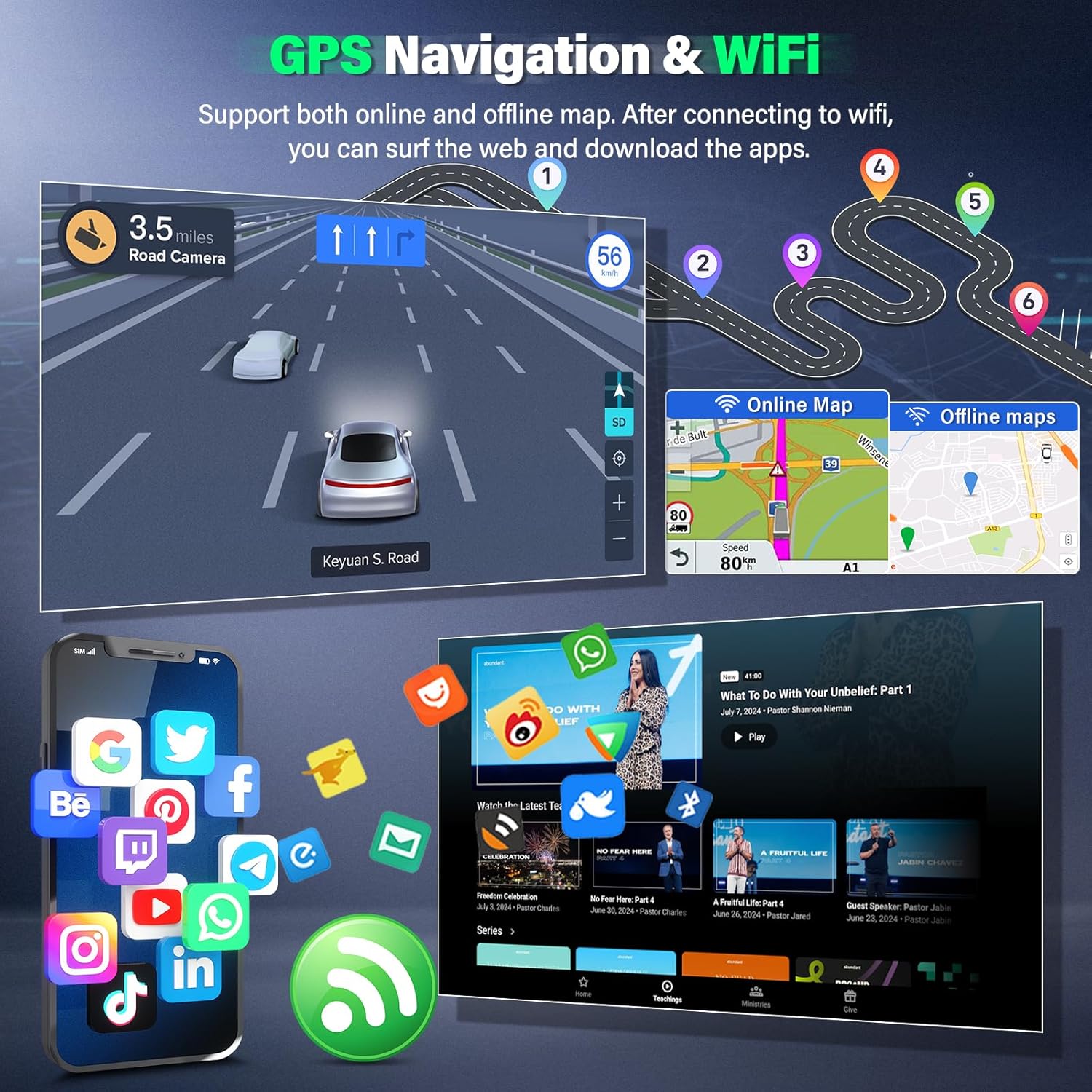
Image: Displays the GPS navigation interface with online and offline map options, showing a route and various applications that can be downloaded and used with Wi-Fi connectivity.
6.4 Bluetooth Functionality
Pair your phone via Bluetooth for hands-free calling and audio streaming. Access your phone's contacts and call history directly from the stereo.
- Pairing: Go to the Bluetooth settings on the stereo and your phone. Search for available devices and select the car stereo. Confirm the pairing code if prompted.
- Hands-Free Calling: Use the on-screen dialer or voice commands (via CarPlay/Android Auto) to make and receive calls.
- Music Streaming: Play audio from your phone through the car speakers.

Image: A composite image showing various features: Bluetooth for hands-free calling and music, FM/RDS radio interface, a 170° wide-angle waterproof AHD backup camera view, and the steering wheel control learning interface.
6.5 FM/RDS Radio
Tune into FM radio stations. The RDS (Radio Data System) feature displays station information where available.
6.6 Rear View Camera
If a compatible rear view camera is connected, the display will automatically switch to the camera feed when the vehicle is in reverse gear. The camera provides a 170° wide-angle view with night vision and is waterproof for durability.
6.7 Steering Wheel Control (SWC)
Configure your vehicle's steering wheel controls to operate the stereo functions, such as volume, track skipping, and mode selection. Refer to the stereo's settings menu for SWC learning/mapping.
6.8 Mirror Link
Use the Mirror Link function to display your smartphone's screen directly on the car stereo. This allows for viewing apps, videos, and navigation from your phone on the larger stereo display.
6.9 Split Screen Functionality
The split-screen feature allows you to run two applications simultaneously, such as navigation on one side and music playback on the other.
6.10 Audio Settings (HiFi Audio & EQ)
Adjust audio output with the built-in 16-band equalizer to customize your listening experience. The unit supports HiFi audio technology for enhanced sound quality.
7. Maintenance
- Screen Cleaning: Use a soft, lint-free cloth to clean the touch screen. For stubborn smudges, lightly dampen the cloth with water or a screen-safe cleaner. Do not use abrasive cleaners or solvents.
- Software Updates: Periodically check for software updates via the system settings or the manufacturer's website to ensure optimal performance and access to new features.
- General Care: Keep the unit free from dust and debris. Avoid spilling liquids on the unit.
8. Troubleshooting
| Problem | Possible Cause | Solution |
|---|---|---|
| Unit does not power on. | Loose power connection, blown fuse, vehicle battery issue. | Check power cable connections. Inspect vehicle fuses. Ensure vehicle battery is charged. |
| No sound from speakers. | Incorrect speaker wiring, volume too low, mute activated, amplifier issue. | Verify speaker connections. Increase volume. Check mute status. Consult wiring diagram for amplifier connection. |
| CarPlay/Android Auto not connecting. | Bluetooth/Wi-Fi off, incorrect USB cable, phone software issue. | Ensure Bluetooth and Wi-Fi are enabled on phone and stereo. Use a certified USB cable. Restart phone and stereo. |
| GPS signal weak or inaccurate. | GPS antenna obstructed or improperly installed. | Ensure GPS antenna has a clear view of the sky and is securely connected. |
| Touch screen unresponsive or laggy. | Temporary software glitch, excessive background apps. | Restart the unit. Close unnecessary applications. Perform a factory reset if issues persist (note: this will erase data). |
If troubleshooting steps do not resolve the issue, please contact customer support.
9. Specifications
- Model: EWLSAC Android 13.0 Double Din Car Stereo
- Operating System: Android 13.0
- Processor: 4-core
- Memory: 2GB RAM + 32GB ROM
- Display: 7-inch HD Capacitive Touch Screen
- Resolution: 1024 x 600
- Connectivity: Bluetooth, Wi-Fi, USB
- Navigation: Built-in GPS (supports online/offline maps)
- Audio Output Mode: Stereo
- Special Features: Wireless CarPlay, Android Auto, Mirror Link, FM/RDS Radio, Steering Wheel Control, Rear View Camera Support, 16-band EQ
- Mounting Type: Dashboard Mount (Double Din)
- Vehicle Service Type: Car (Specific GM-C models)
- Item Weight: 2.75 pounds
- Package Dimensions: 11.42 x 7.52 x 4.09 inches
- Date First Available: September 4, 2023
10. Warranty and Support
10.1 Warranty Information
This EWLSAC product comes with a one-year warranty from the date of purchase. The warranty covers manufacturing defects and malfunctions under normal use. It does not cover damage caused by improper installation, misuse, accidents, or unauthorized modifications.
10.2 Customer Support
For technical assistance, troubleshooting, or warranty claims, please contact EWLSAC customer service through the Amazon platform where the product was purchased. Provide your order number and a detailed description of the issue for prompt support.
You can also visit the official EWLSAC store on Amazon for additional product information and support resources: EWLSAC Amazon Store