
DSTMLOCKFTY Smart Fingerprint Door Knob
DSTMLOCKFTY Smart Fingerprint Door Knob User Manual
Model: Smart Fingerprint Door Knob
1. Introduction
This manual provides detailed instructions for the installation, operation, and maintenance of your DSTMLOCKFTY Smart Fingerprint Door Knob. Please read this manual thoroughly before installation and use to ensure proper function and safety. Keep this manual for future reference.
2. Product Overview
The DSTMLOCKFTY Smart Fingerprint Door Knob offers a secure and convenient keyless entry solution for interior doors. It features multiple unlocking methods and smart control capabilities.
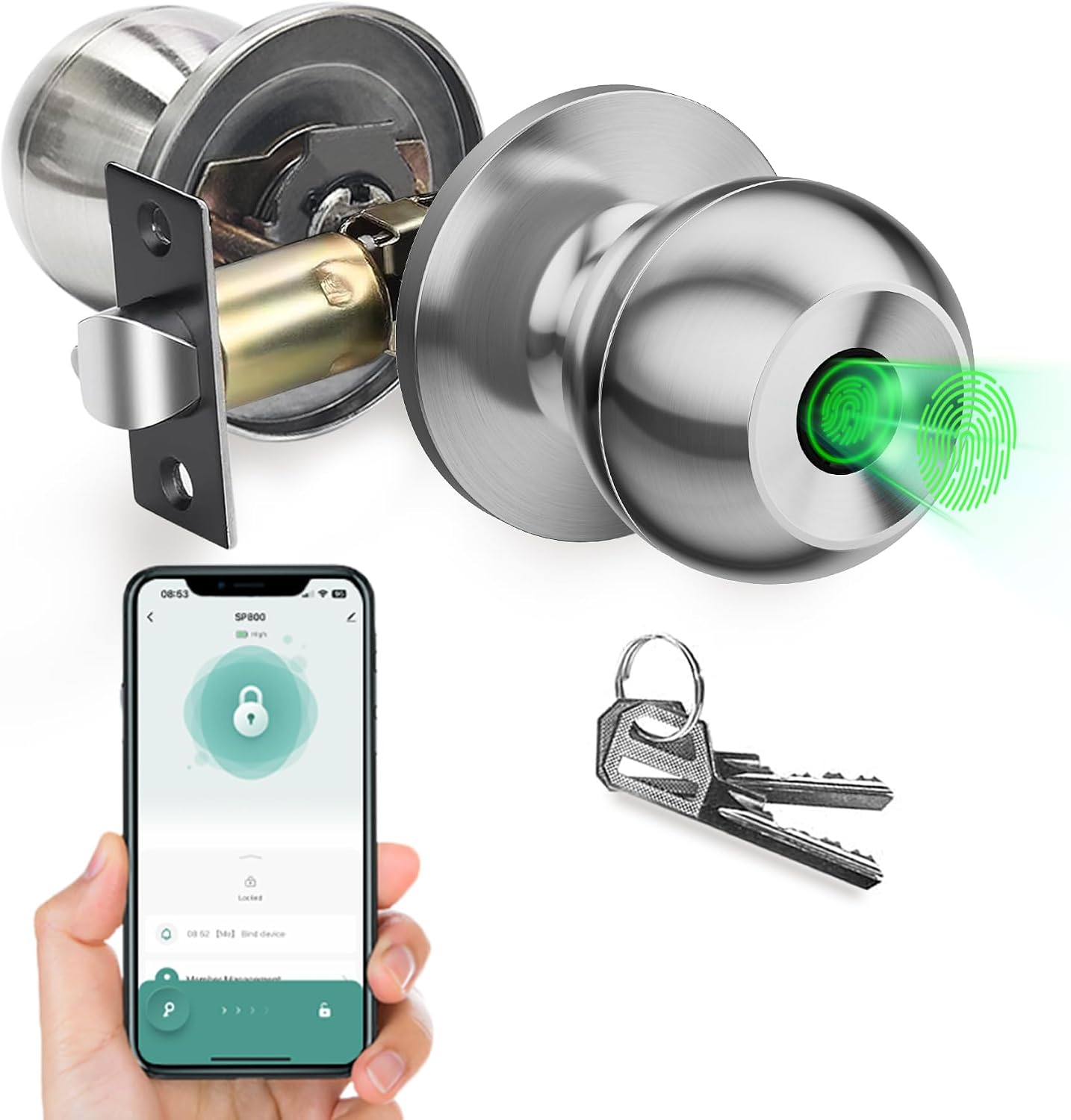
Image 2.1: Overview of the DSTMLOCKFTY Smart Fingerprint Door Knob, showing the exterior knob with fingerprint sensor, interior knob, latch mechanism, smartphone displaying the control app, and emergency keys.
3. Key Features
- 3-in-1 Unlocking Methods: Fingerprint, Mobile App, and Emergency Key.
- Advanced Biometric Recognition: Fast and accurate fingerprint identification.
- Smart App Control: Manage users, view records, and configure settings via the TUYA Smart App.
- Auto-Lock Function: Automatically locks after 5 seconds for enhanced security.
- Multiple Lock Modes: Normal, Passage, and Privacy modes for various scenarios.
- Rechargeable Battery: Built-in Lithium-ion battery with Type-C emergency charging.
- Easy Installation: Designed for compatibility with most standard American doors.
4. Specifications
| Brand | DSTMLOCKFTY |
| Model Number | 04f37960-f8b8-441c-821c-befd41a67cd9 |
| Dimensions (L x W x H) | 22.86 x 9.91 x 9.91 cm (9 x 3.9 x 3.9 inches) |
| Weight | 721 grams (1.59 lbs) |
| Battery Type | 1 Lithium-ion (included) |
| Color | Silver |
| Finish Type | Stainless Steel |
| Usage | Indoor Use |
| Fingerprint Capacity | Up to 20 fingerprints |
| Access Code Capacity | Up to 20 access codes |
| Recognition Speed | 0.5 seconds |
5. Setup
5.1 Package Contents
Before installation, ensure all components are present:
- Exterior Door Knob with Fingerprint Sensor
- Interior Door Knob
- Latch Mechanism
- Strike Plate
- Mounting Screws
- Emergency Keys (2)
- USB Type-C Charging Cable
- User Manual
5.2 Installation
The door knob is designed for easy installation with a screwdriver. It fits most standard American doors. Refer to the detailed installation steps provided in the included guide or online resources.

Image 5.2.1: Diagram illustrating the dimensions for easy installation, showing compatibility with standard door thicknesses (1.38" to 2.17") and backsets (2-3/8" or 2-3/4").
5.3 App Setup (TUYA Smart App)
To utilize smart features, download and install the TUYA Smart App on your smartphone. Follow the in-app instructions to pair your door knob.
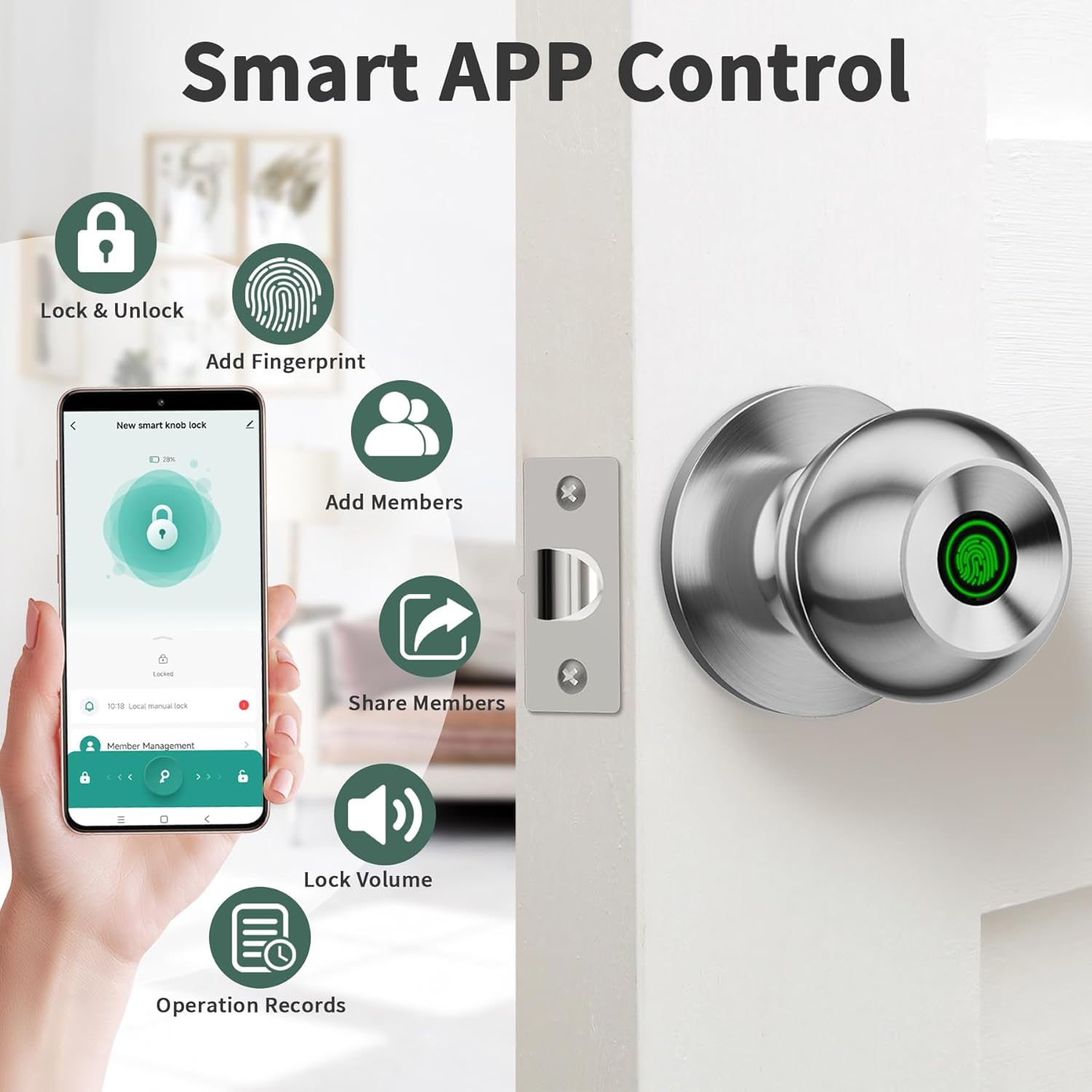
Image 5.3.1: Illustration of the TUYA Smart App interface, showing functions like lock/unlock, adding fingerprints, adding members, sharing access, adjusting lock volume, and viewing operation records.
5.4 Fingerprint Registration
Register fingerprints through the TUYA Smart App. The lock can store up to 20 unique fingerprints. Ensure your finger covers the sensor completely during registration for optimal recognition.

Image 5.4.1: Detailed view of the biometric fingerprint recognition technology, highlighting 360-degree recognition, storage for 20 sets of fingerprints, 0.3-second recognition speed, and 99% recognition rate.
5.5 Access Code Setup
The door knob supports up to 20 access codes. These can be managed via the TUYA Smart App and shared with family, agents, roommates, or repair personnel. One-time codes can also be generated.

Image 5.5.1: Visual representation of how up to 20 access codes can be assigned to different user types, including family, agents, roommates, and repairmen, along with the option for one-time codes.
6. Operating Instructions
6.1 Unlocking Methods
Your smart door knob offers three convenient ways to unlock:
- Fingerprint Unlock: Place your registered finger on the sensor. The lock will unlock in approximately 0.5 seconds.
- App Unlock: Use the TUYA Smart App on your smartphone to remotely unlock the door.
- Key Unlock: In case of emergency or battery depletion, use the provided physical keys.

Image 6.1.1: Depiction of the three unlocking methods: fingerprint recognition on the knob, unlocking via a smartphone app, and using a traditional physical key.
6.2 Lock Modes
The door knob supports various modes to suit different needs:
- Normal Mode: The door remains locked and requires authentication (fingerprint, app, key) for entry.
- Passage Mode: The door remains unlocked for free passage, ideal for high-traffic periods.
- Privacy Mode: Engaged from the interior, this mode prevents all external access, including registered fingerprints and app unlocks, ensuring maximum privacy.
- 5-Second Auto-Lock: After successful unlocking, the door knob automatically re-locks after 5 seconds. This feature can be configured via the app.

Image 6.2.1: An illustration showing different lock modes (Normal Mode, Passage Mode, Privacy Mode) applied to various rooms in a house layout, along with the 5-second auto-lock feature.
7. Maintenance
7.1 Battery Charging
The door knob is powered by a rechargeable Lithium-ion battery. When the battery level is low, a low battery alert will be indicated on the knob. To charge, connect a USB Type-C cable to the charging port on the exterior knob.
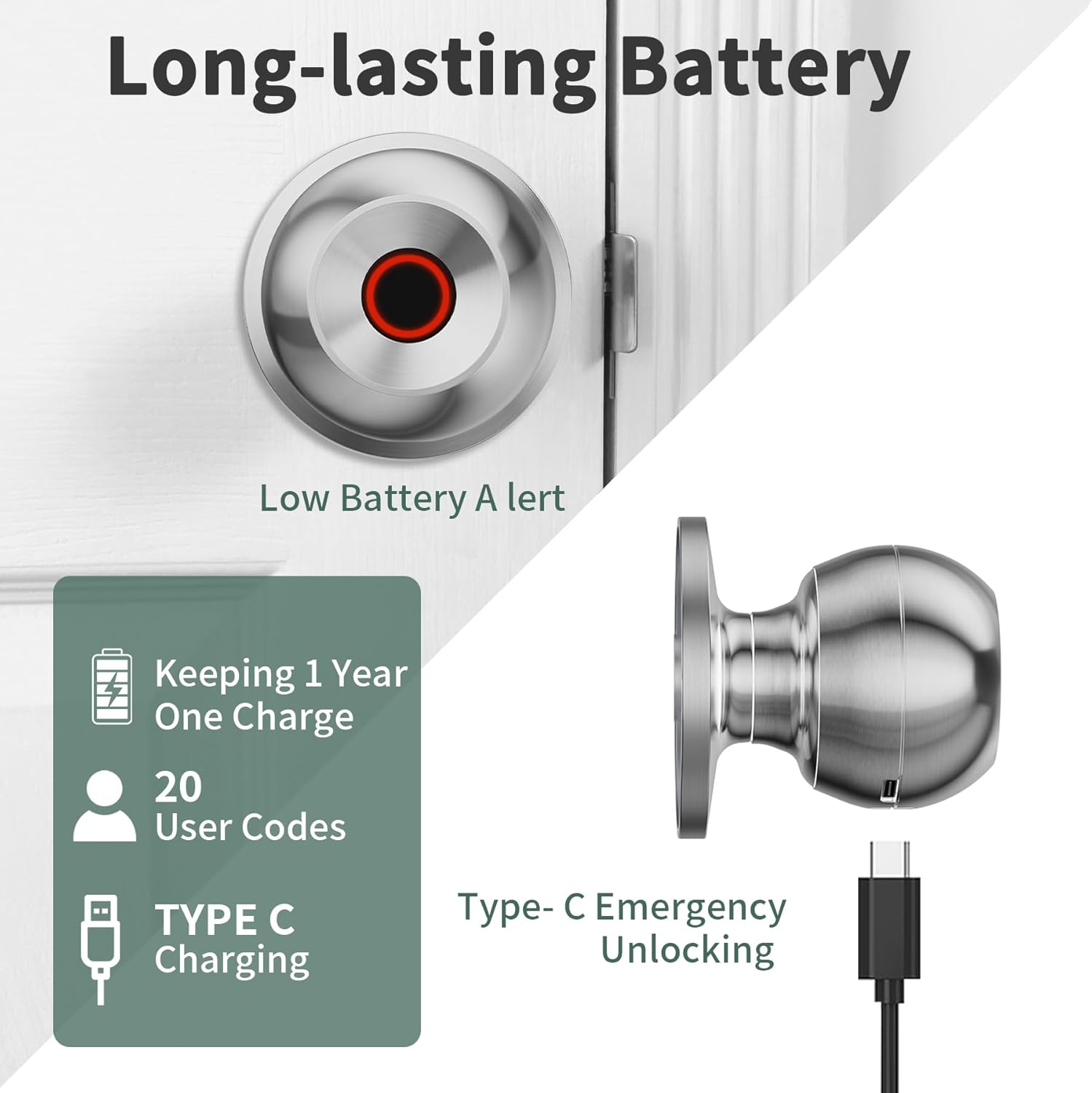
Image 7.1.1: Visual representation of the door knob's long-lasting battery, indicating approximately one year of use per charge, 20 user codes, and the Type-C port for emergency charging.
7.2 Cleaning
Wipe the door knob with a soft, dry cloth. Avoid using abrasive cleaners or solvents that may damage the finish or electronic components.
8. Troubleshooting
- Fingerprint not recognized: Ensure your finger is clean and dry. Try re-registering your fingerprint. Ensure the sensor is clean.
- Door not unlocking: Check the battery level. If low, charge the battery or use the emergency key. Verify that the lock is not in Privacy Mode.
- App connectivity issues: Ensure Bluetooth is enabled on your phone and the app is updated. Try restarting the app or re-pairing the device.
- Knob not turning: Ensure the latch mechanism is properly aligned and not obstructed.
9. Warranty and Support
Information regarding product warranty and customer support is not specified in the provided product details. Please refer to the product packaging or contact the retailer for warranty terms and support options.