
1. Introduction
Thank you for choosing the DSTMLOCKFTY Fingerprint Door Lock. This smart door knob provides advanced security and convenience with multiple unlocking methods. Please read this manual carefully before installation and use to ensure proper operation and safety.
2. Safety Information
- Do not expose the lock to direct water or extreme temperatures.
- Use only the specified Type-C charging cable for recharging.
- Keep emergency keys in a secure location outside the locked area.
- Ensure proper installation to prevent malfunction.
3. Package Contents
- Fingerprint Door Knob (Exterior and Interior parts)
- Latch Mechanism
- Strike Plate
- Mounting Screws
- Emergency Keys (2)
- Type-C Charging Cable
- User Manual
4. Setup and Installation
The DSTMLOCKFTY Fingerprint Door Lock is designed for easy installation. Please follow the steps below. For a visual guide, refer to the installation video provided.
4.1 Door Compatibility
- Door Thickness: 1.38 inches - 2.17 inches (35mm - 55mm)
- Backset (Distance from door edge to handle hole): 2-3/8 inches or 2-3/4 inches (60mm or 70mm) adjustable
- Cross-bore Diameter: 2-1/8 inches (54mm)
- Latch Diameter: 1 inch (25mm)
4.2 Installation Steps
- Measure the Size: Verify your door dimensions match the compatibility requirements.
- Install the Latch and Strike: Adjust the latch length if necessary (60mm or 70mm). Ensure the square hole is correctly aligned. Secure the latch with screws.
- Install the Exterior Lock: Insert the exterior knob into the door, ensuring the lock cylinder is vertical.
- Install the Interior Lock: Attach the interior knob, making sure the 'UP' mark is on top and the knob is vertical. Secure with screws.
- Test Operation: Twist the knob to ensure the latch extends and retracts smoothly.

Image: Easy installation guide with door dimensions.
Video: Official installation guide for the K10 Fingerprint Door Knob, demonstrating each step from measuring to final assembly.
5. Operating Instructions
The DSTMLOCKFTY Fingerprint Door Lock offers multiple convenient ways to unlock and manage access.
5.1 Unlocking Methods
- Fingerprint Unlock: Place your registered fingerprint on the sensor. The lock recognizes your print in approximately 0.5 seconds.
- App Control: Use the TUYA SMART APP on your smartphone to remotely unlock the door (requires additional gateway for Wi-Fi control).
- Emergency Key: In case of battery depletion or other issues, use the provided physical key to unlock the door.

Image: Overview of the 3 convenient unlocking methods: Fingerprint, APP, and Key, highlighting the 5-second auto-lock feature.

Image: Details on the upgraded biometric fingerprint recognition, including 360-degree recognition, storage for 20 fingerprints, 0.3-second recognition speed, and 99% recognition rate.
Video: Demonstration of the K10 Fingerprint Door Lock's various unlocking methods, including APP, fingerprint, and key unlocking, along with different operational modes.
5.2 Smart App Control (TUYA SMART APP)
The free TUYA SMART APP provides comprehensive control over your smart lock.
- Add Fingerprints: Easily enroll new fingerprints for access.
- Manage Users: Add and manage up to 20 user fingerprints and access codes.
- Check Unlock Records: View a history of all lock and unlock events.
- Battery Capacity: Monitor the current battery level.
- Set Auto-Lock: Configure the lock to automatically lock after 5 seconds of unlocking.
- Passage Mode: Keep the door unlocked for continuous access.
- Privacy Mode: Restrict access to only administrator fingerprints or app control.
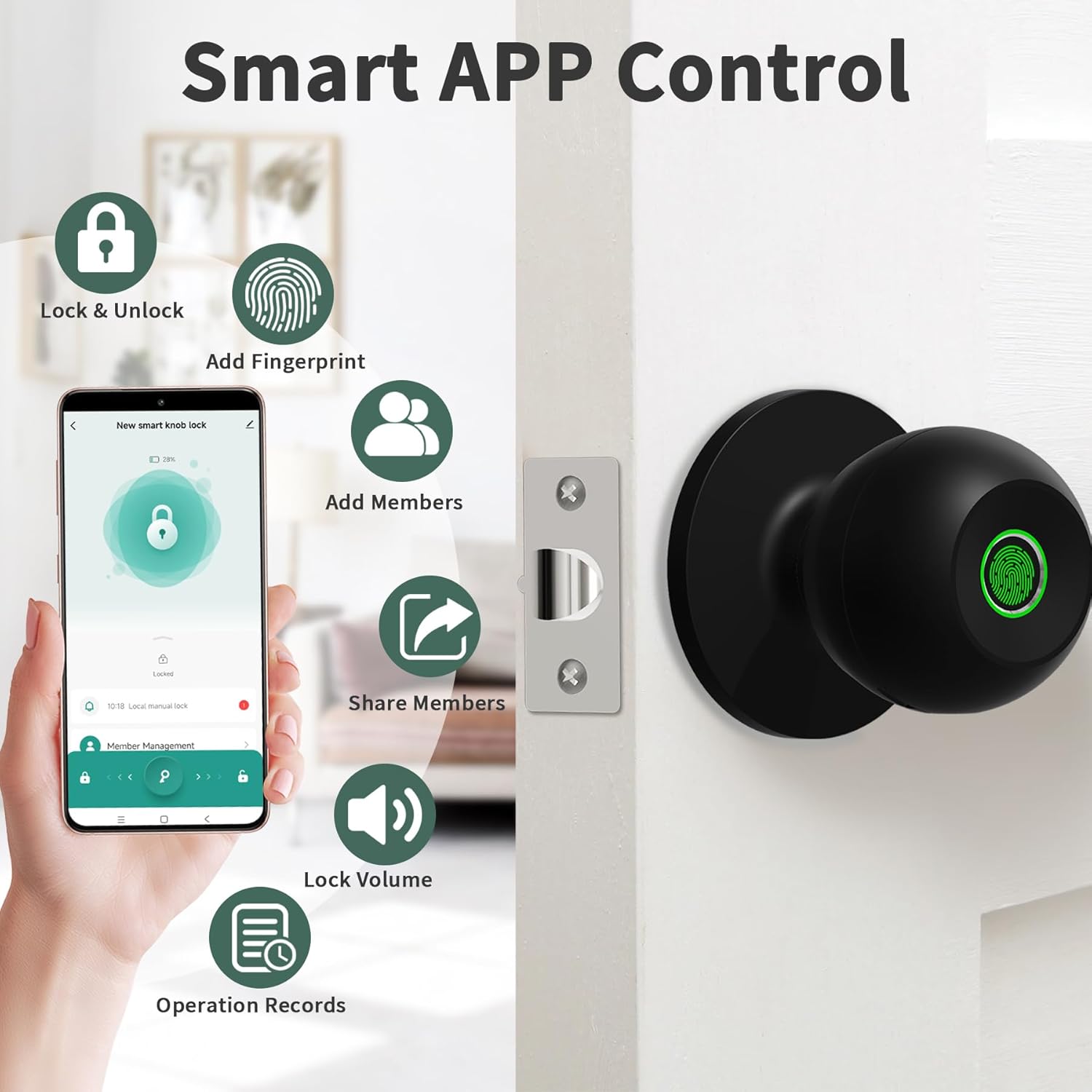
Image: Smart APP Control interface, detailing features like adding fingerprints, managing members, checking records, and setting lock volume.

Image: Visual representation of Auto Lock, Passage Mode, and Security Mode, explaining how each mode functions.

Image: Information on setting up to 20 access codes for various users, including one-time codes for temporary access.
6. Maintenance
6.1 Charging the Battery
The smart lock features a rechargeable battery. When the battery is low, the lock will indicate this via the app or a visual/audible alert. Connect the provided Type-C charging cable to the port on the exterior knob to recharge.
6.2 Cleaning
Wipe the lock surface with a soft, dry cloth. Avoid using abrasive cleaners or solvents that may damage the finish or electronic components.
7. Troubleshooting
- Lock not responding: Check battery level and recharge if necessary. Use the emergency key.
- Fingerprint not recognized: Ensure your finger is clean and dry. Try re-enrolling your fingerprint in the app.
- App connectivity issues: Ensure Bluetooth is enabled on your phone. If using Wi-Fi, verify the additional gateway is properly connected and within range.
- Auto-lock not working: Check the auto-lock setting in the TUYA SMART APP.
- Resetting to Factory Settings: Rotate the thumb turn from the circular mark to the lock sign on the left and return the thumb turn to the circular mark. Repeat this operation 5 times. Then, perform the same operation towards the right for 5 times. After that, you will hear a long beep and the fingerprint identification area flashes green. Any fingerprints can unlock the lock.
8. Specifications
| Feature | Detail |
|---|---|
| Brand | DSTMLOCKFTY |
| Model Number | DSTMLOCKFTY-001 |
| Lock Type | Biometric |
| Unlock Ways | Fingerprint, App Control, Emergency Key |
| Fingerprint Capacity | Up to 20 fingerprints |
| Access Codes | Up to 20 codes |
| Recognition Speed | 0.5 seconds |
| Power Source | 1 Lithium Ion battery (included) |
| Charging Port | Type-C |
| Material | Metal |
| Color | Black |
| Product Dimensions | 9 x 3.9 x 3.9 inches |
| Item Weight | 1.56 pounds |
| Connectivity | Bluetooth (Wi-Fi with additional gateway) |
9. Warranty & Support
This product comes with a standard manufacturer's warranty. For detailed warranty information, technical support, or customer service inquiries, please refer to the contact information provided on the product packaging or the official DSTMLOCKFTY website. Please have your model number (DSTMLOCKFTY-001) and purchase date ready when contacting support.