
1. Important Safety Information
Please read all safety instructions carefully before using your television. Keep this manual for future reference.
- Power Supply: Ensure the TV is connected to a power source within the specified voltage range (100-240 V AC, 50-60 Hz).
- Ventilation: Do not block ventilation openings. Allow adequate space around the TV for proper airflow to prevent overheating.
- Liquids: Keep the TV away from water, moisture, and any liquid-filled objects.
- Cleaning: Unplug the TV before cleaning. Use a soft, dry cloth. Avoid liquid cleaners or aerosol sprays.
- Placement: Place the TV on a stable, level surface or mount it securely to a wall. Avoid placing it in direct sunlight or near heat sources.
- Batteries: Dispose of used batteries responsibly. Do not mix old and new batteries.
2. Package Contents
Verify that all items are present in the box:
- Smart Tech 43UA20T3 43-inch 4K UHD Android LED TV
- Remote Control
- AA Batteries (2 included)
- Power Cable
- User Manual (this document)
- TV Stand Components (if applicable)
3. Setup
3.1 Unpacking
Carefully remove the TV and all accessories from the packaging. Retain the packaging materials for future transport or storage.
3.2 Stand Installation (Optional)
If you are not wall-mounting the TV, attach the stand:
- Place the TV face down on a soft, clean surface to prevent screen damage.
- Align the stand components with the mounting holes on the bottom of the TV.
- Secure the stand using the provided screws. Ensure it is firmly attached.
3.3 Wall Mounting (Optional)
This TV supports VESA wall mounts. The VESA mounting pattern is 200mm x 200mm. Use M6 screws (not included) of appropriate length. Consult a professional for wall mounting to ensure safety.
3.4 Connecting Devices
Refer to the diagram below for port locations and connect your external devices.

Image: Rear view of the Smart Tech 43UA20T3 TV, illustrating the location of all connection ports and VESA mounting points.
- Power: Connect the power cable to the TV's power input and then to a wall outlet.
- HDMI (HDMI 1, HDMI 2, HDMI 3): Connect Blu-ray players, game consoles, or other HDMI-enabled devices.
- USB (USB 1, USB 2): Connect USB storage devices for media playback or software updates.
- DVB-T/T2 (Antenna): Connect an aerial for digital terrestrial television.
- DVB-S/S2 (Satellite): Connect a satellite dish for digital satellite television.
- AV IN: Connect older devices using composite video and stereo audio cables.
- OPTICAL: Connect to an external audio system for digital audio output.
- RJ45 (LAN): Connect an Ethernet cable for a wired internet connection.
- CI Slot: Insert a Common Interface module and smart card for encrypted channels.
3.5 Initial Power On
After connecting all necessary cables, plug the TV into a power outlet. Press the power button on the remote control or on the TV. The TV will guide you through the initial setup process, including language selection, network connection, and channel scanning.
4. Operating the TV
4.1 Remote Control Functions
Insert the two AA batteries into the remote control, ensuring correct polarity. The remote control allows you to navigate the TV's features.

Image: Front view of the Smart Tech 43UA20T3 TV, showing its dimensions and the included remote control.
- Power Button: Turns the TV on or off.
- Input/Source: Selects the input source (HDMI, TV, AV, etc.).
- Volume Up/Down: Adjusts the volume level.
- Channel Up/Down: Changes TV channels.
- Navigation Buttons (Up/Down/Left/Right): Moves the cursor in menus.
- OK/Enter: Confirms selections.
- Back/Return: Returns to the previous menu or screen.
- Home: Accesses the Android TV home screen.
- Menu/Settings: Opens the TV's settings menu.
- App Buttons: Dedicated buttons for popular streaming services (if present).
4.2 Android TV Interface
Your Smart Tech TV runs on Android TV, providing access to a wide range of apps, streaming services, and smart features.
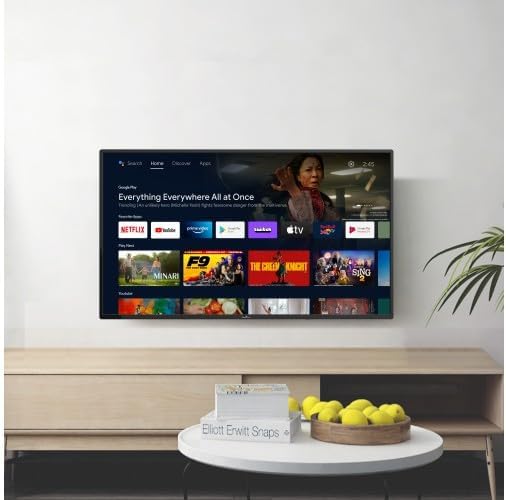
Image: The Smart Tech 43UA20T3 TV showcasing the Android TV home screen, featuring a selection of applications.
- Home Screen: Provides quick access to installed apps, recommended content, and settings.
- Apps: Download and install apps from the Google Play Store.
- Google Assistant: Use voice commands via the remote control for search, control, and information.
- Settings: Customize picture, sound, network, and system preferences.
4.3 Picture and Sound Settings
Access the settings menu to adjust picture modes (Standard, Dynamic, Movie, etc.), brightness, contrast, color, and sound modes (Standard, Music, Movie, etc.), equalizer, and Dolby Audio settings.
5. Maintenance
5.1 Cleaning
- Screen: Gently wipe the screen with a soft, lint-free cloth. For stubborn marks, slightly dampen the cloth with water or a specialized screen cleaner (apply to cloth, not directly to screen).
- Cabinet: Wipe the TV cabinet and stand with a soft, dry cloth.
- Remote Control: Clean with a soft, dry cloth.
5.2 Care
- Avoid exposing the TV to extreme temperatures, humidity, or direct sunlight.
- Ensure proper ventilation around the TV to prevent overheating.
- Unplug the TV during lightning storms or when it will be unused for extended periods.
6. Troubleshooting
If you encounter issues with your TV, refer to the following common problems and solutions:
| Problem | Possible Solution |
|---|---|
| No power | Check if the power cable is securely connected to the TV and the power outlet. Try a different outlet. |
| No picture, but sound is present | Ensure the correct input source is selected. Check cable connections (HDMI, AV). |
| No sound, but picture is present | Check the volume level and mute status. Verify audio cable connections. Check external audio system settings if applicable. |
| Remote control not working | Replace the batteries. Ensure there are no obstructions between the remote and the TV's IR sensor. |
| Cannot connect to Wi-Fi | Check your router and modem. Ensure the Wi-Fi password is correct. Try restarting the TV and router. |
| Picture is distorted or blurry | Check the signal strength for TV channels. Adjust picture settings. Ensure the source device is outputting a compatible resolution. |
If the problem persists after trying these solutions, contact customer support.
7. Specifications
Key technical specifications for the Smart Tech 43UA20T3 TV:
| Feature | Specification |
|---|---|
| Model Number | 43UA20T3 |
| Screen Size | 43 inches (109 cm) |
| Resolution | 3842 x 2160 (4K UHD) |
| Display Technology | LED |
| Aspect Ratio | 16:9 |
| Operating System | Android TV |
| Audio Technology | Dolby Audio |
| Tuners | Triple Tuner (DVB-T/T2, DVB-S/S2) |
| HDMI Ports | 3 |
| USB Ports | 2 |
| Other Connectivity | AV In, Optical Audio Out, RJ45 (LAN), CI Slot |
| Product Dimensions (D x W x H) | 22.2 x 97 x 56.4 cm |
| Power Supply | 100-240 V AC, 50-60 Hz |
| Manufacturer | Express Luck |
| Model Year | 2018 |
8. Warranty and Support
Your Smart Tech 43UA20T3 TV comes with a standard manufacturer's warranty. Please refer to the warranty card included with your product for specific terms and conditions, including the warranty period and coverage details.
For technical support, service, or warranty claims, please contact your retailer or the Smart Tech customer service department. Contact information can typically be found on the manufacturer's website or in your purchase documentation.