
SENGBIRCH for iPad Air 13 M3/M2 & iPad Pro 12.9
SENGBIRCH Magic Keyboard User Manual
For iPad Air 13 (M3/M2) and iPad Pro 12.9-inch (3rd/4th/5th/6th Gen)
Introduction
This manual provides instructions for the setup, operation, and maintenance of your SENGBIRCH Magic Keyboard. Please read this manual thoroughly before use to ensure proper functionality and longevity of the product.
Package Contents:
- SENGBIRCH Magic Keyboard for iPad Air 13-inch / iPad Pro 12.9-inch
- User Manual
- USB-C Charging Cable
Note: iPad tablet and Apple Pencil are not included.
Compatibility
The SENGBIRCH Magic Keyboard is compatible with the following iPad models:
- iPad Air 13-inch: M3 (2025), M2 (2024)
- iPad Pro 12.9-inch:
- 6th Generation (2022): Models A2436, A2437, A2764, A2766
- 5th Generation (2021): Models A2378, A2379, A2461, A2462
- 4th Generation (2020): Models A2229, A2069, A2232, A2233
- 3rd Generation (2018): Models A1876, A2014, A1895, A1983
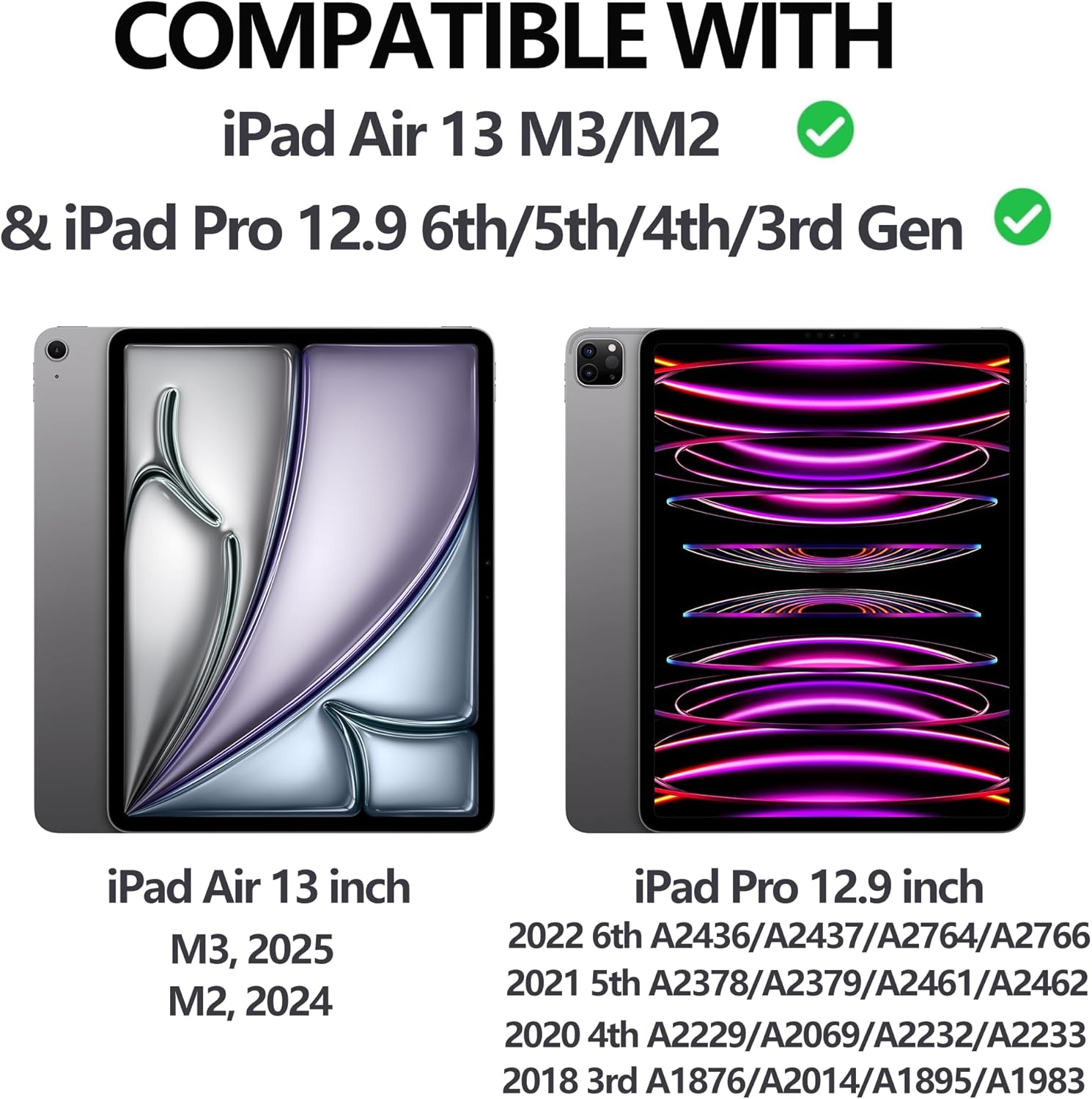
Figure 1: Compatible iPad Models. This image displays the visual differences between the iPad Air 13-inch and iPad Pro 12.9-inch, along with a list of specific model numbers for each compatible generation.
Setup Instructions
1. Initial Charging
Before first use, fully charge the keyboard for approximately 3 hours using the provided USB-C cable. Connect the USB-C cable to the keyboard's charging port and a compatible USB power adapter (not included).

Figure 2: USB-C Charging Port. The image highlights the USB-C port on the keyboard and indicates the power button, which should be double-clicked to turn the keyboard on or off.
2. Attaching Your iPad
The keyboard case features a magnetic floating cantilever stand. Align your iPad with the magnetic back cover of the case. The strong magnets will securely attach the iPad, allowing for easy adjustment of the viewing angle.

Figure 3: Magnetic Attachment. This illustration demonstrates how the iPad magnetically connects to the keyboard case, forming a stable, floating cantilever stand.

Figure 4: Floating Cantilever Stand. The image shows the keyboard case with an iPad attached, illustrating the stable, adjustable stand that elevates the iPad for comfortable viewing and typing.
3. Bluetooth Pairing
- Ensure the keyboard is charged and powered on. Double-click the power button (usually located near the charging port) to turn it on.
- On your iPad, go to Settings > Bluetooth.
- Turn on Bluetooth.
- Look for "SENGBIRCH Keyboard" or a similar name in the "Other Devices" list and tap to connect.
- Once paired, the keyboard will automatically connect to your iPad when both devices are on and Bluetooth is enabled.
Operating Instructions
Keyboard Functions
The keyboard features a standard layout with a full row of shortcut keys for enhanced productivity.

Figure 5: Keyboard Layout. This image displays the complete keyboard with its standard QWERTY layout and the dedicated row of shortcut keys above the number row.
Shortcut Keys:
- Home: Return to the home screen.
- Search: Activate iPad search.
- Brightness Control: Adjust screen brightness.
- Media Controls: Play/pause, skip tracks.
- Volume Control: Mute, decrease, increase volume.
- Screenshot: Capture a screenshot.
- Keyboard Backlight Control: Adjust backlight settings.
Trackpad Usage
The integrated multi-touch trackpad supports various gestures for navigation and interaction with your iPad.

Figure 6: High-Precision Trackpad. This image illustrates the trackpad and its multi-touch gesture capabilities, including how to turn it on/off using Fn + trackpad icon key.
Trackpad Gestures:
- Single Finger Tap: Click/Select.
- Two Finger Scroll: Scroll up/down or left/right.
- Pinch to Zoom: Zoom in/out on content.
- Three Finger Swipe Up: Go to Home Screen.
- Three Finger Swipe Left/Right: Switch between open applications.
- Three Finger Swipe Down: Access App Switcher.
To turn the trackpad on or off, press Fn + Trackpad Icon Key.
Backlight Control
The keyboard features a pure color backlight and 6 rainbow backlights, with two backlight models (breathing lamp and normal backlight).

Figure 7: Backlight Controls. This image details the key combinations for controlling the keyboard's backlight: Fn + Command to turn on/off backlight and breathing light, and Fn + Option to change backlight colors.
- To turn the backlight on/off or activate the breathing light mode, press Fn + Command Key.
- To change the backlight colors (between pure color and 6 rainbow options), press Fn + Option Key.
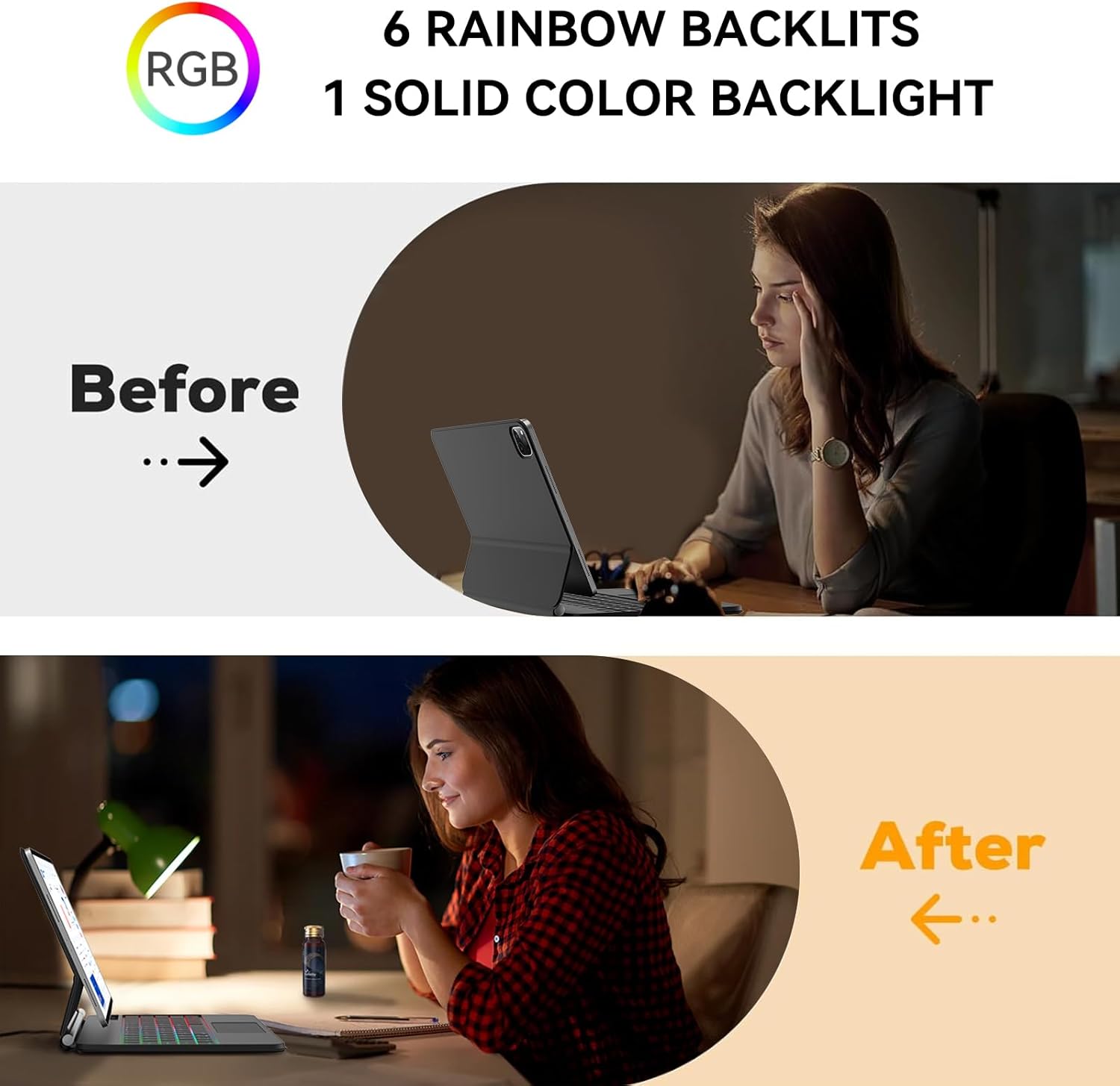
Figure 8: Backlight in Use. This image demonstrates the practical benefit of the keyboard's backlight, showing improved visibility for typing in low-light conditions.
Maintenance
- Cleaning: Use a soft, dry, lint-free cloth to clean the keyboard and trackpad surfaces. For stubborn marks, slightly dampen the cloth with water. Avoid using harsh chemicals or abrasive materials.
- Storage: When not in use, ensure the iPad is securely closed within the case to protect both the screen and keyboard. Store in a cool, dry place.
- Battery Care: To prolong battery life, avoid fully discharging the keyboard frequently. Charge it regularly, especially if it will be stored for an extended period.
- Protective Film: A thin protective film may be present on the switch and touchpad upon arrival. Please remove this film to ensure optimal sensitivity and functionality.
Troubleshooting
Keyboard Not Connecting/Typing
- Check Power: Ensure the keyboard is turned on (double-click the power button) and fully charged.
- Bluetooth Connection:
- On your iPad, go to Settings > Bluetooth.
- Forget the "SENGBIRCH Keyboard" device if it's listed.
- Turn off Bluetooth on your iPad, then turn it back on.
- Put the keyboard in pairing mode (refer to "Bluetooth Pairing" section) and re-pair.
- Restart Devices: Restart both your iPad and the keyboard.
Trackpad Not Responding
- Check Activation: Ensure the trackpad is enabled by pressing Fn + Trackpad Icon Key.
- Remove Film: Verify that any protective film has been removed from the trackpad surface.
- Restart: Restart your iPad and the keyboard.
Backlight Not Working
- Check Activation: Press Fn + Command Key to cycle through backlight modes and ensure it's not off.
- Battery Level: Ensure the keyboard has sufficient charge.
Specifications
| Feature | Detail |
|---|---|
| Product Dimensions | 11.14 x 9.89 x 0.59 inches |
| Item Weight | 2 pounds |
| Manufacturer | SENGBIRCH |
| Model Number | for iPad Air 13 M3/M2 & iPad Pro 12.9 |
| Batteries | 1 Lithium Polymer battery (included) |
| Connectivity Technology | Bluetooth, USB-C |
| Keyboard Description | Backlit, Wireless, Shortcut Keys, Adjustable View Angles |
| Special Features | Backlit, Easy to Use, Hotkeys and Media Keys, Rechargeable, Trackpad |
| Keyboard Backlighting | RGB (6 rainbow backlights, 1 solid color backlight) |
Warranty and Support
For warranty information and customer support, please refer to the documentation provided with your purchase or contact SENGBIRCH customer service directly. Contact details can typically be found on the manufacturer's official website or through your retailer.
Manufacturer: SENGBIRCH
ASIN: B0CGZYMLV2