
Hinine B0CGYQPCLC
Hinine 7" HD Double Din Car Stereo User Manual
Model: B0CGYQPCLC
Your comprehensive guide to setup, operation, and maintenance.
Introduction
Thank you for choosing the Hinine 7" HD Double Din Car Stereo. This device is designed to enhance your driving experience with advanced features such as wireless Apple CarPlay, Android Auto, and a 720H backup camera. This manual provides detailed instructions for installation, operation, and troubleshooting to ensure optimal performance and safety.

Image: The Hinine 7" HD Double Din Car Stereo unit with its various accessories, including the backup camera, power cables, and mounting bracket.
Product Features
- Wireless Apple CarPlay & Android Auto: Seamless smartphone integration via Bluetooth for navigation, music, calls, and more.
- Voice Control: Supports Siri and Google Assistant for hands-free operation.
- Multiple Audio Outputs: Bluetooth transmission, FM transmission, AUX output, and high-quality built-in speakers.
- Plug and Play Installation: Equipped with a sturdy suction cup holder for easy mounting on windshields or dashboards, without disassembling the car console.
- 720H Backup Camera: Includes a high-definition backup camera with IP67 waterproof rating and night vision for safer reversing.
- Mirror Link Functionality: Display your smartphone screen directly on the stereo.
- Wide Vehicle Compatibility: Supports 12V-24V power, suitable for cars, trucks, RVs, and pickup vans.

Image: A visual summary of the car stereo's key features, highlighting wireless connectivity, multiple input/output options, and broad vehicle compatibility.
Package Contents
Please check the package carefully to ensure all items are present:
- Hinine 7" HD Double Din Car Stereo Unit
- 720H Backup Camera
- Suction Cup Holder
- Power Cable (Cigarette Lighter Adapter)
- AUX Cable
- User Manual (This document)
- (Note: The product description mentions "CD" and "DVD" in "whats_in_the_box", which seems incorrect for a screen-only unit. Assuming these are placeholders or errors in the source data, I will omit them from the physical package contents list and focus on what's implied by the product images and features.)
Setup and Installation
The Hinine Car Stereo is designed for easy plug-and-play installation without requiring complex modifications to your vehicle's existing system.
Mounting the Unit
- Choose a suitable smooth surface in your vehicle, such as the windshield or dashboard, that does not obstruct your view or interfere with driving controls.
- Clean the chosen surface thoroughly to ensure proper suction.
- Attach the suction cup holder to the stereo unit.
- Press the suction cup firmly against the cleaned surface and engage the locking mechanism to secure it.
- Adjust the angle of the stereo for optimal viewing.

Image: A visual comparison illustrating the simplicity of installing the Hinine portable car stereo compared to the complex wiring of a traditional in-dash unit.
Power Connection
- Connect the provided power cable to the stereo unit.
- Insert the cigarette lighter adapter end of the power cable into your vehicle's 12V-24V cigarette lighter socket.
- The unit will power on automatically or can be turned on using the power button.
Backup Camera Installation (Optional)
For optimal safety, it is recommended to install the included 720H backup camera. Professional installation is advised for wiring the camera to your vehicle's reverse light circuit.
- Mount the backup camera at the rear of your vehicle, ensuring a clear view.
- Connect the camera's video output cable to the designated video input port on the car stereo unit.
- Connect the camera's power cable to your vehicle's reverse light power source, so it activates automatically when shifting into reverse.
Operating Instructions
Wireless CarPlay & Android Auto
This device supports wireless Apple CarPlay and Android Auto for seamless smartphone integration.
- Ensure Bluetooth is enabled on your smartphone.
- On the car stereo, navigate to the CarPlay or Android Auto icon.
- Follow the on-screen prompts to pair your phone via Bluetooth.
- Once paired, CarPlay or Android Auto will launch automatically, displaying your phone's compatible apps on the stereo screen.

Image: Demonstrations of the Apple CarPlay, Android Auto, and Mirror Link functionalities, showing how smartphone interfaces are displayed on the car stereo screen.

Image: An illustration highlighting the core features of wireless CarPlay and Android Auto, such as Bluetooth connectivity, voice commands, and access to navigation and music.
Sound Output Options
The stereo offers several ways to output audio to your car's sound system:
- Built-in Speaker: The unit has its own speaker for basic audio output.
- FM Transmitter:
- On the car stereo, select the FM Transmitter function.
- Choose an unoccupied FM frequency (e.g., 87.5 MHz) on the stereo.
- Tune your car's FM radio to the same frequency. Audio from the stereo will now play through your car's speakers.
- AUX Output:
- Connect the provided AUX cable from the stereo's AUX output to your car's AUX input jack.
- Select AUX input on your car's audio system.
- Bluetooth Transmission: For CarPlay/Android Auto mode, after pairing your iPhone directly to your car's Bluetooth, you can achieve high-quality stereo sound through the original car audio system.

Image: A visual guide demonstrating the four primary methods for audio output from the car stereo: AUX cable, FM transmission, Bluetooth, and the internal speaker.

Image: Another illustration detailing the three main sound output options: Bluetooth, AUX connection, FM transmitter, and the built-in speaker.
Voice Assistant Support
Utilize voice commands for a safer driving experience.
- Once connected via CarPlay or Android Auto, activate Siri or Google Assistant by saying "Hey Siri" or "Hey Google" (if configured) or by pressing the voice command button on the screen.
- You can then issue commands for navigation, making calls, playing music, sending messages, and more.

Image: A driver using voice commands with Siri on the car stereo, demonstrating hands-free operation for tasks like navigation and music playback.
Mirror Link
The Mirror Link feature allows you to display your smartphone's screen directly onto the car stereo.
- Connect your smartphone to the stereo via USB cable or follow the wireless Mirror Link pairing instructions on the device.
- Once connected, your phone's screen will be mirrored on the stereo display.

Image: An illustration of the Mirror Link function, demonstrating how both iPhone and Android device screens can be duplicated on the car stereo display.
Multimedia Playback
The stereo supports various multimedia formats for video, picture, and music playback.
- Access multimedia files through connected USB drives or via CarPlay/Android Auto applications.
- Navigate through your media library using the touch screen interface.

Image: A graphic depicting the multimedia player interface, indicating its capability to play videos, display pictures, and play music files.
Backup Camera Operation
When the backup camera is properly installed and wired, the stereo will automatically display the camera feed when your vehicle is shifted into reverse.
- The 720H camera provides a clear view of the area behind your vehicle.
- Dynamic guidelines may appear on the screen to assist with parking.

Image: The car stereo screen showing the live feed from the reversing camera, complete with parking assistance guidelines, enhancing safety during backing maneuvers.
Maintenance
- Cleaning: Use a soft, dry cloth to clean the screen and exterior. Avoid abrasive cleaners or solvents.
- Temperature: Avoid exposing the unit to extreme temperatures, direct sunlight for prolonged periods, or high humidity.
- Storage: If storing the unit for an extended period, disconnect it from power and store it in a cool, dry place.
Troubleshooting
| Problem | Possible Cause | Solution |
|---|---|---|
| No power | Power cable not connected securely; vehicle's cigarette lighter socket is faulty. | Ensure the power cable is fully inserted. Test the cigarette lighter socket with another device. |
| No sound from car speakers | Incorrect audio output setting; car radio not tuned to correct FM frequency; AUX cable not connected. | Check FM transmitter frequency match. Ensure AUX cable is connected and car's input is set to AUX. Verify Bluetooth connection for CarPlay/Android Auto. |
| CarPlay/Android Auto not connecting | Bluetooth not enabled on phone; phone not paired; software glitch. | Ensure Bluetooth is on and phone is discoverable. Re-pair the device. Restart both the stereo and your phone. |
| Backup camera not displaying | Camera not properly connected; power issue to camera; vehicle not in reverse. | Check camera cable connections. Ensure camera is receiving power when in reverse. Verify vehicle is in reverse gear. |
If you encounter issues not listed here or require further assistance, please refer to the "Warranty & Support" section.
Specifications
| Feature | Detail |
|---|---|
| Model | B0CGYQPCLC |
| Brand | Hinine |
| Screen Size | 7 inches (Visible diagonal: 8" / 19 cm as per important information) |
| Display Resolution | HD (Specific resolution not provided, but implied by "HD") |
| Connectivity | Bluetooth, FM Transmitter, AUX, USB |
| Special Features | Wireless Apple CarPlay, Android Auto, Mirror Link, Siri/Google Assistant Voice Control, 720H Backup Camera (IP67 waterproof, Night Vision) |
| Power Input | 12V-24V (Compatible with cars, trucks, RVs, pickup vans) |
| Item Weight | 2.35 pounds |
| Package Dimensions | 10.16 x 5.87 x 3.82 inches |

Image: A comparison highlighting the Hinine stereo's 12V-24V compatibility, making it suitable for a wider range of vehicles including cars, trucks, RVs, and vans, unlike typical 12V-only units.
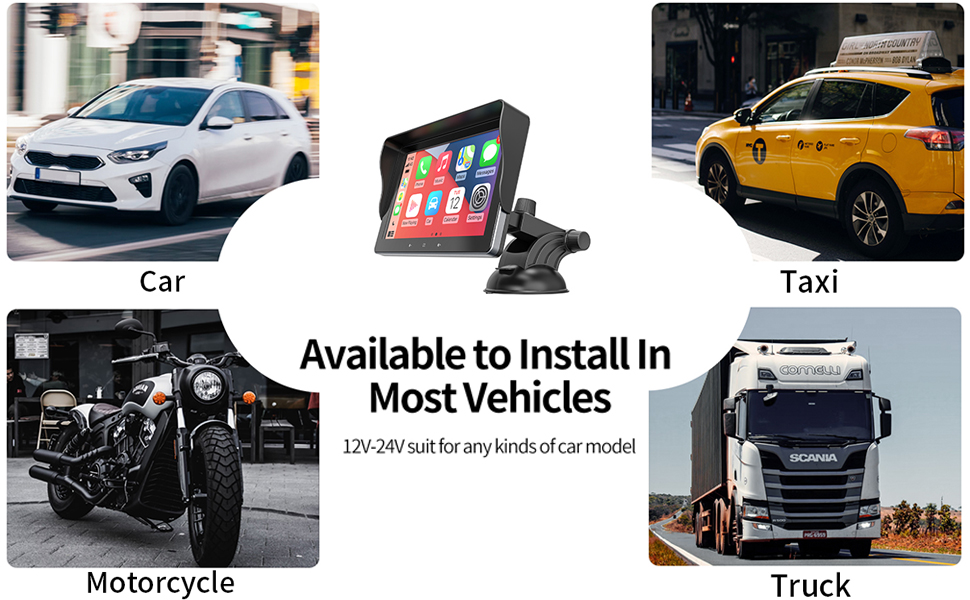
Image: An illustration demonstrating the versatility of the Hinine car stereo, showing its applicability and ease of installation in diverse vehicle types such as cars, taxis, motorcycles, and trucks.
Warranty & Support
Hinine is committed to providing high-quality products and excellent customer service.
If you have any questions or encounter any issues with your product, please do not hesitate to contact our professional technical team. We aim to reply within 24 hours to assist you.
For support, please refer to the contact information provided with your purchase or visit the official Hinine store on Amazon.
Note: This device cannot be controlled by a steering wheel or knob.
Ask a question about this manual
Ask about setup, troubleshooting, compatibility, parts, safety, or missing instructions. Manuals+ will review the question and use this page’s manual context to help answer it.