
1. Product Overview
This manual provides essential information for the installation, operation, and maintenance of your QUETTERLEE replacement CPU cooling fan. This fan is designed to replace the original CPU cooling fan in specific DELL laptop models, ensuring optimal thermal performance for your device.

Figure 1: Back view of the QUETTERLEE CPU cooling fan. The label displays key specifications including model numbers (DFS5K22305283J, FN6B, EG50050S1-CH00-S9A), voltage (DC 5V 0.50A), and a QR code linking to the QUETTERLEE Amazon store.
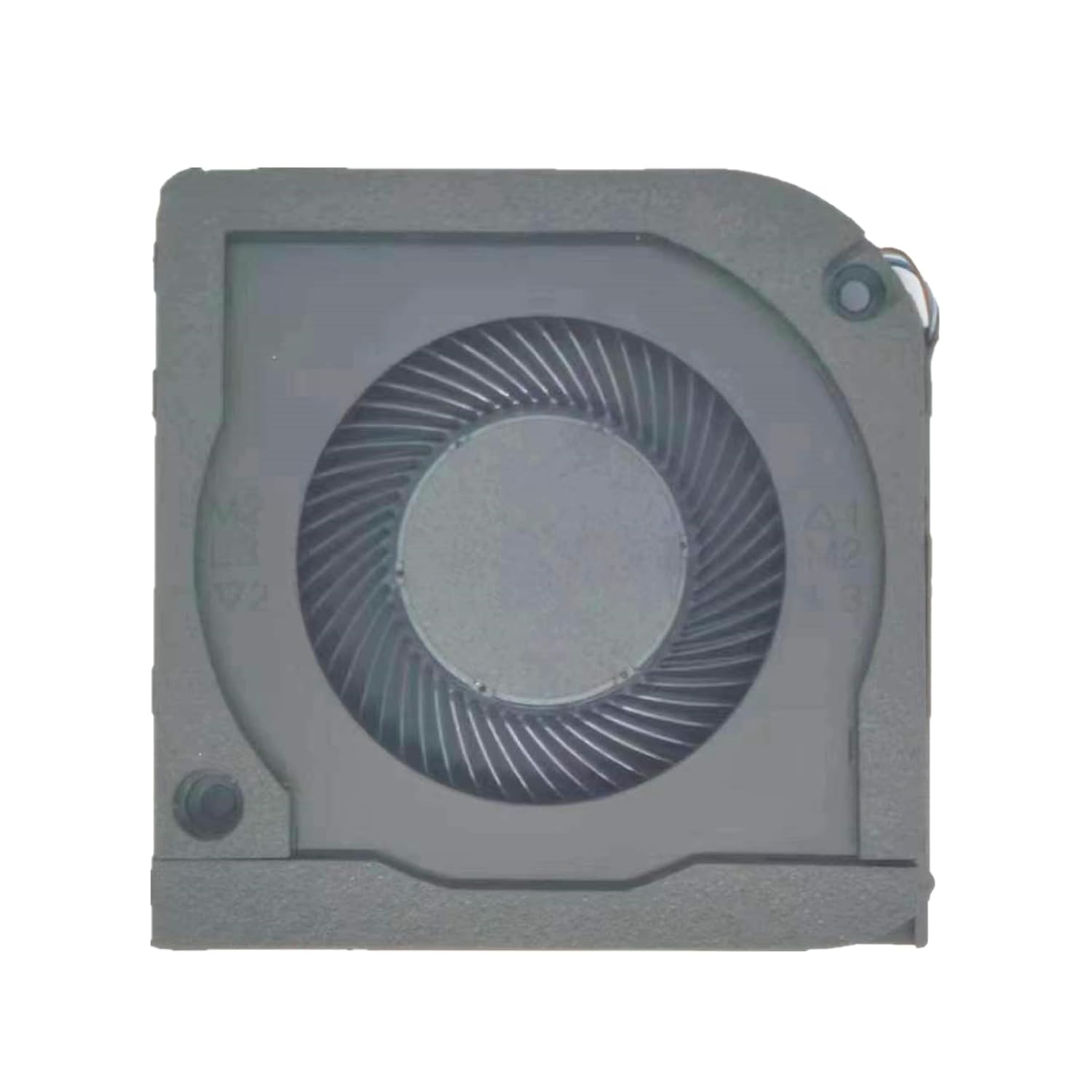
Figure 2: Front view of the QUETTERLEE CPU cooling fan, showcasing the impeller blades designed for efficient airflow and heat dissipation.
2. Compatibility
This QUETTERLEE CPU cooling fan is specifically designed as a replacement part for the following DELL laptop models and fan part numbers:
- DELL Latitude 15 5520 Series
- DELL Precision 3560 Series
Compatible Fan Part Numbers:
- 0DXJNV
- DFS5K22305283J
- FN6B
- EG50050S1-CH00-S9A
- QU-3560-FAN
Please verify your laptop model and existing fan part number before installation to ensure compatibility.
3. Specifications
| Feature | Specification |
|---|---|
| Brand | QUETTERLEE |
| Model Numbers | 0DXJNV, DFS5K22305283J, FN6B, EG50050S1-CH00-S9A, QU-3560-FAN |
| Voltage | DC 5V |
| Current | 0.50A |
| Item Weight | 70 g |
| Package Dimensions | 12 x 10.7 x 3.7 cm |
4. Setup (Installation Guide)
WARNING: Laptop disassembly and component replacement can be complex and may void your device's warranty if not performed correctly. It is highly recommended that installation be performed by a qualified technician. Proceed with caution and at your own risk.
Required Tools (Not Included):
- Small Phillips head screwdriver
- Plastic pry tool (spudger)
- Anti-static wrist strap (recommended)
- Thermal paste (if replacing CPU/GPU heatsink assembly)
Installation Steps:
- Preparation:
- Power off your laptop completely and disconnect the AC adapter.
- Remove the battery if it is externally accessible. For internal batteries, disconnect the battery connector from the motherboard after opening the laptop.
- Work on a clean, static-free surface.
- Disassembly:
- Carefully remove the back cover of your laptop. Refer to your specific DELL laptop service manual for precise instructions on screw locations and panel removal.
- Locate the existing CPU cooling fan. It is typically connected to the motherboard via a small cable and secured with screws.
- Old Fan Removal:
- Gently disconnect the fan's power cable from the motherboard.
- Unscrew all retaining screws holding the fan in place.
- Carefully lift and remove the old fan. Note its orientation for correct placement of the new fan.
- New Fan Installation:
- Position the new QUETTERLEE fan in the same orientation as the old one.
- Secure the fan with the retaining screws. Do not overtighten.
- Connect the fan's power cable securely to the motherboard connector. Ensure it is fully seated.
- Reassembly & Testing:
- Before fully reassembling the laptop, connect the battery (if disconnected) and AC adapter.
- Power on the laptop and observe if the fan spins. Listen for any unusual noises.
- Check the laptop's temperature using system monitoring software to ensure proper cooling.
- If the fan operates correctly, power off the laptop, disconnect power, and fully reassemble the back cover.
For detailed disassembly and reassembly instructions specific to your DELL Latitude 15 5520 or Precision 3560, please consult the official DELL service manual or a reputable online repair guide.
5. Operating
The QUETTERLEE CPU cooling fan operates automatically, controlled by your laptop's system to maintain optimal internal temperatures. It will adjust its speed based on the CPU's workload and temperature.
- Ensure your laptop is placed on a hard, flat surface to allow for proper airflow through the vents.
- Avoid blocking the laptop's air intake and exhaust vents.
- Do not operate the laptop in environments with excessive dust or extreme temperatures.
6. Maintenance
Regular maintenance can extend the lifespan of your cooling fan and ensure efficient thermal management.
- Dust Removal: Periodically (e.g., every 6-12 months, depending on usage environment) clean the laptop's internal components, especially the fan and heatsink fins, of accumulated dust. This can be done using compressed air. Ensure the fan blades are held stationary when using compressed air to prevent damage.
- Monitoring: Pay attention to any changes in fan noise (e.g., grinding, excessive loudness) or increased laptop temperatures, which may indicate a need for cleaning or further inspection.
For thorough internal cleaning, it is advisable to consult a professional technician.
7. Troubleshooting
If you encounter issues with your new cooling fan, consider the following troubleshooting steps:
- Fan Not Spinning:
- Ensure the fan's power cable is securely connected to the motherboard.
- Verify that the fan is correctly seated and not obstructed.
- Check if the laptop's BIOS/UEFI settings have any fan control options that might be preventing it from spinning (unlikely for a replacement fan, but worth checking).
- Unusual Noise (Grinding, Whining):
- This could indicate a faulty fan bearing or an obstruction. Power off the laptop and inspect the fan for any foreign objects.
- If the noise persists, the fan may be defective and require replacement.
- Laptop Overheating:
- Ensure the fan is spinning.
- Check for dust accumulation on the fan and heatsink fins.
- Verify that thermal paste (if applicable to your heatsink assembly) was properly applied during installation.
- Ensure laptop vents are not blocked.
If these steps do not resolve the issue, professional diagnosis and repair may be necessary.
8. Warranty and Support
For information regarding the warranty of your QUETTERLEE CPU cooling fan, please refer to the purchase documentation or contact the seller directly.
For additional product information or support, you may visit the official QUETTERLEE store on Amazon: