
Annadue C17 (fasi5mcxFOTYXL-11)
Annadue C17 Mini Portable Thermal Printer User Manual
Model: C17 (fasi5mcxFOTYXL-11) | Brand: Annadue
Introduction
This manual provides comprehensive instructions for the Annadue C17 Mini Portable Thermal Printer. It covers setup, operation, maintenance, and troubleshooting to ensure optimal performance and longevity of your device. The C17 is a compact, inkless thermal printer designed for convenience, allowing you to print various content such as text, images, memos, and labels directly from your smartphone via Bluetooth connection.

Figure 1: Annadue C17 Mini Portable Thermal Printer in use, showing its compact size and wireless printing capabilities.
Setup
1. Package Contents
Before you begin, ensure all items are present in the package:
- Annadue C17 Mini Portable Thermal Printer
- USB Charging Cable
- One roll of 57 x 30 mm thermal paper (pre-installed or included)

Figure 2: Printer and included USB charging cable.
2. Charging the Printer
For first-time use, fully charge the printer. Connect the provided USB cable to the printer's charging port and the other end to a USB power adapter (not included) or a computer's USB port. The charging time is approximately 2 to 3 hours. The indicator light will typically change color or turn off when fully charged.
3. Loading Thermal Paper
The printer uses 57 x 30 mm thermal paper rolls. Follow these steps to load or replace paper:
- Gently open the printer cover.
- Remove any remaining paper core if replacing a roll.
- Insert the new thermal paper roll with the printing side facing outwards (the side that will be printed on should face the print head).
- Pull a small length of paper out beyond the cutting edge.
- Close the printer cover firmly until it clicks into place.


Figure 3: Steps for loading thermal paper into the printer.
4. App Download and Bluetooth Connection
The printer operates via a dedicated mobile application. The application name is "iPrint".
- Method 1 (QR Code): If the printer came with pre-installed thermal paper, print a test page. This page may include a QR code for direct app download. Scan the QR code with your smartphone.
- Method 2 (App Store): Search for "iPrint" in your mobile device's app store (Google Play Store for Android or Apple App Store for iOS) and download it.
Once the app is installed:
- Ensure the printer is powered on (long press the power button).
- Enable Bluetooth on your smartphone.
- Open the "iPrint" application.
- Within the app, search for and connect to your printer. The printer's Bluetooth name might be "C17" or a similar identifier.
- A successful connection will be indicated within the app.
Operating Instructions
1. Basic Printing
After connecting the printer to the "iPrint" app:
- Select the desired printing function within the app (e.g., Text Printing, Image Printing, Memo, Label).
- Input or select the content you wish to print.
- Adjust print settings if available (e.g., density, size).
- Tap the "Print" button in the app.
- The printer will begin printing. Once printing is complete, use the concave cutting head to easily tear off the paper.

Figure 4: Printer in operation, demonstrating paper output.
2. App Features
The "iPrint" app offers various functionalities:
- Text Printing: Type or paste text to print notes, memos, or lists.
- Image Printing: Select images from your gallery to print. The printer supports black and white imaging.
- Memo/Notes: Create quick memos or shopping lists.
- Labels: Design and print custom labels for organization.
- Templates: The app may offer various templates for different printing needs (e.g., to-do lists, calendars).
Maintenance
1. Cleaning the Printer
To maintain print quality and prolong the printer's life:
- Ensure the printer is turned off before cleaning.
- Use a soft, dry, lint-free cloth to wipe the exterior of the printer.
- For the print head, gently wipe with a cotton swab lightly dampened with isopropyl alcohol. Allow it to dry completely before use.
- Do not use abrasive cleaners or solvents.
2. Paper Replacement
Refer to the "Loading Thermal Paper" section under Setup for detailed instructions on replacing paper rolls.
3. Battery Care
- Charge the printer regularly, even if not in frequent use, to maintain battery health.
- Avoid exposing the printer to extreme temperatures (hot or cold), as this can affect battery performance.
- If storing for a long period, charge the battery to about 50% before storage.
Troubleshooting
| Problem | Possible Cause | Solution |
|---|---|---|
| Printer does not turn on. | Low battery or no charge. | Charge the printer for 2-3 hours. |
| Cannot connect via Bluetooth. | Bluetooth is off on phone/printer, or printer is not discoverable. | Ensure printer is on and Bluetooth is enabled on your device. Restart both devices and try again. |
| Poor print quality / Blank print. | Paper loaded incorrectly (upside down), low battery, or dirty print head. | Re-load paper correctly. Charge printer. Clean print head as per maintenance section. |
| Paper jam. | Paper not inserted straight, or foreign object. | Turn off printer, open cover, carefully remove jammed paper. Re-insert paper correctly. |
| App crashes or freezes. | App software issue or device compatibility. | Restart the app and your phone. Ensure the app is updated to the latest version. |
Specifications
- Model: C17 (fasi5mcxFOTYXL-11)
- Brand: Annadue
- Printing Method: Thermal, Inkless Printing
- Imaging Mode: Black and White
- Resolution: 200 DPI
- Battery Type: Built-in 800 mAh Lithium Battery
- Charging Time: Approximately 2 to 3 hours
- Print Paper Size: Approx. 57 x 30 mm / 2.24 x 1.18 inches
- Connectivity: Bluetooth Wireless
- Color: Rose
- Country of Origin: China
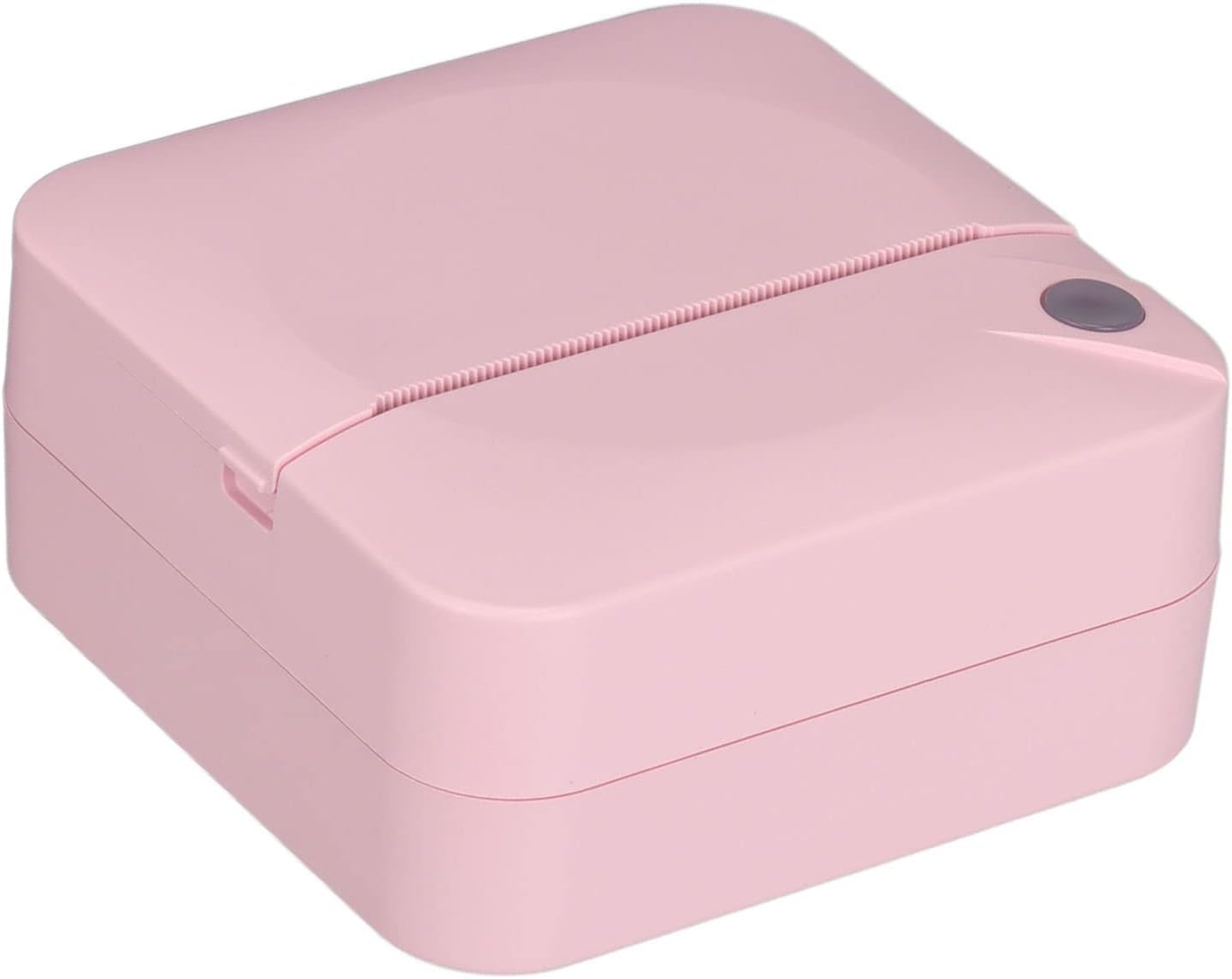

Figure 5: Various views of the Annadue C17 printer.
Warranty Information
This Annadue C17 Mini Portable Thermal Printer comes with a 1 Year Warranty Against Manufacturer Defects. Please retain your proof of purchase for warranty claims. The warranty covers defects in materials and workmanship under normal use. It does not cover damage caused by misuse, accidents, unauthorized modifications, or improper maintenance.
Support
If you encounter any issues not covered in the troubleshooting section or require further assistance, please refer to the seller's support channels or the official Annadue website for contact information. When contacting support, please have your product model number (C17) and a description of the issue ready.
Ask a question about this manual
Ask about setup, troubleshooting, compatibility, parts, safety, or missing instructions. Manuals+ will review the question and use this page’s manual context to help answer it.