
WAVLINK WL-NU516U1
WAVLINK USB Wireless Print Server Instruction Manual
Model: WL-NU516U1
Brand: WAVLINK
1. Product Overview
The WAVLINK USB Wireless Print Server transforms traditional USB printers into network-accessible devices, allowing multiple users to share a single printer wirelessly or via a wired connection. This compact and lightweight device supports various operating modes and offers broad compatibility with different printer types and operating systems.

Figure 1: Product Overview with labeled components including USB 2.0 port, LAN/Bridge ports, DC 5V IN, WPS button, Reset button, and LED indicators for SYS, Bridge, LAN, and WLAN.
Key Features:
- Printer Sharing: Allows up to 4 printers to be shared across a network using a USB-A hub (not included), significantly improving printing efficiency for multiple users.
- Multiple Operating Modes: Supports Wired Mode, 2.4G Wireless Network Mode, and Standalone Mode to convert your USB printer into a network printer.
- Easy Network Management: Setup and configuration can be done via a web interface, eliminating the need for complex driver installations for the print server itself.
- Broad Compatibility: Compatible with Windows 7/8/10/11/XP and Mac OS. Works with most USB printers supporting RAW protocol, including inkjet, laser, receipt, stylus, and barcode printers.
- Compact and Portable: Measures 7.5x5.4x1.8cm and weighs 43g, making it easy to place anywhere. Features a high-speed 480Mbps USB 2.0 port and 100Mbps bridge/LAN port.
2. Setup and Installation
Follow these steps to set up your WAVLINK USB Wireless Print Server:
- Connect Power: Connect the provided power adapter to the print server's DC 5V IN port and plug it into a power outlet.
- Connect Printer: Connect your USB printer to the USB 2.0 port on the print server using a USB cable.
- Network Connection:
- Wired Mode: Connect the print server's LAN port to your router or network switch using an Ethernet cable.
- Wireless Mode: The print server will connect to your Wi-Fi network. Configuration will be done via the web interface.
- Standalone Mode: The print server broadcasts its own Wi-Fi signal. No connection to an existing router is required for this mode, but network access will not be available.
- Install Printer Driver: While the print server itself does not require external drivers, you must download and install the specific printer driver for your USB printer from the printer manufacturer's official website onto each computer that will use the shared printer.
- Configure Print Server: Access the print server's web interface to configure network settings.
- Ensure your computer is connected to the WAVLINK device's Wi-Fi signal (if setting up wirelessly) or directly via Ethernet.
- Open a web browser and enter http://usblogin.link in the address bar.
- Follow the on-screen instructions to complete the setup, including connecting to your main Wi-Fi network if using Wireless Mode.

Figure 2: Basic Installation Steps.

Figure 3: Package Contents.
3. Operating Modes
The WAVLINK USB Wireless Print Server supports three primary operating modes:
- Wired Mode: In this mode, the print server connects to your router via an Ethernet cable. Computers on the same network can then access the connected USB printer. This mode provides a stable and reliable connection.
- Wireless Mode: The print server connects to your existing Wi-Fi network. This allows for flexible placement of the print server and printer within your Wi-Fi coverage area, enabling wireless printing from any device on the same Wi-Fi network.
- Standalone Mode: The print server creates its own Wi-Fi signal, allowing devices to connect directly to it for printing. In this mode, the print server does not connect to your main router, and devices connected to the print server's Wi-Fi will not have internet access. This is useful for dedicated printing setups where network access is not required.

Figure 4: Operating Mode Diagrams.
4. Maintenance
To ensure optimal performance and longevity of your WAVLINK USB Wireless Print Server, consider the following maintenance tips:
- Firmware Updates: Periodically check the official WAVLINK website for the latest firmware updates. Updating the firmware can improve performance, add new features, and resolve potential issues. Refer to the troubleshooting section for steps on upgrading firmware.
- Physical Cleaning: Keep the device clean and free from dust. Use a soft, dry cloth to wipe the exterior. Ensure ventilation holes are not obstructed.
- Environmental Conditions: Operate the device within recommended temperature and humidity ranges. Avoid exposing it to extreme temperatures, direct sunlight, or moisture.
- Cable Management: Ensure all cables (power, USB, Ethernet) are securely connected and not under strain. Avoid bending cables sharply.
5. Troubleshooting
This section addresses common issues and provides solutions for your WAVLINK USB Wireless Print Server.
Issue 1: Cannot log in to the WAVLINK device management interface using usblogin.link.
- Ensure you are connected to the WAVLINK device's Wi-Fi signal. Then, enter http://usblogin.link in your browser.
- If using a mobile phone, temporarily turn off mobile data and VPN first.
- If using a computer, temporarily disable other network connections and VPN, connect only to the WAVLINK Wi-Fi signal, and then try to access the WAVLINK device management interface again.
- Try logging into the product management interface using another client, such as a mobile phone.

Figure 5: Wi-Fi Settings Interface.
Issue 2: Cannot connect to the WAVLINK device's Wi-Fi signal.
- Try resetting the device by pressing and holding the reset button for 6 seconds. Then, try connecting to the WAVLINK device's Wi-Fi signal again.
- Connect the WAVLINK device to your computer using a network cable and enter the management interface. If the WAVLINK device is set to Wired Relay Mode, try changing the WAVLINK device's channel. You can try channels 1, 6, or 11.
- Connect the WAVLINK device to your computer using a network cable and try upgrading the WAVLINK device's firmware. After the upgrade is complete, press and hold the reset button for 6 seconds to reset the device, then try connecting to the device's Wi-Fi signal again to see if the same problem persists. The latest device firmware can be found on the WAVLINK official website.

Figure 6: Channel Selection in Web Interface.
Issue 3: When setting the WAVLINK device to Wireless Relay Mode, I cannot connect the WAVLINK device to the main router.
- During the relay entry process, ensure you are entering the correct Wi-Fi password for the upstream router. (Pay attention to case sensitivity).
- Ensure the upstream router's DHCP is on (so the WAVLINK device can obtain an IP address correctly) and MAC address filtering is off. (This will prevent the WAVLINK device from being blocked).
- If possible, move the WAVLINK device closer to the main router. Also, avoid obstacles between the WAVLINK device and the main router.
- Press and hold the reset button for 6 seconds to initiate reconfiguration of the WAVLINK device.
Issue 4: I have set the WAVLINK device to Wireless Relay Mode, but the WAVLINK device keeps disconnecting from the main router.
- Try changing the main router's 2.4GHz channel. For 2.4GHz, you can choose from 1, 6, or 11.
- If possible, try setting the WAVLINK device to Wired AP Mode and connect it to the main router using a network cable.
- If possible, change the location of the WAVLINK device to avoid obstacles between it and the host router, or try moving the WAVLINK device closer to the upstream router.
6. Specifications
| Feature | Detail |
|---|---|
| Brand | WAVLINK |
| Model Number | WL-NU516U1 |
| Product Dimensions | 7.5 x 5.4 x 1.8 cm (Pocket size) |
| Product Weight | 43 g |
| USB Port | USB 2.0 (480Mbps) |
| LAN/Bridge Port | 10/100Mbps |
| Wireless Standard | 2.4G Wi-Fi |
| Compatibility (OS) | Windows 7/8/10/11/XP, Mac OS |
| Printer Compatibility | Almost all USB printers supporting RAW protocol (Inkjet, Laser, Receipt, Stylus, Barcode printers) |
| Power Input | DC 5V |
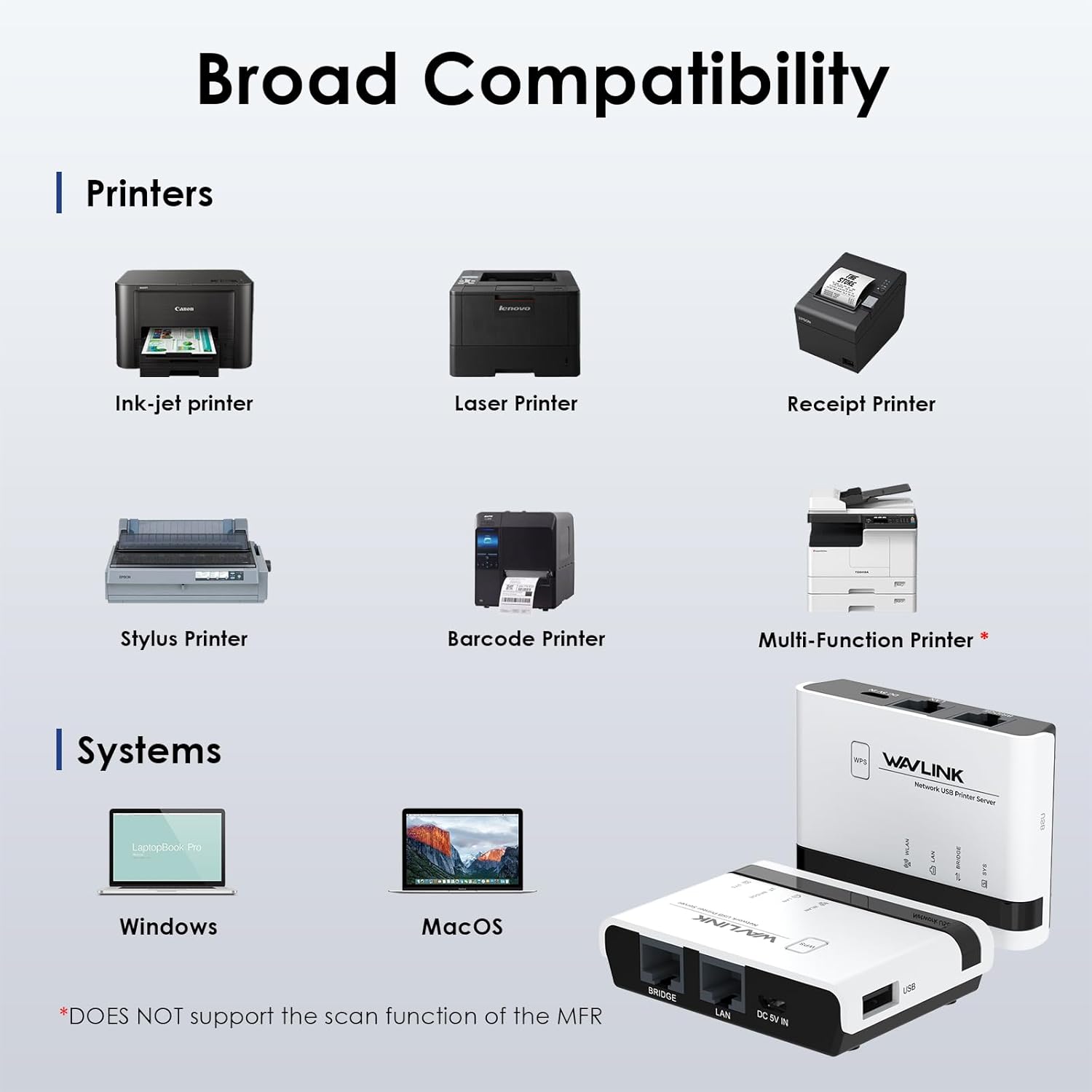
Figure 7: Broad Compatibility Overview.

Figure 8: Extended Connections via USB Hub.
7. Warranty and Support
WAVLINK products are designed for reliability and performance. For any technical assistance, warranty claims, or product inquiries, please contact WAVLINK customer service. It is recommended to consult customer service if you are unsure about your printer's RAW protocol support.
Please refer to the official WAVLINK website for the most up-to-date support information, FAQs, and contact details.
Related Documents - WL-NU516U1
 |
WAVLINK Wireless USB Printer Server Quick Start Guide A quick start guide for the WAVLINK Wireless USB Printer Server (WL-NU516U1), detailing its overview, default parameters, LED indicators, product installation, Wi-Fi connection, wizard configuration, network settings, printer adding for Windows and Mac, device manager, storage management, and firmware upgrade. |
 |
WAVLINK WL-NU72P11 USB 2.0 Network Print Server Quick Start Guide A quick start guide for the WAVLINK WL-NU72P11 USB 2.0 Network Print Server, detailing hardware connections, installation preparation, printer configuration for Windows and Mac OS, and network settings. |
 |
LOYALTY-SECU Network Print Server Quick User Guide: Setup and Configuration A quick user guide for the LOYALTY-SECU network print server, detailing setup, configuration via wired and WiFi connections, computer printing, app integration, and Bluetooth functionality. |
 |
Wavlink WL-WN572HG3 AC1200 High Power Outdoor WiFi Extender Setup Guide This guide provides instructions for setting up the Wavlink WL-WN572HG3 AC1200 High Power Outdoor WiFi Extender, covering installation, configuration, and operation in various modes. |
 |
WAVLINK Wi-Fi Range Extender Quick Guide - Setup and Configuration This guide provides instructions for setting up and configuring the WAVLINK Wi-Fi Range Extender (models WL-WN575A2, WL-WN575A3, WL-WN578A2, WL-WN578A3) using Repeater, Router, and Access Point modes. |
 |
WAVLINK Wi-Fi Range Extender Quick Guide: Setup and Configuration (WL-WN575A2/A3, WL-WN578A2/A3) This quick guide provides step-by-step instructions for setting up and configuring your WAVLINK Wi-Fi Range Extender (models WL-WN575A2, WL-WN575A3, WL-WN578A2, WL-WN578A3) in Repeater, Router, and Access Point modes. Learn how to connect, configure settings, and optimize placement for extended Wi-Fi coverage. |
Ask a question about this manual
Ask about setup, troubleshooting, compatibility, parts, safety, or missing instructions. Manuals+ will review the question and use this page’s manual context to help answer it.