
Introduction
Thank you for choosing the Fintie Keyboard Case for your Samsung Galaxy Tab A9 Plus 11 Inch 2023. This versatile case provides robust protection and enhances your tablet's functionality with a magnetic, removable Bluetooth keyboard. Designed for seamless integration, it allows for faster and more comfortable typing, transforming your tablet into a portable workstation. This manual provides essential information for setup, operation, maintenance, and troubleshooting to ensure optimal performance of your device.
Compatibility and Package Contents
Compatibility Notice
This keyboard case is specifically designed for the Samsung Galaxy Tab A9 Plus 11 Inch 2023 models: SM-X210, SM-X216, and SM-X218. It is not compatible with other Samsung Galaxy tablet models. Please verify your tablet's model number before use.
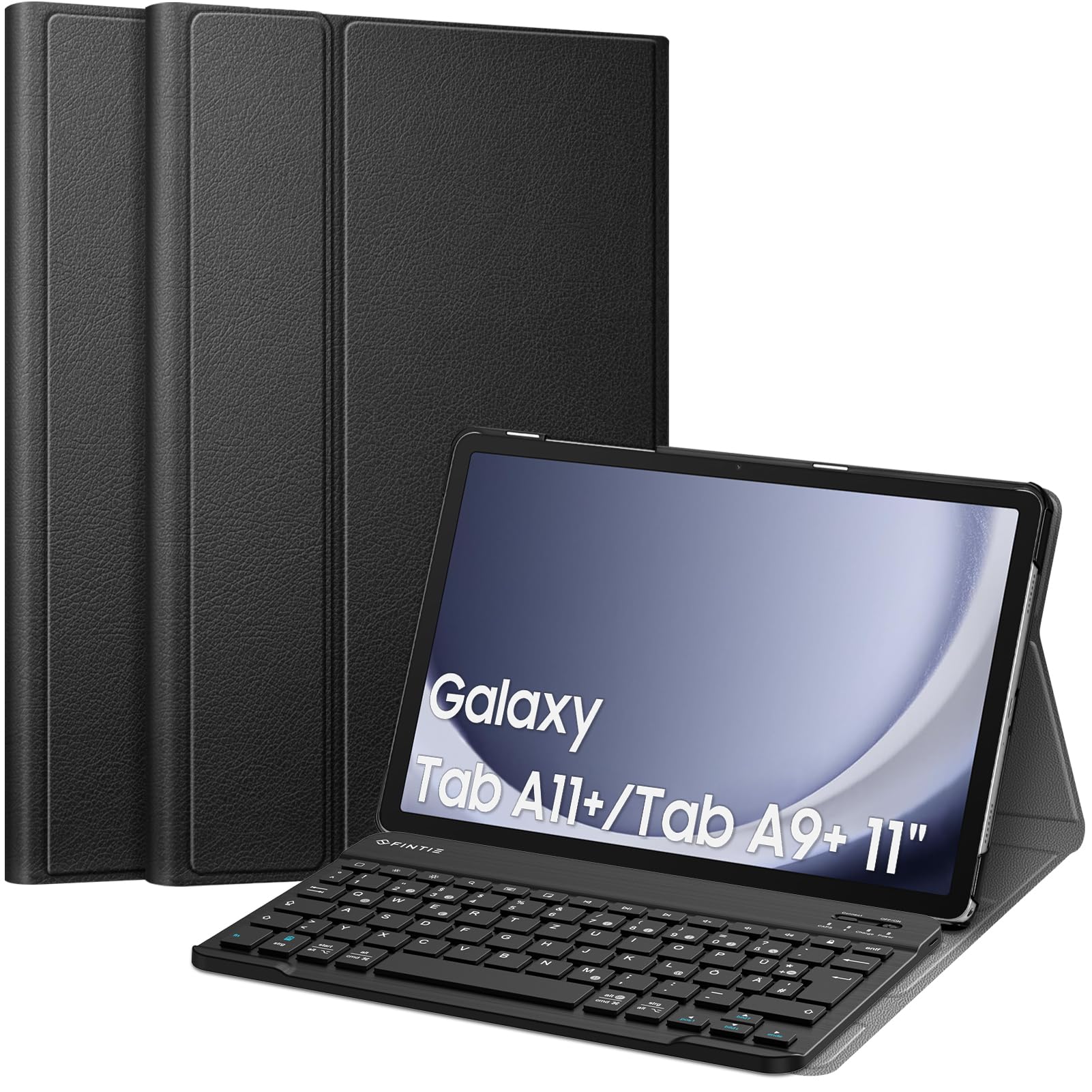
Image: Compatibility chart for Fintie Keyboard Case. This image illustrates the compatible tablet models (Samsung Galaxy Tab A9 Plus 11 Inch 2023, models SM-X210/X216/X218) and provides instructions on how to locate your tablet's model number via the device settings (Settings > About tablet > Model number).
How to Find Your Tablet Model Number:
- Open your tablet's Settings application.
- Navigate to About tablet.
- Locate and confirm the Model number (e.g., SM-X210, SM-X216, SM-X218).
Package Contents
Upon unpacking, please ensure all the following items are present:
- 1 x Fintie Ultra-thin Case
- 1 x Bluetooth Keyboard
- 1 x USB-C Charging Cable
- 1 x User Manual (this document)
Setup
1. Attaching Your Tablet to the Case
The Fintie case features a durable faux leather exterior and a non-slip inner lining designed to securely hold your tablet. Simply align your Samsung Galaxy Tab A9 Plus with the case's frame and gently press it into place. The case provides full access to all tablet features, including ports and buttons.
2. Charging the Bluetooth Keyboard
Before initial use, fully charge the keyboard. Use the included USB-C charging cable. Connect the small end of the cable to the keyboard's charging port and the larger end to a USB power adapter (not included) or a computer's USB port. The charging indicator light will illuminate during charging and turn off once fully charged.
3. Pairing the Bluetooth Keyboard with Your Tablet
Follow these steps to establish a Bluetooth connection:
- Ensure the keyboard is charged.
- Turn on the keyboard by sliding the ON/OFF switch to the 'ON' position. The power indicator light will briefly turn on.
- Press the 'Connect' button on the keyboard. The Bluetooth indicator light will start blinking, indicating it is in pairing mode.
- On your Samsung Galaxy Tab A9 Plus, go to Settings > Connected devices > Bluetooth.
- Ensure Bluetooth is enabled on your tablet.
- Your tablet will search for available devices. Select 'Bluetooth Keyboard' (or a similar name) from the list of found devices.
- If prompted, enter the pairing code displayed on your tablet onto the keyboard and press Enter.
- Once paired, the Bluetooth indicator light on the keyboard will stop blinking and remain solid for a moment, then turn off to save power. The keyboard is now ready for use.

Image: Magnetically Integrated Keyboard. This image demonstrates how the keyboard can be magnetically attached to the case for use or easily removed for flexible positioning.
Operating Instructions
Keyboard Usage
The Fintie Bluetooth keyboard features a QWERTZ layout, providing a familiar typing experience. Each key is designed with a jump mechanism, offering tactile feedback for precise and efficient typing. The keyboard is made from high-end ABS material for durability and a comfortable feel.

Image: High End ABS Material Keyboard. This image provides a detailed view of the keyboard, emphasizing its construction from high-quality ABS material.
Adjustable Viewing Angles
The case's rear cover can be converted into a stand, offering three adjustable viewing angles. This allows you to find the most comfortable position for typing, watching videos, or browsing.

Image: Multiple Viewing Angles. This image illustrates the three adjustable viewing angles provided by the case's stand feature, along with anti-slip grooves for stability.
Bluetooth Transmission Distance
The Bluetooth keyboard operates effectively within a range of up to 10 meters (approximately 33 feet) from your tablet, providing flexibility in your workspace setup.

Image: Bluetooth Transmission Distance 10M. This image depicts the tablet and keyboard in use, highlighting the effective Bluetooth transmission range of up to 10 meters.
Auto Sleep/Wake Function
The case supports an auto sleep/wake function for your tablet. Please note that this feature only works when the keyboard is removed from the case. When the keyboard is attached, the auto sleep/wake function may not operate as intended.

Image: Turn Your Tablet into An Ultraportable Laptop. This collage showcases different ways the Fintie keyboard case can be used, illustrating its versatility for work and leisure.
Maintenance
Cleaning the Case and Keyboard
- Case: Wipe the faux leather exterior with a soft, damp cloth. Avoid harsh chemicals or abrasive cleaners.
- Keyboard: Use a soft, dry cloth to clean the keyboard surface. For dust between keys, use compressed air. Do not immerse the keyboard in water or use liquid cleaners directly on the keys.
Battery Care
- To prolong battery life, avoid fully discharging the keyboard battery frequently.
- Charge the keyboard regularly, even if not in constant use.
- Store the keyboard in a cool, dry place when not in use for extended periods.

Image: Improved Bluetooth Low Energy (BLE) Technology. This graphic illustrates the extended operational and standby times achieved with BLE technology compared to classic Bluetooth, highlighting the energy efficiency of the keyboard.

Image: High Quality Material & Craftsmanship. This image displays the exterior of the Fintie case, emphasizing its durable faux leather material and construction quality.
Troubleshooting
Keyboard Not Connecting/Pairing
- Check Battery: Ensure the keyboard is fully charged. Low battery can prevent connection.
- Restart Devices: Turn off and on both the keyboard and your tablet's Bluetooth.
- Re-pair: Go to your tablet's Bluetooth settings, 'forget' or 'unpair' the keyboard, then repeat the pairing steps in the 'Setup' section.
- Distance: Ensure the keyboard is within the 10-meter Bluetooth range of your tablet.
- Interference: Move away from other wireless devices that might cause interference.
Keys Not Responding
- Connection: Verify the keyboard is still connected via Bluetooth. If not, re-pair it.
- Power: Ensure the keyboard is turned on and has sufficient battery.
- Restart: Turn the keyboard off and on.
Auto Sleep/Wake Not Working
- Confirm the keyboard is removed from the case. The auto sleep/wake function is designed to work only when the keyboard is detached.
- Ensure your tablet's screen lock settings are configured for auto sleep/wake.
Specifications
| Feature | Specification |
|---|---|
| Brand | FINTIE |
| Model Number | CDE0837 |
| Compatible Devices | Samsung Galaxy Tab A9 Plus 11 inch 2023 (SM-X210/X216/X218) |
| Connectivity Technology | Bluetooth |
| Keyboard Description | Wireless |
| Recommended Uses | Everyday Use |
| Product Features | Portable, Rechargeable |
| Number of Keys | 79 |
| Power Source | Battery Powered |
| Switch Type | Tactile |
| Keyboard Layout | QWERTZ (German) |
| Hand Orientation | Ambidextrous |
| Button Quantity | 100 |
| Colour | Black |
| Style Name | Classic |
| Enclosure Material | Acrylonitrile Butadiene Styrene (ABS) |
| UPC | 840173956984 |
Warranty Information
Fintie products are designed for quality and reliability. For specific warranty details regarding your Fintie Keyboard Case, please refer to the warranty card included with your purchase or visit the official Fintie website. Keep your purchase receipt as proof of purchase for any warranty claims.
Customer Support
Should you encounter any issues or have questions not covered in this manual, please contact Fintie customer support. Contact information can typically be found on the product packaging, the official Fintie website, or through your retailer's support channels. Please have your product model number (CDE0837) and purchase details ready when contacting support.