1. Introduction
This manual provides detailed instructions for the setup, operation, maintenance, and troubleshooting of your Generic Y02 Wireless Arcade Stick. Please read this manual thoroughly before using the product to ensure proper functionality and to maximize your gaming experience. Keep this manual for future reference.
2. Product Overview
The Y02 Wireless Arcade Stick is a versatile gaming controller designed for a wide range of platforms, including PS4, PS3, Nintendo Switch, PC, TV, Android, and iOS devices. It features a classic arcade layout with a joystick and multiple action buttons, along with special functions like Turbo and Macro programming.
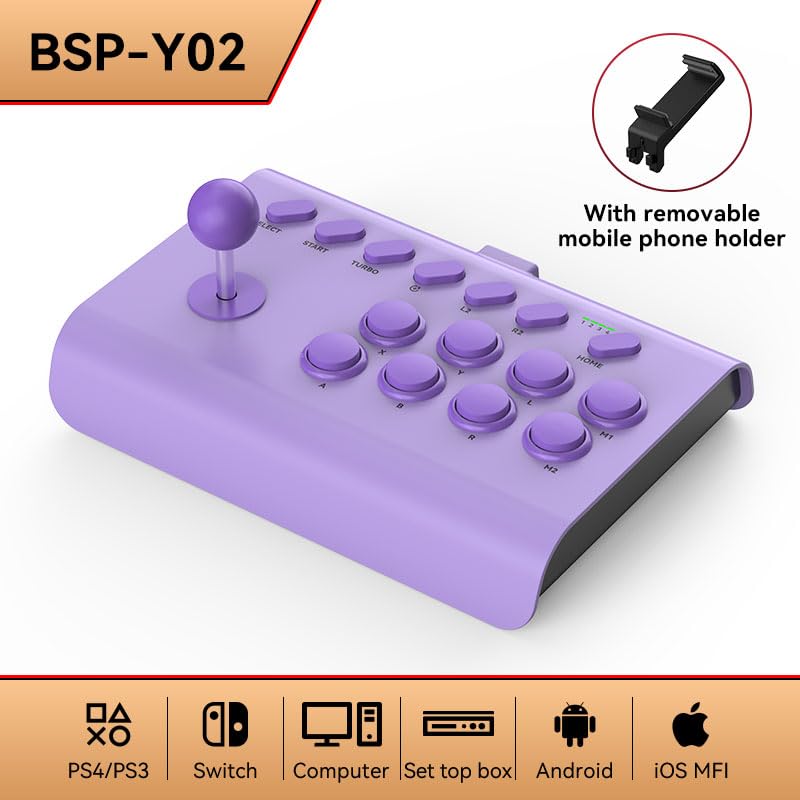
Image: The Y02 Wireless Arcade Stick, shown in purple, featuring a classic joystick and button layout. A removable mobile phone holder accessory is also depicted, indicating its compatibility with mobile devices.
2.1 Key Features
- Multi-Platform Compatibility: Supports PS4, PS3, Nintendo Switch, PC, TV, Android, and iOS MFI.
- Multiple Connection Modes: Wired (USB), Bluetooth Wireless, and 2.4G Wireless.
- Turbo Function: Enables continuous rapid firing for selected buttons.
- Macro Programming: Allows for custom button sequence recording.
- Removable Mobile Phone Holder: For convenient mobile gaming.
3. Setup
3.1 Platform Compatibility
The Y02 Arcade Stick is compatible with a wide range of gaming platforms:

Image: Visual representation of the Y02 Arcade Stick's compatibility across various platforms: PlayStation 4/3, Nintendo Switch, personal computers, set-top boxes, Android devices, and iOS MFI certified devices.
- Gaming Consoles: PlayStation 4 (PS4), PlayStation 3 (PS3), Nintendo Switch.
- Computers: PC (Windows).
- Mobile Devices: Android phones/tablets, iOS MFI certified phones/tablets.
- Other: TV, Set-top boxes.
3.2 Connection Modes
The Y02 Arcade Stick offers three primary connection methods:

Image: An overhead view of the arcade stick with icons below representing the three connection modes: a USB icon for wired connection, a Bluetooth symbol for Bluetooth wireless, and a Wi-Fi-like symbol for 2.4G wireless connection.
- Wired Connection (USB):
Connect the arcade stick directly to your device (PC, console, TV box) using a USB cable. This mode typically offers the lowest latency and requires no battery power from the stick.
- Bluetooth Wireless Connection:
For devices that support Bluetooth (e.g., Android, iOS, some PCs, Switch).
- Turn on the arcade stick.
- Activate Bluetooth pairing mode on the arcade stick (refer to specific button combinations in the "Operating Instructions" section).
- On your device, search for Bluetooth devices and select "Y02 Arcade Stick" to pair.
- 2.4G Wireless Connection:
For devices that require a 2.4G USB receiver (usually included with the product, if applicable).
- Plug the 2.4G USB receiver into an available USB port on your device (PC, console).
- Turn on the arcade stick. It should automatically connect to the receiver.
4. Operating Instructions
4.1 Basic Controls
The Y02 Arcade Stick features a standard arcade layout. Familiarize yourself with the button functions:
- Joystick: Directional input (Up, Down, Left, Right).
- Action Buttons (A, B, X, Y, L1, L2, R1, R2, M1, M2): Perform in-game actions.
- SELECT/BACK: Typically used for menu navigation or secondary functions.
- START/OPTIONS: Typically used for pausing games or accessing menus.
- HOME: Returns to the system's home screen or main menu.
4.2 Special Functions
4.2.1 Turbo Function
The Turbo function allows a button to register multiple presses with a single hold, useful for rapid-fire actions.

Image: The arcade stick highlighting the 'TURBO' button and illustrating the three adjustable burst speed settings: 8, 15, and 25 times per second, for continuous attack functionality.
- Activating Turbo: Press and hold the TURBO button, then press the desired action button (e.g., A, B, X, Y, L1, R1) you wish to apply Turbo to. The button will now continuously register presses when held.
- Adjusting Turbo Speed: While holding the TURBO button, move the joystick UP or DOWN to cycle through the burst speeds:
- Low Gear: Approximately 8 times per second.
- Mid Range: Approximately 15 times per second.
- High Gear: Approximately 25 times per second.
- Deactivating Turbo: Press and hold the TURBO button, then press the action button again that has Turbo enabled.
4.2.2 Macro Programming
The Macro function allows you to record a sequence of button presses and assign it to a single macro button (M1 or M2) for easy execution of complex combos.
- Entering Macro Recording Mode: Press and hold the M1 or M2 button for 3 seconds until an indicator light (if present) flashes, signifying recording mode.
- Recording Sequence: Perform the desired button presses and joystick movements. The system will record the sequence.
- Saving Macro: Press the M1 or M2 button again to save the recorded macro. The indicator light will stop flashing.
- Executing Macro: Simply press the M1 or M2 button to execute the recorded sequence.
- Clearing Macro: To clear a macro, press and hold the M1 or M2 button for 5 seconds until the indicator light turns off, or refer to the factory reset instructions.
5. Maintenance
- Cleaning: Use a soft, dry cloth to wipe the surface of the arcade stick. For stubborn dirt, slightly dampen the cloth with water. Avoid using harsh chemicals or abrasive cleaners.
- Storage: Store the arcade stick in a cool, dry place away from direct sunlight and extreme temperatures.
- Battery Care (for wireless modes): If the device has a built-in rechargeable battery, avoid fully discharging it frequently. Charge it regularly, even if not in use for extended periods, to maintain battery health.
- Avoid Impact: Do not drop or subject the arcade stick to strong impacts, as this can damage internal components.
6. Troubleshooting
| Problem | Possible Cause | Solution |
|---|---|---|
| Arcade stick does not power on. | Low battery (wireless) or no power source. | Charge the arcade stick. Ensure it is properly connected via USB for wired mode. |
| Cannot connect wirelessly. | Incorrect pairing mode, out of range, or interference. | Ensure the stick is in the correct pairing mode (Bluetooth/2.4G). Move closer to the device. Check for other wireless devices causing interference. Re-pair the device. |
| Buttons or joystick unresponsive. | Connection issue, software glitch, or physical damage. | Reconnect the stick. Restart the game/device. Try on another device to isolate the problem. If physical damage is suspected, contact support. |
| Turbo/Macro function not working. | Incorrect activation/deactivation steps. | Review Section 4.2 for correct Turbo and Macro programming procedures. |
7. Specifications
- Model: Y02
- Brand: Generic
- Connectivity: Wired (USB), Bluetooth Wireless, 2.4G Wireless
- Compatibility: PS4, PS3, Nintendo Switch, PC, TV, Android, iOS MFI
- Special Features: Turbo Function (8/15/25 times/sec), Macro Programming, Removable Mobile Phone Holder
- ASIN: B0CGRLGP56
- Date First Available: January 9, 2025
- Note: Specific battery capacity, dimensions, and weight may vary. Refer to product packaging for precise details.
8. Warranty and Support
This product comes with a standard manufacturer's warranty. For specific warranty terms and conditions, please refer to the documentation included with your purchase or contact the retailer. For technical support or further assistance, please reach out to the customer service provided by your point of purchase.
Please retain your proof of purchase for warranty claims.


