
1. Introduction
This manual provides detailed instructions for the setup, operation, and maintenance of your MAXDONE WiFi Bluetooth Trail Camera (Model PH820W). This advanced camera is designed for outdoor wildlife monitoring, hunting, and home/garden security, featuring high-resolution imaging, motion-activated recording, and convenient app control.
Key features include:
- 32 MP Photo Resolution and 1440p Video Resolution
- WiFi and Bluetooth Connectivity with 'TrailCam GO' App Control
- 0.2s Ultra-Fast Trigger Speed
- 940nm No-Glow Infrared Night Vision (up to 20 meters)
- IP66 Waterproof Rating for All-Weather Use
- Wide 100° Detection Angle
2. Setup
2.1 Package Contents
Before starting, ensure all components are present:
- MAXDONE PH820W Trail Camera
- Mounting Strap
- USB Cable
- User Manual
- 32GB SD Card (may vary by package)
2.2 Battery Installation
The camera requires 4 or 8 AA batteries (not included). For optimal performance and extended battery life, it is recommended to use 8 high-quality alkaline or rechargeable AA batteries.
- Open the camera's latch and swing open the front cover.
- Locate the battery compartment at the bottom of the camera.
- Insert the AA batteries according to the polarity indicators (+/-) inside the compartment.
- Close the battery compartment cover securely.
2.3 SD Card Installation
The camera supports a Micro SD card up to 256GB. A 32GB SD card is often included.
- With the camera open, locate the SD card slot on the side.
- Insert the Micro SD card with the metal contacts facing down until it clicks into place.
- To remove, push the card in again until it clicks, then release.

Image: The MAXDONE PH820W Trail Camera, demonstrating its compact design, the included 32GB SD card, and a smartphone displaying the companion app for remote control and viewing.
2.4 Mounting the Camera
The camera can be mounted using the provided strap or a standard tripod thread.
- Strap Mounting: Thread the strap through the slots on the back of the camera and secure it around a tree or pole. Adjust the strap to ensure the camera is stable and pointed towards the desired detection area.
- Tripod Mounting: Use the 1/4-inch tripod thread located at the bottom of the camera to attach it to a tripod or other compatible mounting accessory.
2.5 App Installation and Connection
The 'TrailCam GO' app allows for remote control and media management.
- Download the 'TrailCam GO' app from your smartphone's app store (iOS or Android).
- Enable Bluetooth and Wi-Fi on your smartphone.
- Turn on the camera.
- Open the 'TrailCam GO' app and follow the on-screen instructions to connect to your camera via Bluetooth, then switch to Wi-Fi for faster data transfer.
- Note: The Wi-Fi connection range is approximately 14 meters (45 feet) and can be affected by obstructions.

Image: The MAXDONE Trail Camera securely mounted on a tree, illustrating its WiFi and Bluetooth connectivity for remote control and live viewing via a smartphone app.
3. Operating the Camera
3.1 Powering On/Off
To power on the camera, slide the mode switch to the 'ON' position. To power off, slide it to 'OFF'.
3.2 Mode Selection
The camera offers three capture modes, configurable via the app:
- Photo Mode: Captures still images when motion is detected.
- Video Mode: Records video clips when motion is detected.
- Photo + Video Mode: Captures a still image followed by a video clip when motion is detected.
3.3 Adjusting Settings via App
The 'TrailCam GO' app allows you to customize various camera settings:
- Photo Resolution: Select from various resolutions up to 32 MP for detailed images.
- Video Resolution: Choose resolutions up to 1440p for clear and smooth video.
- Trigger Speed: Set the ultra-fast 0.2s trigger speed to capture quick movements.
- PIR Sensitivity: Adjust the Passive Infrared (PIR) sensor sensitivity to control motion detection range and reduce false triggers.
- Detection Area: Configure the 100° wide-angle detection area.
- Time Lapse: Set intervals for capturing images over time.
- Password Protection: Enable a password to protect camera settings.
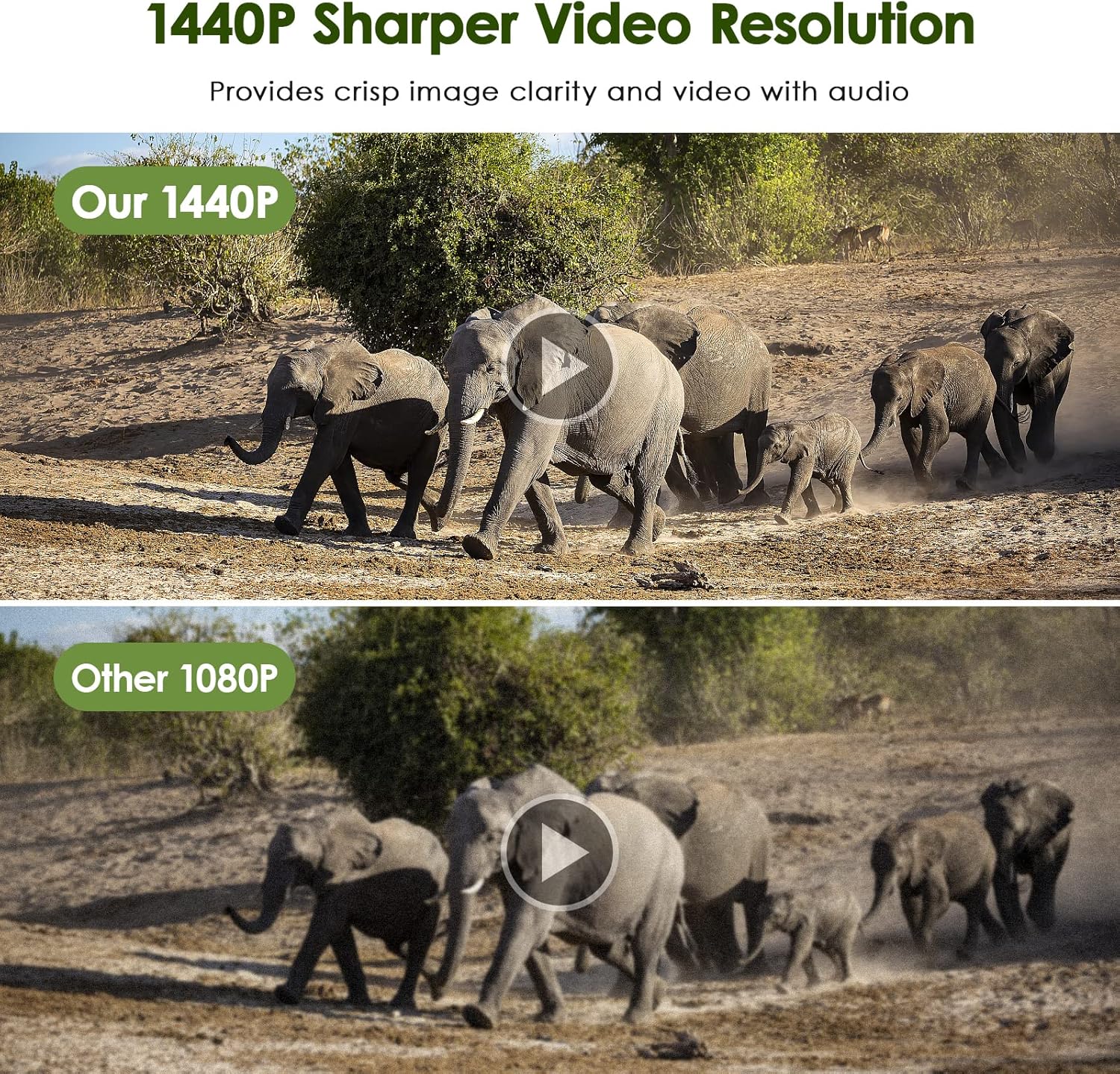
Image: The MAXDONE Trail Camera's rapid 0.2-second trigger speed is demonstrated by its ability to capture fast-moving subjects, such as a cheetah and a gazelle in motion, within its 100-degree wide-angle detection area.
3.4 Night Vision Capabilities
The camera is equipped with 26 pieces of 940nm infrared LEDs, providing clear black-and-white night vision without disturbing animals. The effective night vision range is up to 20 meters (65 feet).

Image: A visual comparison illustrating the MAXDONE Trail Camera's excellent night shooting capabilities, showing a ram in full color during the day and a clear black-and-white image at night, enabled by its 26-piece 940nm infrared LEDs and 0.2s trigger speed.
3.5 Viewing and Downloading Media
You can view and download captured photos and videos in two ways:
- Via 'TrailCam GO' App: Connect your smartphone to the camera via Wi-Fi using the app. You can browse, view, and download media directly to your phone without physically accessing the camera or SD card.
- Via SD Card: Remove the SD card from the camera and insert it into a computer or compatible card reader to access the files.

Image: A comparison demonstrating the superior clarity and detail of the MAXDONE Trail Camera's 32MP photo resolution compared to a 20MP camera, showcasing a field with cows.

Image: A comparison illustrating the enhanced sharpness and clarity of the MAXDONE Trail Camera's 1440p video resolution versus 1080p, featuring a herd of elephants.
4. Maintenance
4.1 Cleaning
- Gently wipe the camera lens and PIR sensor window with a soft, lint-free cloth to remove dirt or smudges.
- Clean the camera body with a damp cloth. Do not use harsh chemicals or abrasive cleaners.
4.2 Battery Replacement
Replace batteries when the low battery indicator appears on the camera's screen or in the app. Always replace all batteries at once with new ones of the same type and brand.
4.3 SD Card Management
- Regularly format the SD card using the camera's internal formatting function (accessible via the app) to ensure optimal performance and prevent data corruption.
- Back up important files from the SD card to a computer or cloud storage before formatting.
4.4 Waterproof Rating
The camera has an IP66 waterproof rating, making it resistant to dust and strong jets of water. While it is designed for outdoor use in various weather conditions, avoid submerging the camera in water.
5. Troubleshooting
5.1 Camera Not Turning On
- Ensure batteries are inserted correctly with correct polarity.
- Check battery charge level; replace with fresh batteries if low.
- Verify the mode switch is in the 'ON' position.
5.2 No Recordings Captured
- Check if the SD card is properly inserted and not full. Format the SD card if necessary.
- Adjust PIR sensitivity settings; increase if no motion is detected.
- Ensure the camera is positioned correctly within the detection range (up to 20 meters).
- Verify the camera is in the correct capture mode (Photo, Video, or Photo+Video).
5.3 Poor Image/Video Quality
- Clean the camera lens and PIR sensor window.
- Ensure sufficient lighting during daytime recordings.
- For night vision, ensure no obstructions are blocking the IR LEDs.
- Check resolution settings in the app; set to higher values (32MP photo, 1440p video) for better quality.
5.4 App Connection Issues
- Ensure Bluetooth and Wi-Fi are enabled on your smartphone.
- Make sure the camera is powered on and within the 14-meter Wi-Fi connection range.
- Restart both the camera and your smartphone.
- Update the 'TrailCam GO' app to the latest version.
6. Specifications
| Feature | Specification |
|---|---|
| Model Number | PH820W |
| Photo Resolution | Up to 32 MP |
| Video Resolution | Up to 1440p (30 fps) |
| Trigger Speed | 0.2 seconds |
| Detection Angle | 100 degrees |
| Night Vision Range | Up to 20 meters (65 feet) |
| IR LEDs | 26 pcs 940nm No-Glow Infrared LEDs |
| Waterproof Rating | IP66 |
| Connectivity | WiFi, Bluetooth |
| Compatible Devices | Smartphone (via 'TrailCam GO' app) |
| Storage | Micro SD card (up to 256GB) |
| Power Source | 4 or 8 AA Batteries (not included) |
| Dimensions (L x W x H) | 18 x 11 x 12 cm |
| Weight | 570 grams |
7. Warranty and Support
For warranty information and customer support, please refer to the documentation included with your product package or visit the official MAXDONE website. If you encounter any issues not covered in this manual, please contact MAXDONE customer service for assistance.