Product Overview
The KAOLALI G13 GPS Head-Up Display (HUD) is designed to enhance driving safety by projecting essential vehicle information directly into the driver's line of sight. This allows drivers to monitor key data such as speed, time, and driving direction without diverting their attention from the road.
Equipped with a 2.2-inch full HD LCD screen, the G13 offers clear, large-font displays with multiple color options for personalization. Its built-in light sensor automatically adjusts screen brightness for optimal visibility day or night. The device is universally compatible with all car models, featuring a simple plug-and-play USB power supply and flexible installation options including a 360-degree rotating suction cup mount and an anti-slip mat.

Image: The KAOLALI G13 GPS HUD Speedometer, shown with its suction cup mount. The main display shows "1200 KM/H" in blue, and smaller displays below illustrate different color themes and data presentations.
Package Contents
Please verify that all items listed below are included in your package:
- 1 x KAOLALI G13 Car HUD Display
- 1 x USB Cable
- 1 x Anti-slip Mat
- 1 x Rotating Suction Cup Mount
- 1 x User Manual (this document)

Image: A visual representation of the product accessories. From left to right: the G13 HUD unit, a Micro USB cable, a red non-slip mat, a rotary suction cup holder, and a printed manual.
Setup and Installation
The KAOLALI G13 HUD is designed for easy installation with a plug-and-play setup. No complex wiring or professional installation is required.
Installation Methods:
- Dashboard Placement with Anti-slip Mat:
Place the provided anti-slip mat on a flat, clean surface of your dashboard. Position the G13 HUD unit on the mat. This method offers quick placement and removal.
- Windshield Mounting with Suction Cup:
Attach the rotating suction cup mount to the back of the G13 HUD unit. Clean the desired area on your windshield or dashboard thoroughly. Press the suction cup firmly against the surface and engage the lever to secure it. Adjust the angle of the HUD for optimal viewing.
Power Connection:
Connect the supplied USB cable to the Micro USB interface on the G13 HUD unit. Plug the other end of the USB cable into a USB power source in your vehicle (e.g., a car USB port, a USB car charger, or a cigarette lighter adapter with USB output). The device will power on automatically.

Image: The G13 GPS HUD Speedometer positioned on a car's dashboard, displaying "12:58 MPH KM/H". This illustrates a typical installation scenario within a vehicle.
Operating Instructions
The G13 HUD features a multi-function display and intuitive controls for easy operation.
Display Functions:
The G13 can display various information, including:
- Speed: Current driving speed (KM/H or MPH).
- Clock: Current time.
- Speed + Clock: Displays both speed and time simultaneously.
- Satellites Number: Indicates the number of GPS satellites connected for accurate positioning.
- Driving Distance: Total distance traveled during the current trip.
- Driving Time: Total time spent driving during the current trip.
- Driving Direction: Compass display (N, S, E, W).
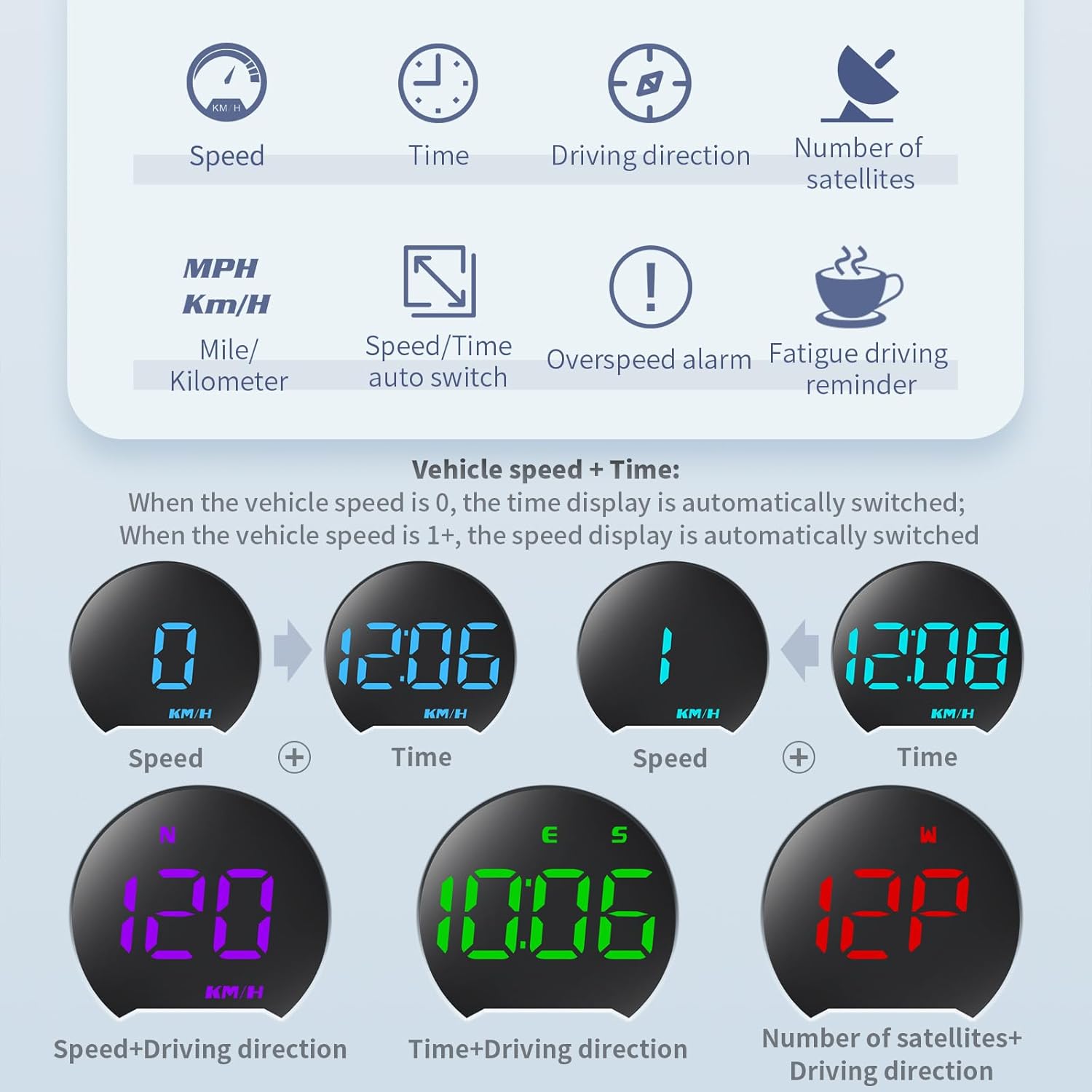
Image: A graphic illustrating the different display modes and functions of the G13 HUD. Icons represent Speed, Time, Driving Direction, and Number of Satellites. Examples of combined displays like Speed+Time and Speed+Driving Direction are also shown.
Switching Display Interfaces:
The G13 offers 7 different display interfaces. To switch between them, press the dial button located on the top of the unit vertically. Each press will cycle through the available display modes.
Automatic Brightness Adjustment:
The built-in photosensitive element automatically detects ambient light and adjusts the display brightness accordingly. This ensures the display is visible during the day and soft/non-glaring at night.

Image: Two panels demonstrating the automatic photosensitive adjustment feature. The left panel shows the HUD in a bright daytime setting, while the right panel shows it in a darker nighttime setting, with adjusted display brightness.
Alarm Functions:
The G13 includes two important alarm functions for enhanced safety:
- Overspeed Alarm: Alerts you when your vehicle exceeds a preset speed limit. This limit can be adjusted in the settings.
- Fatigue Driving Reminder: Provides a reminder after 8 hours of continuous driving to encourage breaks.
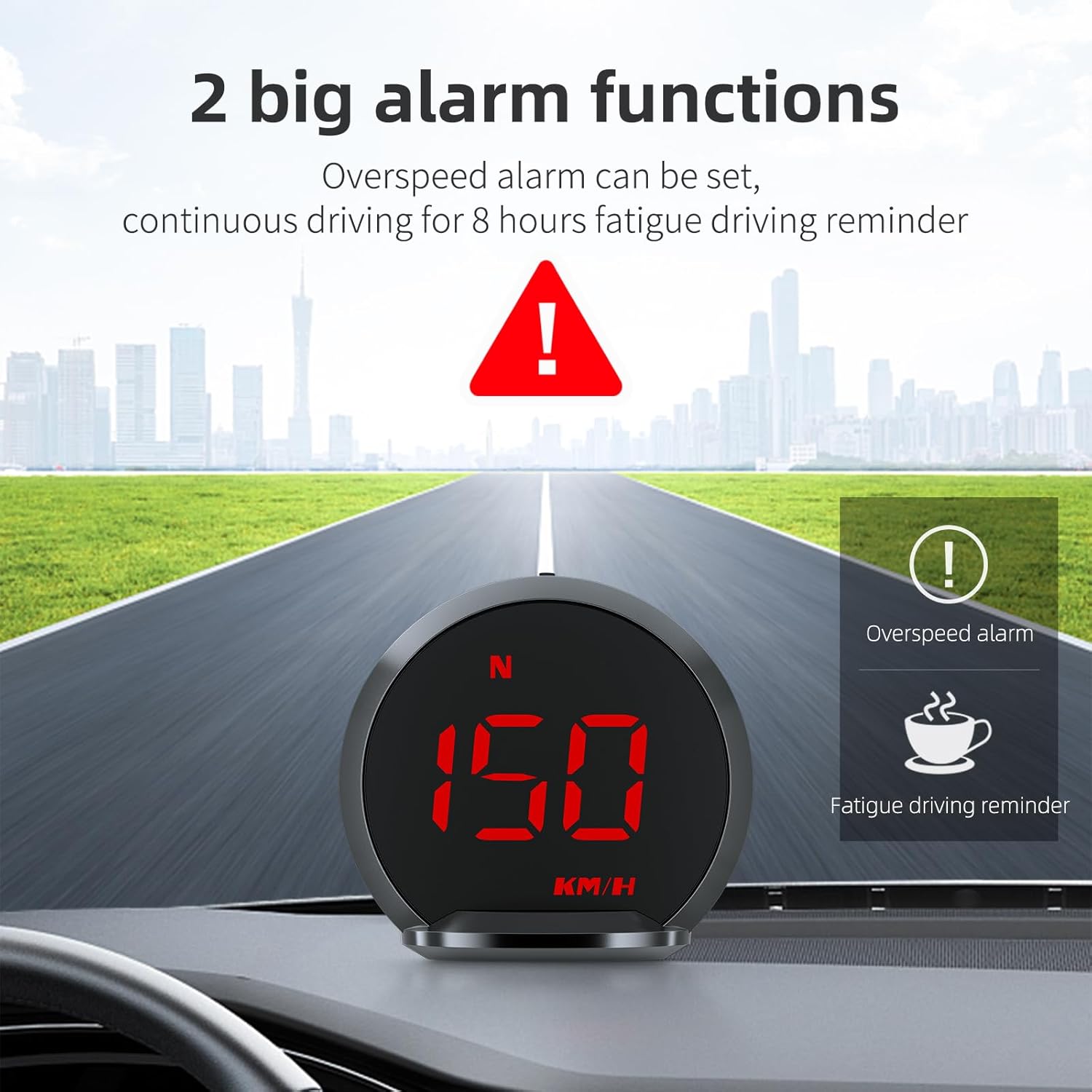
Image: A visual representation of the two main alarm functions: an overspeed alarm (indicated by an exclamation mark in a triangle) and a fatigue driving reminder (indicated by a steaming coffee cup icon). The HUD displays "150 KM/H" in red, suggesting an overspeed condition.
Color Customization:
The display offers 6 different color themes that can be switched to your preference. Use the dial button to navigate through color options in the settings menu.

Image: A series of small HUD displays showcasing the six different color themes available: Yellow-green, Light blue, Cyan, Blue, Red, and Purple. The main image shows the HUD displaying "16 KM/H" in green.
Troubleshooting
If you encounter issues with your KAOLALI G13 HUD, please refer to the following common solutions:
| Problem | Possible Cause | Solution |
|---|---|---|
| No display/Device not powering on | No power supply or faulty USB cable/port. | Ensure the USB cable is securely connected to both the HUD and a working USB power source in your vehicle. Try a different USB port or cable. |
| Inaccurate speed reading | GPS signal interference or initial calibration. Note: The HUD's displayed speed may be slightly higher than actual speed for safety. | Ensure the device has a clear view of the sky for optimal GPS signal reception. Drive for a few minutes to allow the GPS to stabilize. If the discrepancy is significant, you may be able to adjust the speed calibration in the device settings (refer to the detailed manual for specific steps). |
| Display too dim or too bright | Automatic brightness sensor obstructed or malfunctioning. | Ensure the photosensitive element (located on the top of the unit, as shown in the diagram) is not covered. Clean the sensor if necessary. |
| No GPS signal/Satellites not found | Device is indoors, in a tunnel, or obstructed view of the sky. | Move the vehicle to an open area with a clear view of the sky. Wait a few minutes for the device to acquire GPS satellites. |
Maintenance
To ensure the longevity and optimal performance of your KAOLALI G13 HUD, follow these maintenance guidelines:
- Cleaning: Use a soft, dry cloth to clean the display screen and the device body. Avoid using abrasive cleaners, solvents, or spray cleaners directly on the unit.
- Storage: When not in use for extended periods, store the device in a cool, dry place away from direct sunlight and extreme temperatures.
- Temperature: Avoid exposing the device to extreme hot or cold temperatures, as this can affect its electronic components and battery life (if applicable).
- Handling: Handle the device with care. Avoid dropping it or subjecting it to strong impacts.
Specifications
| Feature | Detail |
|---|---|
| Brand | KAOLALI |
| Model | G13 |
| Screen Size | 2.2 Inches |
| Display Type | LCD, Full HD |
| Material | Polycarbonate (PC) |
| Item Dimensions (L x W x H) | 6.6 x 6 x 2.4 centimeters |
| Power Supply | USB (Plug and Play) |
| Functions | Speed, Clock, Satellites Number, Driving Distance, Driving Time, Driving Direction, Overspeed Alarm, Fatigue Driving Reminder |
| Brightness Adjustment | Automatic (Photosensitive Sensor) |
| Installation | Dashboard (Anti-slip mat) or Windshield (Suction cup mount) |

Image: A technical diagram of the G13 HUD, showing its dimensions (60mm height, 66mm width, 24mm depth) and labeling key components such as the dial button, compass display, LED display, photosensitive element, bracket interface, and Micro USB interface.
Warranty and Support
Specific warranty information for the KAOLALI G13 GPS HUD Speedometer is not provided in this manual. Please refer to the product packaging or the retailer's website for details regarding warranty coverage and terms.
For technical support or further assistance, please contact KAOLALI customer service through the contact information provided on the product packaging or the official KAOLALI website.


