
HAvern B
HAvern Electronic Rocker Lock Reader Door Lock
Instruction Manual - Model B
1. Product Overview
The HAvern Electronic Rocker Lock Reader is an advanced security solution designed for various applications, including data centers and IT racks. This smart lock offers multiple unlocking methods, combining convenience with robust security features. Its exquisite design and durable construction ensure reliable performance.
This manual provides detailed instructions for the installation, operation, and maintenance of your HAvern Electronic Rocker Lock Reader, Model B.
2. Key Features
- Multiple Unlocking Methods: Supports mobile phone, fingerprint, password, card, and traditional key unlocking.
- Fast Fingerprint Recognition: Quick and accurate fingerprint identification for seamless access.
- Secure Design: Features a reasonable structure and secure fingerprint lock mechanism.
- Durable Construction: Made of high-quality materials, ensuring long-lasting and stable performance.
- Easy Installation: Designed for straightforward setup.
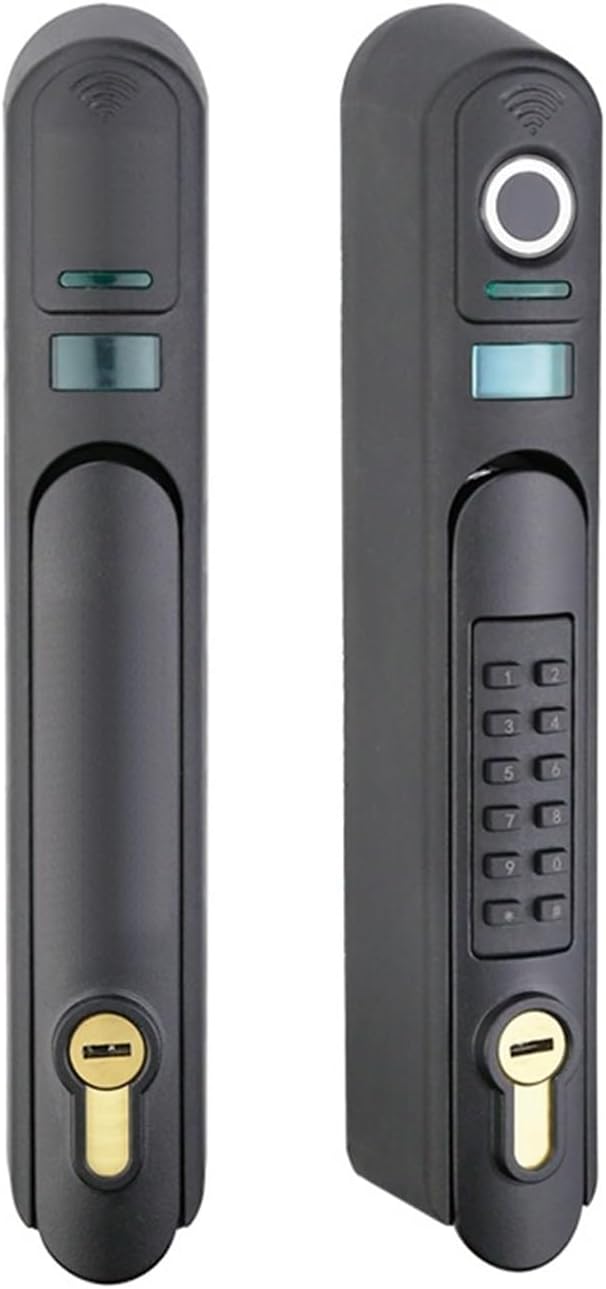
Figure 2.1: Front and side view of the HAvern Electronic Rocker Lock Reader, showcasing its sleek design and integrated components.
3. Setup and Installation
The HAvern Electronic Rocker Lock Reader is designed for easy installation. While specific steps may vary based on your door or rack type, the general process involves mounting the lock unit and connecting any necessary wiring.
- Prepare the Installation Area: Ensure the door or rack where the lock will be installed is clean and free of obstructions.
- Mount the Lock Unit: Securely attach the main lock body to the designated area using the provided hardware. Follow the specific mounting instructions included in the packaging for your particular application.
- Connect Components: If applicable, connect any internal wiring or external components (e.g., power supply, network cables) according to the wiring diagram.
- Test Functionality: After installation, perform initial tests to ensure all unlocking methods (fingerprint, password, key) function correctly before full deployment.

Figure 3.1: Side view of the lock, highlighting the keypad and physical keyhole, essential components for setup and operation.
4. Operating Instructions
The HAvern Electronic Rocker Lock Reader offers multiple convenient ways to unlock. Ensure the lock is powered on and properly installed before attempting to operate.
4.1. Unlocking via Fingerprint
The lock features fast and accurate fingerprint recognition. Up to 20 fingerprints can be stored.
- Enroll Fingerprints: Refer to the specific programming instructions (usually found in a separate quick start guide or app) to enroll authorized fingerprints.
- Place Finger: Gently place your enrolled finger on the fingerprint sensor.
- Unlock: The lock will verify your fingerprint and unlock if authorized.

Figure 4.1: Demonstrates unlocking the device using the integrated fingerprint sensor.
4.2. Unlocking via Password
The lock supports up to 6-digit passwords.
- Enter Password: On the keypad, enter your pre-set 6-digit password.
- Confirm: Press the '#' key or designated confirmation key after entering the password.
- Unlock: The lock will verify the password and unlock if correct.

Figure 4.2: Close-up view of the numerical keypad used for password entry.
4.3. Unlocking via Physical Key
For emergency access or traditional unlocking, a physical key can be used. The lock features a copper cylinder in C-class for enhanced security and corrosion resistance.
- Insert Key: Insert the provided physical key into the keyhole at the bottom of the lock.
- Turn Key: Turn the key to unlock the mechanism.
- Remove Key: Remove the key after unlocking.

Figure 4.3: Detailed view of the physical keyhole, indicating the traditional unlocking method.
4.4. Unlocking via Mobile Phone and Card
Specific instructions for mobile phone app integration and card unlocking will be provided with the product's dedicated application or quick start guide. Generally, this involves pairing the lock with your smartphone via Bluetooth or Wi-Fi and registering access cards through the app or lock interface.
5. Maintenance
To ensure the longevity and optimal performance of your HAvern Electronic Rocker Lock Reader, follow these maintenance guidelines:
- Cleaning: Use a soft, dry cloth to clean the lock's surface. Avoid abrasive cleaners or solvents that could damage the finish or electronic components.
- Battery Replacement: While not explicitly detailed, electronic locks typically require battery replacement. Monitor the lock's indicator for low battery warnings and replace batteries promptly with the recommended type (e.g., AA, AAA, or specific lithium-ion pack).
- Fingerprint Sensor Care: Keep the fingerprint sensor clean and free of dust or debris to ensure accurate readings.
- Keyhole Maintenance: Periodically check the physical keyhole for any obstructions. Avoid forcing the key if it does not insert smoothly.
- Firmware Updates: If the lock supports firmware updates via a mobile app, ensure you keep the firmware updated for improved security and functionality.
6. Troubleshooting
If you encounter issues with your HAvern Electronic Rocker Lock Reader, refer to the following common problems and solutions:
| Problem | Possible Cause | Solution |
|---|---|---|
| Lock does not respond to fingerprint. | Unregistered fingerprint, dirty sensor, or incorrect finger placement. | Ensure fingerprint is enrolled. Clean the sensor. Re-position finger correctly. Try another enrolled finger. |
| Password not accepted. | Incorrect password entered, or password not confirmed. | Verify the password. Ensure all digits are entered correctly and the confirmation key is pressed. |
| Physical key does not work. | Wrong key, damaged key, or obstruction in keyhole. | Ensure you are using the correct key. Check for debris in the keyhole. Do not force the key. |
| Lock is unresponsive (no lights, no sound). | Low or dead batteries, or power supply issue. | Replace batteries. Check power connection if applicable. |
If the problem persists after trying these solutions, please contact customer support.
7. Specifications
| Attribute | Detail |
|---|---|
| Brand | HAvern |
| Model | B |
| Unlocking Methods | Mobile phone, Fingerprint, Password, Card, Key |
| Application | Data Center, IT Rack, etc. |
| Item Weight | 1 Grams (0.035 ounces) |
| Country of Origin | China |
| ASIN | B0CGPMQBVX |
8. Warranty and Support
For information regarding the product warranty, please refer to the documentation included with your purchase or visit the official HAvern website. Standard warranty terms typically cover manufacturing defects for a specified period from the date of purchase.
For technical support, troubleshooting assistance beyond this manual, or warranty claims, please contact HAvern customer service through their official channels. Contact information can usually be found on the product packaging or the manufacturer's website.
Ask a question about this manual
Ask about setup, troubleshooting, compatibility, parts, safety, or missing instructions. Manuals+ will review the question and use this page’s manual context to help answer it.