
SETTY GSM111404
SETTY Wireless Rechargeable Mouse User Manual
Model: GSM111404
1. Introduction
Thank you for choosing the SETTY Wireless Rechargeable Mouse. This manual provides essential information for setting up, operating, and maintaining your new mouse. Please read these instructions carefully before use to ensure optimal performance and longevity of your device.
2. Package Contents
- 1 x SETTY Wireless Rechargeable Mouse
- 1 x 2.4 GHz USB Receiver
- 1 x USB Charging Cable (25 cm)

Image 1: SETTY Wireless Rechargeable Mouse and its retail packaging.
3. Product Overview
The SETTY Wireless Rechargeable Mouse is designed for comfort and efficiency in both office and home environments. It features a slim, ergonomic design, adjustable DPI settings, RGB lighting, and dual-mode connectivity (2.4 GHz and Bluetooth).
Key Features:
- Dual-Mode Connectivity: Supports 2.4 GHz wireless via USB receiver and Bluetooth 5.1.
- Adjustable DPI: Three sensitivity levels (800, 1200, 1600 DPI) for precise control.
- Ergonomic Design: Comfortable for extended use.
- Rechargeable Battery: Built-in 500 mAh lithium battery.
- RGB Lighting: Dynamic LED lighting for enhanced aesthetics.
- 6 Buttons: Including left, right, scroll wheel, DPI switch, and two side buttons.
- One-Click Desktop Function: Quickly minimize all windows.
- Silent Click Design: Reduces operational noise.

Image 2: The ergonomic shape of the mouse designed for comfortable hand placement.
4. Setup
4.1. Charging the Mouse
Before first use, it is recommended to fully charge the mouse. Connect the provided USB charging cable to the charging port on the front of the mouse and the other end to a USB power source (e.g., computer USB port, USB wall adapter). The RGB lighting will indicate charging status and turn off when fully charged.
- Charging Time: Approximately 2 hours.
- Working Time: Up to 150 hours on a full charge.

Image 3: The mouse being charged via its USB cable.
4.2. Connecting the Mouse
The SETTY mouse offers two connection methods: 2.4 GHz wireless via USB receiver or Bluetooth 5.1.
4.2.1. 2.4 GHz Wireless Connection
- Locate the USB receiver, usually stored in a compartment on the underside of the mouse.
- Plug the USB receiver into an available USB port on your computer.
- Turn on the mouse using the power switch on its underside.
- The mouse should automatically connect to your computer.
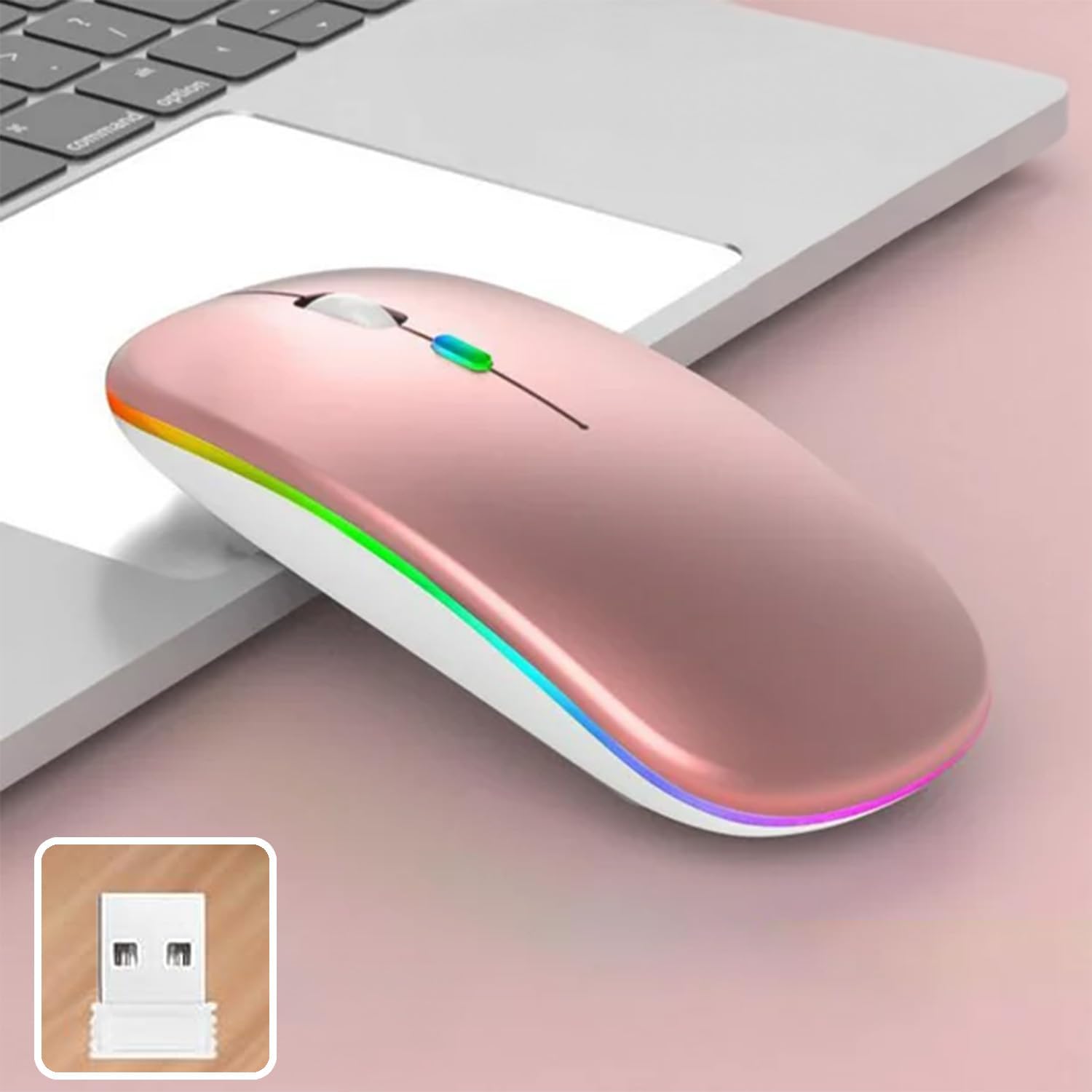
Image 4: The mouse and its 2.4 GHz USB receiver.
4.2.2. Bluetooth 5.1 Connection
- Turn on the mouse using the power switch.
- Press and hold the Bluetooth pairing button (often located on the underside or a dedicated button) until the indicator light starts flashing, indicating pairing mode.
- On your device (Windows, Mac OS, Android), go to Bluetooth settings and search for new devices.
- Select "SETTY Mouse" or a similar name from the list of available devices to pair.
- Once paired, the indicator light on the mouse will stop flashing.
4.3. Compatibility
The SETTY Wireless Rechargeable Mouse is compatible with a wide range of operating systems and devices:
- Windows operating systems
- Mac OS
- Android devices
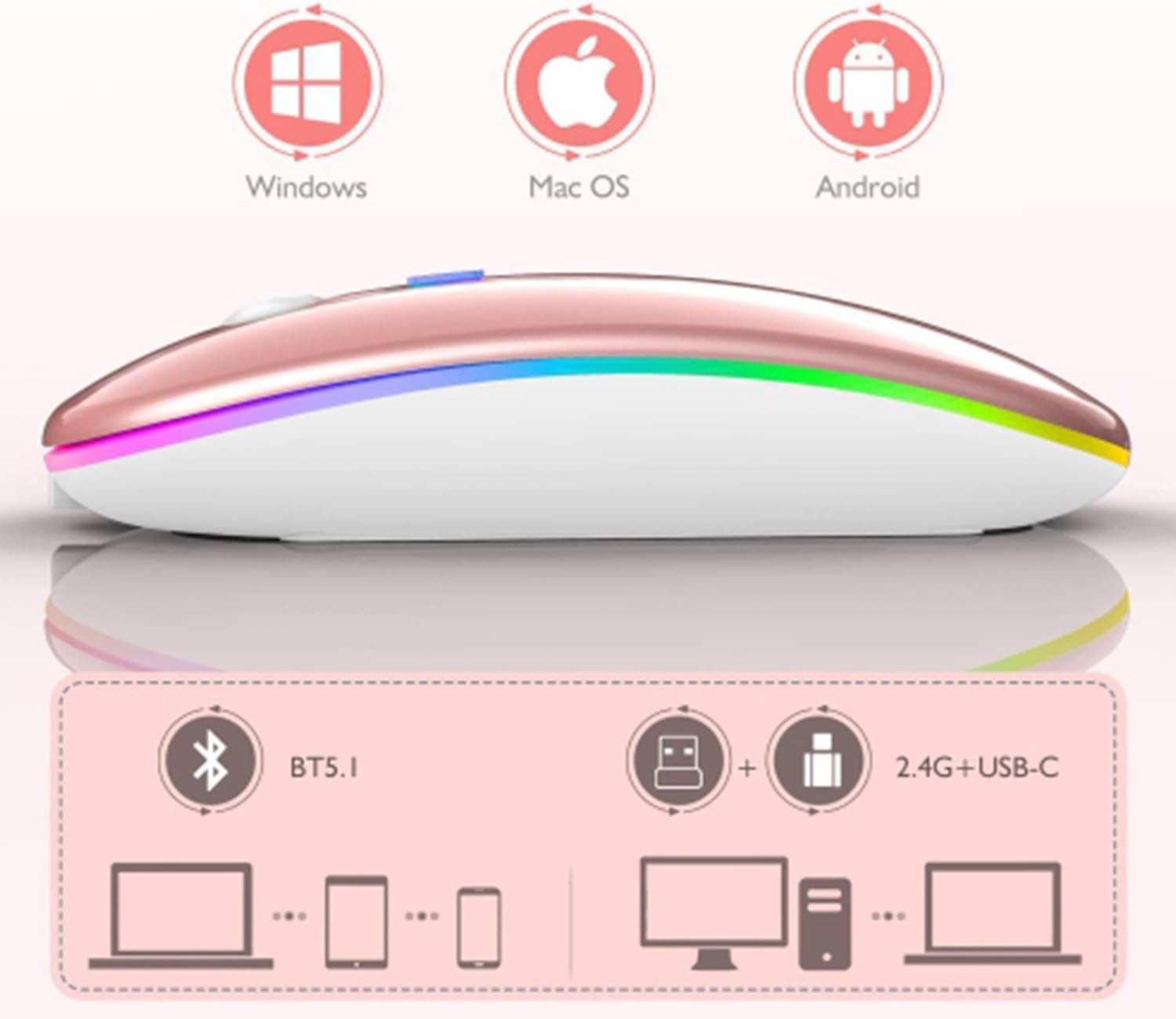
Image 5: Visual representation of the mouse's compatibility with various operating systems and connection types.
5. Operating Instructions
5.1. DPI Adjustment
The mouse features three adjustable DPI (Dots Per Inch) settings to suit your preference for cursor speed and precision. Press the DPI button (usually located behind the scroll wheel) to cycle through the settings:
- 800 DPI: Lower sensitivity for precise tasks.
- 1200 DPI: Standard sensitivity (default setting).
- 1600 DPI: Higher sensitivity for faster cursor movement.
5.2. RGB Lighting
The mouse is equipped with dynamic RGB LED lighting. The lighting activates when the mouse is in use and enters power-saving modes when idle.
5.3. Power Saving Modes
To conserve battery life, the mouse implements a three-level power-saving system:
- Level 1 Sleep: After 3 seconds of inactivity, the mouse enters a light sleep mode, indicated by a continuously flashing light.
- Level 2 Sleep: After approximately 1 minute of inactivity, the mouse enters a deeper sleep mode, indicated by intermittently flashing lights.
- Level 3 Sleep: After 8 minutes of inactivity, the mouse enters its deepest sleep mode, and the lights turn off completely. To wake the mouse, simply move it or click any button.
5.4. One-Click Desktop Function
The mouse includes a dedicated button (often a side button) that, when pressed, instantly minimizes all open windows, allowing you to quickly access your desktop.
6. Maintenance
To ensure the longevity and optimal performance of your SETTY Wireless Rechargeable Mouse, follow these maintenance guidelines:
- Cleaning: Use a soft, dry cloth to wipe the surface of the mouse. For stubborn dirt, slightly dampen the cloth with water or a mild cleaning solution. Avoid using harsh chemicals or abrasive materials.
- Storage: When not in use for extended periods, store the mouse in a cool, dry place.
- Battery Care: Avoid fully discharging the battery frequently. Charge the mouse when the low battery indicator appears.
- Avoid Extreme Conditions: Do not expose the mouse to extreme temperatures, direct sunlight, or excessive moisture.
7. Troubleshooting
If you encounter issues with your SETTY Wireless Rechargeable Mouse, please refer to the following common solutions:
- Mouse not responding:
- Ensure the mouse is turned on.
- Check the battery level and charge the mouse if necessary.
- For 2.4 GHz connection, ensure the USB receiver is securely plugged into a working USB port. Try a different USB port.
- For Bluetooth connection, ensure Bluetooth is enabled on your device and the mouse is properly paired. Try re-pairing the mouse.
- Move the mouse closer to the receiver/device to ensure it's within the 15m wireless range.
- Cursor movement is erratic or slow:
- Clean the optical sensor on the underside of the mouse.
- Ensure you are using the mouse on a suitable surface (non-reflective, opaque).
- Adjust the DPI setting to a higher value if the cursor is too slow.
- RGB lighting not working:
- The lighting may be off due to power-saving mode. Move or click the mouse to wake it up.
- Ensure the mouse is sufficiently charged.
8. Specifications
| Feature | Specification |
|---|---|
| Model | GSM111404 |
| Connectivity Technology | 2.4 GHz Wireless, Bluetooth 5.1 |
| Wireless Range | Up to 15 meters |
| DPI Settings | 800 / 1200 / 1600 DPI (Default: 1200 DPI) |
| Number of Buttons | 6 |
| Motion Detection Technology | Optical |
| Battery Type | Built-in 500 mAh Lithium-ion Rechargeable Battery |
| Charging Time | Approx. 2 hours |
| Working Time | Approx. 150 hours |
| Rated Voltage / Current | 3.7 V / 18 mA |
| Key Life | 5 million clicks |
| Material | ABS + Metal parts |
| Product Dimensions (L x W x H) | 11.3 x 5.7 x 2.5 cm |
| Charging Cable Length | 25 cm |
| Compatible Operating Systems | Windows, Mac OS, Android |
9. Warranty and Support
For warranty information or technical support, please refer to the documentation provided at the point of purchase or contact SETTY customer service. Keep your proof of purchase for warranty claims.
Related documentsGSM111404

Ask a question about this manual
Ask about setup, troubleshooting, compatibility, parts, safety, or missing instructions. Manuals+ will review the question and use this page’s manual context to help answer it.