
WUYJTIF H96MAX M3
H96MAX M3 WiFi 6 TV Box User Manual
Model: H96MAX M3 | Brand: WUYJTIF
Introduction
The H96MAX M3 WiFi 6 TV Box is a smart streaming device designed to transform your television into a powerful entertainment hub. Running on Android 13.0, it offers comprehensive streaming support, extensive app selection, and advanced features like 8K video decoding and Wi-Fi 6 connectivity for a superior viewing experience. Its compact design and intuitive controls make it ideal for home and office use.
Key features include:
- Comprehensive Streaming Support: Access popular video streaming services such as Netflix, Hulu, Flixster, and YouTube.
- Extensive App Selection: Download applications from Android Market and Amazon Appstore.
- Local Media Playback: Play content from external storage devices like HDDs and USB drives.
- Social Connectivity: Stay connected with platforms like Skype, MSN, Facebook, Twitter, and QQ.
- Enhanced User Experience: DLNA support for content sharing and compatibility with 2.4G wireless mice and keyboards.

Image: The H96MAX M3 TV Box (stick form factor) and its accompanying remote control, showcasing their sleek design.
Package Contents
Please verify that all items are present in the package:
- H96MAX M3 TV Box
- Remote Control
- Power Adapter (5V/2A)
- HDMI Cable (if included, typically for connection)
- User Manual (this document)

Image: The H96MAX M3 Android 13.0 TV Stick, its remote, and the product packaging, illustrating the complete set.
Setup Guide
- Connect to TV: Insert the H96MAX M3 TV Box directly into an available HDMI port on your television.
- Connect Power: Connect the provided power adapter to the DC 5V/2A port on the TV Box, then plug the adapter into a wall outlet.
- Power On: The device should power on automatically. If not, press the power button on the remote control.
- Select Input: On your TV, select the correct HDMI input source corresponding to the port where the TV Box is connected.
- Initial Setup: Follow the on-screen instructions to complete the initial setup, including language selection, Wi-Fi network connection, and Google account login.

Image: The H96MAX M3 TV Box connected to a television, displaying the Android 13.0 interface with various streaming applications.
Operating Instructions
Remote Control Usage
The included remote control operates on a 2.4G frequency and features voice control capabilities. It has a built-in receiver, requiring no additional installation.
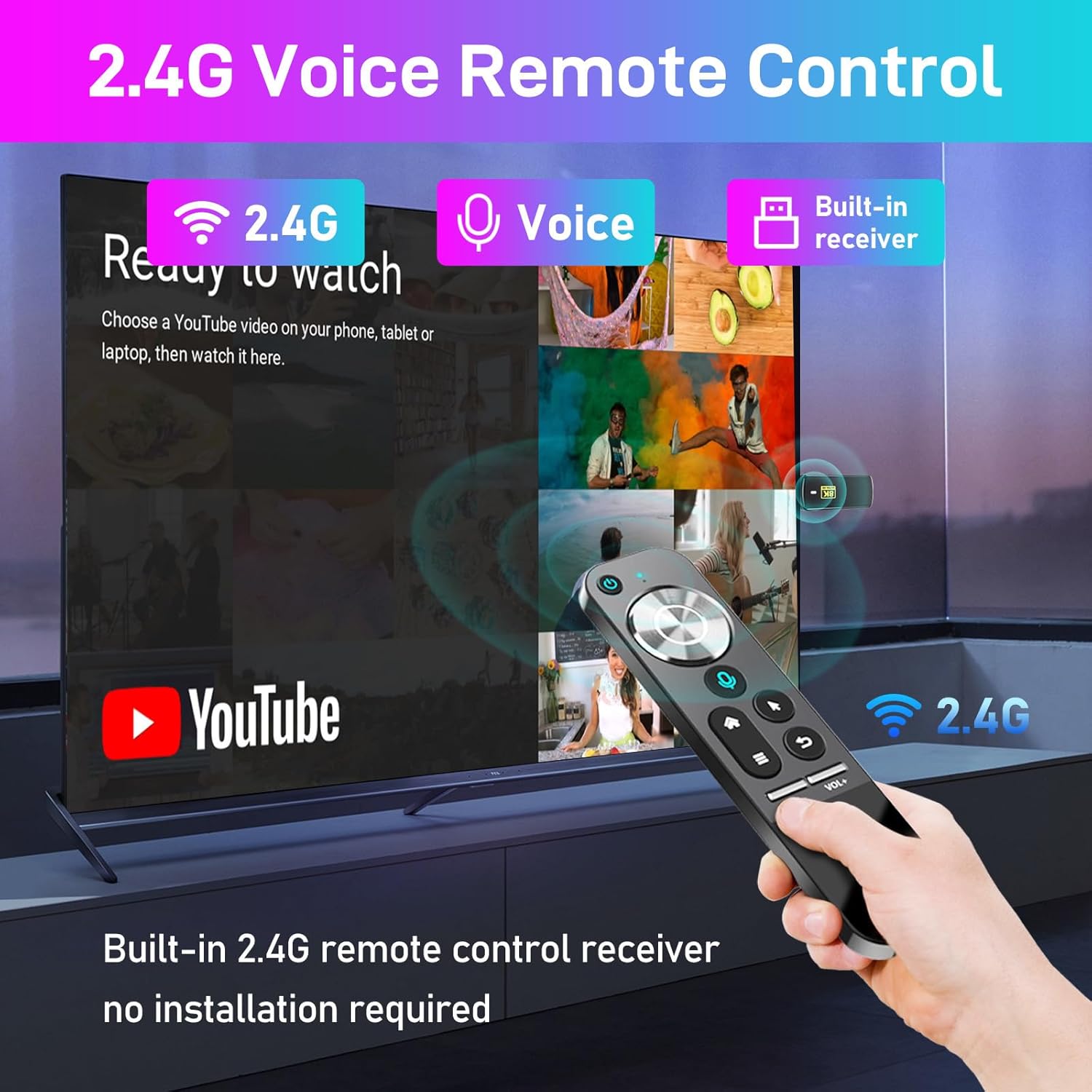
Image: A hand holding the 2.4G Voice Remote Control, pointing towards a television displaying a YouTube interface, highlighting its ease of use.
- Power Button: Turns the device on or off.
- Navigation Pad (OK button in center): Use to navigate menus and select items.
- Voice Button: Activates voice commands for search and control.
- Home Button: Returns to the main Android home screen.
- Back Button: Goes back to the previous screen or menu.
- Menu Button: Accesses context-sensitive menus.
- Volume Buttons (VOL-, VOL+): Adjusts the audio volume.
Customizing UI Buttons
You can customize the application shortcuts on your home screen:
- To add an app, click "OK" on an empty slot and select the desired app logo.
- To remove or replace an app, press and hold "OK" on an existing app logo.

Image: Screenshots demonstrating the UI button customization process, showing how to add and remove application shortcuts on the home screen.
Multi-screen Interaction
The device supports various multi-screen interaction protocols:
- Airplay: For mirroring content from Apple devices.
- DLNA: For sharing media across compatible devices on your network.
- WiFiDisplay: For wireless display mirroring.

Image: An illustration of multi-screen interaction, showing icons for Airplay, DLNA, and WiFiDisplay, with a smartphone mirroring its content to a large TV screen via the TV Box.
Application Scenarios
The H96MAX M3 is versatile for various uses:
- Music Sharing: Stream music to your home audio system.
- Play Games: Enjoy Android games on your TV.
- Meetings: Utilize for presentations or video conferencing.
- Watch Movies: Access a vast library of movies and TV shows.

Image: A collage depicting various application scenarios: music sharing, playing games, conducting meetings, and watching movies, demonstrating the device's versatility.
Maintenance and Care
- Keep the device in a dry, well-ventilated area, away from direct sunlight and heat sources.
- Avoid exposing the device to water or excessive humidity.
- Clean the device with a soft, dry cloth. Do not use liquid cleaners or aerosols.
- Do not attempt to open or repair the device yourself, as this will void the warranty.
- Unplug the device from the power outlet when not in use for extended periods.
Troubleshooting
| Problem | Possible Cause | Solution |
|---|---|---|
| No power/Device not turning on | Power adapter not connected properly; faulty power outlet. | Ensure power adapter is securely connected. Try a different power outlet. |
| No signal on TV screen | Incorrect HDMI input selected; loose HDMI connection. | Verify TV input source matches the HDMI port used. Reconnect HDMI cable. |
| Wi-Fi connection issues | Incorrect Wi-Fi password; router too far; interference. | Double-check Wi-Fi password. Move device closer to router. Restart router and TV Box. |
| Remote control not responding | Low battery; obstruction; device not paired. | Replace remote batteries. Ensure no obstructions between remote and device. Re-pair remote if necessary (refer to device settings). |
| App crashes or freezes | Insufficient memory; app bug; outdated app version. | Close background apps. Clear app cache/data. Update the app from the store. Restart the device. |
Specifications
| Feature | Detail |
|---|---|
| Operating System | Android 13.0 |
| CPU | Quad Core ARM Cortex-A53 |
| GPU | Mali-450 |
| Memory (RAM) | 2GB |
| Flash Memory (Storage) | 16GB |
| Wi-Fi | Wireless LAN 802.11a/b/g/n/ax (Wi-Fi 6) |
| Bluetooth | BT 5.0 |
| Video Output | 1 * HD (4K * 2K ultra high definition output, supports 8K video decoding) |
| USB Port | 1 * USB 2.0 |
| Power Input | 1 * DC (5V/2A) |
| Infrared Extension Cable | Supported |
| Audio Formats | MP3, AAC, WMA, RM, FLAC |
| Image Formats | HD JPEG, BMP, GIF, PNG, TIF |
| Product Dimensions | About 98.7 * 37 * 13.2mm (3.89 * 1.46 * 0.52 inches) |
| Product Weight | 40g |

Image: An illustration highlighting the Wi-Fi 6 capability of the device, indicating 55% faster speeds for networking compared to previous generations.

Image: A vibrant image of a parrot, demonstrating the crisp detail and high resolution supported by the 8K video decoding capability of the device.
Warranty and Support
Please refer to the product packaging or the seller's information for specific warranty details. Typically, electronic devices come with a limited manufacturer's warranty covering defects in materials and workmanship.
For technical support or further assistance, please contact the seller or manufacturer through the platform where the product was purchased. Ensure you have your purchase details and product model number (H96MAX M3) ready when contacting support.
Ask a question about this manual
Ask about setup, troubleshooting, compatibility, parts, safety, or missing instructions. Manuals+ will review the question and use this page’s manual context to help answer it.