
1. Introduction
This manual provides comprehensive instructions for the installation, operation, and maintenance of your ErgoAV ERDHM2-01B Motion Desk Mount for Dual Monitors. This desk mount is designed to securely hold two monitors, each up to 34 inches and weighing between 4.4 to 22 lbs, offering flexible positioning and an integrated docking solution for an organized workspace.
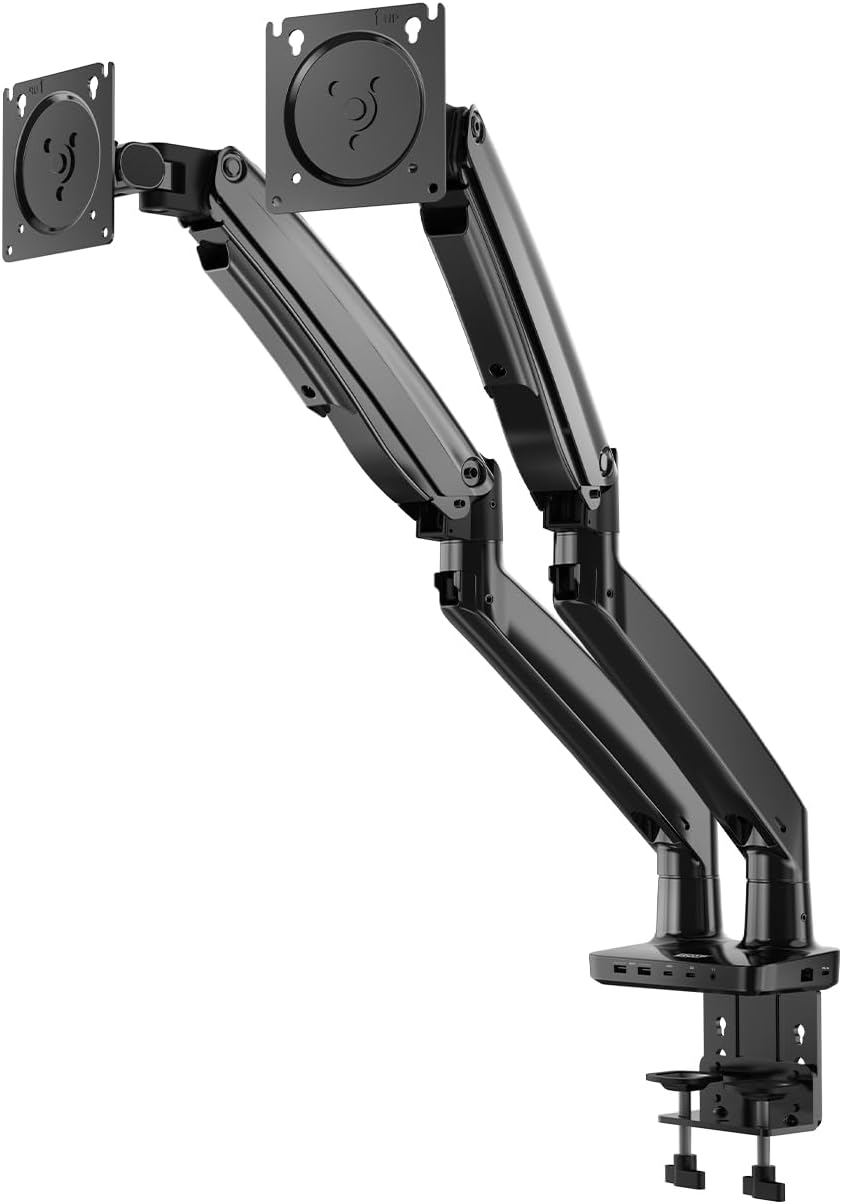
Image 1: The ErgoAV ERDHM2-01B Motion Desk Mount, a dual monitor arm with a desk clamp base and integrated ports.
2. Product Features
- Dual Monitor Support: Accommodates two monitors ranging from 13 to 34 inches, each weighing 4.4 to 22 lbs.
- Full Range Motion: Offers 15 inches of vertical adjustment, 360° rotation, and 45° tilt for optimal viewing angles.
- Integrated Docking Station: Features 2 USB-C power ports (75W for laptops, 20W for phones/tablets), 2 HDMI ports (4K@60Hz and 4K@30Hz), 2 USB-A 3.0 ports (up to 5 Gbps), an Ethernet port, and a 3.5mm AUX port.
- VESA Compatibility: Supports 75mm x 75mm and 100mm x 100mm VESA patterns.
- Built-in Cable Management: Helps maintain a clean and organized workspace.
- Sturdy Construction: Heavy-duty design ensures stability and durability.

Image 2: A detailed view of the integrated ports on the desk mount base, including USB-C (75W and 7.5W), USB-A, HDMI, and a 3.5mm audio jack.

Image 3: The desk mount's built-in dock in use, showing connections for USB-C, USB-A, HDMI, Ethernet, and 3.5mm AUX, creating a streamlined setup with dual monitors, keyboard, mouse, and headphones.

Image 4: An overview of the desk mount's features, including universal compatibility, easy adjustment, heavy-duty design, and monitor compatibility specifications (size, load capacity, VESA patterns).
3. Setup Instructions
Follow these steps to properly install your ErgoAV Motion Desk Mount.
- Prepare Your Workspace: Clear your desk of any obstructions. Ensure your desk surface is sturdy enough to support the mount and two monitors.
- Attach the Desk Clamp: Secure the desk clamp to the edge of your desk. Tighten the clamp screws until the mount is firmly attached and stable.
- Assemble the Monitor Arms: Attach the monitor arms to the main pole of the desk mount. Ensure all connections are secure.
- Attach Monitors to VESA Plates:
- Carefully remove your monitors from their original stands.
- Align the VESA mounting holes on the back of your monitors with the VESA plates on the monitor arms.
- Use the provided screws to securely attach the monitors to the VESA plates. Do not overtighten.
- Adjust Monitor Position: Once monitors are attached, adjust the height, tilt, swivel, and rotation to your desired viewing positions. The gas spring arms allow for smooth adjustments.
- Connect Cables: Route monitor power and video cables through the integrated cable management channels. Connect your devices to the built-in dock's USB-C, HDMI, USB-A, Ethernet, and AUX ports as needed.
4. Operating the Monitor Mount
The ErgoAV Motion Desk Mount offers versatile adjustments for an ergonomic setup.

Image 5: Illustrations showing the full range of motion capabilities: tilting the monitor up and down, rotating it 360 degrees, and swiveling it left and right.
- Height Adjustment: Gently push or pull the monitor arm to raise or lower your monitor. The gas spring mechanism will hold it in place.
- Tilt Adjustment: Tilt your monitor screen up or down to reduce glare and find your optimal viewing angle (up to 45°).
- Rotation: Rotate your monitor 360° to switch between landscape and portrait orientations.
- Swivel: Swivel the monitor arms left or right to share your screen with others or adjust your viewing position.
- Docking Station Usage:
- USB-C Power Delivery: Connect your laptop to the 75W USB-C port for charging and data transfer. Use the 20W USB-C port for charging phones or tablets.
- HDMI Ports: Connect your monitors via the HDMI ports for video output (supports 4K@60Hz and 4K@30Hz).
- USB-A Ports: Use the USB-A 3.0 ports for connecting peripherals like keyboards, mice, or external drives.
- Ethernet Port: Connect an Ethernet cable for a stable wired network connection.
- 3.5mm AUX: Connect headphones or speakers.

Image 6: A diagram illustrating the maximum arm height of 22.4 inches and maximum arm extension of 27.2 inches, demonstrating the full adjustability of the monitor arm.
5. Maintenance
Regular maintenance ensures the longevity and optimal performance of your monitor mount.
- Cleaning: Wipe the mount surfaces with a soft, damp cloth. Avoid abrasive cleaners or solvents.
- Check Connections: Periodically check all screws and bolts to ensure they are tight and secure.
- Cable Management: Ensure cables are neatly routed and not pinched or strained.
- Gas Spring Tension: If monitors do not hold their position, adjust the gas spring tension screw (usually located on the arm joint) according to the instructions provided with the mount.
6. Troubleshooting
Refer to this section for common issues and their solutions.
- Monitor Not Holding Position:
- Solution: The gas spring tension may need adjustment. Locate the tension adjustment screw on the arm (often marked with '+' and '-' signs) and turn it clockwise to increase tension for heavier monitors, or counter-clockwise to decrease tension for lighter monitors.
- Monitors Wobble:
- Solution: Ensure the desk clamp is securely tightened to the desk. Check that all VESA plate screws are firmly attached to the monitors.
- No Display from HDMI Ports:
- Solution: Verify that the USB-C cable from your laptop to the mount's main input is correctly connected and capable of video output. Ensure HDMI cables are securely plugged into both the mount and the monitors. Check monitor input settings.
- USB Ports Not Functioning:
- Solution: Ensure the USB-C cable from your laptop to the mount is fully connected and supports data transfer. Try connecting a different device to confirm port functionality.
7. Specifications
| Feature | Detail |
|---|---|
| Model Number | ERDHM2-01B |
| Brand | ErgoAV |
| Monitor Size Compatibility | 13 - 34 inches per monitor |
| Load Capacity | 4.4 - 22 lbs per monitor |
| VESA Compatibility | 75mm x 75mm, 100mm x 100mm |
| Vertical Adjustment | Up to 15 inches |
| Rotation | 360° |
| Tilt Angle | Up to 45° |
| Max Arm Height | 22.4 inches |
| Max Arm Extension | 27.2 inches |
| Integrated Ports | 2x USB-C (75W PD, 20W PD), 2x HDMI (4K@60Hz, 4K@30Hz), 2x USB-A 3.0, 1x Ethernet, 1x 3.5mm AUX |
| Item Weight | 15.7 pounds |
| Color | Black wood grain finish |
| UPC | 810082201192 |
8. Warranty and Support
For warranty information, technical support, or to purchase replacement parts, please visit the official ErgoAV website or contact their customer service directly. Keep your purchase receipt for warranty claims.
ErgoAV Official Website: www.ergoav.com