
ikuai B0CGJ28J72
ikuai USB 3.0 Dual Bay HDD Docking Station
Model: B0CGJ28J72
1. Introduction
This user manual provides detailed instructions for the setup, operation, and maintenance of your ikuai USB 3.0 Dual Bay HDD Docking Station. This device is designed to provide a convenient and efficient solution for hard drive backup, data transfer, and storage, supporting both 2.5-inch and 3.5-inch SATA SSDs and HDDs.
2. Product Features
- Dual Bay Design: Supports two SATA I/II/III 2.5-inch or 3.5-inch HDDs/SSDs simultaneously.
- High Capacity Support: Compatible with hard drives up to 2x20TB.
- SuperSpeed USB 3.0: Data transfer rates up to 5Gbps, backward compatible with USB 2.0.
- UASP Protocol Support: Enhances data transfer speed for UASP-enabled systems.
- Offline Clone Function: Allows direct disk-to-disk cloning without a computer connection.
- Auto-Sleep Function: Automatically enters sleep mode after 10 minutes of data inactivity to conserve energy and extend drive lifespan.
- Plug & Play: No drivers needed for most operating systems.
- Multi-System Compatibility: Supports Windows, Mac OS, Linux, PS4/Xbox One, TV, and Routers.
- Additional Ports: Includes TF Card Slot, SD Card Slot, and additional USB 3.0 ports for expanded connectivity.
3. Package Contents
- ikuai USB 3.0 Dual Bay HDD Docking Station
- USB 3.0 Data Cable (USB-A to USB-B)
- Power Adapter
- User Manual
4. Product Overview
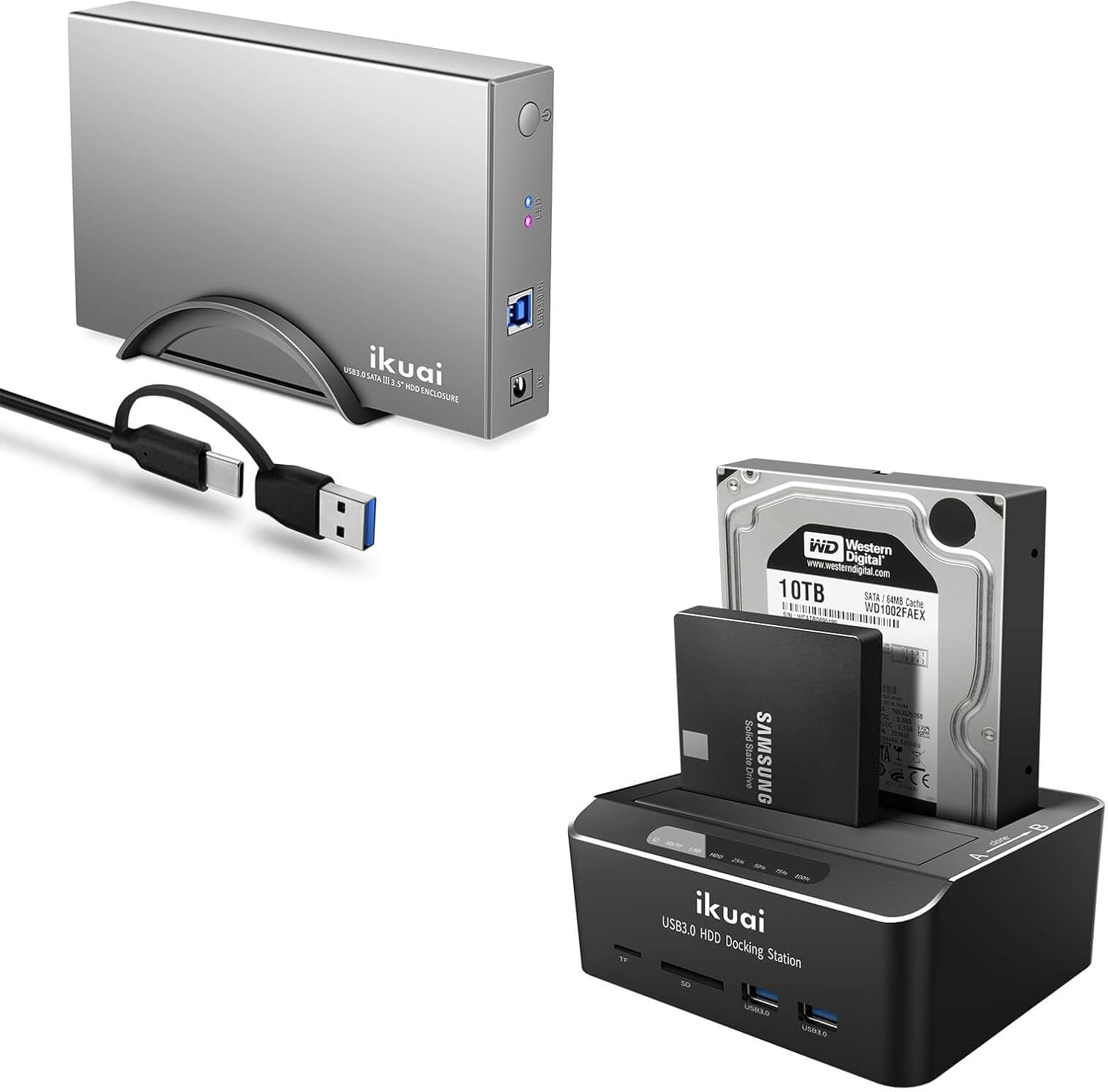
Overall view of the ikuai USB 3.0 Dual Bay HDD Docking Station, showcasing its compact design and the included USB cable. This image also displays a separate ikuai USB 3.0 SATA enclosure, which is a related product.

Detailed view of the docking station's front and top panels, highlighting the LED indicators, 2.5"/3.5" SATA interfaces, TF card slot, SD card slot, and USB 3.0 ports. This image helps identify each component for proper usage.
Component Identification:
- Power Button: Turns the device on/off.
- LED Indicators: Indicate power status, HDD activity, and cloning progress.
- HDD/SSD Slots (A & B): For inserting 2.5-inch or 3.5-inch SATA drives.
- USB 3.0 Port (Type-B): Connects the docking station to your computer.
- DC Power Input: Connects to the power adapter.
- TF Card Slot: For TransFlash (microSD) cards.
- SD Card Slot: For Secure Digital cards.
- USB 3.0 Ports (Front): Additional USB ports for connecting peripherals.
- OTC/OTB Button: One-Touch Clone / One-Touch Backup button for offline cloning.
5. Setup Guide
- Connect Power: Insert the DC plug of the power adapter into the 'DC IN' port on the back of the docking station. Plug the power adapter into a standard electrical outlet.
- Insert Hard Drives: Gently slide your 2.5-inch or 3.5-inch SATA HDD/SSD into the HDD slots (Slot A and/or Slot B) until it is firmly seated. Ensure the SATA connector aligns correctly.
- Connect to Computer: Connect one end of the provided USB 3.0 cable to the 'USB 3.0 IN' port on the docking station and the other end to an available USB 3.0 port on your computer.
- Power On: Press the power button on the docking station. The power LED indicator will illuminate. Your operating system should automatically detect the new hardware.
6. Operating Instructions
6.1 Data Transfer
Once connected and powered on, your hard drives will appear as removable storage devices on your computer. You can drag and drop files, copy, paste, or use backup software as you would with any other external drive.

This image illustrates the SuperSpeed USB 3.0 capability, supporting UASP protocol for faster data transfer rates up to 5Gbps, which is significantly faster than USB 2.0.

This image highlights the versatile 2-in-1 hybrid data cable (USB-C and USB-A) and the broad compatibility of the docking station with various operating systems (Windows, Mac OS, Linux) and devices (PS4/Xbox One, TV, Router).
6.2 Offline Clone Function
The offline clone function allows you to duplicate a source disk (Disk A) to a target disk (Disk B) without connecting to a computer. The target disk must be equal to or larger than the source disk.

This image demonstrates the offline clone function, showing a source disk (A) being copied to a target disk (B). LED lights indicate the cloning progress (25%, 50%, 75%, 100%).
- Ensure the docking station is powered off and disconnected from any computer.
- Insert the source disk into Slot A and the target disk into Slot B.
- Ensure the target disk (Slot B) has equal or greater capacity than the source disk (Slot A).
- Press and hold the 'OTC/OTB' button for approximately 3-5 seconds until the cloning progress LEDs (25%, 50%, 75%, 100%) begin to flash.
- Release the button, then quickly press it again to confirm the cloning process.
- The cloning process will begin, and the progress LEDs will light up sequentially to indicate completion percentage.
- Once all LEDs are solid, the cloning process is complete. Power off the docking station before removing the drives.
Note: All data on the target disk will be erased during the cloning process. Please back up any important data on the target disk before proceeding.
6.3 Auto-Sleep Function
The docking station features an intelligent auto-sleep function to save power and prolong the lifespan of your hard drives. If there is no data activity for 10 minutes, the device will automatically enter sleep mode. The drives will spin down, and the activity LEDs will dim or turn off. Data access will resume instantly upon activity.

This image visually represents the auto-sleep function, indicating that the device automatically activates sleep mode after 10 minutes of inactivity, helping to conserve energy.
7. Maintenance
- Keep the docking station in a clean, dry environment, away from direct sunlight, heat sources, and liquids.
- Do not block the ventilation holes on the device.
- Clean the exterior with a soft, dry cloth. Do not use harsh chemicals or abrasive cleaners.
- Always power off the device and disconnect it from the power source before cleaning or when not in use for extended periods.
- Handle hard drives carefully when inserting or removing them to prevent damage to the connectors.
8. Troubleshooting
| Problem | Possible Cause | Solution |
|---|---|---|
| Device not recognized by computer. | Loose cable connection, insufficient power, driver issue, incompatible USB port. | Ensure all cables are securely connected. Try a different USB port on your computer. Ensure the power adapter is correctly connected and the device is powered on. Check Disk Management (Windows) or Disk Utility (Mac) to see if the drive is detected but unformatted. |
| Drives not appearing in 'My Computer'/'Finder'. | Drive not formatted, drive letter conflict, corrupted partition. | Check Disk Management (Windows) or Disk Utility (Mac). Format the drive if it's new or unformatted (this will erase all data). Assign a new drive letter if there's a conflict. |
| Slow data transfer speeds. | Connected to USB 2.0 port, UASP not enabled, drive performance issues. | Ensure the docking station is connected to a USB 3.0 port on your computer. Verify your operating system and motherboard support UASP. Check the health of your hard drive. |
| Offline clone fails or does not start. | Target disk too small, incorrect procedure, source disk errors. | Ensure target disk capacity is equal to or greater than the source disk. Follow the offline clone steps precisely. Check source disk for errors using disk utility software on a computer. |
| Device frequently disconnects. | Loose connection, power fluctuations, faulty cable/adapter. | Ensure all connections are secure. Try a different USB cable or power outlet. Test with a different power adapter if available. |
9. Specifications
| Feature | Specification |
|---|---|
| Model | B0CGJ28J72 |
| Brand | ikuai |
| Max Number of Supported Devices | 2 (Dual Bay) |
| Data Transfer Rate | 5 Gigabits Per Second (USB 3.0) |
| Hardware Interface | USB 3.0 |
| Compatible Drive Types | 2.5" / 3.5" SATA I/II/III HDD & SSD |
| Max Capacity Supported | Up to 2x20TB |
| Hardware Platform | x86_64 |
| Compatible Devices | Laptop, Desktop PC, PS4/Xbox One, TV, Router |
| Special Features | UASP Supported, Offline Clone, Auto-Sleep Function, TF/SD Card Slots |
10. Warranty and Support
ikuai products come with a standard manufacturer's warranty. For detailed warranty information, technical support, or customer service inquiries, please refer to the contact information provided on the product packaging or visit the official ikuai website. Please have your product model number (B0CGJ28J72) and purchase details ready when contacting support.
Related documentsB0CGJ28J72


Ask a question about this manual
Ask about setup, troubleshooting, compatibility, parts, safety, or missing instructions. Manuals+ will review the question and use this page’s manual context to help answer it.