
Introduction
Thank you for choosing the ROCAM Digital Projection Alarm Clock, Model CR1024. This device combines a digital alarm clock with a 270° rotatable projection feature, FM radio, dual alarm settings, and a USB charging port. Please read this manual carefully to ensure proper use and to fully enjoy all its features.

Image: The ROCAM Digital Projection Alarm Clock displaying time, date, temperature, and humidity, positioned on a bedside table next to a cup of coffee and a notebook.
Product Features
- 270° Rotatable Projection: Project time onto your wall or ceiling with adjustable angle and focus.
- 5-Level Dimmable LED Display: Adjust the brightness of the main display to your preference.
- FM Radio & Sleep Timer: Enjoy your favorite radio stations and set a sleep timer for automatic shutdown.
- Dual Alarm with Weekend/Weekday Mode: Set two independent alarms with customizable schedules (Mon-Sun, Mon-Fri, Sat-Sun, One-Time).
- USB-C Power Input & USB-A Charging Output: Power the clock via USB-C and charge external devices like smartphones via USB-A.
- Battery Backup: Maintains time and alarm settings during power outages (batteries not included).
- Temperature and Humidity Display: Shows indoor temperature (°C/°F) and humidity.
- Night Light Function: Integrated night light for soft illumination.
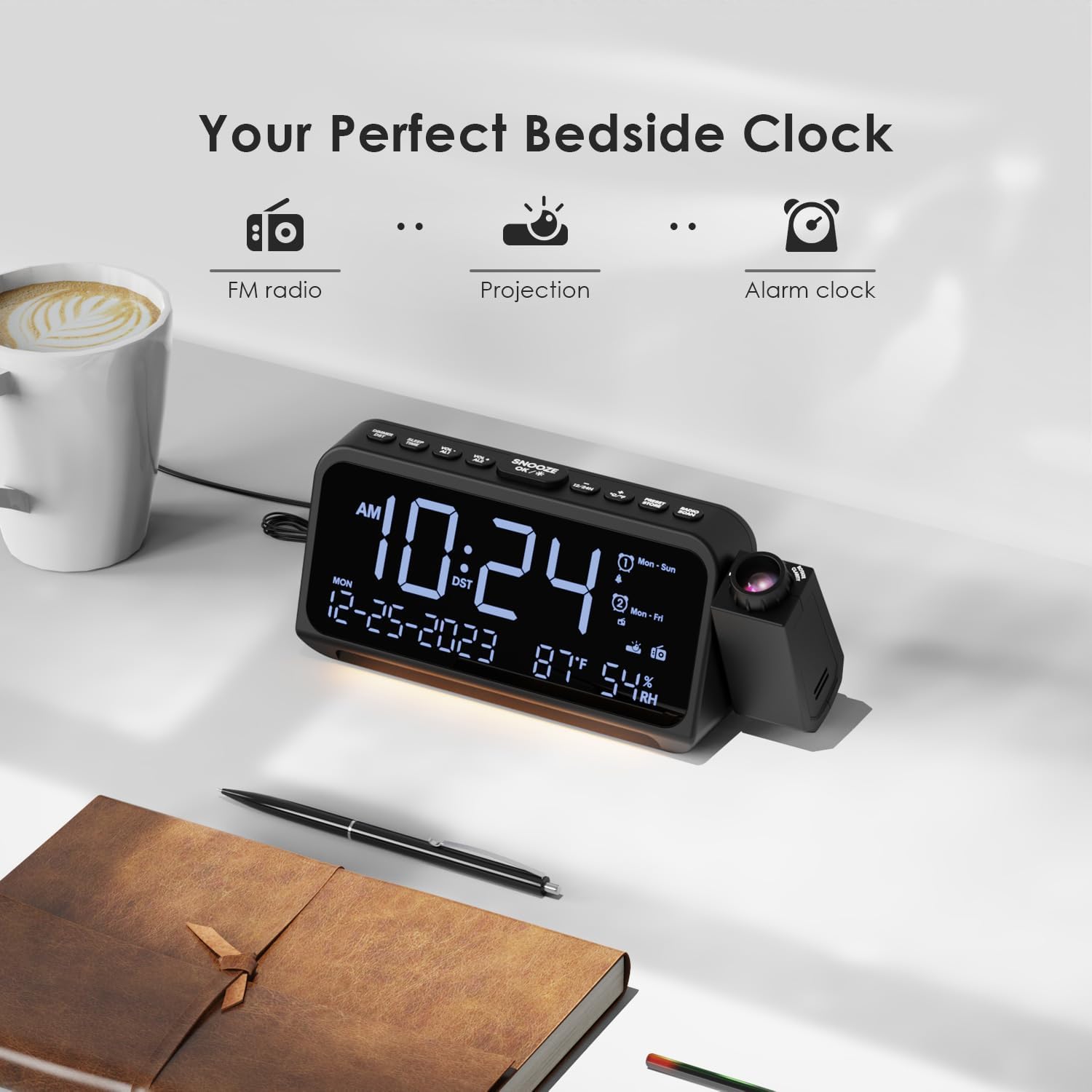
Image: Visual representation of the clock's main functions: FM radio, projection, and alarm clock.
Package Contents
Please check the package for the following items:
- ROCAM Digital Projection Alarm Clock (CR1024)
- USB Type-C Power Cable
- Power Adapter
- User Manual
Note: 1 CR2 battery is required for backup functionality and is not included in the package.

Image: The alarm clock, USB-C cable, power adapter, and user manual laid out, with product dimensions (20cm x 8.7cm x 3.81cm) and weight (240g) indicated.
Product Overview
Top Panel Buttons:
- SNOOZE/OK/*: Snooze alarm, confirm settings, or activate night light.
- VOL-/AL1: Decrease volume, set Alarm 1.
- VOL+/AL2: Increase volume, set Alarm 2.
- 12/24H: Switch between 12-hour and 24-hour time format.
- °C/°F: Switch between Celsius and Fahrenheit temperature display.
- PRESET/STORE: Save FM radio presets.
- RADIO/SCAN: Turn FM radio on/off, scan for stations.
- TIME SET: Enter time setting mode.
- ALARM SET: Enter alarm setting mode.
Side Panel & Rear:
- Projection Lens: Projects time onto a surface.
- Focus Wheel: Adjusts the clarity of the projected image.
- Projection Rotation: Allows 270° adjustment of the projection angle.
- DIM Button: Adjusts projection brightness.
- Power Button: Turns the projection on/off.
- Type-C Input (5V-2A): Main power connection.
- USB-A Output (5V-1A): For charging external devices.
- FM Antenna: Extend for better radio reception.
- Battery Compartment: For CR2 backup batteries.

Image: Detailed view of the top control buttons and the projection unit, highlighting the dual alarm settings.

Image: The back of the alarm clock, illustrating the Type-C power input and the USB-A output port for charging other devices.
Setup
1. Power Connection:
- Connect the provided USB Type-C cable to the Type-C input port on the back of the alarm clock.
- Plug the other end of the USB cable into the power adapter, then plug the adapter into a standard wall outlet.
- The display will light up, indicating the clock is powered on.

Image: The alarm clock is shown connected to a wall outlet via its USB-C power cable and adapter.
2. Battery Backup Installation:
- Locate the battery compartment on the bottom of the clock.
- Open the compartment cover.
- Insert 1 CR2 battery (not included) according to the polarity markings (+/-).
- Close the battery compartment cover. This battery will preserve time and alarm settings during a power outage.

Image: The bottom of the alarm clock with the battery compartment open, showing where to insert CR2 batteries.
Operating Instructions
1. Setting Time and Date:
- Press and hold the TIME SET button. The hour digits will start flashing.
- Use VOL+ or VOL- buttons to adjust the hour. Press TIME SET again to confirm.
- Repeat the process for minutes, year, month, and day.
- Press 12/24H to switch between 12-hour and 24-hour format.
- Press °C/°F to switch between Celsius and Fahrenheit for temperature display.
2. Setting Alarms (Alarm 1 & Alarm 2):
- Press and hold the ALARM SET button. The Alarm 1 icon and hour digits will flash.
- Use VOL+ or VOL- to set the desired alarm hour. Press ALARM SET to confirm.
- Repeat for minutes.
- Select alarm mode (Mon-Sun, Mon-Fri, Sat-Sun, One-Time) using VOL+ or VOL-. Press ALARM SET to confirm.
- Choose alarm sound: buzzer or FM radio. Use VOL+ or VOL- to select. Press ALARM SET to confirm.
- To set Alarm 2, briefly press ALARM SET again and repeat the steps.
- To activate/deactivate an alarm, briefly press AL1 or AL2. The alarm icon will appear/disappear on the display.
Image: The clock display showing options for setting two alarms with different ringtone choices and day modes (Mon-Sun, Mon-Fri, Sat-Sun, One-Time).
3. Snooze Function:
When an alarm sounds, press the SNOOZE/OK/* button to temporarily silence it for 9 minutes. The alarm will sound again after the snooze period.
4. Display Brightness (Dimmer):
Press the SNOOZE/OK/* button repeatedly to cycle through 5 levels of display brightness (L-1 to L-5) or turn the display off.

Image: The clock display showing five different brightness levels (L-1 to L-5) for the main LED screen.
5. Projection Settings:
- Turn On/Off: Press the Power Button on the side of the projection unit to turn the projection on or off.
- Adjust Brightness: Press the DIM button on the side of the projection unit to cycle through 5 levels of projection brightness.
- Adjust Angle: Rotate the projection unit up to 270° to direct the time onto your desired surface (wall or ceiling).
- Adjust Focus: Rotate the Focus Wheel on the projection unit to sharpen the projected image.

Image: The digital time '10:24' projected in red onto a dark wall, demonstrating the projection feature.

Image: The projection unit rotating 270 degrees, showing how the projected time can be adjusted for optimal viewing.

Image: The projected time showing five distinct brightness levels, from level 1 (dimmest) to level 5 (brightest).
6. FM Radio Operation:
- Extend the FM antenna for better reception.
- Press the RADIO/SCAN button to turn the FM radio on.
- Press and hold RADIO/SCAN to automatically scan and save available stations.
- Use VOL+ or VOL- to manually tune to a station or cycle through saved presets.
- Press PRESET/STORE to save the current station as a preset.
- Press RADIO/SCAN again to turn the FM radio off.

Image: The clock displaying an FM radio frequency (108.0 MHz) and options for a sleep timer (OFF, 15, 30, 60, 90 minutes).
7. Sleep Timer:
When the FM radio is on, press the SNOOZE/OK/* button repeatedly to set a sleep timer (15, 30, 60, 90 minutes, or OFF). The radio will automatically turn off after the selected duration.

Image: A hand pressing a button on the clock, with sleep timer options (P01, P06, P12, P15, P20) displayed, indicating timed radio playback.
8. USB Charging Output:
Connect your smartphone or other USB-powered device to the USB-A output port (5V-1A) on the back of the clock to charge it. Ensure the alarm clock is powered via its USB-C input.
Maintenance
- Cleaning: Wipe the clock with a soft, dry cloth. Do not use abrasive cleaners or solvents.
- Battery Replacement: If the clock loses time during a power outage, replace the CR2 backup battery.
- Placement: Avoid placing the clock in direct sunlight, high temperatures, or high humidity.
Troubleshooting
| Problem | Solution |
|---|---|
| Clock display is blank. | Ensure the USB-C power cable is securely connected to both the clock and a working power outlet. Check if the display brightness is set to OFF. |
| Alarm does not sound. | Verify that the alarm is activated (alarm icon visible). Check the alarm volume. Ensure the alarm mode (Mon-Sun, Mon-Fri, etc.) is correctly set for the current day. |
| Projection is blurry. | Rotate the Focus Wheel on the projection unit until the image is clear. Ensure the projection surface is within optimal range. |
| Poor FM radio reception. | Fully extend the FM antenna. Try repositioning the clock to improve signal. Perform an auto-scan to find stronger stations. |
| USB charging port not working. | Ensure the alarm clock is powered by the USB-C input. Check the charging cable and the device being charged. |
Specifications
- Model Number: CR1024
- Dimensions: 20 x 3.81 x 8.7 cm (L x W x H)
- Weight: 240 g
- Power Input: USB Type-C, 5V-2A
- USB Output: USB Type-A, 5V-1A
- Battery Backup: 1 x CR2 battery (not included)
- FM Frequency Range: 87.5 - 108 MHz
Warranty and Support
ROCAM products are designed for reliability and performance. This product comes with a standard manufacturer's warranty. For specific warranty details, please refer to the warranty card included in your package or contact ROCAM customer support.
If you encounter any issues or have questions regarding your ROCAM Digital Projection Alarm Clock, please contact our customer support team. Contact information can typically be found on our official website or on the product packaging.