
Introduction
This manual provides detailed instructions for the setup, operation, and maintenance of your Gnanlen iPad Pencil 2nd Generation. Please read this manual thoroughly before using the product to ensure optimal performance and longevity.

Image: The Gnanlen iPad Pencil 2nd Generation, purple in color, shown alongside its white product packaging.
Compatibility
The Gnanlen iPad Pencil 2nd Generation is designed for specific iPad models. Please verify your iPad model before use.
Compatible Models:
- iPad Air (4th/5th Gen)
- iPad Mini (6th Generation)
- iPad Pro 11" (1st/2nd/3rd/4th Gen)
- iPad Pro 12.9" (3rd/4th/5th/6th Gen)
Note: This stylus does not support any other iPhone, Android, or other devices. It is not compatible with older iPad models such as iPad 1st-10th Gen, iPad mini 1st-5th Gen, iPad Air 1st-3rd Gen, or iPad Pro 12.9" 1st-2nd Gen.
How to Identify Your iPad Model:
- Tap on "Settings".
- Tap on "General".
- Select "About".
- Find the "Model Number". The model number typically starts with the letter "A" followed by four numbers (e.g., A1983).
Alternatively, you can find the model number printed on the back of your iPad.

Image: A visual guide detailing compatible iPad models by generation and size, along with step-by-step instructions to locate the iPad's model number via the device settings.
Setup and Pairing
The Gnanlen iPad Pencil 2nd Generation features Bluetooth magnetic charging for easy pairing and power management.
Initial Pairing:
- Ensure your iPad's Bluetooth is enabled.
- Magnetically attach the Gnanlen iPad Pencil to the side of your compatible iPad.
- The pencil will automatically connect via Bluetooth.
- You can add a widget to your iPad's screen to check the pencil's power level in real-time.
Important: If you have previously connected an Apple Pencil to your iPad, please disconnect it before attempting to use the Gnanlen iPad Pencil. Go to iPad Settings > Bluetooth, find your Apple Pencil, tap the "i" icon, and select "Forget This Device".

Image: A visual representation of the Gnanlen iPad Pencil magnetically attaching to an iPad, highlighting the need to disconnect any previously paired Apple Pencil for proper functionality.
Operation
Charging:
The Gnanlen iPad Pencil charges wirelessly when magnetically attached to the side of your compatible iPad. It takes approximately 1.5 hours for a full charge and provides up to 9 hours of continuous use.
- Charging Time: Approximately 1.5 hours for a full charge.
- Battery Life: Up to 9 hours of continuous use.
- Automatic Sleep: The pencil will enter sleep mode if no operations are performed within 5 minutes to conserve battery.

Image: An illustration demonstrating the magnetic charging feature of the Gnanlen iPad Pencil on an iPad, accompanied by battery charge level indicators (0-30%, 30-70%, 70-100%).
Shortcut Key Functions:
After connecting via Bluetooth, the button at the top of the pencil provides convenient shortcut functions:
- Single Tap: Returns to the main screen (Home Screen).
- Double Tap: Opens the App selection page (Task Manager).
- Screenshot: Swipe from the bottom left to the top right corner of the iPad screen with the pencil to take a screenshot.
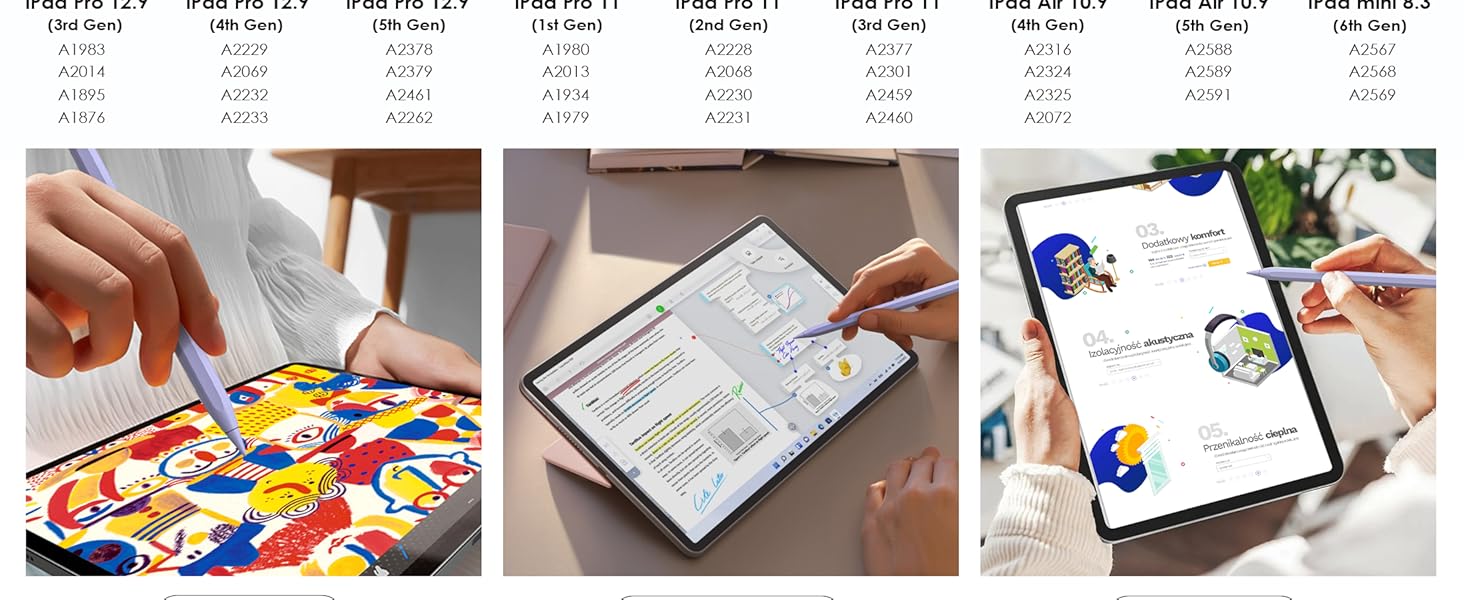
Image: A visual guide demonstrating the shortcut button features of the Gnanlen iPad Pencil, showing how a single click returns to the home screen and a double click activates the task manager.
Tilt Sensitivity & Pixel Precision:
The Gnanlen iPad Pencil features a 1.2mm tip designed for precise input, offering high sensitivity and accurate signal transmission without lag or breakpoints. This allows for detailed drawing, note-taking, and drafting.

Image: A detailed view of the Gnanlen iPad Pencil's 1.2mm tip, alongside illustrations of its application in note-taking, sketching, and drafting, emphasizing its high pixel precision and tilt sensitivity.
Palm Rejection:
The stylus offers a palm rejection function, allowing you to rest your palm comfortably on the iPad screen while writing or drawing without interfering with the input.

Image: A user's hand holding the Gnanlen iPad Pencil and writing on an iPad screen, illustrating the palm rejection feature that allows comfortable resting of the hand.
Maintenance
To ensure the longevity and optimal performance of your Gnanlen iPad Pencil, consider the following maintenance tips:
- Cleaning: Gently wipe the pencil's body with a soft, dry cloth. Avoid using harsh chemicals or abrasive materials.
- Tip Replacement: The stylus tip is durable, but if it becomes worn or damaged, it can be replaced. Replacement tips may be included with your product or can be purchased separately from authorized retailers. Refer to the product packaging or manufacturer's website for specific replacement instructions.
- Storage: When not in use, store the pencil magnetically attached to your iPad or in a protective case to prevent damage.
Troubleshooting
If you encounter issues with your Gnanlen iPad Pencil, try the following steps:
- Pencil Not Connecting:
- Ensure your iPad's Bluetooth is turned on.
- Verify that your iPad model is compatible with the Gnanlen iPad Pencil (refer to the Compatibility section).
- Make sure no other Apple Pencils are connected to your iPad. Disconnect any previously paired Apple Pencils via iPad Settings > Bluetooth.
- Ensure the Gnanlen iPad Pencil is sufficiently charged. Attach it magnetically to your iPad to charge.
- Restart your iPad and try connecting the pencil again.
- Lag or Inaccurate Input:
- Check if the pencil tip is securely attached and not damaged. Replace if necessary.
- Ensure the pencil is fully charged.
- Close any unnecessary applications on your iPad that might be consuming resources.
- Shortcut Functions Not Working:
- Confirm the pencil is properly connected via Bluetooth.
- Ensure you are performing the single or double tap correctly on the top button.
If problems persist, please contact customer support for further assistance.
Specifications
| Feature | Detail |
|---|---|
| Model Number | Pencil-01 |
| Brand | Gnanlen |
| Color | Purple (as per current product variant) |
| Material | Aluminum |
| Item Weight | 0.48 ounces (approx. 0.03 Pounds) |
| Package Dimensions | 9.17 x 2.44 x 0.67 inches |
| Battery Type | 1 Lithium Ion battery (included) |
| Charging Time | 1.5 Hours |
| Battery Average Life (Standby) | 9 Hours |
| Compatible Devices | iPad mini 6th gen, iPad Air 4th/5th gen, iPad Pro 12.9 inch 3rd/4th/5th/6th gen, iPad Pro 11 inch 1st/2nd/3rd/4th gen |
| Tip Size | 1.2mm |
| Features | Magnetic Wireless Charging, Tilt Sensitivity, Palm Rejection, Shortcut Key Functions |
Warranty Information
Specific warranty details for the Gnanlen iPad Pencil 2nd Generation are not provided in this manual. For information regarding warranty coverage, terms, and conditions, please refer to the product packaging or contact Gnanlen customer support directly.
Customer Support
If you require further assistance, have questions, or need to report an issue that cannot be resolved using the troubleshooting guide, please contact Gnanlen customer support. Contact information can typically be found on the product packaging, the official Gnanlen website, or through the retailer where the product was purchased.