
FANGOR FGAR10 Smart Glasses
FANGOR FGAR10 Smart AR Glasses User Manual
Model: FGAR10 Smart Glasses
1. Introduction
The FANGOR FGAR10 Smart AR Glasses offer a portable, immersive visual experience, transforming your content into a massive 201-inch virtual screen. Featuring Micro OLED technology, 1080P resolution, 3D capabilities, and 50° Field of View (FOV), these glasses are designed for streaming, gaming, and work across various platforms including PC, Android, iOS, and consoles.

Image: The FANGOR FGAR10 Smart AR Glasses, showcasing their sleek, dark design with tinted lenses.
2. Package Contents
Please verify that all items listed below are included in your package:

Image: An overhead view of all items included in the FANGOR FGAR10 Smart AR Glasses package, neatly arranged.
- 1 x FANGOR FGAR10 Smart Glasses
- 1 x Magnetic Cable
- 1 x Carry Case
- 1 x Cleaning Cloth
- 1 x Detachable Nose Pads (set)
- 1 x Screwdriver
- 1 x Eyeglass Frames (for prescription lenses, lenses not included)
- 1 x User Manual
3. Product Overview
Familiarize yourself with the key components of your FANGOR FGAR10 Smart AR Glasses:
- Micro OLED Display: Provides a sharp 1080P resolution with 400 nits brightness for vivid visuals.
- Integrated Speakers: Built-in 360° stereo surround sound for an immersive audio experience.
- Magnetic USB-C Connector: Ensures stable and delay-free synchronization with compatible devices.
- Adjustable Nose Pads: Soft rubber nosepiece for comfortable fitting and customizable viewing angle.
- Eyeglass Frames: Included for users with nearsighted or farsighted vision (prescription lenses must be obtained separately).
- Control Buttons: Located on the temples for brightness adjustment and 2D/3D mode switching.
- Polarized Lenses: High-performance black polarized lenses and full-vision inner screen protect eyes and enhance privacy.

Image: Close-up views highlighting the 3W stereo surround speakers, magnetic cable connection, and myopia-friendly customizable frame of the FANGOR FGAR10 Smart AR Glasses.
4. Setup
4.1 Direct Connection (USB-C with DisplayPort Alt Mode)
For devices supporting DisplayPort (DP) Alt Mode over USB-C, simply connect the magnetic cable from the glasses to your device's USB-C port.

Image: Diagram showing direct connection of FANGOR FGAR10 Smart AR Glasses via magnetic USB-C cable to Android phones/tablets/iPads/laptops.
Compatible Devices:
- Smartphones: iPhone 15 series (iPhone 15, 15 Plus, 15 Pro, 15 Pro Max), most Android phones with DP Outport (e.g., Samsung Galaxy S8+, Note 8+, OnePlus 7 Pro, Sony Xperia 1, LG V20, Huawei Mate, etc.).
- Tablets: iPad Pro (3rd Gen and newer), iPad Air (4th Gen and newer), Samsung Galaxy Tab S series, etc.
- Laptops: MacBook Pro (Late 2016 and newer), MacBook Air (Late 2018 and newer), Dell XPS, HP Spectre, Lenovo ThinkPad, etc.
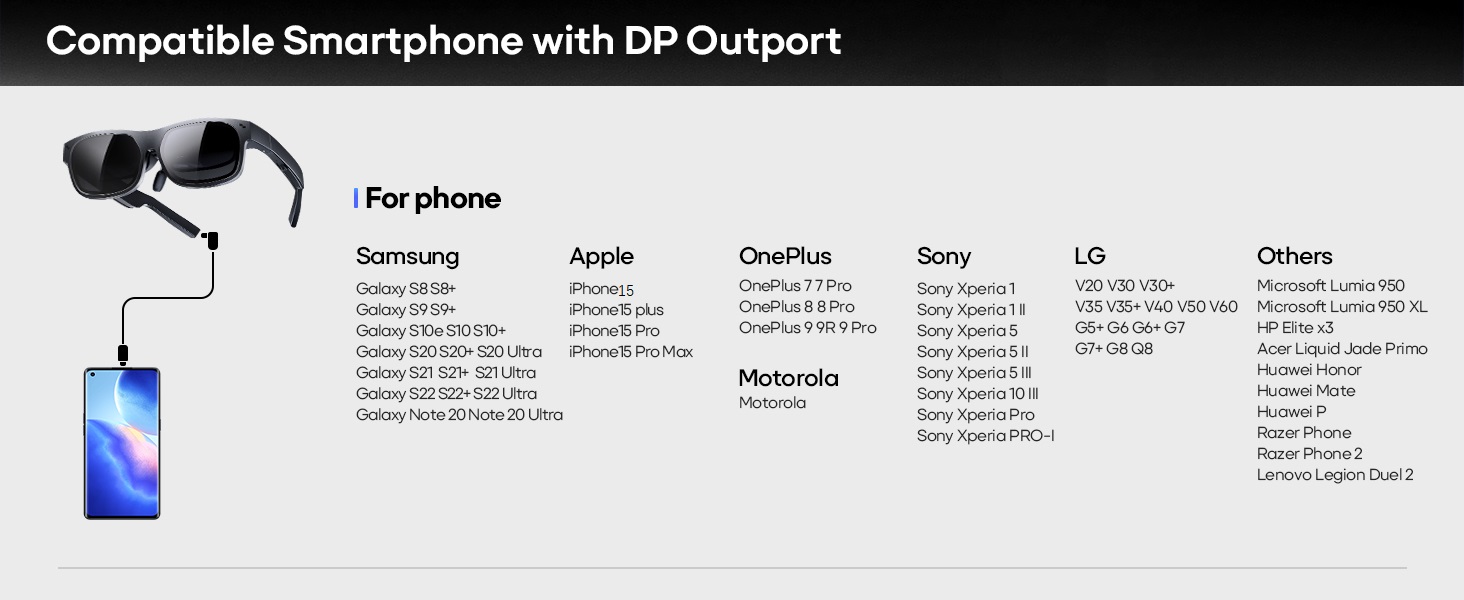
Image: A detailed list of compatible smartphones with DisplayPort output for direct connection to the FANGOR FGAR10 Smart AR Glasses.
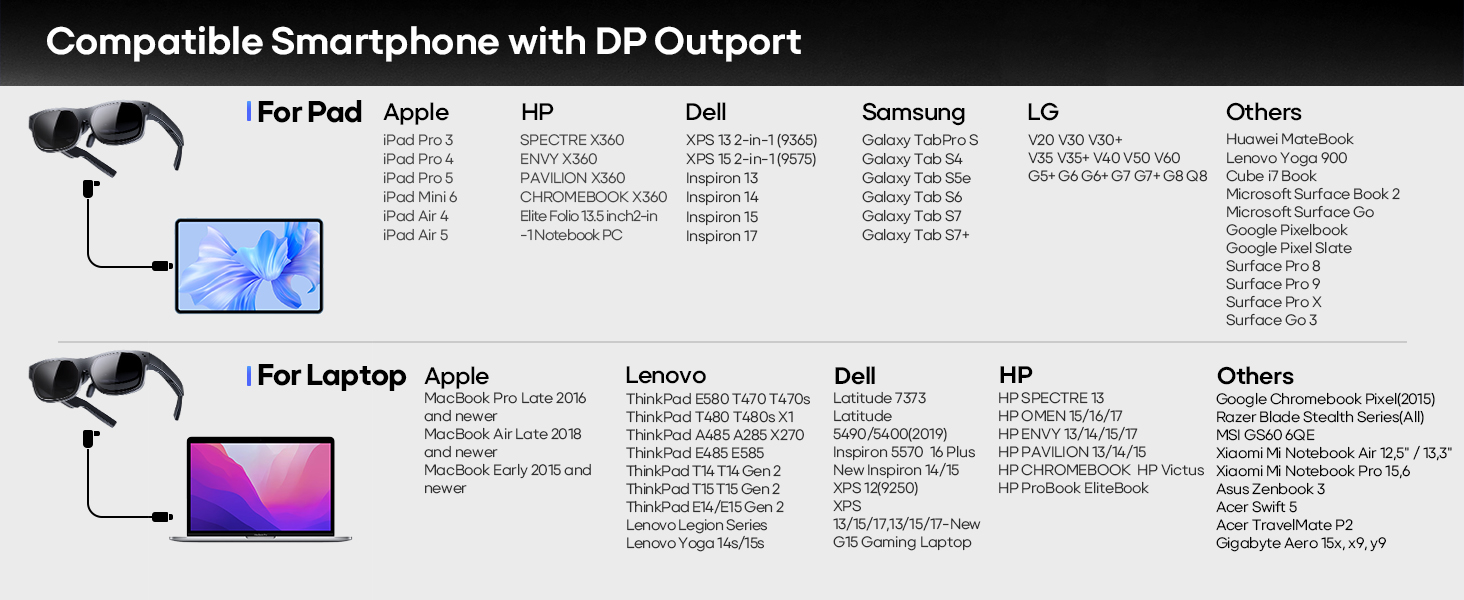
Image: A detailed list of compatible tablets and laptops with DisplayPort output for direct connection to the FANGOR FGAR10 Smart AR Glasses.
4.2 Connection via Adapters (for non-DP devices)
For devices without a USB-C port supporting DP Alt Mode, or for game consoles, additional adapters are required (not included).

Image: Diagram illustrating how to connect non-DisplayPort devices (like older iPhones, Google Pixel, Android devices) using an adapter, and game consoles (Nintendo Switch, PS4/5, Xbox) using an HDMI adapter.
- Smartphones/Tablets (non-DP): Use a compatible adapter (e.g., Lightning to HDMI/USB-C adapter for older iPhones, or a general USB-C to HDMI adapter for non-DP Android phones) to connect to the glasses.
- Game Consoles (PS/Xbox/Switch): Connect via an HDMI adapter. Ensure the HDMI adapter is powered externally when in use.
- Wireless Connection: A wireless adapter (not included) can be used for screen casting if your device supports it but lacks DP or HDMI output.

Image: Diagram showing the connection of FANGOR FGAR10 Smart AR Glasses to a PC, PS, Xbox, or Switch (with dock) via a magnetic USB-C cable and an HDMI adapter (not included), emphasizing the need for external power for the adapter.

Image: Diagram illustrating the use of a wireless adapter (not included) to cast content from phones, tablets, or computers to the FANGOR FGAR10 Smart AR Glasses for devices without DisplayPort over USB-C or HDMI output.
5. Operating Instructions
5.1 Basic Operation
Once connected, the glasses will automatically display content from your device. They function as an external monitor, allowing for duplicated or extended display modes depending on your device's settings.
5.2 Display Modes & Adjustments
- 2D/3D Mode: Hold the control button on the temple for 2 seconds to switch between 2D and 3D display modes.
- Refresh Rate: Double-click the control button to switch between 60Hz and 120Hz refresh rates.
- Brightness Adjustment: Flick the control button to adjust screen brightness.

Image: Visual representation of the FANGOR FGAR10's adjustable frame range (up to 105°), the 2D/3D display controller for brightness and refresh rate, and the magnetic design for easy connection.
5.3 Immersive Experience
The FGAR10 glasses create a massive 201-inch virtual screen with a 50° FOV, ideal for various applications:
- For Movies: Enjoy a private Hollywood iMax theater experience with breathtaking 3D mode. HDCP support allows casting of movies and TV shows (only with direct connection).
- For Gaming: Battle enemies with an expansive view, enhancing your gaming immersion.
- For Work: Utilize the virtual desktop feature for multiple panels, improving productivity and focus.

Image: Three scenarios demonstrating the versatility of FANGOR FGAR10 Smart AR Glasses: for gaming (two people on a couch), for work (woman in a car with a virtual desktop), and for movies (woman relaxing in bed).
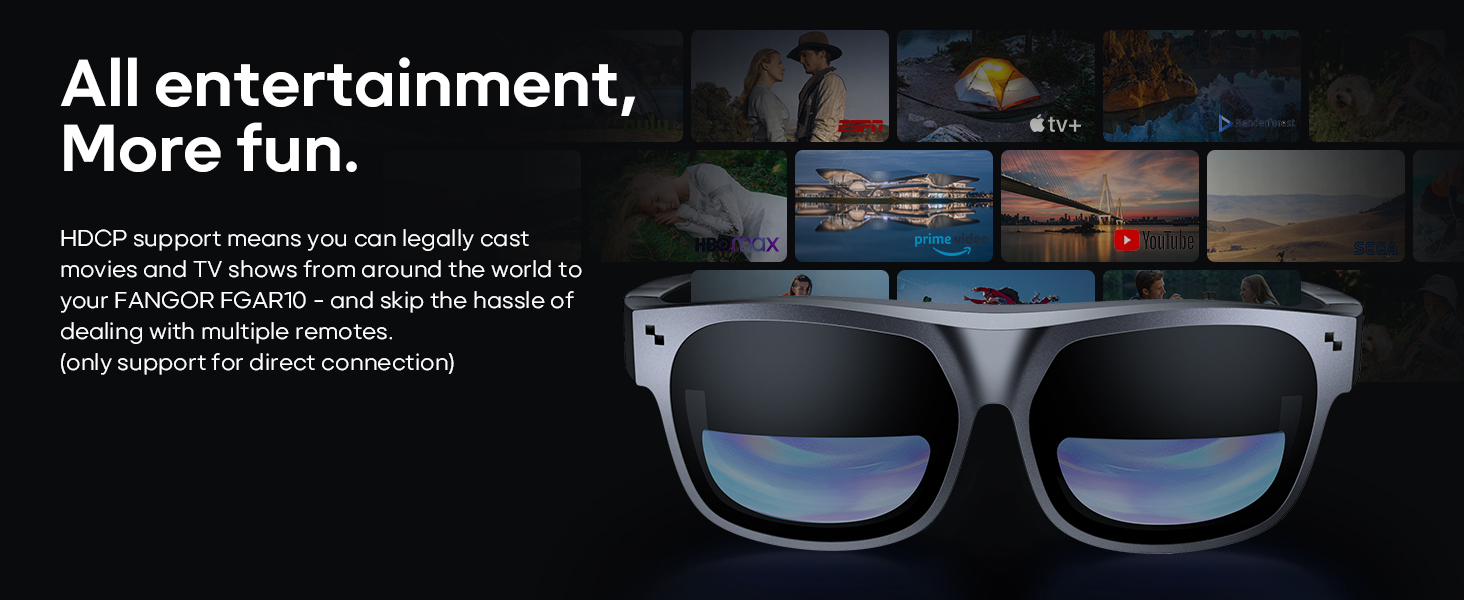
Image: The FANGOR FGAR10 Smart AR Glasses displaying various streaming service logos, indicating HDCP support for entertainment content (only with direct connection).
6. Maintenance
- Cleaning: Use the provided cleaning cloth to gently wipe the lenses and frame. Avoid abrasive materials or harsh chemicals.
- Storage: Store the glasses in the provided carry case when not in use to protect them from dust and scratches.
- Eye Comfort: The glasses feature anti-blue light flicker-free design, compliant with American Optometric Association (AOA) rules, for enhanced eye comfort.
- Privacy: Anti-snooping design reduces forward light leakage by 98%, ensuring your AR experience remains private.
- Nose Pads: Detachable nose pads can be adjusted or replaced for optimal comfort.
- Eyeglass Frames: If using the included eyeglass frames for prescription lenses, ensure lenses are properly installed by a professional.

Image: Visuals highlighting the eye comfort features (anti-blue light, flicker-free), optional frames for prescription lenses, and the anti-snooping design for privacy on the FANGOR FGAR10 Smart AR Glasses.
7. Troubleshooting
| Problem | Possible Cause | Solution |
|---|---|---|
| No display/black screen | Incorrect connection; Device not compatible; Insufficient power. | Ensure the magnetic cable is securely connected. Verify your device supports DisplayPort Alt Mode over USB-C or use a compatible adapter. Ensure external power is supplied to adapters if required. |
| Blurry image/Focus issues | Nose pads not adjusted correctly; Screen resolution/scaling issues on connected device. | Adjust the detachable nose pads to find the optimal viewing position. Check your device's display settings for resolution and scaling. |
| No sound from glasses | Volume too low; Device audio output not set to glasses. | Increase volume using the controls on the glasses or your connected device. Ensure the audio output on your device is set to the FANGOR FGAR10. |
| 3D mode not working | Incorrect mode selected; Content is not 3D. | Hold the control button for 2 seconds to ensure 3D mode is activated. Verify that the content you are playing is in a compatible 3D format. |
| Glasses feel warm | Normal operation; Extended use. | It is normal for the glasses to generate some heat during extended use. If overheating occurs or discomfort is felt, discontinue use and allow the device to cool down. |
8. Specifications
| Feature | Detail |
|---|---|
| Model Name | FGAR10 Smart Glasses |
| Display Technology | Micro OLED |
| Resolution | 1080P (Full HD) |
| Virtual Screen Size | Up to 201 inches |
| Field of View (FOV) | 50° |
| Brightness | 400 nits |
| 3D Support | Yes |
| Audio | Built-in 360° Stereo Surround Speakers |
| Connectivity | USB-C (DisplayPort Alt Mode), HDMI (via adapter) |
| Compatible Devices | Smartphones, Tablets, PCs, Game Consoles |
| Product Dimensions | 5.5 x 2 x 6.5 inches |
| Item Weight | 1 pound |
| Color | Black |
9. Warranty and Support
FANGOR products are designed for reliability and performance. For specific warranty details, please refer to the warranty card included in your product packaging or visit the official FANGOR website. If you encounter any issues or require technical assistance, please contact FANGOR customer support through their official channels. Protection plans are also available for purchase to extend coverage.
Related Documents - FGAR10 Smart Glasses
 |
INMO AIR 2 AR Glasses User Guide: Features, Setup, and Advanced Usage Explore the INMO AIR 2 AR Glasses with this comprehensive user guide. Learn about hardware, interaction, system functions, app usage, AI Assistant (ChatGPT), and developer setup for this smart, wireless AR device with 1080P Micro-OLED display. |
 |
VR Shinecon SC-G07E Virtual Reality Glasses User Guide Comprehensive user guide for the VR Shinecon SC-G07E virtual reality glasses, detailing setup, usage, features, package contents, after-sales service, and regulatory compliance information. |
 |
VLT Compact Starter MCD 201 Operating Instructions Operating instructions and technical specifications for the Danfoss VLT Compact Starter MCD 201 series, covering dimensions, wiring, specifications, and troubleshooting. |
 |
XREAL One Pro Smart AR Glasses: Product Manual and Specifications Comprehensive product manual for XREAL One Pro Smart AR Glasses, detailing specifications, features, package contents, operation, compatibility, and safety guidelines. |
 |
VRPARK J30 Virtual Reality Glasses User Manual User manual for VRPARK J30 virtual reality glasses, covering product parameters, setup, and usage instructions. |
 |
VR SHINECON SC-G15 User Guide - Virtual Reality Glasses Comprehensive user guide for the VR SHINECON SC-G15 Virtual Reality Glasses, covering setup, adjustments, and game play instructions for an immersive VR experience. |
Ask a question about this manual
Ask about setup, troubleshooting, compatibility, parts, safety, or missing instructions. Manuals+ will review the question and use this page’s manual context to help answer it.