
1. Introduction
This manual provides detailed instructions for the installation, operation, and maintenance of your CAMECHO 2 Din Wireless CarPlay Android Auto Car Stereo. Please read this manual thoroughly before using the product to ensure proper function and safety. Keep this manual for future reference.
2. Safety Information
- Ensure proper wiring connections to prevent short circuits or damage.
- Do not operate the device in a manner that distracts you from driving.
- Consult a professional for installation if you are unsure about any steps.
- Avoid exposing the unit to extreme temperatures, direct sunlight, or moisture.
- Use only specified power sources and accessories.
3. Package Contents
Verify that all items are present in the package:
- CAMECHO 2 Din Car Stereo Unit
- Power Cable
- Horn Cable
- Microphone (MIC)
- Remote Control
- User Manual
- 12LED Rear Camera (Optional, if included in your purchase)

Figure 3.1: Included Accessories
4. Product Features
- Wireless CarPlay: Supports both wired and wireless connection to Apple mobile phones for accessing contacts, mail, notifications, map navigation, music, video, and voice control.
- Wireless Android Auto: Integrates with Android phones for navigation, calls, messaging, and music playback via data cable connection.
- 7-inch HD Touchscreen: High-definition video playback on a responsive 7-inch display.
- Mirror Link: Supports Android and iPhone Mirror Link via USB for screen synchronization. Compatible with Apple mobile phone version 13.4 and Android mobile phone version 10.1. Software updates may be required for newer versions.
- Bluetooth 5.1: Built-in Bluetooth for hands-free calling and wireless music streaming, enhancing driving safety.
- FM Radio: Access real-time traffic, news, and weather forecasts with 18 preset radio stations.
- Steering Wheel Control: Allows quick function changes directly from your car's steering wheel for convenience.
- Rear View Camera Input: (Optional) Connects to a car reversing camera, automatically displaying the rear view when reversing.
- Customizable Backlight: Seven color options for backlight settings to personalize your car's interior.
- AUX Input: Supports external audio devices like MP3 players and mobile phones.
- Multi-function USB: USB input for music playback and high-current USB output for mobile phone charging.
5. Setup & Installation
Professional installation is recommended. Ensure the vehicle's power is disconnected before starting installation.
5.1 Wiring Diagram (General)
Refer to the included wiring diagram for specific connections. Key connections typically include:
- Power: Connect the yellow wire to the constant 12V supply, the red wire to the accessory 12V supply (switched with ignition), and the black wire to ground.
- Speakers: Connect speaker wires according to polarity (e.g., white/white-black for front left, grey/grey-black for front right, etc.).
- Rear Camera: Connect the camera's video output to the unit's 'CAM IN' input and the camera's power to the reverse light circuit.
- Steering Wheel Control: Connect the SWC wires to your vehicle's steering wheel control interface (may require an adapter for some vehicles).
- Antenna: Connect the car's radio antenna to the unit.
5.2 Mounting the Unit
Install the 2 Din unit into your vehicle's dashboard opening. Secure it using the provided mounting brackets and screws. Ensure the unit is firmly in place and does not obstruct any vehicle controls.
6. Operating Instructions
6.1 Wireless CarPlay & Android Auto
To use Wireless CarPlay or Android Auto:
- Ensure your phone's Bluetooth and Wi-Fi are enabled.
- On the car stereo, select the CarPlay or Android Auto icon.
- Pair your phone with the car stereo via Bluetooth. Follow the on-screen prompts to establish the wireless connection.
- For wired connection, connect your phone to the USB port using a quality data cable.

Figure 6.1: CarPlay and Android Auto Interface
6.2 Mirror Link
To mirror your phone's screen:
- Connect your smartphone to the car stereo's USB port using a data cable.
- Select the 'Mirror Link' option on the car stereo.
- Follow any on-screen instructions on both your phone and the stereo to complete the connection.
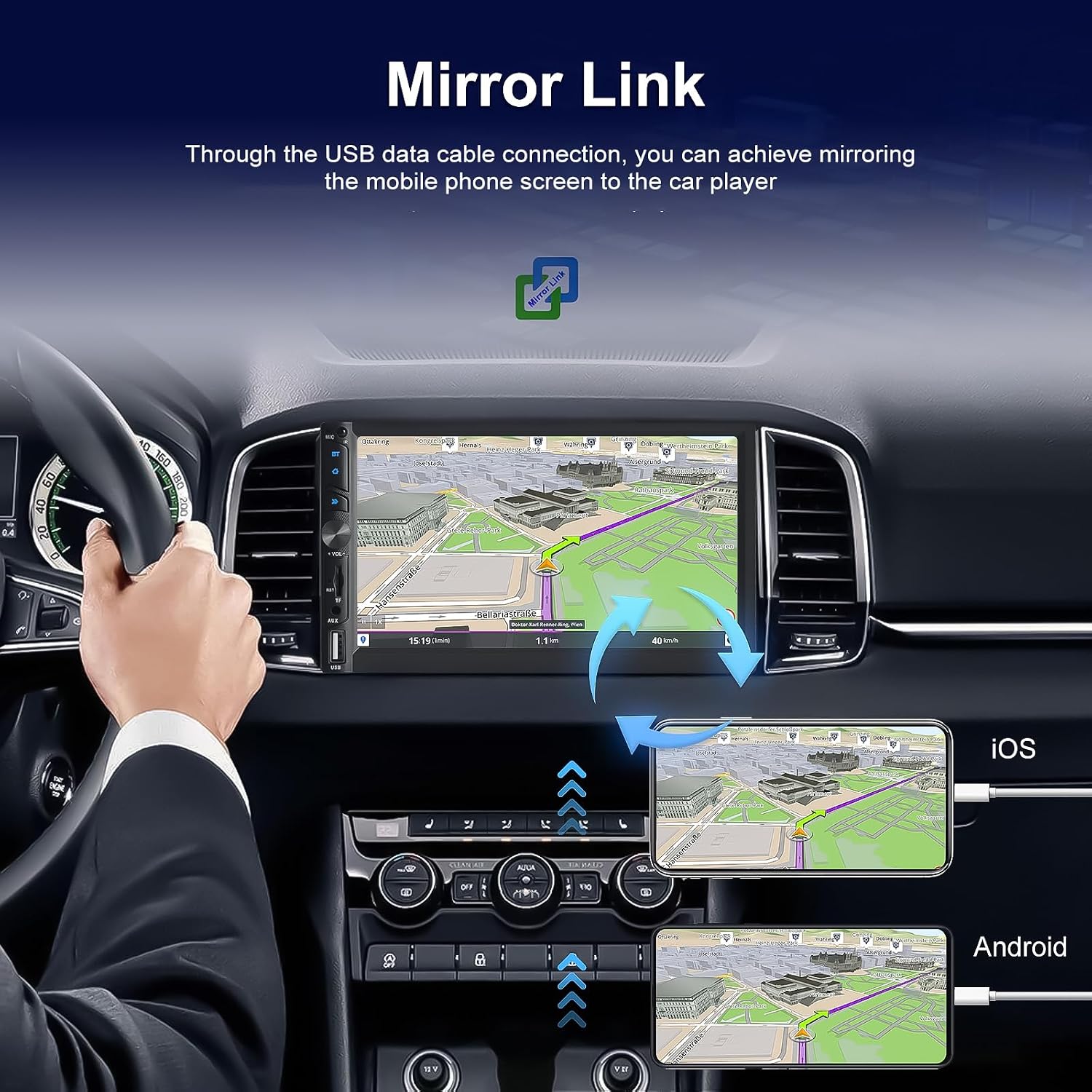
Figure 6.2: Mirror Link Functionality
6.3 Bluetooth Operation
To connect via Bluetooth:
- Enable Bluetooth on your mobile phone.
- On the car stereo, navigate to the Bluetooth menu.
- Search for available devices on your phone and select the car stereo's Bluetooth name (e.g., "CAR-BT").
- Confirm the pairing code if prompted.
- Once connected, you can make hands-free calls and stream music.

Figure 6.3: Bluetooth Interface
6.4 FM Radio
To operate the FM Radio:
- Select the 'Radio' icon from the main menu.
- Use the scan function to automatically search and store available stations.
- Manually tune to frequencies or select from preset stations.

Figure 6.4: FM Radio Interface
6.5 Steering Wheel Control
To configure steering wheel controls:
- Access the 'Steering Wheel Control' settings in the unit's menu.
- Follow the on-screen instructions to map your vehicle's steering wheel buttons to the desired functions (e.g., volume up/down, track skip, mode).

Figure 6.5: Steering Wheel Control Setup
6.6 Reversing Camera
If a reversing camera is connected:
- When the vehicle is shifted into reverse gear, the car stereo will automatically display the camera feed.
- Ensure the camera is properly installed and connected for optimal performance.

Figure 6.6: HD Reversing Video Display
6.7 Media Playback (USB/AUX)
To play media from USB or AUX:
- Insert a USB drive into the USB port or connect an external device to the AUX input.
- Select the 'USB' or 'AUX' source from the main menu.
- Browse and play your media files.

Figure 6.7: 7-inch HD Video Playback
7. Specifications
| Feature | Specification |
|---|---|
| Manufacturer | CAMECHO |
| Connectivity Technology | Bluetooth, Wi-Fi |
| Controller Type | Android |
| Special Features | Android Auto, Apple CarPlay |
| Compatible Devices | Smartphone |
| Connector Type | USB, AUX |
| Audio Output Mode | Stereo, Surround Sound |
| Surround Sound Channel Configuration | 5.1 or 7.1 |
| Video Encoding | H.264, H.265/HEVC, MPEG-4 |
| Output Power | 50 Watts |
| Wattage | 45 Watts |
| Number of Channels | 5 |
| Internet Application | CarPlay, Android Auto |
| Control Method | Touch |
| Item Dimensions (L x H) | 17.8 x 9.8 cm |
| Item Weight | 1.02 Kilograms |
| Backlight Color | Adjustable (7 colors) |
8. Troubleshooting
- No Power: Check all power connections (constant 12V, accessory 12V, ground). Ensure the fuse is not blown.
- No Sound: Verify speaker connections and ensure the volume is not muted or set too low. Check audio source selection.
- CarPlay/Android Auto Not Connecting: Ensure Bluetooth and Wi-Fi are enabled on your phone. Try restarting both the phone and the car stereo. For wired connections, use a certified USB data cable. Update phone OS if necessary.
- Poor Radio Reception: Check antenna connection. Ensure the antenna is properly installed and not damaged.
- Rear Camera Not Displaying: Verify camera power and video signal connections. Ensure the reverse trigger wire is correctly connected.
- Unit Freezes/Unresponsive: Press the reset button (usually a small hole requiring a pin) to restart the unit.
9. Maintenance
- Clean the screen with a soft, lint-free cloth. Do not use abrasive cleaners.
- Keep the unit free from dust and debris.
- Periodically check wiring connections for security.
10. Warranty & Support
This product comes with a 1-year warranty from the date of purchase. For technical support, warranty claims, or further assistance, please contact CAMECHO customer service.
