
Introduction
The Fancylink HDMI Sync Box (Model BWA-HDMI) is designed to enhance your entertainment experience by synchronizing your Fancylink Smart Lights with the content displayed on your screen. It provides real-time, color-accurate surround lighting for movies, music, and video games, creating an immersive atmosphere. This device supports 4K Ultra HD video formats and offers 2 HDMI inputs and 1 HDMI output.
Important: This HDMI Sync Box only supports Fancylink Smart Lights and is not compatible with other brands.

Image: Warning indicating that the HDMI Sync Box is exclusively for Fancylink Smart Lights.
What's in the Box
Please verify that all the following items are included in your package:
- HDMI Sync Box
- HDMI Cable
- Power Supply

Image: The Fancylink HDMI Sync Box, power adapter, and HDMI cable included in the package.
Product Overview
The Fancylink HDMI Sync Box is a compact device designed to seamlessly integrate with your Fancylink Smart Lighting system. It features multiple HDMI input ports for connecting various media devices and an HDMI output port for connecting to your TV or display.
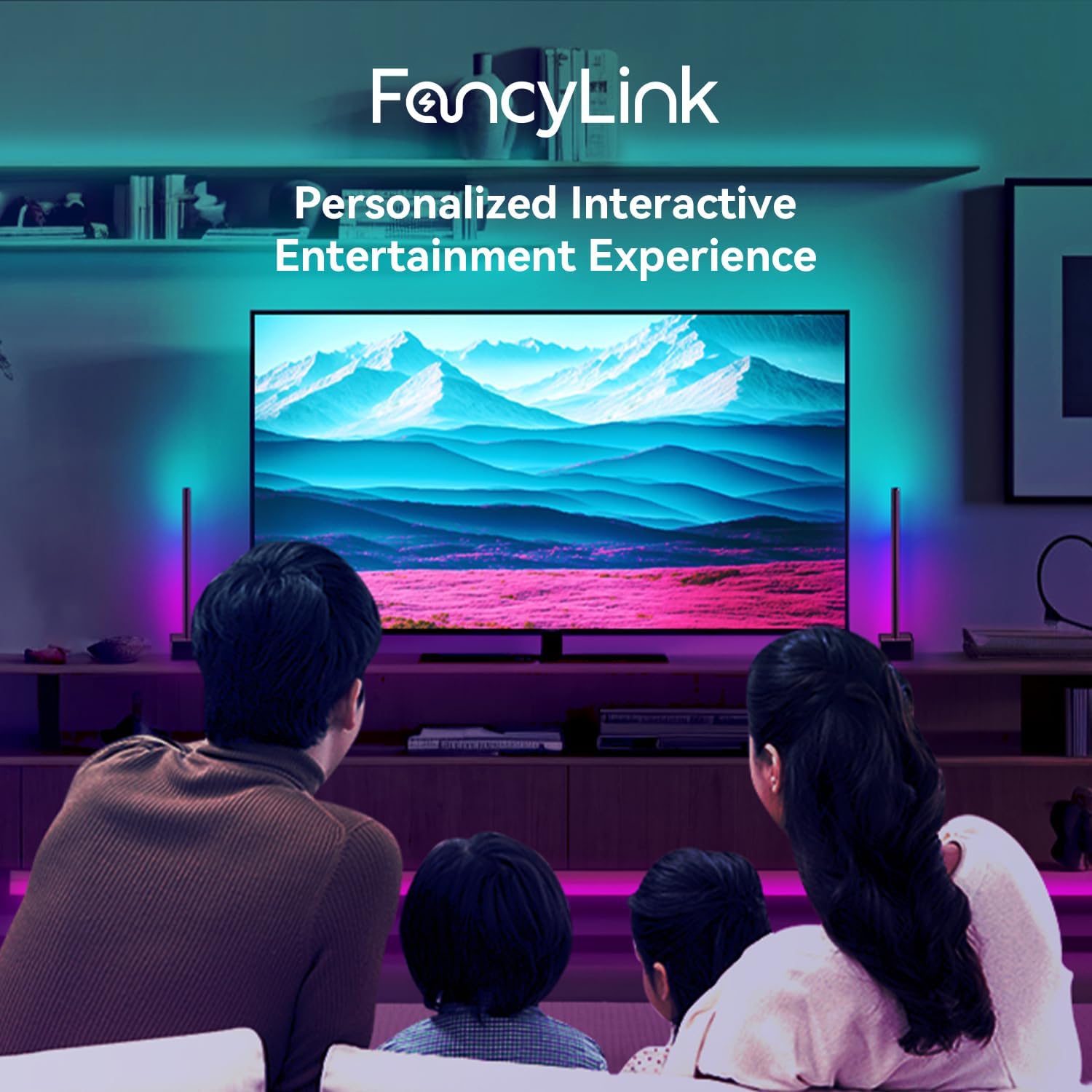
Image: A close-up view of the Fancylink HDMI Sync Box device.

Image: The Fancylink HDMI Sync Box showing its DC power input, HDMI-IN ports, and HDMI-OUT port.
Setup Guide
Step 1: Prepare the TV Surface
Ensure the back surface of your TV is clean and dry before attaching any components. Use a dry cloth to wipe away dust or debris.

Image: A person cleaning the back of a television with a cloth.
Step 2: Install Corner Brackets and Light Strip
- Attach the provided corner brackets to the rear corners of your TV, approximately 1.2 inches (3 cm) from the edges.
- Carefully peel the backing from the Fancylink Smart Light Strip to expose the adhesive.
- Starting from the bottom-right corner, adhere the light strip along the perimeter of your TV, guiding it through the corner brackets. Continue counter-clockwise.
- Gently press the light strip into the corner brackets and secure it with the clip brackets provided.

Image: A person installing the Fancylink Smart Light Strip around the back edge of a television, securing it with corner brackets.
Step 3: Connect HDMI Sync Box
- Connect the power adapter to the DC input port on the HDMI Sync Box.
- Connect the light strips (TOP and BOTTOM) to their corresponding ports on the Sync Box.
- Connect your HDMI-connected devices (e.g., set-top boxes, streaming dongles, game consoles) to the HDMI-IN 1 or HDMI-IN 2 ports on the Sync Box.
- Use an HDMI cable to connect the HDMI-OUT port of the Sync Box to an HDMI input port on your TV or display.
- Plug the power supply into a wall socket to power on the Sync Box.

Image: Diagram illustrating how to connect various HDMI devices and the TV to the Fancylink HDMI Sync Box.
Step 4: App Setup
Download the BWE Sync App from your app store. Once installed, open the app and add both the Sync Box and your Fancylink Smart Lights. Follow the on-screen instructions to complete the setup and light positioning.
Installation Video Guide
Video: A detailed guide on how to install the Fancylink HDMI Sync Kit, covering physical setup and app configuration.
Operating Instructions
Sync with Music and Movies
The Fancylink HDMI Sync Box enables real-time, color-accurate surround lighting. When playing movies, music, or games through the connected HDMI devices, your Fancylink Smart Lights will automatically adjust to match the on-screen colors and audio, creating an immersive entertainment experience.

Image: A living room setup with a TV displaying vibrant colors, synchronized with ambient lighting from Fancylink Smart Lights.
DIY Your Room
Utilize the BWE Sync App to design your unique Fancylink Smart Light layout. Personalize your lights by selecting specific colors and effects. This feature allows you to customize your lighting environment beyond just screen synchronization, offering creative control over your room's ambiance.

Image: A living room with a TV displaying a serene boat scene, enhanced by synchronized ambient lighting from Fancylink Smart Lights.
Specifications
| Feature | Detail |
|---|---|
| Material | Synthetic materials with glass finish |
| Estimated Lifespan | 25,000 hours |
| Protection Level | Class II (Double insulated) |
| HDMI Ports | 2 (HDMI 2.0b with HDCP) |
| Resolutions | 4K @60Hz | 1080p & 1440p @120Hz |
| Supported Dynamic Range | SDR |
| Connectivity | Zigbee 3.0 & BLE |
| Power Adapter Voltage | 5VDC |
| Standby Consumption | 1W |
| Max Power Consumption | 5W |
| Dimension | 5.75" x 3.54" x 0.87" |
| Weight | 430g |
| Operating Temperature | 0°C - 40°C |
| Operating Humidity | 10% - 90% (non-condensing) |
Troubleshooting
If you encounter issues with your Fancylink HDMI Sync Box, please try the following:
- No Power: Ensure the power adapter is securely connected to both the Sync Box and a working power outlet.
- No Sync/Incorrect Colors: Verify all HDMI cables are securely connected. Check the BWE Sync App for correct light strip positioning and calibration. Ensure your media device is connected to an HDMI-IN port and your TV to the HDMI-OUT port.
- App Connectivity Issues: Make sure Bluetooth is enabled on your mobile device and that you are within range of the Sync Box. Restart the app or your mobile device if necessary.
- Lights Not Responding: Check if the Sync Box is powered on and the light strips are properly connected. Try restarting the Sync Box.
Safety Information
Please read and follow these safety guidelines to ensure safe operation of your Fancylink HDMI Sync Box:
- Do not expose the device to water or moisture.
- Do not disassemble or modify the device.
- Use only the provided power adapter.
- Keep the device away from heat sources and direct sunlight.
- Ensure proper ventilation around the Sync Box.
Warranty and Support
For warranty information or technical support, please refer to the documentation included with your product or visit the official Fancylink website. You may also contact Fancylink customer service for assistance with any product-related inquiries.