
1. Introduction
Thank you for choosing the NOOX K07G Wireless Numeric Keypad. This compact and efficient 10-key number pad is designed to enhance your productivity for data entry, financial tasks, and general office use with laptops and desktop computers. This manual provides detailed instructions for setup, operation, maintenance, and troubleshooting to ensure optimal performance.
2. Package Contents
Please verify that all items are present in your package:
- NOOX K07G Wireless Numeric Keypad
- USB Receiver (stored inside the keypad's battery compartment)
- User Manual (this document)
- USB Cable (for charging, if applicable, or as specified in product details)
3. Product Overview
The NOOX K07G features a standard 10-key layout with additional function keys for enhanced usability. Its compact design and ergonomic tilt provide comfort during extended use.

Figure 3.1: Front view of the NOOX K07G Wireless Numeric Keypad.

Figure 3.2: Dimensions of the NOOX K07G Wireless Numeric Keypad and the USB receiver.

Figure 3.3: The ergonomic tilt of the keypad designed for comfortable data entry.
4. Setup Instructions
Follow these steps to set up your NOOX K07G Wireless Numeric Keypad:
- Install Battery: Open the battery compartment cover on the back of the keypad. Insert one AAA battery (not included) ensuring correct polarity. Close the cover securely.
- Retrieve USB Receiver: The USB receiver is stored inside the battery compartment for convenience. Carefully remove it.
- Connect USB Receiver: Plug the USB receiver into an available USB port on your laptop or desktop computer.

Figure 4.1: The compact USB receiver.

Figure 4.2: Inserting the USB receiver into a laptop.
The keypad is plug-and-play, meaning your operating system should automatically detect and install the necessary drivers. No additional software is typically required.
Video 4.1: Demonstration of the wireless numeric keypad setup and use.
5. Operating Instructions
The NOOX K07G Wireless Numeric Keypad functions like a standard 10-key pad. Ensure the Num Lock key is activated for number input. The keypad is compatible with various operating systems.
- Num Lock: Press the 'Num Lock' key to toggle between numeric input and navigation functions (Home, End, PgUp, PgDn, arrow keys). An indicator light on the keypad will show its status.
- Power Saving: The keypad enters a sleep mode after a period of inactivity to conserve battery life. Press any key to wake it up.
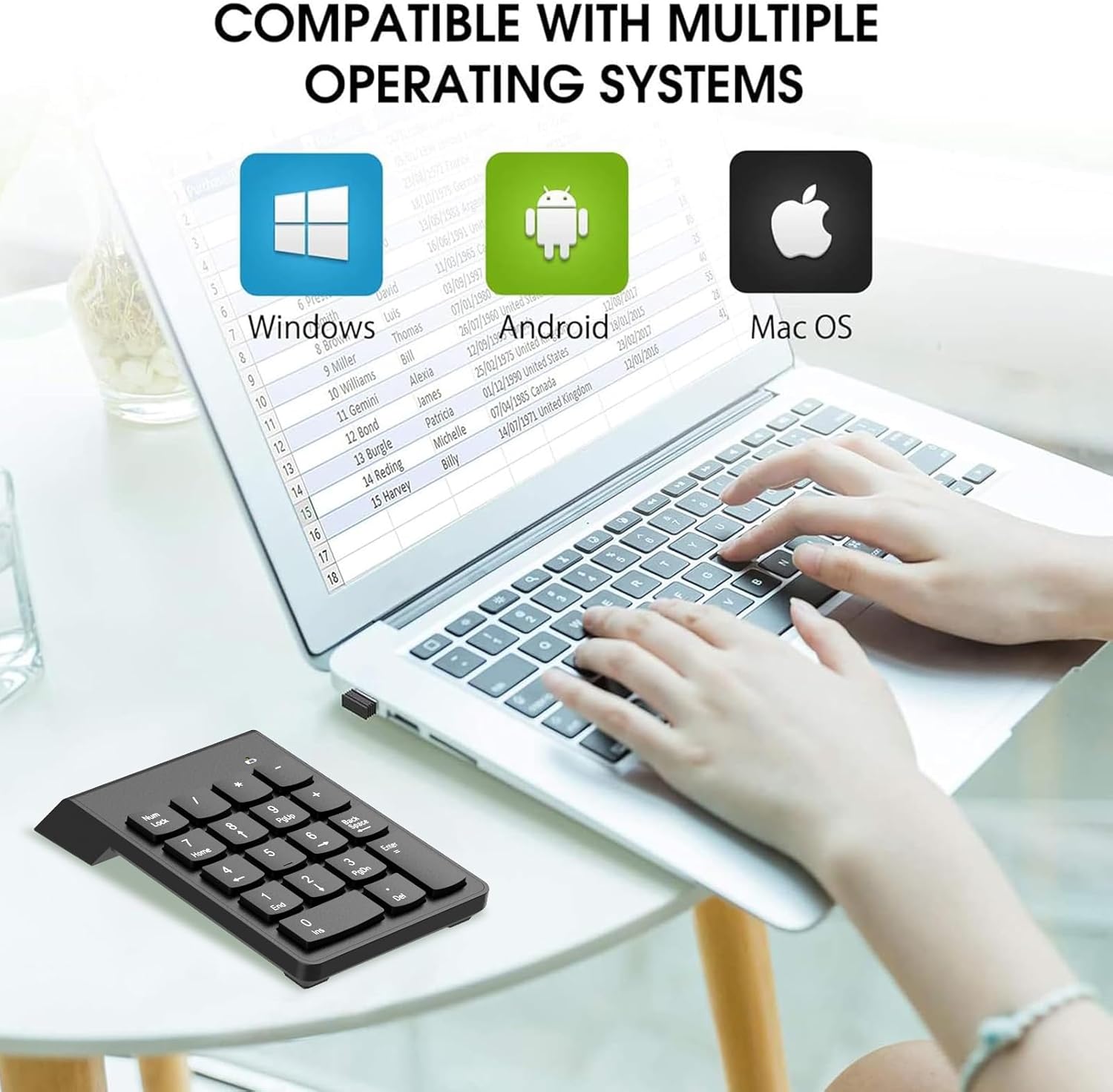
Figure 5.1: The keypad is compatible with Windows, Android, and Mac OS.

Figure 5.2: Using the keypad for efficient data entry.
6. Maintenance
Proper maintenance ensures the longevity of your numeric keypad:
- Cleaning: Use a soft, dry cloth to clean the keypad. For stubborn dirt, a slightly damp cloth with mild soap can be used, ensuring no liquid enters the device.
- Battery Replacement: Replace the AAA battery when the keypad's performance degrades or the low battery indicator (if present) illuminates.
- Storage: When not in use for extended periods, remove the battery and store the keypad in a cool, dry place.
7. Troubleshooting
If you encounter issues with your NOOX K07G Numeric Keypad, refer to the following common solutions:
- Keypad Not Responding:
- Ensure the USB receiver is securely plugged into a working USB port.
- Check if the battery is correctly installed and has sufficient charge. Replace if necessary.
- Verify that the keypad is not in sleep mode by pressing any key.
- Try plugging the USB receiver into a different USB port on your computer.
- Numbers Not Appearing (Navigation Keys Active):
- Press the 'Num Lock' key on the keypad to activate numeric input. The Num Lock indicator light should be on.
- Input Lag or Disconnection:
- Ensure the keypad is within the effective operating range (typically up to 10 meters) of the USB receiver.
- Minimize interference from other wireless devices operating on the 2.4 GHz frequency.
- Replace the battery if it is low.
8. Specifications
| Feature | Detail |
|---|---|
| Model Number | K07G |
| Connectivity Technology | Wireless (2.4 GHz USB Receiver) |
| Compatible Devices | Laptop, PC (Windows, Android, Mac OS) |
| Keyboard Description | Numeric Wireless |
| Recommended Uses | Office, Financial, Accounting |
| Color | Black |
| Style | Compact |
| Material | Acrylonitrile Butadiene Styrene |
| Item Weight | 3.52 ounces |
| Package Dimensions | 6.65 x 3.7 x 1.5 inches |
9. Warranty and Support
NOOX is committed to providing high-quality products and customer satisfaction. For any inquiries or support needs, please refer to the following:
- Customer Service: 24-hour online customer service is available to assist you.
- Refund or Replacement: We offer a 60-day refund or replacement policy.
- Unconditional Replacement: A 364-day unconditional replacement is provided for product defects or issues.
For further assistance, please contact NOOX customer support through the platform where you purchased the product.