
1. Introduction
Thank you for choosing the BOIFUN Smart Baby Monitor Camera Model 834. This device is designed to provide comprehensive monitoring for your baby, pets, or elderly family members, offering peace of mind through advanced features and easy connectivity. This manual will guide you through the setup, operation, and maintenance of your new smart monitor.

Image: The BOIFUN Smart Baby Monitor Camera (Model 834) shown next to a smartphone displaying its live feed and control options.
2. Safety Information
Please read and understand all safety instructions before using this product. Failure to follow these instructions may result in electric shock, fire, or serious injury.
- Keep the device and its power cord out of reach of children.
- Do not place the camera or power cord in or near a crib or playpen.
- Use only the provided power adapter.
- Do not expose the device to water or moisture.
- Avoid placing the device near heat sources or direct sunlight.
- Do not attempt to disassemble or repair the device yourself. Contact customer support for assistance.
3. Package Contents
Ensure all items are present in the package:
- BOIFUN Smart Baby Monitor Camera (Model 834)
- Power Adapter
- USB Cable (1.5m)
- Mounting Accessories (screws, wall anchors)
- User Manual
4. Product Overview
The BOIFUN Smart Baby Monitor features a unique and friendly design, equipped with a 2K high-resolution camera, pan/tilt functionality, and various sensors for comprehensive monitoring.
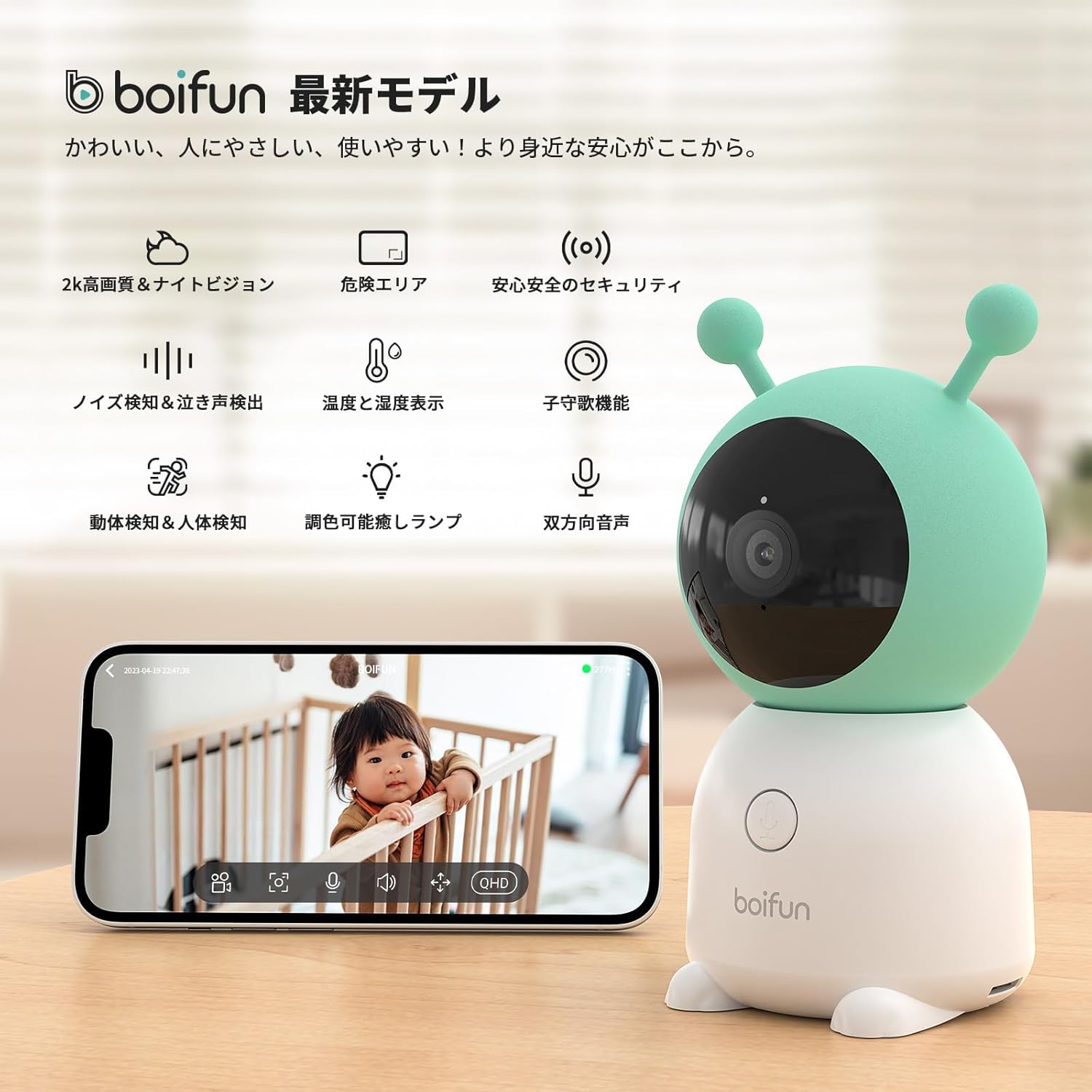
Image: An illustration of the BOIFUN Smart Baby Monitor highlighting its key features such as 2K high definition, night vision, motion detection, temperature/humidity display, lullaby function, adjustable lamp, and two-way audio.
Key Components:
- Camera Lens: 2K (3MP) resolution with 120-degree wide-angle view.
- Microphone: For two-way audio communication and abnormal sound detection.
- Speaker: For two-way audio communication and playing lullabies.
- Night Light: Dimmable night light for gentle illumination.
- Power Button/Call Button: Multi-function button for power and initiating calls.
- Temperature & Humidity Sensor: Monitors ambient conditions.
- Micro SD Card Slot: For local video storage (supports up to 128GB, FAT32/Class10 recommended).
5. Setup
5.1 App Installation
The BOIFUN Smart Baby Monitor operates with the BoifunCam or CloudEdge app. Download the app from your device's app store:
- For iOS devices: Search 'BoifunCam' or 'CloudEdge' in the Apple App Store.
- For Android devices: Search 'BoifunCam' or 'CloudEdge' in the Google Play Store.
Alternatively, scan the QR code provided in the quick start guide (if available) to download the app.
5.2 Powering On
- Connect the USB cable to the camera and the power adapter.
- Plug the power adapter into a wall outlet.
- The camera will power on automatically, and an indicator light will show its status.
5.3 Wi-Fi Connection
Ensure your Wi-Fi network is 2.4GHz. This camera does not support 5GHz Wi-Fi.
- Open the BoifunCam or CloudEdge app and create an account or log in.
- Tap the '+' icon to add a new device.
- Follow the on-screen instructions to connect the camera to your Wi-Fi network. This typically involves scanning a QR code displayed on your phone with the camera lens.
- Once connected, the camera's indicator light will change, and you will see the live feed in the app.
5.4 Mounting Options
The camera can be placed on a flat surface, mounted on a wall, or attached to the ceiling. A tripod or baby camera stand (sold separately) can also be used.

Image: Examples of mounting the camera on a ceiling, wall, or using a tripod stand.
- Desktop Placement: Simply place the camera on a stable, flat surface.
- Wall/Ceiling Mounting: Use the provided mounting accessories to secure the camera. If mounting upside down, enable the 'Screen Flip' option in the app settings to correct the image orientation.
6. Operating Instructions
6.1 Live Monitoring & Pan/Tilt
Access the live video feed through the app. The camera offers 2K (3MP) high-definition video. You can remotely control the camera's movement:
- Pan: Rotate horizontally up to 355 degrees.
- Tilt: Rotate vertically up to 60 degrees.
- Auto-Tracking: Enable this feature in the app to automatically track movement within the camera's field of view. (Note: The camera tracks horizontally only. Ensure auto-tracking is enabled in settings.)

Image: The camera's 360-degree monitoring and auto-tracking feature, showing horizontal and vertical movement ranges.
6.2 Detection Features & Alerts
The monitor is equipped with various detection capabilities to keep you informed:
- Motion Detection: Detects any movement within the camera's recording range (people, vehicles, animals).
- Human Detection: Specifically detects human-shaped movement, reducing false alarms.
- Abnormal Sound Detection: Alerts you to unusual noises near the camera.
- Cry Detection: Specifically detects a baby's crying sound and sends a 'Crying' notification to your smartphone.
- Hazard Area Setting: Define specific areas in the app to monitor. If movement is detected in these areas, an alarm message will be sent to your phone.

Image: Setting up a hazard area in the app to receive alerts if a child enters a designated unsafe zone.
6.3 Environmental Monitoring
The camera includes built-in sensors to monitor the room's environment:
- Temperature & Humidity Detection: View the indoor temperature and humidity directly in the app. You can set thresholds for these values and receive notifications if they go outside the desired range, helping prevent heatstroke or discomfort.

Image: The camera's ability to detect and display room temperature and humidity on the connected smartphone app.
6.4 Two-Way Communication
The camera features a built-in microphone and speaker for two-way audio communication:
- App-to-Camera: Speak through your smartphone app, and your voice will be heard through the camera's speaker.
- One-Button Call: The camera has a call button. When pressed, it will initiate a call to the registered smartphone, allowing for easy communication, especially useful for elderly users or children.

Image: The two-way audio feature, showing a child speaking to a parent via the camera and app.
6.5 Night Vision
The camera provides clear night vision for monitoring in low-light conditions:
- Invisible Infrared: The camera uses invisible infrared lights, ensuring no red glow that could disturb your baby's sleep.
- Clear Night Image: Provides clear black and white images even in complete darkness.

Image: Comparison of night vision quality, highlighting the BOIFUN camera's clear image without visible red infrared light.
6.6 Night Light & Lullabies
Enhance your baby's environment with integrated features:
- Adjustable Night Light: The camera features a dimmable night light, perfect for nighttime care without harsh illumination. It includes an automatic off timer after 30 minutes to prevent affecting temperature/humidity readings.
- Lullabies: Play 14 pre-recorded lullabies directly from the camera to help soothe your baby to sleep.

Image: The adjustable night light and lullaby features, showing a baby sleeping peacefully and the app interface for controlling the light.
6.7 Recording Modes & Storage
The camera offers flexible recording options and storage methods:
- 24-Hour Continuous Recording: Records continuously throughout the day.
- Scheduled Recording: Set specific times for the camera to record.
- Motion Detection Recording: Records only when motion is detected, saving storage space.
- Micro SD Card Storage: Supports up to 128GB Micro SD cards (FAT32 format, Class 10 or higher recommended) for local storage.
- Cloud Storage: Automatic upload function to cloud storage (subscription may be required for extended periods).

Image: Overview of the three recording modes and two storage options available with the camera.
6.8 Multi-Device Management & Family Sharing
Manage multiple cameras and share access with family members:
- 4-Screen Simultaneous Playback: View feeds from up to four cameras simultaneously on one screen within the app, saving time and effort.
- Family Sharing: Share camera access with multiple family members, allowing everyone to monitor and interact with the device.

Image: The 4-screen simultaneous playback feature, showing multiple camera views on a single smartphone screen.

Image: The family sharing feature, allowing multiple family members to access the camera feed.
6.9 Privacy Mode
Protect your privacy when monitoring is not needed:
- Remote Lens Control: You can remotely turn the camera lens on or off via the BoifunCam app. When the lens is off, the camera will not record or transmit any video or audio.
- Scheduled Activation: Set a schedule for the camera to automatically activate or deactivate, ensuring privacy during specific times.

Image: The privacy mode settings in the app, allowing users to turn off the device or set a schedule for its operation.
7. Maintenance
To ensure optimal performance and longevity of your BOIFUN Smart Baby Monitor, follow these maintenance guidelines:
- Cleaning: Gently wipe the camera lens and body with a soft, dry cloth. Do not use liquid cleaners or abrasive materials.
- Placement: Ensure the camera is placed in a stable location, away from direct sunlight, heat sources, and moisture.
- Software Updates: Regularly check the BoifunCam app for firmware updates to ensure your camera has the latest features and security enhancements.
8. Troubleshooting
If you encounter issues with your BOIFUN Smart Baby Monitor, refer to the following common solutions:
| Problem | Possible Cause | Solution |
|---|---|---|
| Camera fails to connect to Wi-Fi | Incorrect Wi-Fi password; 5GHz network used; camera too far from router; network interference. | Ensure correct 2.4GHz Wi-Fi password. Move camera closer to router. Reduce network interference. Restart camera and router. |
| No video feed in app | Camera is offline; poor Wi-Fi signal; app issue. | Check camera's power and Wi-Fi connection. Restart app. Re-add camera if necessary. |
| Motion/Sound alerts not received | Detection settings disabled; app notifications off; poor network connection. | Enable detection settings and notifications in the app. Check network stability. |
| Two-way audio not working | Microphone/speaker muted in app; volume too low. | Check app settings for microphone and speaker. Adjust volume. |
If the problem persists, please contact BOIFUN customer support.
9. Specifications
| Feature | Detail |
|---|---|
| Brand | BOIFUN |
| Model Number | 834 |
| Connectivity | Wi-Fi (2.4GHz only) |
| Color | Blue |
| Compatible Devices | Smartphones (iOS/Android) |
| Shape | Oval |
| Field of View | 120 degrees |
| Pan/Tilt Range | Horizontal 355°, Vertical 60° |
| Battery Included | No |
| Product Dimensions | 7.5 x 7.5 x 15.2 cm |
| Item Weight | 430 g |
| Material | Plastic |
| Certifications | TELEC (Mark No: 205-180330), PSE |
10. Warranty & Support
BOIFUN offers a comprehensive warranty and dedicated customer support for your product.
- Warranty Period: The product comes with a 2-year standard warranty. An additional 1-year manufacturer warranty extension is available, totaling 3 years of coverage.
- Product Initial Defects: In case of initial product defects, a replacement product can be provided.
- Customer Support: If you have any questions regarding the warranty period, product functions, or any other concerns, please feel free to contact our official support email: admin@boifun.net.
- BOIFUN is committed to continuous quality improvement and providing the best possible support.