
1. Introduction
This manual provides essential information for the safe and effective use of your MULS WK06XL laptop battery. Please read these instructions carefully before installation and operation to ensure optimal performance and longevity of your battery.

Image 1.1: The MULS WK06XL laptop battery, shown with two precision screwdrivers, indicating tools that may be required for installation.
2. Product Specifications
| Specification | Value |
|---|---|
| Model Number | WK06XL |
| Capacity | 83Wh / 6880mAh |
| Voltage | 11.58V |
| Battery Type | Li-ion (Lithium Ion) |
| Compatible Part Numbers | WK06XL, HSTNN-WB0C, HSTNN-OB2I, M41640-CD1, M41711-005, M41640-AC1 |
| Dimensions (L x W x T) | 12.4 x 2.75 x 0.27 inches (approx.) |
| Item Weight | 15.5 ounces |
| Recharge Cycles | Up to 500 cycles |

Image 2.1: Visual representation of the battery's key specifications: 11.58V Voltage, 6880mAh Capacity, 83Wh Wattage, and Li-ion Battery Type.
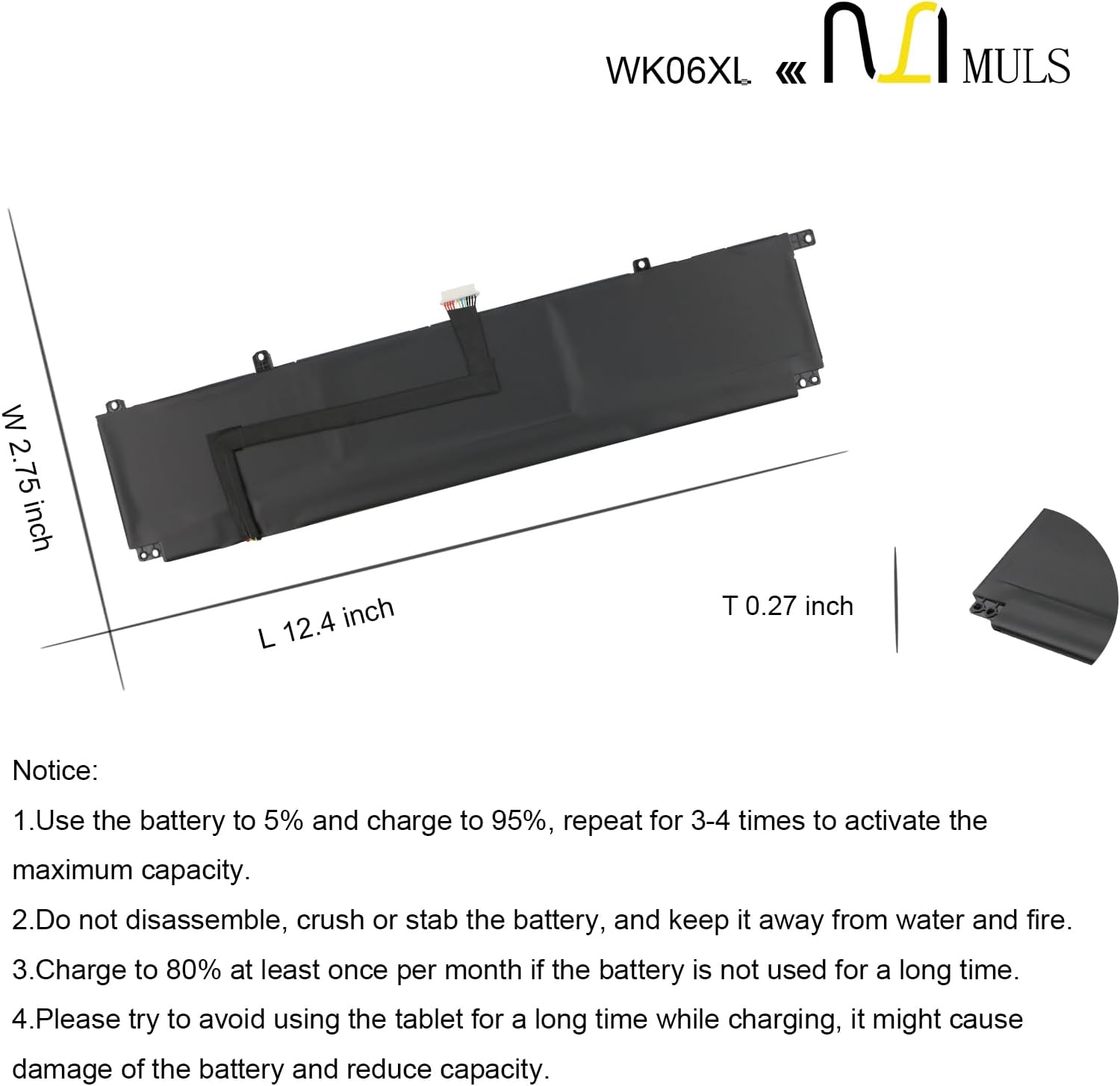
Image 2.2: A diagram illustrating the physical dimensions of the WK06XL battery, including its length, width, and thickness.
3. Compatibility
The MULS WK06XL battery is designed to be compatible with various HP Omen laptop series. Please verify your laptop's model number against the list below:
- HP Omen 16-b0000 Series: 16-b0000TX, 16-b0001TX, 16-b0002TX, 16-b0005TX, 16-b0006TX, 16-B0007UR
- HP Omen 16-C0000 Series: 16-C0001NU, 16-C0002NS, 16-C0003NE, 16-C0007UR, 16-C0008NS
- HP Omen 7 16-b1000 Series: 16-b1001TX, 16-b1002TX, 16-b1006TX, 16-b1007TX
- HP Omen 7 plus 17-ck0000 Series (2021): 17-CK0000TX, 17-CK0001NL, 17-CK0007NV, 17-ck0054TX, 17-ck0056TX, 17-ck0059TX
- HP Omen 8 Plus 17-ck0000 Series: 17-ck1000TX, 17-ck1001TX, 17-ck1008TX
- HP Omen 9 plus 17-ck2000 Series
- HP Omen 17T-CK Series

Image 3.1: A generic laptop, illustrating the type of device this battery is compatible with, specifically HP Omen series laptops.
4. Safety Information
Your safety is paramount. This battery is designed with multiple protection features and is certified by CE, FCC, and RoHS standards. Adhere to the following safety guidelines:
- Overcharge Protection: Prevents the battery from being charged beyond its safe limit.
- Overcurrent Protection: Safeguards against excessive current flow.
- Overheat Protection: Monitors and prevents the battery from reaching unsafe temperatures.
- Short-Circuit Protection: Automatically cuts off power in case of a short circuit.
- Overload Protection: Protects against excessive power draw.
General Safety Precautions:
- Do not disassemble, crush, or stab the battery.
- Keep the battery away from water and fire.
- Avoid using or storing the battery in environments where the temperature is excessively high or low.
- Dispose of old batteries responsibly according to local regulations.
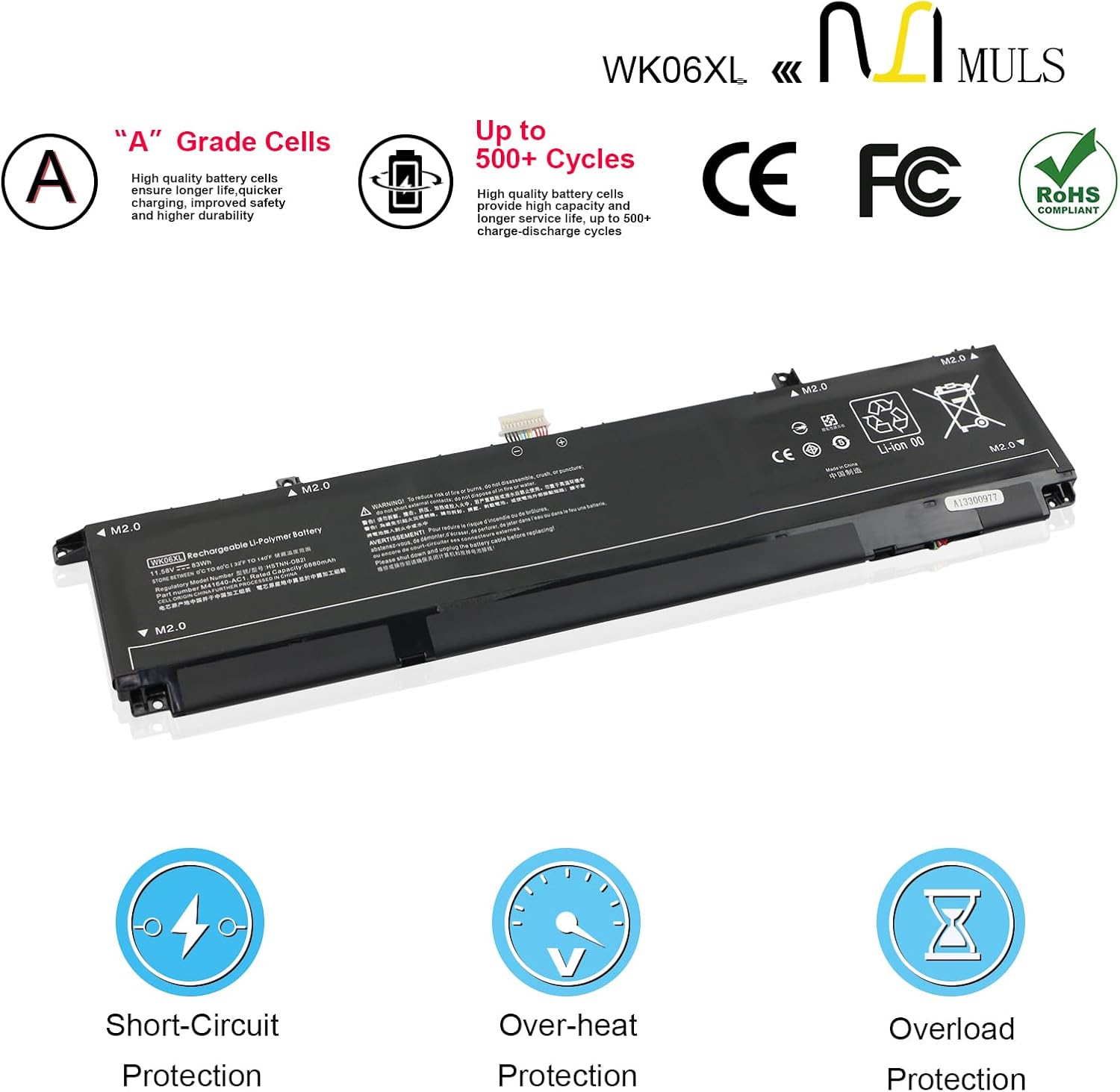
Image 4.1: The WK06XL battery highlighting its built-in safety features, including protection against short-circuits, overheating, and overloading, along with its CE, FCC, and RoHS certifications.
5. Setup and Installation
Installing a laptop battery typically involves opening the laptop casing. If you are unsure about the process, it is recommended to consult your laptop's specific service manual or seek professional assistance.
- Power Off: Ensure your laptop is completely powered off and disconnected from any power source.
- Disconnect Peripherals: Disconnect all external devices, cables, and accessories.
- Access Battery Compartment: Carefully open your laptop's back cover or battery compartment. This may require specific tools (often small screwdrivers, which may be included with your battery).
- Remove Old Battery: Gently disconnect the old battery's connector from the motherboard and remove any screws securing it. Lift the old battery out.
- Install New Battery: Place the new MULS WK06XL battery into the compartment, ensuring it aligns correctly. Secure it with any screws that were removed.
- Connect Battery: Carefully connect the new battery's cable to the motherboard connector.
- Reassemble: Close the laptop's back cover, ensuring all screws are tightened appropriately.
6. Operating Instructions
To maximize the performance and lifespan of your new battery, follow these operating guidelines:
- Initial Activation: For the first use, discharge the battery to 5% and then charge it to 95%. Repeat this cycle 3-4 times to fully activate the battery's maximum capacity.
- First Charge: The initial charge should be no less than 5 hours.
- Avoid Deep Discharge: If the battery discharges to 3%, shut down your laptop or recharge it immediately. Allowing the battery to discharge to 0% can cause damage and significantly reduce its lifespan.
- Charging Behavior: If the new battery initially stops charging when partially full, this is often normal. Remove the battery and reinsert it to resume charging. This may be required for a few iterations during the first charge.
- Optimized Performance: The upgraded battery chip provides higher capacity and more stable charging performance, enhancing the charging conversion rate.

Image 6.1: The WK06XL battery, emphasizing its upgraded battery chip designed for higher capacity and more stable charging performance.
7. Maintenance
Proper maintenance can extend the life of your MULS WK06XL battery:
- Regular Use: Use your laptop regularly to keep the battery active.
- Storage: If the battery will not be used for a long time, charge it to approximately 80% at least once per month. Store it in a cool, dry place.
- Avoid Continuous Charging: While charging, try to avoid using the laptop for extended periods, as this might cause damage to the battery and reduce its capacity over time.
- Clean Contacts: Periodically clean the battery contacts with a dry cloth to ensure good connection.
8. Troubleshooting
If you encounter issues with your new battery, consider the following common scenarios:
- New Battery Not Charging Fully: It is normal for a new battery to stop charging prematurely during its first few cycles due to voltage and current instability. If this occurs, remove the battery from the laptop and reinsert it. Repeat this process as needed until the battery charges fully.
- Battery Not Detected: Ensure the battery is correctly seated in its compartment and its connector is firmly attached to the motherboard. Restart your laptop.
- Short Battery Life: Ensure you have completed the initial activation cycles (discharge to 5%, charge to 95%, 3-4 times). Check power settings in your operating system to optimize battery usage.
For persistent issues, please refer to the Warranty and Support section for contact information.
9. Warranty and Support
MULS is committed to providing high-quality products and customer satisfaction.
- Money-Back Guarantee: Enjoy a 30-day no-questions-asked full money-back guarantee from the date of purchase.
- Exchange Guarantee: The product is covered by a 12-month exchange guarantee.
- Customer Service: We provide 24/7 email service to support you with any problems or inquiries. If the return window has closed, please contact us directly for assistance.
For support, please contact MULS customer service via the contact information provided with your purchase or on the official MULS website.