
1. Introduction
Thank you for purchasing the Bofypoo DC406 Digital Camera. This compact and versatile camera is designed for ease of use, making it ideal for beginners, teens, and children. It features 44-megapixel photo resolution, 1080P Full HD video recording, and a 2.4-inch IPS LCD screen. Please read this manual thoroughly to understand the camera's functions and ensure proper operation and care.
2. Package Contents
Please check the package to ensure all items are present:
- Bofypoo DC406 Digital Camera (Light Pink)
- 32GB Memory Card
- Rechargeable Batteries (2 included)
- USB Charging Cable
- Power Adapter
- Lanyard
- Camera Pouch
- User Manual

Image: The Bofypoo DC406 Digital Camera, along with its accessories including two batteries, a USB cable, power adapter, 32GB memory card, camera pouch, and lanyard, are neatly arranged on a wooden surface, demonstrating the complete package contents.
3. Camera Components
Familiarize yourself with the camera's buttons and ports for optimal use.
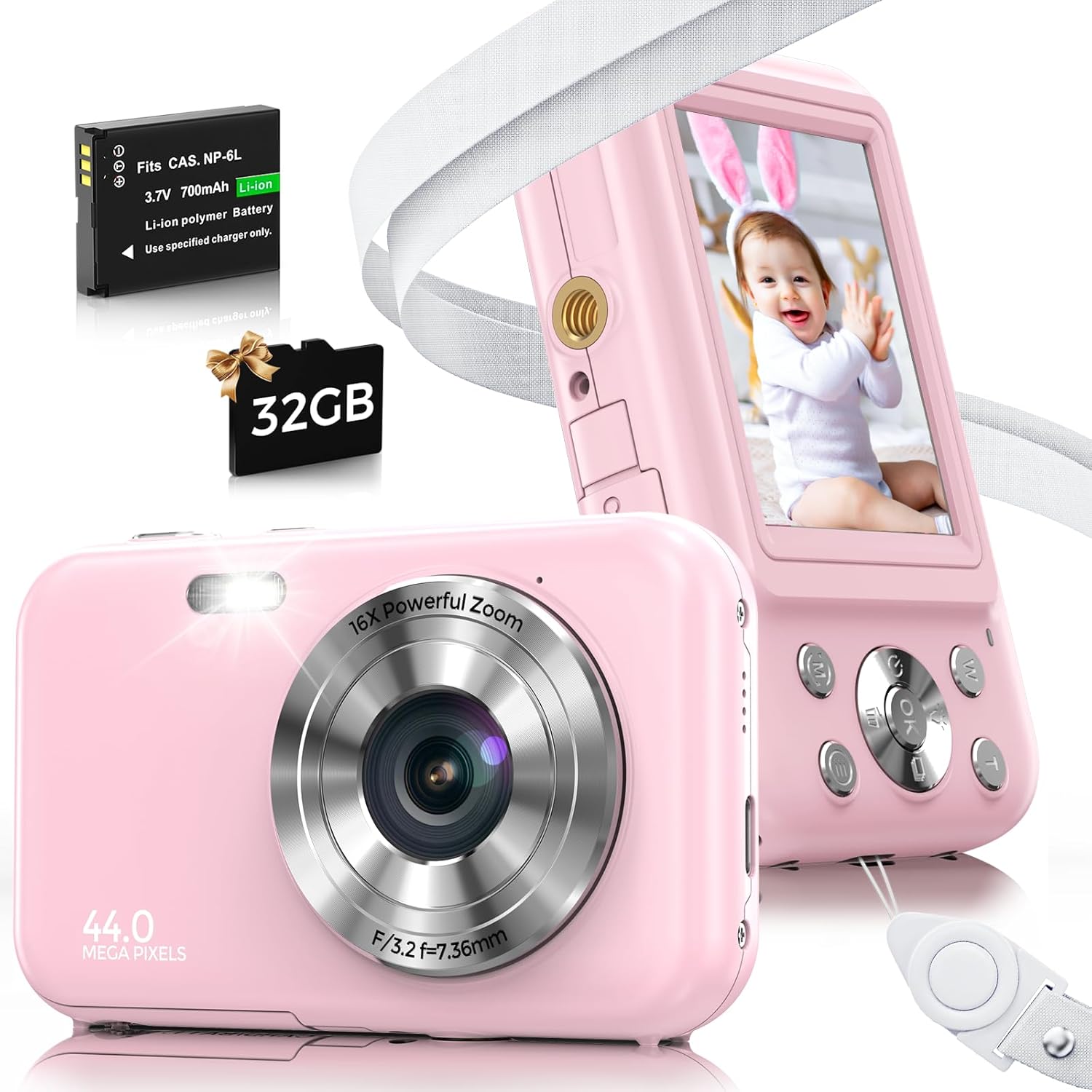
Image: A front view of the light pink Bofypoo DC406 Digital Camera showing the lens, flash, and 44.0 Mega Pixels branding. Behind it, the camera's back view displays the 2.4-inch IPS LCD screen and control buttons, including the W/T zoom buttons and navigation pad.
- Lens: Captures images and videos.
- Flash/Fill Light: Provides illumination in low-light conditions.
- Display Screen (2.4 inch IPS LCD): For viewing photos, videos, and menu options.
- Power Button: Turns the camera on/off.
- Shutter Button: Takes photos or starts/stops video recording.
- W/T Buttons: Controls the 16X digital zoom (W for Wide, T for Telephoto). Also used for zooming in/out during playback.
- OK Button: Confirms selections in the menu.
- Menu (M) Button: Accesses camera settings and modes.
- Playback Button: Enters playback mode to view captured media.
- Delete Button: Deletes selected photos or videos.
- Navigation Buttons: Used to navigate through menus and settings.
- Battery Compartment: Houses the rechargeable battery.
- Memory Card Slot: For inserting the 32GB Micro SD card.
- USB Port: For charging and connecting to a computer.
4. Setup
4.1 Charging the Battery
- Insert one of the included rechargeable batteries into the battery compartment at the bottom of the camera. Ensure it is inserted with the correct polarity.
- Connect the camera to the power adapter using the provided USB cable.
- Plug the power adapter into a wall outlet. The charging indicator light will illuminate.
- Charge the battery fully before first use. The indicator light will change or turn off when charging is complete.
4.2 Inserting the Memory Card
The camera supports memory cards from 4GB to 128GB. A 32GB memory card is included.
- Locate the memory card slot on the side of the camera.
- Insert the 32GB Micro SD card into the slot with the gold contacts facing down, until it clicks into place.
- Before first use, it is recommended to format the memory card through the camera's settings menu to ensure compatibility and optimal performance.

Image: A multi-panel image illustrating the insertion of the battery and Micro SD card into the camera's compartments, and the camera connected via USB to a laptop, demonstrating the 'shoot while charging' feature.
4.3 Turning On/Off
- To turn on the camera, press and hold the Power button.
- To turn off the camera, press and hold the Power button again.
- The camera also features an automatic shut-down function (1min/3min/5min/OFF) to conserve energy, which can be configured in the settings.
5. Operating the Camera
5.1 Taking Photos
- Turn on the camera. It will typically start in photo mode.
- Frame your shot using the 2.4-inch IPS LCD screen.
- Press the Shutter button halfway down to focus (if applicable).
- Press the Shutter button fully down to capture the photo.
5.2 Recording Videos
- Switch to video mode (refer to your camera's menu for mode selection).
- Press the Shutter button once to start recording. A recording indicator will appear on the screen.
- Press the Shutter button again to stop recording.

Image: A young girl in a princess crown stands near the Bofypoo DC406 Digital Camera, highlighting its 1080P video recording and fill light features for quality video in low light. A filmstrip of various captured moments is shown at the bottom.
5.3 Using the Digital Zoom
The camera features 16X digital zoom.
- In photo or video mode, press the T button to zoom in (telephoto).
- Press the W button to zoom out (wide-angle).
- During playback, the W/T buttons can also be used to zoom in or out on a captured image.

Image: A split image demonstrating the 16X digital zoom capability of the Bofypoo DC406 camera. The left side shows a wide view (1X zoom) of a baby, while the right side shows a close-up (16X zoom) of the same baby, illustrating the effect of the W/T button.
5.4 Playback Mode
- Press the Playback button to enter playback mode.
- Use the Navigation buttons to scroll through your photos and videos.
- Press the OK button to play a video.
- To exit playback mode, press the Playback button again.
6. Advanced Features
6.1 Anti-Shake Function
The camera is equipped with an Anti-Shake function to help reduce blur caused by camera movement, resulting in clearer photos.

Image: A comparison showing the effect of the anti-shake feature on the Bofypoo DC406 camera. The top image shows a clear photo taken with anti-shake, while the bottom images demonstrate blurred photos when the feature is off, highlighting the clarity improvement.
6.2 Fill Light
The built-in fill light assists in capturing high-quality photos and videos in low-light conditions.
6.3 Multi-functional Settings (M Button)
Press the M button to access various settings and creative options:
- Self-timer: Set a delay (e.g., 2s, 5s, 10s) before the photo is taken.
- Continuous Shooting: Capture multiple photos in quick succession.
- Time-lapse: Create a sequence of images taken at intervals to form a video.
- Filters: Apply various artistic effects to your photos.
- White Balance: Adjust for different lighting environments (Auto, Sunlight, Cloudy, Bulb, Daylight).
- Scene Modes: Select pre-set modes for specific shooting conditions (Auto, Night portrait, Night scenery, Portrait, Scenery, Sport, Party, Beach, High sensitivity).

Image: A collage showcasing the diverse features of the Bofypoo DC406 camera, including continuous shooting, time-lapse, face and smile detection, and multiple filter effects, illustrated with various cheerful photos of children and families.
6.4 Webcam Functionality
The camera can be connected to a computer via the USB cable and used as a webcam for video calls or streaming.
7. Maintenance and Care
- Cleaning: Use a soft, dry cloth to clean the camera body. For the lens and screen, use a specialized lens cleaning cloth. Avoid using harsh chemicals or abrasive materials.
- Battery Care: Store batteries in a cool, dry place when not in use. Do not expose batteries to extreme temperatures or dispose of them in fire. Use only the original USB data cable for charging.
- Storage: When not in use for extended periods, remove the battery and store the camera in a dry, dust-free environment, preferably in its protective pouch.
- Water Resistance: This camera is not waterproof. Avoid exposure to water or high humidity.
8. Troubleshooting
If you encounter issues with your camera, please refer to the following common problems and solutions:
| Problem | Possible Cause | Solution |
|---|---|---|
| Camera does not turn on. | Battery is low or not inserted correctly. | Charge the battery fully. Ensure the battery is inserted with correct polarity. |
| Cannot take photos/record videos. | Memory card is full, not inserted, or not formatted. | Check memory card space. Insert card correctly. Format the memory card (this will erase all data). |
| Images are blurry. | Camera shake, low light, or dirty lens. | Hold the camera steady. Use the Anti-Shake function. Use the fill light in low light. Clean the lens. |
| Camera freezes or becomes unresponsive. | Temporary software glitch. | Remove and reinsert the battery to reset the camera. |
| Cannot connect to computer. | Incorrect USB cable or driver issue. | Ensure you are using the original USB cable. Try a different USB port on your computer. |
If the problem persists, please contact customer support.
9. Specifications
| Feature | Detail |
|---|---|
| Pixels | 44 Mega Pixels |
| Image Sensor | CMOS |
| Video Resolution | 1080P FHD |
| Display Screen | 2.4 inch IPS LCD |
| Digital Zoom | 16X |
| Image Stabilization | Digital (Anti-Shake) |
| Supported Memory Card | 4GB to 128GB (32GB included) |
| Self-timer | 10s / 5s / 2s / OFF |
| Audio | Built-in microphone and speaker |
| Automatic Shut-down | 1min / 3min / 5min / OFF |
| Webcam Function | Yes |
| Batteries | 1 AAA batteries required (included) - Note: Product description states 2 rechargeable batteries, specification lists 1 AAA. Please refer to actual product for clarity. |
| Model Name | DC406 |
| Dimensions | 11.51 x 9.09 x 8.2 cm |
| Weight | 281 g |
10. Warranty and Support
Bofypoo offers a 1-year replacement and refund warranty for this product. If you encounter any issues or require assistance with your camera, our dedicated 24/7 after-sales service team is available to help you.
For support, please refer to the contact information provided on the product packaging or the official Bofypoo website.


