
Dell Dell Latitude 5424
Dell Latitude 5424 Rugged Laptop User Manual
Model: Dell Latitude 5424 | Brand: Dell
1. Introduction
This manual provides essential information for the proper setup, operation, and maintenance of your Dell Latitude 5424 Rugged Laptop. Designed for demanding environments, this laptop combines robust construction with high-performance computing capabilities.
The Dell Latitude 5424 features an Intel Quad Core i5-8350U Processor, 32GB of high-bandwidth RAM, and a 512GB NVMe Solid State Drive, ensuring swift multitasking and rapid data access. Its 14-inch Full HD touchscreen display is built to withstand harsh conditions, providing clear visuals in various lighting environments. The laptop comes pre-installed with Windows 10 Pro, offering enhanced productivity features.
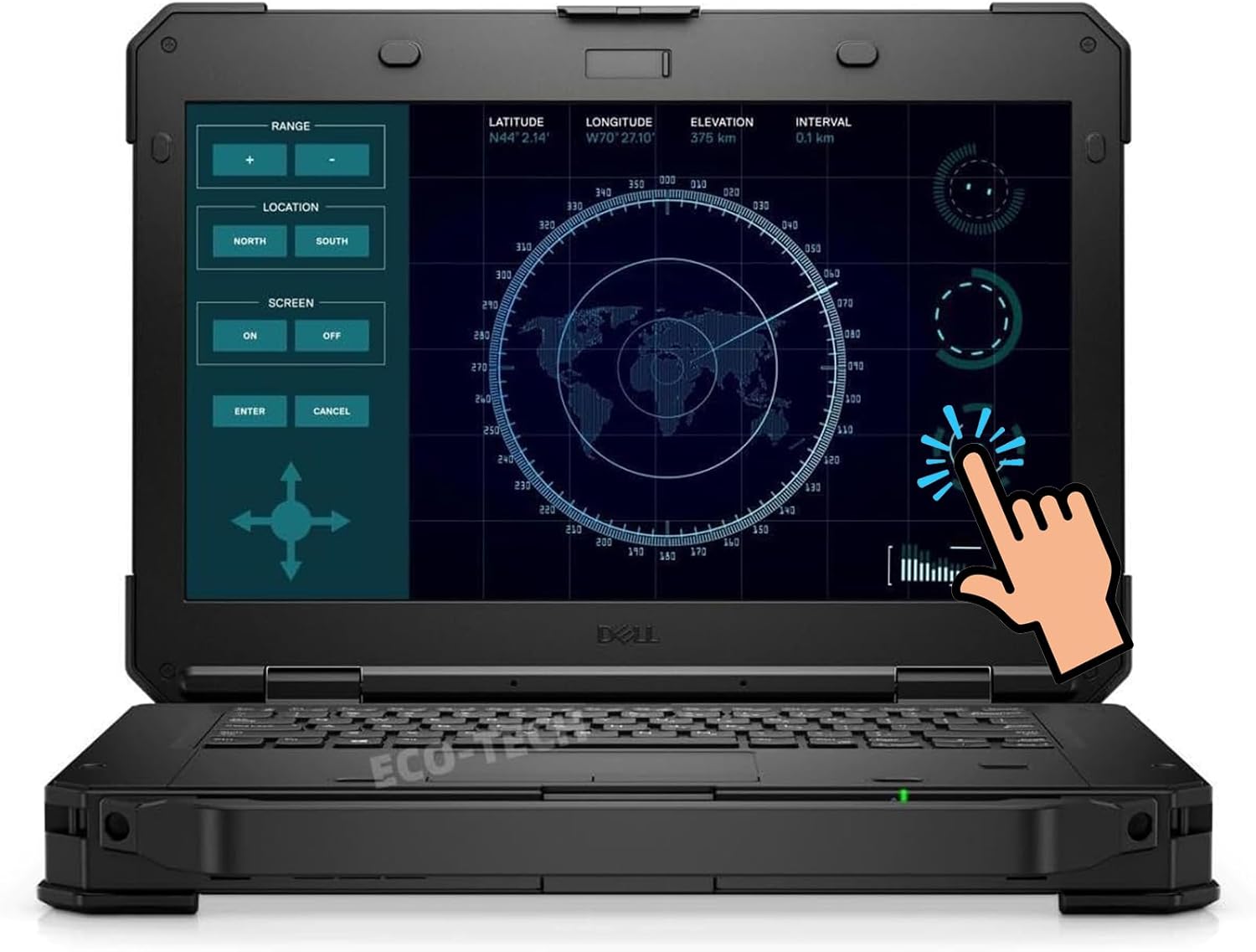
Figure 1.1: Front view of the Dell Latitude 5424 Rugged Laptop, showcasing its durable design and interactive display.
2. Setup
2.1 Unboxing and Initial Inspection
Carefully remove the laptop and all accessories from the packaging. Verify that the following items are included:
- Dell Latitude 5424 Rugged Laptop
- AC adapter
- Documentation
Inspect the laptop for any visible damage. If any components are missing or damaged, contact your vendor immediately.
2.2 Connecting the Power Adapter
Connect the AC adapter to the power input port on the laptop. Plug the other end of the AC adapter into a grounded electrical outlet. The laptop can be operated on battery power, but it is recommended to connect the AC adapter for initial setup and charging.

Figure 2.1: Rear view of the Dell Latitude 5424, showing the power input port (14) and other connectivity options.
2.3 First Boot and Operating System Setup
Press the power button located on the laptop. The laptop will power on and begin the initial setup process for Windows 10 Pro. Follow the on-screen prompts to configure your language, region, network settings, and user account.
Ensure you have an active internet connection during this process to complete updates and synchronize settings.
3. Operating the Laptop
3.1 Power On/Off and Sleep Mode
- Power On: Press the power button.
- Power Off: Click the Start button, then Power > Shut down.
- Sleep Mode: Close the laptop lid or click the Start button, then Power > Sleep.
3.2 Using the Touchscreen and Keyboard
The 14-inch FHD display supports touch input. You can interact with the operating system and applications directly using your fingers. The integrated keyboard and touchpad provide traditional input methods.
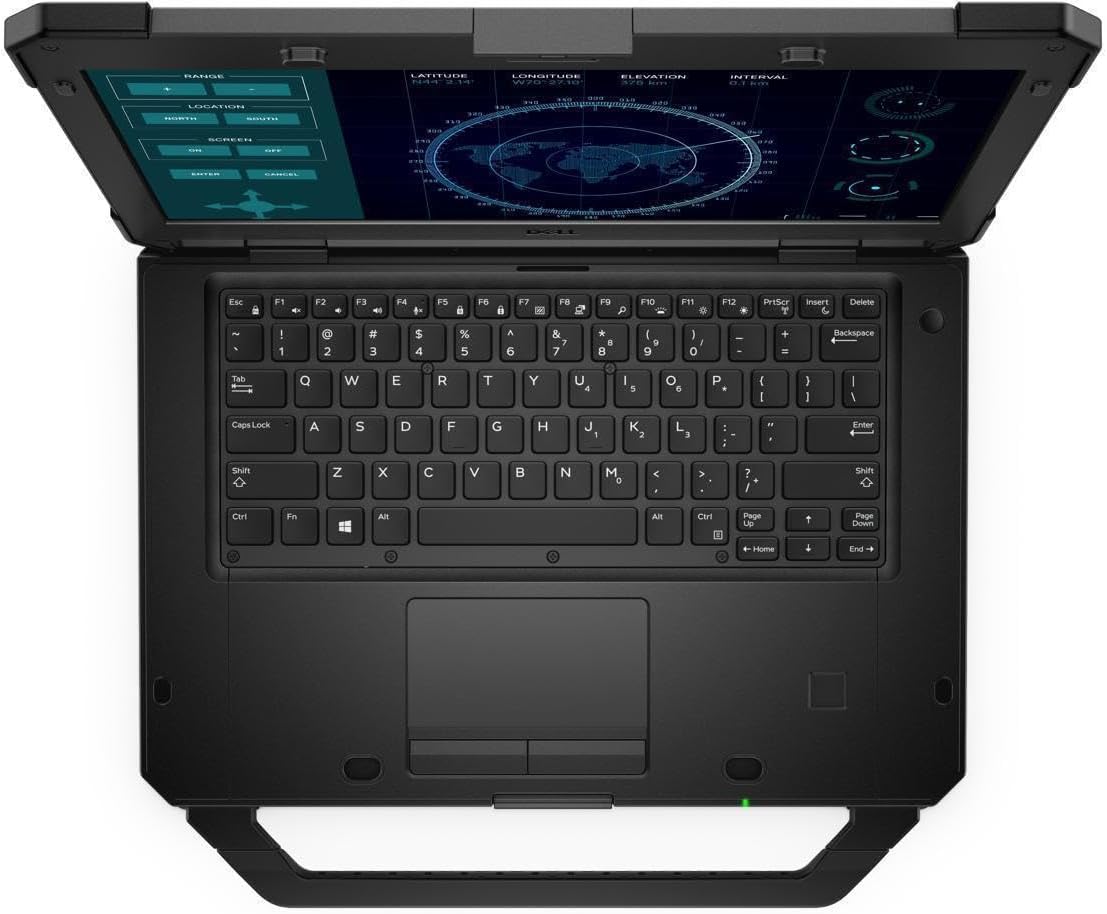
Figure 3.1: Top-down view of the Dell Latitude 5424, highlighting the full-size keyboard and responsive touchpad.
3.3 Connecting External Devices
The Dell Latitude 5424 offers a variety of ports for connecting peripherals:
- USB 3.0 Type-C: 1 port for modern peripherals and data transfer.
- USB 3.0 Type-A: 3 ports for standard USB devices.
- VGA Port: For connecting to older display devices.
- HDMI 2.0 Port: For connecting to modern displays and projectors.
- Micro-SIM Card Slot: For cellular connectivity (if equipped).
- SD Card Reader: For accessing data from SD cards.
- Kensington Security Cable Slot: For physical security.

Figure 3.2: Side view of the Dell Latitude 5424 with protective port covers open, revealing USB and other connectivity options.

Figure 3.3: Another perspective of the Dell Latitude 5424's side ports, demonstrating the robust design and accessibility.
3.4 Network Connectivity
The laptop supports Intel Wi-Fi for wireless network connections. To connect to a Wi-Fi network:
- Click the Wi-Fi icon in the system tray (bottom-right corner of the screen).
- Select your desired network from the list.
- Enter the network security key (password) if prompted.
- Click "Connect".
4. Maintenance
4.1 Cleaning the Laptop
Due to its rugged nature, the Latitude 5424 is designed to withstand dust and spills. However, regular cleaning is recommended:
- Use a soft, lint-free cloth dampened with water or a non-abrasive screen cleaner for the display.
- For the chassis and keyboard, use a soft cloth. Avoid harsh chemicals.
- Ensure all port covers are closed when not in use to prevent ingress of dust and liquids.

Figure 4.1: Rear view of the Dell Latitude 5424, showcasing its robust, sealed casing designed for durability.
4.2 Battery Care
To maximize battery lifespan:
- Avoid extreme temperatures.
- Do not fully discharge the battery frequently.
- If storing the laptop for an extended period, charge the battery to approximately 50% before storage.
4.3 Software Updates
Regularly check for and install Windows updates and Dell driver updates to ensure optimal performance and security. You can access Windows Update through the Settings menu.
5. Troubleshooting
5.1 Common Issues and Solutions
| Issue | Possible Solution |
|---|---|
| Laptop does not power on. | Ensure the AC adapter is securely connected and the power outlet is functional. Check battery charge level. |
| Display is blank or flickering. | Restart the laptop. Check external display connections if applicable. Update graphics drivers. |
| Wi-Fi connection issues. | Ensure Wi-Fi is enabled. Restart your router/modem. Reinstall Wi-Fi drivers. |
| Slow performance. | Close unnecessary applications. Check for background processes. Ensure sufficient free storage space. Run a virus scan. |
For more complex issues, refer to Dell's official support resources or contact technical support.
6. Specifications
The following table outlines the key technical specifications for the Dell Latitude 5424 Rugged Laptop:
| Feature | Detail |
|---|---|
| Processor | Intel Quad Core i5-8350U (1.7GHz up to 3.6GHz) |
| RAM | 32GB DDR4 |
| Storage | 512GB NVMe Solid State Drive |
| Display | 14-inch FHD (1920x1080) Touchscreen |
| Graphics | Integrated Intel Graphics |
| Operating System | Windows 10 Pro |
| Wireless Connectivity | Intel Wi-Fi, Bluetooth |
| Ports | 1x USB 3.0 Type-C, 3x USB 3.0 Type-A, 1x VGA, 1x HDMI 2.0, micro-SIM slot, SD card reader, Kensington Lock Slot |
| Dimensions (LxWxH) | 13.66 x 9.63 x 1.75 inches |
| Weight | 8.88 pounds |

Figure 6.1: The Dell Latitude 5424's robust construction is evident from various angles, designed for extreme durability.
Figure 6.2: The Dell Latitude 5424 in an open position, highlighting its 14-inch FHD touchscreen and ruggedized chassis.
7. Warranty and Support
This Dell Latitude 5424 Rugged Laptop is a renewed product and comes with a 90-day warranty. This warranty covers defects in materials and workmanship under normal use.
For warranty claims, technical support, or further assistance, please refer to the documentation provided with your purchase or visit the official Dell support website. Ensure you have your product model number and any relevant purchase information ready when contacting support.
Ask a question about this manual
Ask about setup, troubleshooting, compatibility, parts, safety, or missing instructions. Manuals+ will review the question and use this page’s manual context to help answer it.