
Amazon Basics 13aSB-A800ST-Q1T
Amazon Basics Smart A19 LED Light Bulb User Manual
Model: 13aSB-A800ST-Q1T
Introduction
The Amazon Basics Smart A19 LED Light Bulb offers convenient and energy-efficient lighting for your home. This color-changing smart bulb integrates seamlessly with Amazon Alexa, allowing for voice control and app-based management without the need for a separate hub. Enjoy customizable lighting with a wide range of colors and adjustable brightness to suit any mood or occasion.

Image: The Amazon Basics Smart A19 LED Light Bulb, showcasing its color-changing capabilities and packaging with key features.

Image: An illustration highlighting the bulb's features including Gen 2 Color Changing, Dimmable with Alexa, Preset Scenes, and suitability for every room.
Safety Information
- Do not use with standard dimmer switches. This bulb is dimmable only via the Alexa app or voice control.
- Ensure power is off before installation or removal to prevent electric shock.
- Suitable for damp locations, but not for direct exposure to water.
- Operate within the specified voltage range (120V AC).
- Do not disassemble or modify the bulb.
- Keep out of reach of children.
Setup
Setting up your Amazon Basics Smart A19 LED Light Bulb is a simple process that requires only the Alexa app and a 2.4 GHz Wi-Fi network. No additional hub is needed.
- Install the Bulb: Screw your Amazon Basics smart light bulb into any standard E26 light fixture. Ensure the fixture is powered off before installation.
- Power On: Turn on the power to the light fixture. The bulb will flash twice, indicating it is ready for setup.
- Open Alexa App: Open the Amazon Alexa app on your smartphone or tablet.
- Add Device:
- Tap the "Devices" icon in the lower right menu.
- Click the "+" icon in the top right corner.
- Select "Add Device".
- Choose "Light" from the list of device types.
- Select "Amazon Basics" as the brand.
- Discovery: The Alexa app will automatically begin searching for your new bulb. You may receive a notification "First light bulb found".
- Scan Barcode (Optional): If prompted, you can scan the barcode located on the back of the quickstart guide provided with your bulb. For a zero-touch setup experience, ensure "Link device to your Amazon account to simplify setup" is checked during checkout.
- Connect to Wi-Fi: Follow the on-screen prompts to connect the bulb to your 2.4 GHz Wi-Fi network. Note: These bulbs work exclusively with Alexa and require a 2.4 GHz Wi-Fi connection.
- Name Your Bulb: Once connected, you can name your bulb (e.g., "Living Room Light," "Bedroom Lamp") for easy voice control.

Image: A visual guide showing the three simple steps to set up the smart bulb: screw in, open Alexa app, and control.
Operating Instructions
Voice Control with Alexa
Control your smart bulb using simple voice commands with any Alexa-enabled device (e.g., Echo, Echo Dot, Echo Show).
- Turn On/Off: "Alexa, turn on [bulb name]." or "Alexa, turn off [bulb name]."
- Adjust Brightness: "Alexa, dim [bulb name] to 50%." or "Alexa, brighten [bulb name]."
- Change Color: "Alexa, set [bulb name] to blue." (Choose from 16 preset colors).
- Set Scenes: "Alexa, set [bulb name] to movie night." (If you have created custom scenes in the Alexa app).

Image: Two individuals enjoying a karaoke night with smart bulbs providing colorful ambient lighting, demonstrating voice control with Alexa.
Control via Alexa App
The Alexa app provides full control over your smart bulb from anywhere with an internet connection.
- On/Off Toggle: Tap the bulb's icon to turn it on or off.
- Brightness Adjustment: Use the slider to adjust brightness from 5% to 100%.
- Color Selection: Choose from 16 preset colors or fine-tune your desired shade.
- Routines: Create custom routines to automate lighting based on time, sunrise/sunset, or other smart home events. For example, schedule lights to turn on automatically when you're away to make your house look occupied.
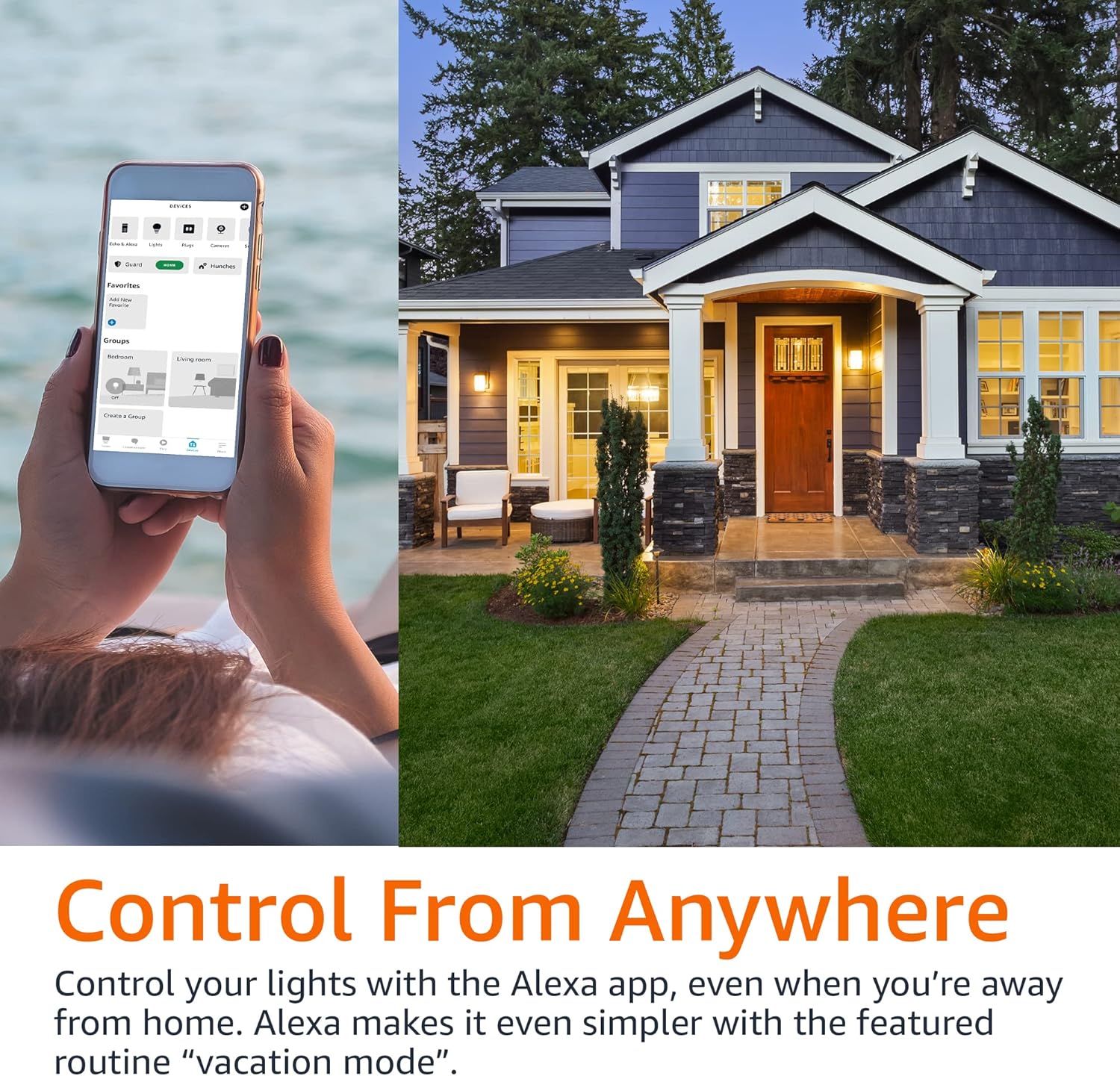
Image: A person using the Alexa app on their phone to control smart lights, with a house in the background, illustrating remote control capabilities.
Group Control
Organize your smart bulbs into groups within the Alexa app for simultaneous control.
- Create Groups: In the Alexa app, go to Devices, tap the '+' icon, and select "Add Group". You can group lights by room (e.g., "Living Room," "Bedroom") or create custom groups.
- Control Groups: Once grouped, you can control all lights in that group with a single voice command or app action. For example, "Alexa, turn off the bedroom lights."

Image: A diagram illustrating a house with different rooms (Bedroom, Home Office, Living Room, Dining Room) connected to smart light icons, demonstrating the concept of group control.
Maintenance
The Amazon Basics Smart A19 LED Light Bulb requires minimal maintenance.
- Cleaning: Ensure the bulb is off and cool before cleaning. Wipe with a soft, dry cloth. Do not use liquid or abrasive cleaners.
- Storage: If storing the bulb for an extended period, keep it in a cool, dry place away from direct sunlight and extreme temperatures.
- Replacement: LED bulbs have a long lifespan. Replace the bulb when its light output significantly diminishes or it ceases to function.
Troubleshooting
| Problem | Possible Cause | Solution |
|---|---|---|
| Bulb not connecting to Alexa. | Incorrect Wi-Fi band (requires 2.4 GHz), Wi-Fi signal too weak, bulb not in pairing mode, network interference. |
|
| Bulb does not respond to voice commands. | Alexa device not connected, incorrect bulb name, internet connectivity issues. |
|
| Bulb turns on automatically after power outage. | Default power-on behavior. | This is a standard behavior for many smart bulbs. There is typically no setting to change this. Consider using smart plugs for fixtures where this behavior is undesirable. |
Specifications
| Feature | Detail |
|---|---|
| Model Number | 13aSB-A800ST-Q1T |
| Type | Smart A19 LED Light Bulb |
| Color | Color Changing |
| Wattage | 9W (60W Equivalent) |
| Luminosity | 800 Lumens |
| Connectivity | 2.4 GHz Wi-Fi (Works with Alexa Only) |
| Hub Required | No |
| Dimensions | 2.36 x 2.36 x 4.21 inches |
| Item Weight | 1.62 ounces |
| Material | Copper |
| Country of Origin | China |
Warranty and Support
For warranty information and customer support, please refer to the official Amazon Basics website or contact Amazon customer service directly. Additional resources, including a detailed User Manual and Warranty information, are available in PDF format:
Related documents13aSB-A800ST-Q1T


Ask a question about this manual
Ask about setup, troubleshooting, compatibility, parts, safety, or missing instructions. Manuals+ will review the question and use this page’s manual context to help answer it.