
GoodQbuy USB-M3500
USB Programming Cable Instruction Manual
Model: USB-M3500
Brand: GoodQbuy
1. Introduction
This manual provides essential instructions for the proper use, setup, and maintenance of your GoodQbuy USB Programming Cable. This cable is specifically designed to facilitate communication between your computer and a range of compatible Motorola Radios. To ensure optimal performance and prevent damage, please read this manual thoroughly before attempting to use the product.
2. Setup
The GoodQbuy USB Programming Cable is designed for ease of use. Follow these steps to set up your cable:
- System Requirements: Ensure your computer is running a compatible operating system. This cable supports 32-bit and 64-bit versions of Windows (2000, XP, Server 2003, Vista, Server 2008, 7, 8) and Mac operating systems.
- Software: Please note that the programming software for your Motorola radio is NOT included with this cable. You must obtain the appropriate programming software (e.g., Motorola CPS) separately from official sources.
- Connect to Computer: Insert the USB-A connector end of the cable into an available USB port on your computer. The cable is generally plug-and-play, and your operating system should automatically recognize it.
- Connect to Radio: Carefully connect the multi-pin connector end of the cable to the programming port on your compatible Motorola radio. Ensure a secure and firm connection.
- Power On Radio: Ensure your Motorola radio is powered on before attempting any programming operations.

Overall view of the USB Programming Cable, showing the USB-A connector on one end and the Motorola radio connector on the other.
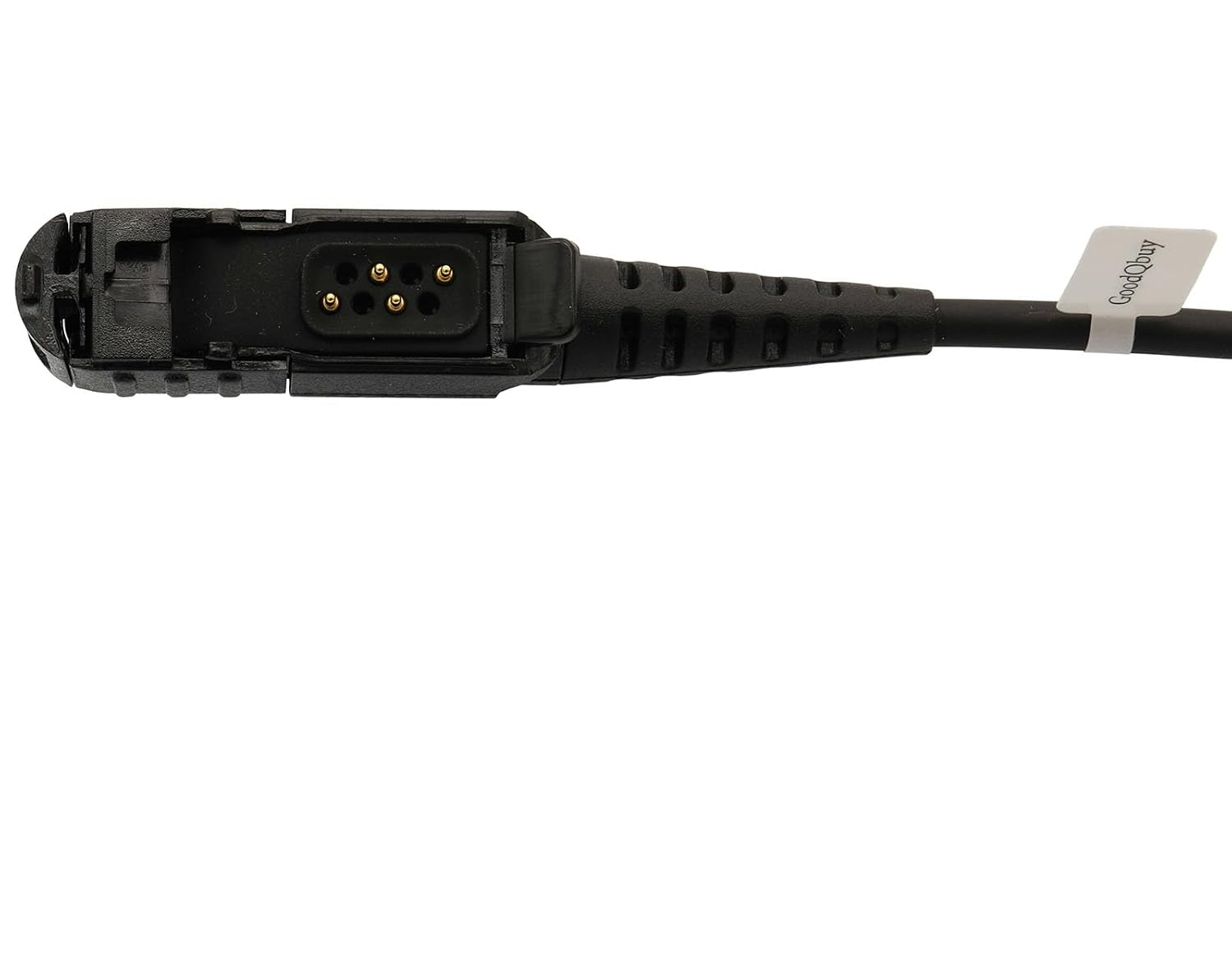
Close-up view of the radio connector end of the cable, showing the pin configuration for connection to compatible Motorola radios.

Close-up view of the USB-A connector end of the cable, designed for connection to a computer's USB port.
3. Operating
Once the cable is physically connected to both your computer and the Motorola radio, you can proceed with programming operations using your radio's specific software:
- Launch Programming Software: Open the Motorola radio programming software (e.g., CPS) on your computer.
- Select Port: Within the software, navigate to the communication settings and select the correct COM port that corresponds to your USB programming cable. This is usually detected automatically or can be found in your computer's Device Manager.
- Read/Write Operations: Follow the instructions within your programming software to perform desired operations, such as reading the current configuration from the radio, writing new frequencies or settings to the radio, or updating firmware.
- Disconnect Safely: After completing programming, safely close the software and disconnect the cable from both the computer and the radio.
Important Note: Always back up your radio's current configuration before writing new data, especially when performing significant changes or firmware updates.
4. Maintenance
Proper care and maintenance will extend the life of your USB Programming Cable:
- Cleaning: Keep the cable and its connectors clean. Use a soft, dry cloth to wipe away dust or debris. Avoid using liquid cleaners or abrasive materials.
- Storage: Store the cable in a cool, dry place away from direct sunlight, extreme temperatures, and excessive humidity.
- Handling: Do not bend, kink, or pull the cable excessively, especially near the connectors, as this can damage the internal wiring. Avoid placing heavy objects on the cable.
- Connector Protection: When not in use, consider protecting the connectors from dust and physical damage.
5. Troubleshooting
If you encounter issues while using your USB Programming Cable, refer to the following common problems and solutions:
- Cable Not Recognized by Computer:
- Ensure the USB-A connector is fully inserted into a functional USB port on your computer.
- Try connecting the cable to a different USB port on your computer.
- Restart your computer and try again.
- Verify that your operating system is up-to-date.
- Communication Error with Radio:
- Confirm that the multi-pin connector is securely attached to the radio's programming port.
- Ensure the Motorola radio is powered on and has sufficient battery charge.
- Verify that you have selected the correct COM port within your radio programming software.
- Ensure you are using the correct and compatible programming software version for your specific radio model.
- Try restarting both the radio and the programming software.
- Programming Software Issues:
- Ensure your programming software is installed correctly and is the latest version recommended by Motorola for your radio.
- Consult the documentation or support resources for your specific programming software.
6. Specifications
Key specifications for the GoodQbuy USB Programming Cable:
| Feature | Detail |
|---|---|
| Model Number | USB-M3500 |
| Cable Type | USB Programming Cable |
| Connector Type | USB-A to Motorola Multi-pin |
| Cable Diameter | 4.2mm PU cable |
| Operating System Compatibility | Windows (2000, XP, Server 2003, Vista, Server 2008, 7, 8), Mac (32-bit & 64-bit) |
| Special Feature | Data Transfer |
| Manufacturer | GoodQbuy® |
| Compatible Motorola Models | XPR3300, XPR3500, XPR3000e, XIR P6600, XIRP P6620, XIR P6608, XIR P6628, XIRE8600, XIRE8608, XIRP6620, XIRP6600, MTP3100, MTP3150, MTP3250, DEP550, DEP570, DEP500e, DP2000, DP2400, DP2600 |
7. Warranty and Support
For technical support, warranty information, or any inquiries regarding your GoodQbuy USB Programming Cable, please contact the manufacturer directly. Refer to the product packaging or the official GoodQbuy website for the most current contact details and support resources.
Ask a question about this manual
Ask about setup, troubleshooting, compatibility, parts, safety, or missing instructions. Manuals+ will review the question and use this page’s manual context to help answer it.