
Introduction
This manual provides detailed instructions for the QYiiD Backlit Touchpad Keyboard Case, designed for the Samsung Galaxy Tab S10 Ultra, S9 Ultra, and S8 Ultra 14.6 inch models. Please read this manual thoroughly to ensure proper setup, operation, and maintenance of your device.
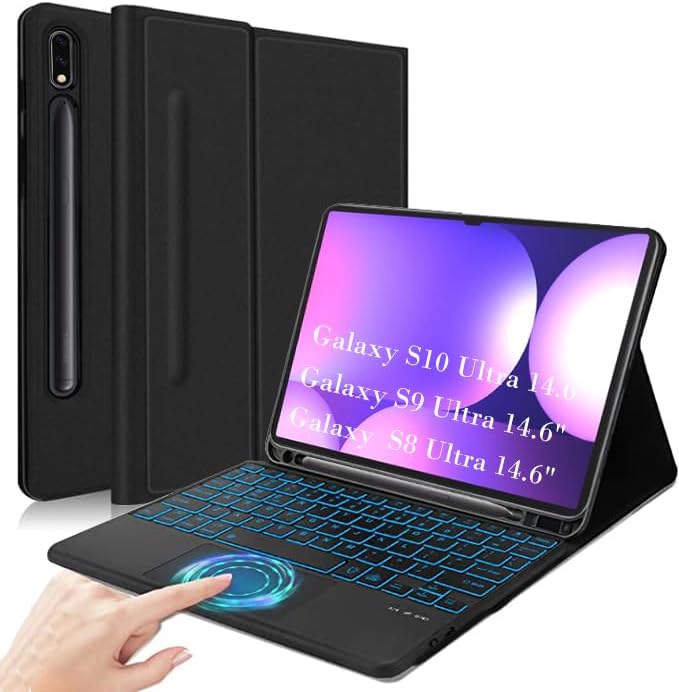
Image: The QYiiD Backlit Touchpad Keyboard Case shown with a Samsung Galaxy Tab S10 Ultra, highlighting the backlit keyboard and integrated touchpad.
Setup
1. Unboxing and Initial Charge
Upon unboxing, ensure all components are present: the keyboard case and a USB charging cable. Before first use, fully charge the keyboard for approximately 2-3 hours using the provided USB cable.

Image: A close-up view of the Type-C charging port located on the side of the keyboard, with a USB-C cable inserted.
2. Inserting the Tablet
Carefully place your Samsung Galaxy Tab S10 Ultra, S9 Ultra, or S8 Ultra 14.6 inch into the protective case. Ensure the tablet is securely seated within the case's frame.
3. Bluetooth Pairing
- Turn on the keyboard by sliding the power switch.
- Press the Connect button on the keyboard to enter pairing mode. The Bluetooth indicator light will flash.
- On your Samsung Galaxy Tab, go to Settings > Connected devices > Bluetooth.
- Enable Bluetooth and select the keyboard (e.g., "Bluetooth Keyboard") from the list of available devices.
- Follow any on-screen prompts to complete the pairing process. The Bluetooth indicator light on the keyboard will stop flashing once connected.
Operation
1. Detachable Keyboard
The keyboard is magnetically attached to the case, allowing for easy detachment when not needed. This provides flexibility for different usage scenarios.

Image: Hands demonstrating the magnetic detachment of the keyboard from the tablet case, showing the magnetic contact points.
2. Backlit Keyboard Functions
The keyboard features 7-color backlighting with adjustable brightness levels. Use the dedicated backlight key combination (e.g., Fn + Light icon) to cycle through colors and adjust brightness.

Image: The keyboard with its keys illuminated in blue, demonstrating the 7-color backlight feature in a low-light environment.

Image: A close-up of the top row of the keyboard, highlighting various multifunction shortcut keys for quick access to tablet features.
3. Multi-Touch Trackpad
The integrated trackpad supports various multi-finger gestures for enhanced navigation and control, transforming your tablet into a laptop-like experience.
- Single-finger tap: Left-click.
- Two-finger scroll: Scroll up/down or left/right.
- Two-finger pinch: Zoom in/out.
- Three-finger swipe up: Switch recent windows.
- Three-finger swipe down: Return to home screen.

Image: The keyboard's trackpad with visual representations of multi-touch gestures, including moving the mouse, scrolling, switching windows, and returning home.
4. Adjustable Viewing Angles
The case allows for three different standard viewing angles (100°, 110°, 120°) to optimize your comfort for typing, viewing, or drawing.

Image: The tablet case positioned at three distinct angles (100°, 110°, 120°), illustrating its adjustable stand functionality.

Image: A dynamic representation of the tablet case smoothly transitioning between different viewing angles.
5. S Pen Holder
The case includes a dedicated slot for your Samsung S Pen, ensuring it is securely stored and easily accessible.

Image: A close-up of the tablet case showing the S Pen securely held in its integrated slot.
Maintenance
1. Cleaning
To clean the case and keyboard, use a soft, damp cloth. Avoid harsh chemicals or abrasive materials that could damage the surfaces. Ensure the keyboard is powered off before cleaning.
2. Battery Care
To prolong battery life, avoid fully discharging the keyboard frequently. Charge the keyboard when the battery indicator is low. If storing for an extended period, charge the keyboard to about 50% and store in a cool, dry place.
Troubleshooting
| Problem | Solution |
|---|---|
| Keyboard not connecting via Bluetooth. |
|
| Backlight not working or changing colors. |
|
| Touchpad not responding. |
|
| Keyboard not charging. |
|
Specifications
- Product Dimensions: 9.84 x 7.48 x 0.79 inches
- Item Weight: 1.54 pounds
- Connectivity: Bluetooth
- Special Features: Backlit Keyboard, Touchpad, S Pen Holder
- Form Factor: Case
- Color: Black
- Included in Box: USB Cable
- Manufacturer: QYiiD
- Compatible Devices: Samsung Galaxy Tab S10 Ultra, S9 Ultra, S8 Ultra (14.6 inch models)
- Shell Type: Soft
- Battery Life: Up to 72 hours continuous working time, 30 days standby time (after full charge)
Warranty & Support
For warranty information or technical support, please refer to the purchase platform or contact QYiiD customer service directly. Details for contacting support are typically available on the product packaging or the seller's official website.