1. Introduction
This manual provides comprehensive instructions for the proper installation, operation, and maintenance of your SWITCHFLUX HDMI to DisplayPort Adapter. This device is designed to convert an HDMI signal from a source device to a DisplayPort signal for a display device, supporting resolutions up to 4K at 60Hz. Please read this manual thoroughly before use to ensure optimal performance and safety.
2. Safety Information
- Do not expose the adapter to water, moisture, or extreme temperatures.
- Avoid dropping or subjecting the adapter to severe impact.
- Use only the specified USB power cable if external power is required.
- Do not attempt to disassemble or modify the adapter. This will void the warranty.
- Keep out of reach of children.
3. Package Contents
- 1 x SWITCHFLUX HDMI to DisplayPort Adapter
- 1 x USB Power Cable (Micro USB)
4. Product Overview
The SWITCHFLUX HDMI to DisplayPort Adapter is a compact and durable converter designed for reliable video signal transmission. It features an HDMI male connector for the source and a DisplayPort female connector for the display, along with a Micro USB port for optional power input.

Image: The SWITCHFLUX HDMI to DisplayPort Adapter, featuring its HDMI male input and DisplayPort female output connectors.
Key features include:
- Fast Heat Dissipation: Designed with an aluminum casing for efficient heat management.
- Durable and Wear-Resistant: Constructed for longevity and resistance to daily wear.
- Gold-Plated Connectors: Ensures stable signal transmission and corrosion resistance.
- Tested Durability: Rated for over 15,000 plug and unplug cycles.

Image: Visual representation of the adapter's features, including its heat dissipation, durability, and gold-plated connectors.
5. Setup Instructions
Follow these steps to connect your HDMI source to a DisplayPort display:
- Step 1: Connect HDMI to Source Device. Plug the HDMI male connector of the adapter into the HDMI output port of your source device (e.g., PC, laptop, gaming console).
- Step 2: Connect USB Power. Plug the Micro USB power cable into the adapter's Micro USB port, then connect the other end to a USB power source (e.g., a USB port on your computer or a USB wall adapter). This step is crucial for optimal performance, especially for higher resolutions or extended modes.
- Step 3: Connect DisplayPort Cable to Adapter. Connect one end of a DisplayPort cable (not included) to the DisplayPort female port on the adapter.
- Step 4: Connect DisplayPort Cable to Monitor. Connect the other end of the DisplayPort cable to the DisplayPort input port of your monitor or display.

Image: A visual guide detailing the four steps for connecting the HDMI to DisplayPort adapter to your devices.
6. Operating Instructions
6.1 Unidirectional Transmission
This adapter supports unidirectional transmission only, meaning it converts signals from an HDMI source to a DisplayPort display. It does not support DisplayPort to HDMI conversion.
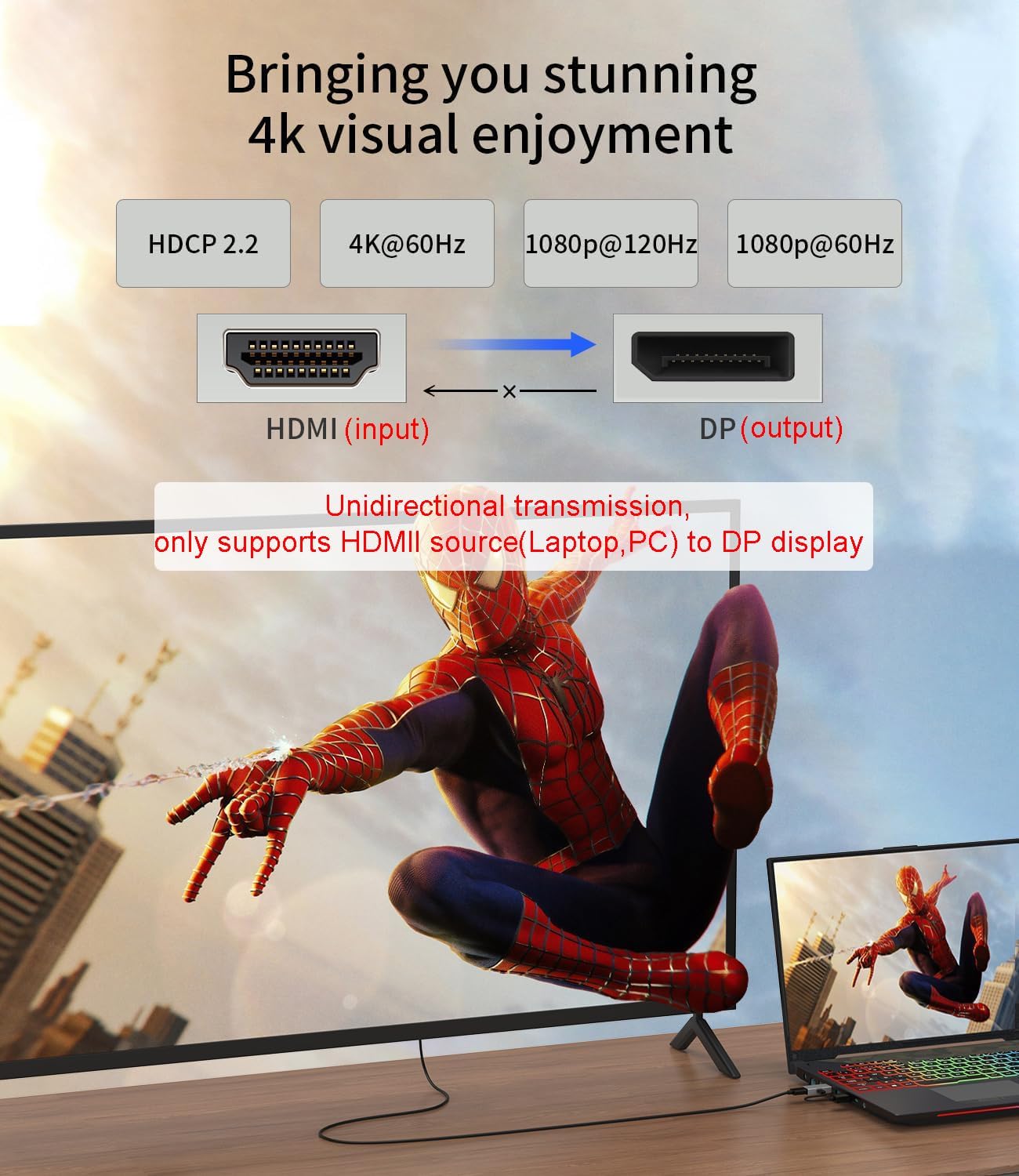
Image: Diagram showing the unidirectional signal flow from an HDMI source to a DisplayPort display, with supported resolutions.
6.2 Game Mode
The adapter is compatible with various gaming consoles for an enhanced visual experience:
- Xbox Series and Nintendo Switch: Supports resolutions up to 1080p.
- PlayStation 5 (PS5): Supports resolutions up to 4K at 60Hz. Note that PS5 does not support a 144Hz refresh rate through this adapter.
For optimal display and stability, especially with gaming consoles, ensure the Micro USB power cable is connected.
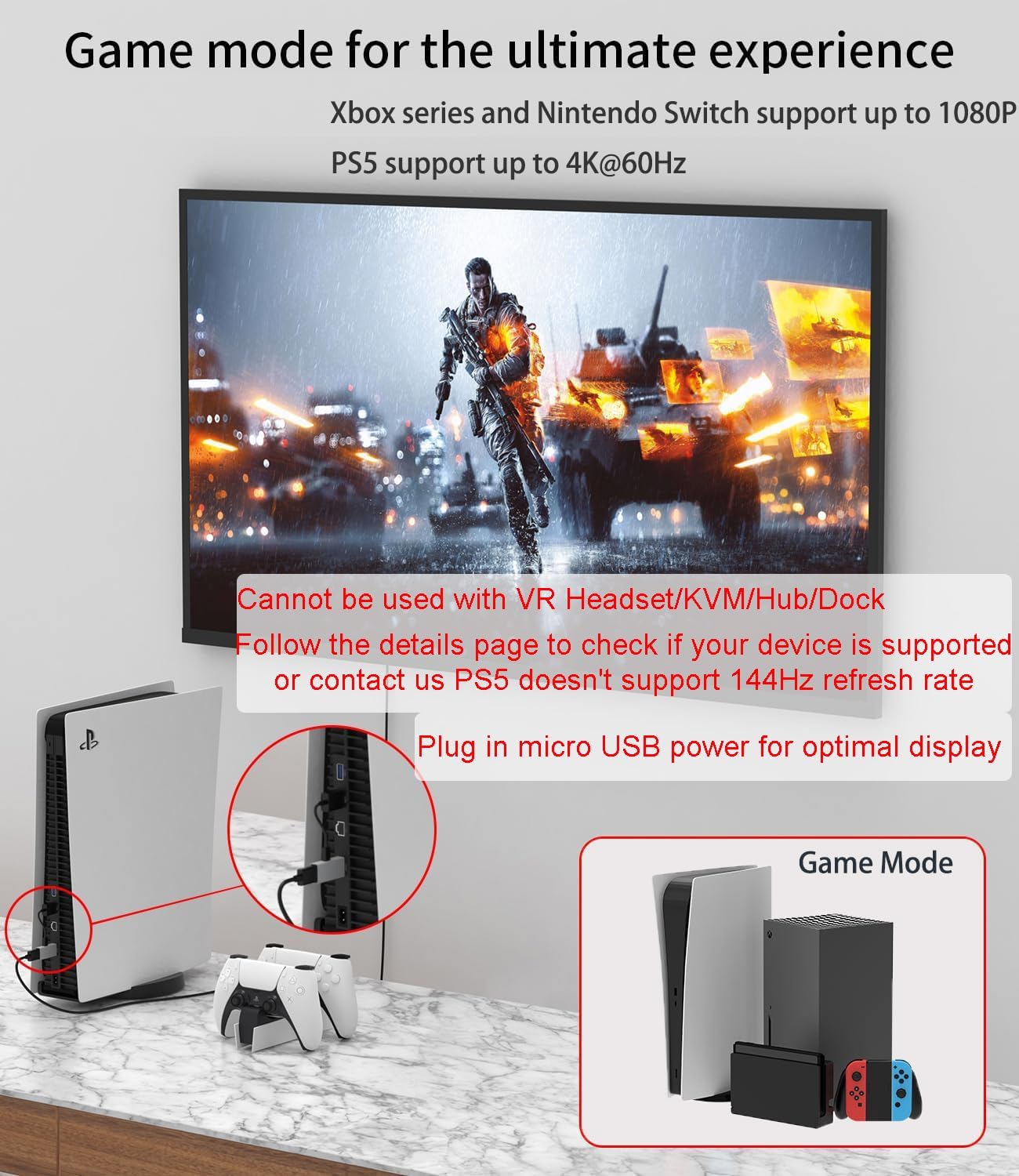
Image: The adapter in a gaming setup, connected to a PlayStation 5, illustrating its use for game mode.
6.3 Mirroring and Extended Modes
The adapter supports both mirroring (duplicate) and extended display modes, allowing you to connect two monitors for increased productivity or a larger visual workspace. For stable operation in extended mode, it is essential to connect the Micro USB power cable to ensure product stability.

Image: A computer setup demonstrating the use of the adapter for both mirroring and extended display configurations.
7. Compatibility
The SWITCHFLUX HDMI to DisplayPort Adapter is designed for broad compatibility with various devices. Please review the lists below to ensure your devices are supported.
7.1 Compatible Devices (HDMI Source to DP Display)
- From HDMI Source: Desktop PCs, Laptops, Nintendo Switch, Mac Mini, PlayStation 5/4/3, Xbox One/360/S.
- To DP Displays: Monitors, HDTVs.
7.2 Incompatible Devices / Scenarios
The adapter is not designed for use with the following:
- VR Headsets
- USB-C Hubs
- KVM Switches
- Docking Stations
- AR devices are not supported.
- Source devices with DisplayPort instead of HDMI (unidirectional only).

Image: A visual chart outlining compatible and incompatible devices for the adapter.
8. Troubleshooting
- No Display / Flickering Screen:
- Ensure the Micro USB power cable is connected to the adapter and a power source.
- Verify all cables (HDMI, USB, DisplayPort) are securely connected.
- Check your display's input source settings to ensure DisplayPort is selected.
- Test with a different HDMI source or DisplayPort cable if possible.
- Lower the resolution or refresh rate on your source device to see if the issue resolves.
- Audio Issues:
- Ensure your display device supports audio over DisplayPort.
- Check your computer's sound settings to ensure the DisplayPort output is selected as the default audio device.
- Resolution Not as Expected:
- Confirm your source device, DisplayPort cable, and display all support the desired resolution and refresh rate.
- Ensure the Micro USB power cable is connected, as it can impact performance at higher resolutions.
- Adapter Overheating:
- While designed for heat dissipation, ensure the adapter is in a well-ventilated area.
- Disconnect and allow it to cool if it feels excessively hot.
9. Specifications
| Feature | Specification |
|---|---|
| Brand | SWITCHFLUX |
| Model Number | hdmi to dp |
| Input | HDMI Male |
| Output | DisplayPort Female |
| Max Resolution | 4K @ 60Hz |
| Other Supported Resolutions | 1080p @ 120Hz, 1080p @ 60Hz |
| Power Input | Micro USB (required for optimal performance) |
| Color | Grey |
| Housing Material | Aluminum |
| Dimensions (L x W x H) | 21 x 10.9 x 4.8 centimeters (approximate) |
| Compatibility | Laptop, PC, Gaming Consoles (PS5, Xbox, Switch) to DP Monitors/HDTVs |
10. Maintenance
To ensure the longevity and optimal performance of your adapter, follow these simple maintenance guidelines:
- Cleaning: Use a soft, dry cloth to wipe the adapter. Avoid using liquid cleaners or solvents.
- Storage: Store the adapter in a cool, dry place away from direct sunlight and extreme temperatures when not in use.
- Handling: Always grasp the connectors when plugging or unplugging cables. Avoid pulling on the cables themselves to prevent damage to the adapter or cables.
11. Warranty and Support
For warranty information or technical support, please refer to the documentation provided with your purchase or contact SWITCHFLUX customer service through the retailer where the product was purchased. Please have your product model number (hdmi to dp) and purchase details ready when contacting support.


