
Introduction
Welcome and thank you for choosing the Mosptnspg V300 Wired Quiet Membrane Keyboard. This manual provides essential information for setting up, operating, maintaining, and troubleshooting your new keyboard. Please read this guide thoroughly to ensure optimal performance and longevity of your device.
Product Features
- Retro Typewriter Design: Features steampunk-inspired round keycaps for a comfortable typing experience and a classic aesthetic.
- Durable ABS Keycaps: Keycaps are made from environmentally friendly ABS plastic, offering a stable structure, non-toxic properties, and a light matte finish for finger comfort.
- Wired Plug-and-Play: The keyboard connects directly via USB, offering sensitive, quiet key presses and fast response without the need for software or driver installation.
- Wide Compatibility: Compatible with Windows 7, 8, 10, or later operating systems on computers, laptops, desktops, and PCs.
- Quiet Operation: The punk keycap design ensures comfortable and quiet typing, suitable for office environments.
Package Contents
- 1 x Mosptnspg V300 Wired Quiet Membrane Keyboard
- 1 x USB Cable (integrated)
Setup Instructions
The Mosptnspg V300 keyboard is designed for simple plug-and-play functionality. No additional drivers or software are required for basic operation.
Connecting the Keyboard
- Locate an available USB-A port on your computer, laptop, or desktop PC.
- Insert the USB connector of the keyboard's integrated cable into the USB-A port.
- Your operating system should automatically detect and configure the keyboard.

Image: The Mosptnspg V300 keyboard connected to a laptop via its USB cable, illustrating the simple connection process.

Image: The Mosptnspg V300 keyboard positioned on a desk next to a monitor, highlighting its plug-and-play feature which requires no driver software.
Operating Instructions
Backlight Control
The Mosptnspg V300 keyboard features a blue LED backlight to enhance visibility and aesthetics.
- To turn the blue LED backlight ON or OFF, press the FN key simultaneously with the SCRILK key (Scroll Lock key).
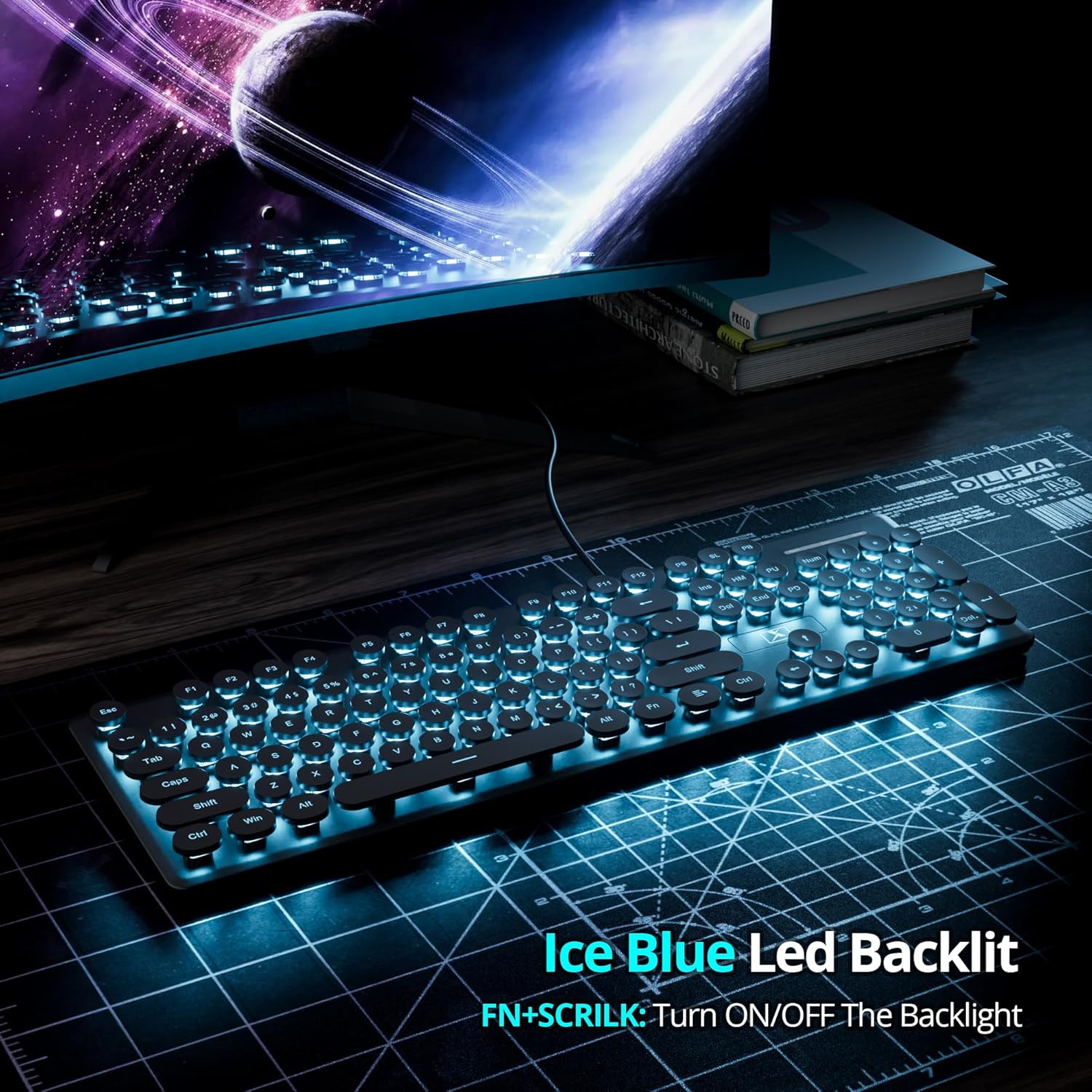
Image: The Mosptnspg V300 keyboard displaying its ice blue LED backlight in a low-light setting, with an overlay indicating the FN+SCRILK key combination for backlight control.
Video: Demonstration of the Mosptnspg V300 keyboard's LED backlight, showcasing its illumination and how to activate it.
Keycap Design and Feel
The keyboard features distinct retro-style rounded keycaps that provide a unique tactile typing experience.

Image: A close-up view of the Mosptnspg V300 keyboard, highlighting its retro rounded keycaps and the ABS material used for both keycaps and the panel.
Video: A detailed look at the USB Ultra Slim Gaming Keyboard with its ABS round keycaps, demonstrating the design and feel.
Ergonomic Design
The keyboard is designed with an ergonomic tilt to provide a comfortable typing angle and reduce wrist pressure during extended use.

Image: A side profile of the Mosptnspg V300 keyboard, illustrating its ergonomic design with a slight tilt to provide comfort and reduce wrist strain.
Maintenance
Regular cleaning helps maintain the performance and appearance of your keyboard.
Cleaning the Keyboard
- The floating keycap design allows for easier cleaning.
- To remove dust and debris, use a soft brush, a can of compressed air, or a microfiber cloth.
- For deeper cleaning, gently pull up on the keycaps to remove them. Clean the area underneath with a soft cloth or cotton swab dampened with a small amount of isopropyl alcohol. Ensure the keycaps are dry before reattaching them.
- Avoid using harsh chemicals or abrasive materials, as these can damage the keyboard's finish or keycap legends.
Troubleshooting
Keyboard Not Responding
- Ensure the USB cable is securely connected to both the keyboard and a functional USB-A port on your computer.
- Try connecting the keyboard to a different USB port on your computer.
- Restart your computer. Sometimes a system restart can resolve connectivity issues.
- If using a USB hub, try connecting the keyboard directly to the computer.
Keys Sticking or Not Registering
- Clean around and under the affected keycaps. Debris, dust, or spills can cause keys to stick or malfunction.
- Gently remove and re-seat the problematic keycap to ensure it is properly aligned.
Backlight Not Working
- Ensure the keyboard is properly connected to your computer.
- Press FN + SCRILK to toggle the backlight on/off.
Specifications
| Brand | Mosptnspg |
| Model Number | V300 |
| Connectivity Technology | USB-A (Wired) |
| Keyboard Description | Membrane |
| Number of Keys | 104 |
| Special Feature | Backlit, Round Keycaps |
| Backlight Color | Blue (Single Color) |
| Style | Retro Punk |
| Material | Acrylonitrile Butadiene Styrene (ABS) |
| Compatible Devices | Laptop, PC |
| Compatible Operating System | Windows 7, 8, 10, or later |
| Manufacturer | CJXSP |
Warranty and Support
Warranty: The Mosptnspg V300 Wired Quiet Membrane Keyboard comes with a 3-month warranty from the date of purchase.
Support: For technical assistance, troubleshooting, or warranty claims, please contact your retailer or refer to the manufacturer's official website. The manufacturer is CJXSP.