1. Introduction
This manual provides detailed instructions for the installation, operation, and maintenance of your iuZee PTZ Camera UHD20U. This camera is designed for high-quality video conferencing, live streaming, and educational applications, featuring 20X optical zoom, 1080P 60FPS video output, and versatile connectivity options.
2. Product Overview
2.1 Package Contents
Before proceeding with installation, please verify that all items listed below are included in your package:
- 1x iuZee PTZ Conference Camera (UHD20U)
- 1x IR Remote Control
- 1x USB3.0 Cable
- 1x DC 12V/2A Power Adapter
- 1x Wall Mount Bracket with Screws
- 1x User Manual (this document)
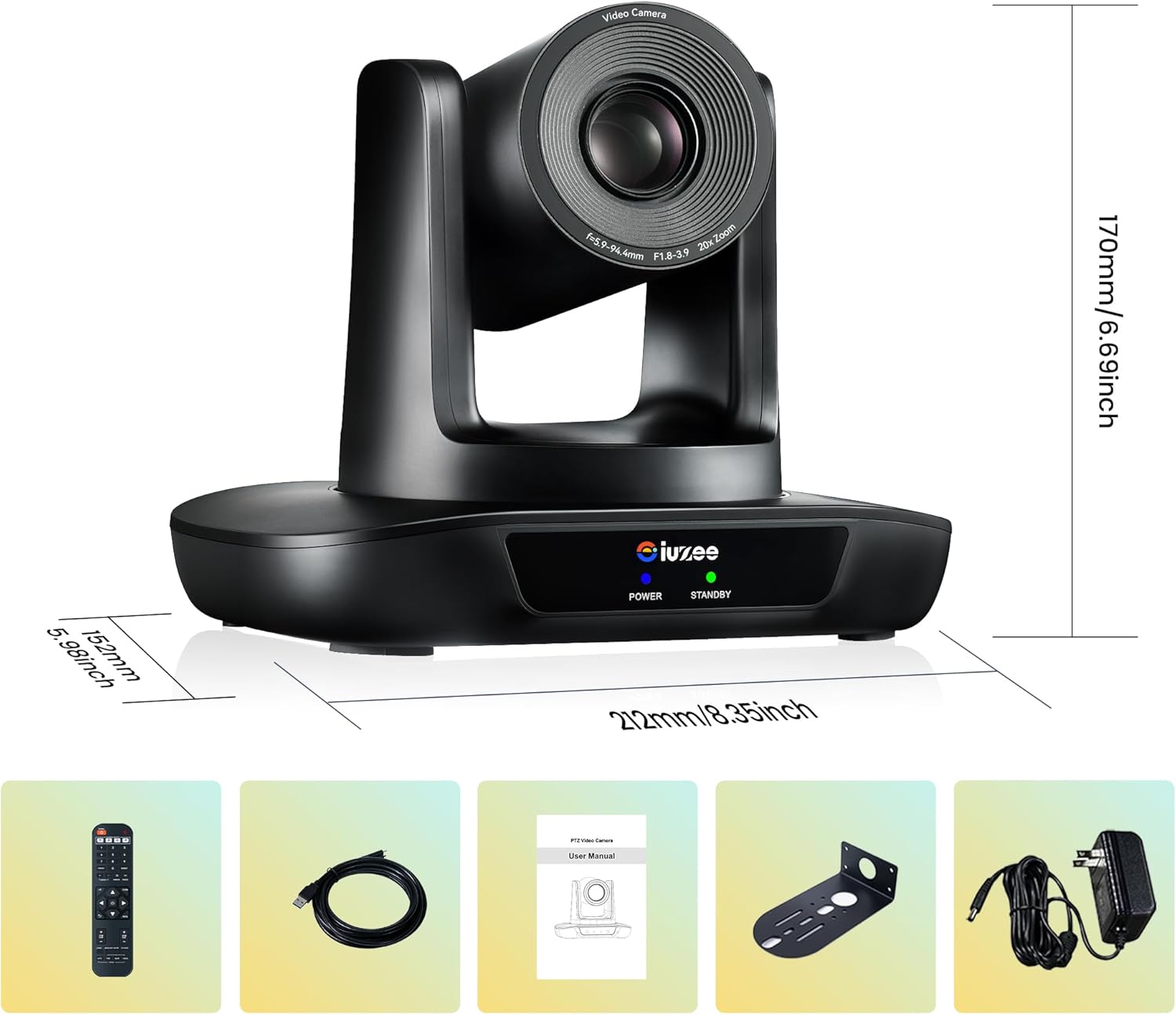
Figure 1: Package Contents and Camera Dimensions
2.2 Key Features
- 20X Optical Zoom: Equipped with a 1/2.8'' CMOS sensor and a 2.38MP lens, providing clear and detailed visuals with 20X optical zoom.
- Full HD 1080P 60FPS: Delivers high-definition video at 60 frames per second for smooth, fluid motion.
- Wide Angle Lens: Ensures all participants are visible within the frame.
- Silent Pan/Tilt Motion: Smooth and quiet rotation of 350° (±175°) horizontally and 180° (±90°) vertically via remote control.
- Multiple Outputs: USB3.0 and HDMI outputs for versatile connectivity.
- Preset Positions: Supports up to 255 presets (10 via IR remote control) for quick camera positioning.
- Control Protocols: Supports Visca and Pelco P/D control protocols via RS485 or RS232.
- No Built-in Microphone: An external microphone is required for audio capture.
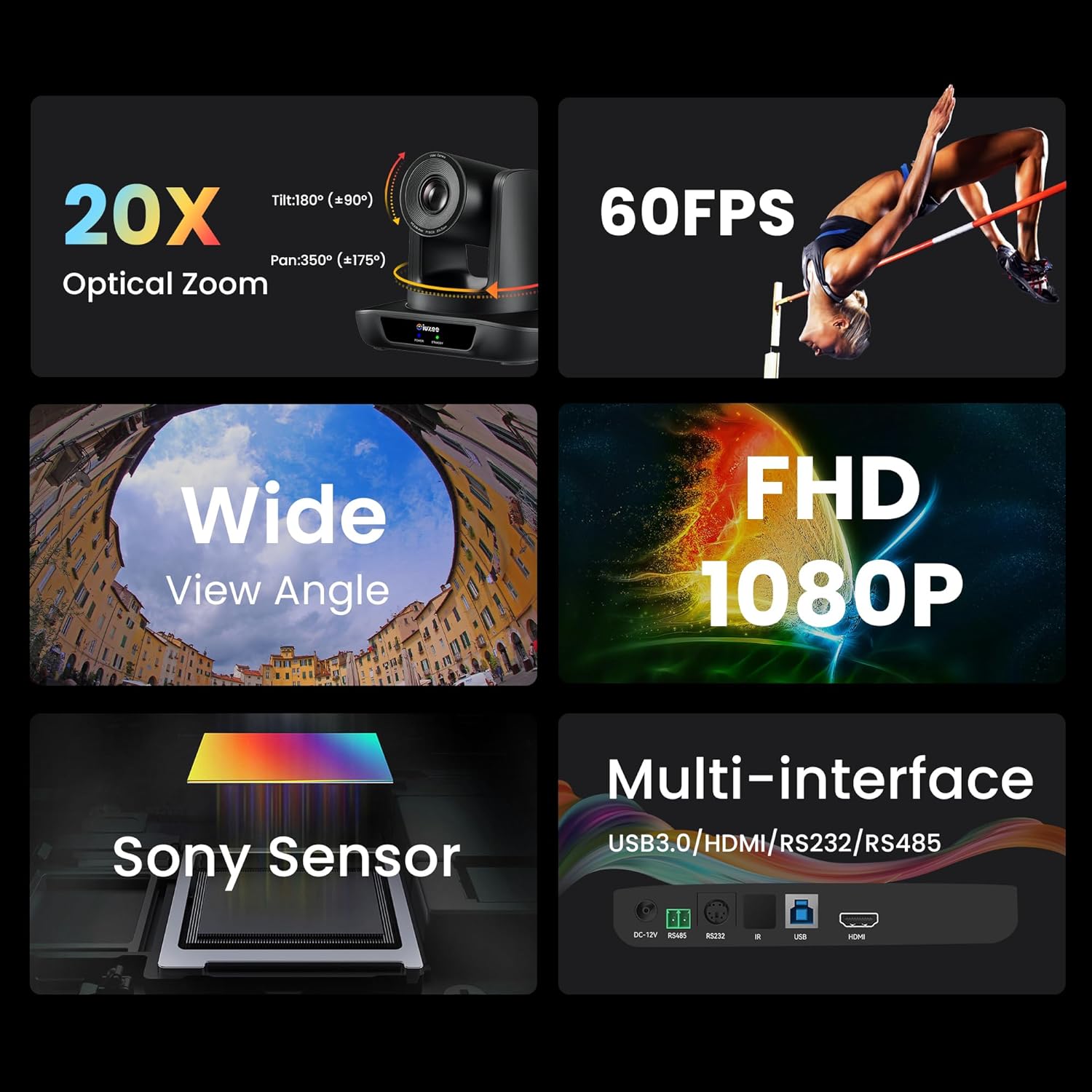
Figure 2: Key Features Overview
3. Setup and Installation
3.1 Mounting Options
The iuZee PTZ Camera UHD20U offers flexible mounting options to suit various environments:
- Desktop Mount: Place the camera on a flat, stable surface.
- Tripod Mount: Attach the camera to a standard tripod using the threaded hole on the base.
- Wall Mount: Use the included wall mount bracket and screws to secure the camera to a wall.
- Ceiling Mount: The camera can also be mounted upside down from a ceiling using appropriate hardware (not included, but the wall mount can be adapted). Ensure the image orientation is adjusted in the camera settings if ceiling mounted.

Figure 3: Camera Mounting Options
3.2 Connecting the Camera
The camera supports USB3.0 and HDMI outputs for easy integration with various devices.
- Power Connection: Connect the DC 12V/2A power adapter to the camera's power input and plug it into an electrical outlet.
- USB Connection (for PC/Laptop): Use the provided USB3.0 cable to connect the camera to a USB3.0 port on your computer. The camera is plug-and-play, requiring no additional drivers.
- HDMI Connection (for Displays/Switchers): Connect an HDMI cable from the camera's HDMI output to a display, projector, or video switcher.
- Serial Control (Optional): For advanced control, connect an RS485 or RS232 cable from the camera to a compatible serial joystick or controller.

Figure 4: Easy Connection Diagram
4. Operating Instructions
4.1 Powering On/Off
Press the 'POWER' button on the IR remote control or ensure the power adapter is connected to turn the camera on. The power indicator light on the camera base will illuminate.
4.2 Pan, Tilt, and Zoom (PTZ) Control
Use the IR remote control to adjust the camera's view:
- Pan/Tilt: Use the directional arrow buttons (UP, DOWN, LEFT, RIGHT) to move the camera horizontally and vertically. The camera can pan 350° (±175°) and tilt 180° (±90°).
- Zoom: Use the 'ZOOM +' and 'ZOOM -' buttons for optical zoom. The camera features 20X optical zoom. Use 'ZOOM Slow Key' for fine adjustments and 'ZOOM Fast Key' for rapid changes.
- PTZ Reset: Press the 'PTZ Reset Key' to return the camera to its initial home position.
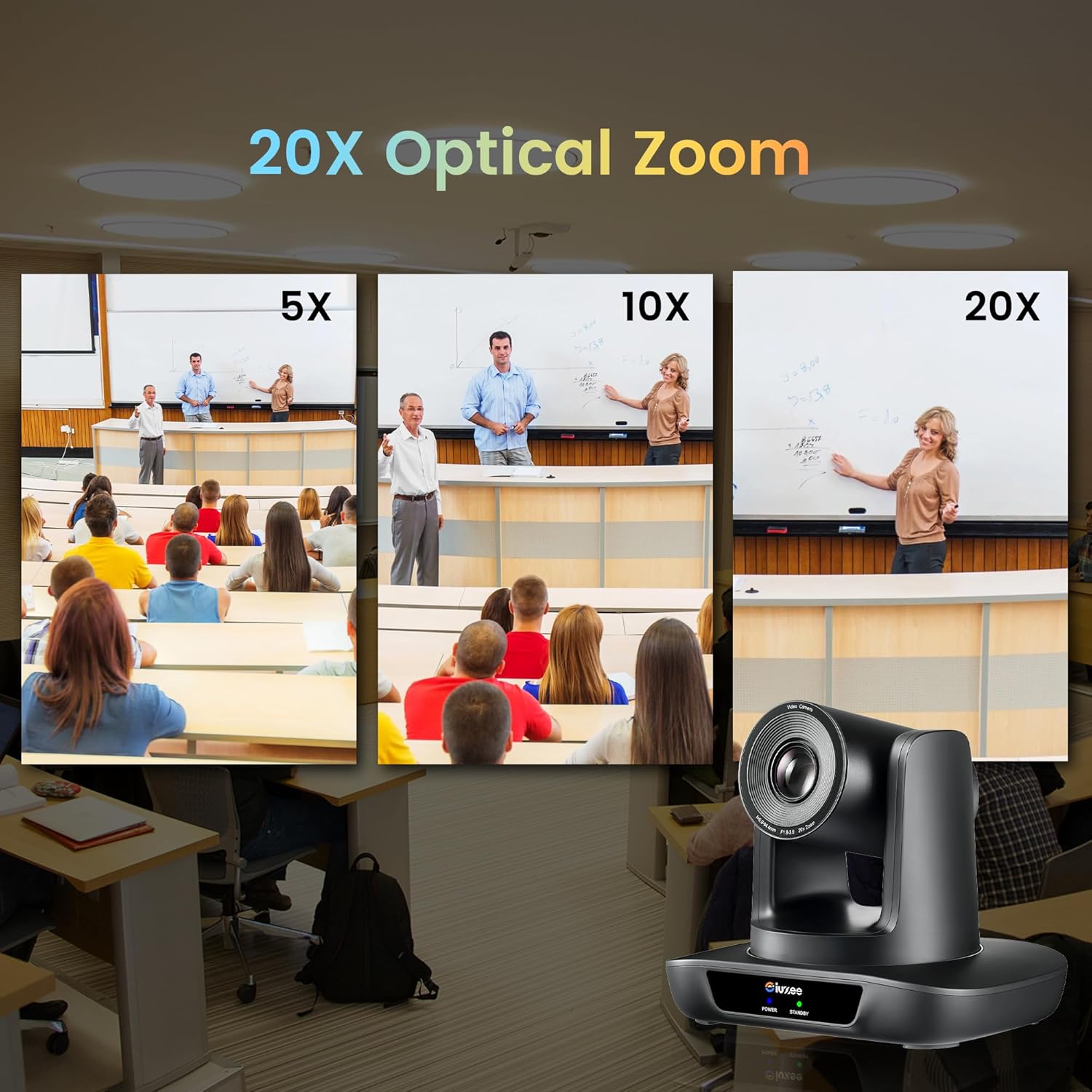
Figure 5: 20X Optical Zoom Demonstration
4.3 Setting and Recalling Presets
The camera supports up to 255 preset positions, with 10 directly accessible via the IR remote control.
- To Set a Preset: Adjust the camera to the desired position using PTZ controls. Press the 'PRESET' button on the remote, then press a number button (0-9) to save the current position to that preset number.
- To Recall a Preset: Press the desired number button (0-9) on the remote. The camera will automatically move to the saved position.
- To Clear a Preset: Press the 'RESET' button, then press the number button (0-9) corresponding to the preset you wish to clear.
4.4 OSD Menu
The camera features an On-Screen Display (OSD) menu for advanced settings adjustments.
- Accessing the Menu: Press the 'MENU' button on the IR remote control to enter the OSD menu.
- Navigation: Use the directional arrow buttons to navigate through menu options.
- Selection: Press the 'ENTER' button to select an option or confirm a setting.
- Exiting the Menu: Press the 'MENU' button again to exit the OSD menu.
Note:
- The OSD menu is typically visible when connected via HDMI to a display.
- Adjustments such as image flip (for ceiling mount), exposure, white balance, and noise reduction can be made through the OSD menu.
5. Compatibility
The iuZee PTZ Camera UHD20U is designed for wide compatibility with various operating systems and video conferencing platforms.
5.1 Operating Systems
- Windows 7, Windows 8.1, Windows 10, Windows 11
- Mac OS 10.10 or later
5.2 Video Conferencing & Streaming Software
The camera is compatible with most popular video conferencing and live streaming applications, including:
- Zoom
- Microsoft Teams
- Facetime
- OBS Studio
- YouTube
- Facebook Messenger
- Polycom
- Microsoft Lync
- Cisco WebEx
- BlueJeans
- GoToMeeting

Figure 6: Universal Compatibility
6. Technical Specifications
| Feature | Specification |
|---|---|
| Model Number | UHD20U |
| Photo Sensor Technology | CMOS (1/2.8'') |
| Video Capture Resolution | 1080p (Full HD) |
| Frame Rate | 60FPS |
| Optical Zoom | 20X |
| Pan Rotation | 350° (±175°) |
| Tilt Rotation | 180° (±90°) |
| Connectivity Technology | HDMI, USB3.0, RS232, RS485 |
| Power Supply | DC 12V/2A |
| Item Weight | 5.77 pounds |
| Package Dimensions | 11.38 x 8.62 x 7.91 inches |
| Special Features | 20X Optical Zoom, FHD 1080P 60FPS, USB3.0/HDMI PTZ Conference Camera & Live Streaming Camera |
Figure 7: Technical Specifications on Packaging
7. Maintenance
To ensure the longevity and optimal performance of your iuZee PTZ Camera UHD20U, follow these maintenance guidelines:
- Cleaning: Use a soft, dry cloth to clean the camera body. For the lens, use a specialized lens cleaning cloth and solution. Avoid abrasive cleaners or solvents.
- Storage: When not in use for extended periods, store the camera in a cool, dry place away from direct sunlight and extreme temperatures.
- Handling: Handle the camera with care to prevent damage to the lens or internal mechanisms. Avoid sudden impacts or drops.
- Power: Always use the provided power adapter. Disconnect power during cleaning or when moving the camera.
8. Troubleshooting
If you encounter issues with your camera, refer to the following common problems and solutions:
| Problem | Possible Cause | Solution |
|---|---|---|
| No image output | Power not connected; Incorrect cable connection; Input source not selected on display. | Ensure power adapter is securely connected. Check USB/HDMI cable connections. Select correct input source on your display/PC. |
| Camera not recognized by PC | USB cable issue; Incompatible USB port; Driver conflict. | Try a different USB3.0 port or cable. Ensure your PC meets system requirements. Restart your computer. |
| Remote control not working | Low battery; Obstruction; Incorrect camera ID. | Replace remote batteries. Ensure clear line of sight to the camera's IR receiver. Check if the camera ID on the remote matches the camera's setting (if applicable). |
| Image is blurry or out of focus | Focus setting incorrect; Dirty lens. | Adjust focus using the remote control (AUTO/FAR/NEAR/MANUAL). Clean the camera lens. |
| PTZ movement is erratic or unresponsive | Interference; Control protocol issue. | Ensure no strong electromagnetic interference. If using serial control, verify protocol settings (Visca/Pelco P/D) and connections. |
If these steps do not resolve your issue, please contact customer support.
9. Warranty and Customer Support
iuZee is committed to providing high-quality products and excellent customer service.
- Money-Back Guarantee: We offer a 30-day, no-questions-asked money-back guarantee.
- Limited Warranty: Your camera is covered by a 3-year limited warranty from the date of purchase.
- Lifetime Online Support: We provide lifetime online support for our products.
- Remote Assistance: Remote assistance for setup is available upon request.
For any inquiries, technical support, or warranty claims, please contact our dedicated support team. We aim to respond within 24 hours to resolve your issues quickly and efficiently.
Contact Email: iuzeedirect@outlook.com