
1. Introduction
This manual provides comprehensive instructions for the installation, operation, maintenance, and troubleshooting of the Ning Xiang AMX-MT043C Industrial Touch Screen Human Machine Interface (HMI). The AMX-MT043C is a 4.3-inch industrial text display designed for various industrial control applications, featuring both serial and USB communication interfaces.
2. Safety Information
Please read and understand all safety instructions before installing or operating the device. Failure to follow these instructions may result in equipment damage, personal injury, or improper operation.
- Ensure the power supply voltage matches the device's requirements.
- Do not operate the device in environments exceeding its specified temperature and humidity ranges.
- Disconnect power before performing any installation, maintenance, or wiring tasks.
- Only qualified personnel should install and service this equipment.
- Avoid exposing the device to strong electromagnetic interference.
3. Package Contents
Verify that all items are present and undamaged upon unpacking. If any items are missing or damaged, contact your supplier immediately.
- Ning Xiang AMX-MT043C HMI Unit
- Mounting Hardware (e.g., clips, screws)
- USB Communication Cable
- Power Connector
- User Manual (this document)
4. Product Overview
The AMX-MT043C features a 4.3-inch color display with touch functionality, designed for intuitive interaction in industrial settings. It includes multiple communication ports for integration with various control systems.
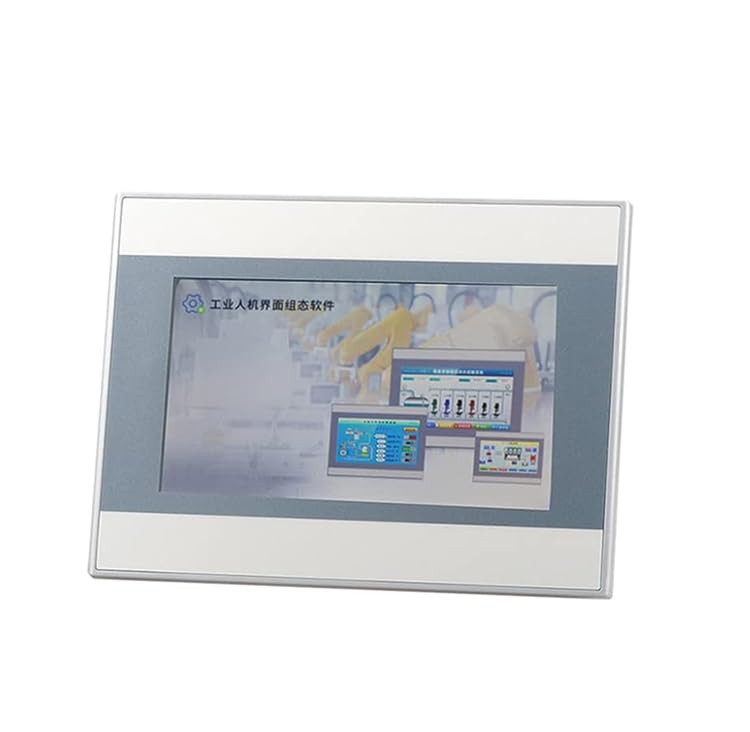
Front view of the Ning Xiang AMX-MT043C Industrial Touch Screen HMI, showing the 4.3-inch display and its compact industrial design.
4.1. Key Features
- 4.3-inch TFT LCD with touch panel
- High-resolution display for clear text and graphics
- Multiple communication interfaces: 1x Serial (RS232/RS485), 1x USB
- Robust industrial design for harsh environments
- Wide operating temperature range
4.2. Interface Description
Familiarize yourself with the various ports and indicators on the device:
- Power Input: Connects to the DC power supply.
- Serial Port (COM1): Typically used for communication with PLCs or other industrial devices (e.g., RS232, RS485).
- USB Port: Used for program download, data transfer, or connecting to a PC for configuration.
- Mounting Holes/Clips: For panel mounting the HMI.
5. Setup
Follow these steps to properly install and connect your AMX-MT043C HMI.
5.1. Panel Mounting
- Cut an opening in the control panel according to the dimensions provided in the specifications section.
- Insert the HMI unit into the opening from the front.
- Secure the HMI using the provided mounting clips/screws from the rear of the panel. Tighten evenly to ensure a snug fit without over-tightening.
5.2. Wiring
Ensure all wiring is performed with the power supply disconnected.
- Power Connection: Connect the DC power supply (typically 24V DC) to the power input terminal. Observe correct polarity (+ and -).
- Serial Communication: Connect the serial cable from the HMI's serial port (e.g., RS232 or RS485) to your PLC or other industrial device. Refer to the device's wiring diagram for pin assignments.
- USB Connection: If connecting to a PC for programming or data transfer, use the provided USB cable to connect the HMI's USB port to your computer.
5.3. Software Configuration
The AMX-MT043C requires specific HMI configuration software (typically provided by the manufacturer or compatible with common HMI development platforms) to design and upload user interfaces and logic. Install the necessary software on your PC and refer to its documentation for project development and download procedures.
6. Operating
Once the HMI is installed and configured, it is ready for operation.
6.1. Power On/Off
- Power On: Apply power to the HMI. The device will boot up and display the configured application.
- Power Off: Disconnect the power supply. It is recommended to ensure any critical operations are complete before powering off.
6.2. Touch Screen Interaction
Interact with the HMI application by touching the screen. The touch panel responds to finger presses. Avoid using sharp objects that could damage the screen.
6.3. Data Monitoring and Control
The HMI displays real-time data from connected devices (e.g., PLCs) and allows operators to input commands or change parameters through the designed interface. Refer to your specific HMI application for detailed operational procedures.
7. Maintenance
Regular maintenance ensures the longevity and reliable operation of your HMI.
7.1. Cleaning
- Wipe the screen and casing with a soft, damp cloth.
- Do not use abrasive cleaners, solvents, or harsh chemicals, as these can damage the display or casing.
- Ensure no liquid enters the device.
7.2. Environmental Considerations
- Keep the HMI free from excessive dust and debris.
- Ensure proper ventilation around the unit to prevent overheating.
- Operate within the specified temperature and humidity ranges.
8. Troubleshooting
This section provides solutions to common issues you might encounter.
| Problem | Possible Cause | Solution |
|---|---|---|
| HMI does not power on. | No power supply; incorrect wiring; faulty power supply. | Check power connections and voltage; verify polarity; test power supply. |
| Touch screen unresponsive. | Screen calibration issue; physical damage; software freeze. | Restart the HMI; recalibrate touch screen (if option available); contact support if damaged. |
| Communication error with PLC. | Incorrect cable; wrong communication settings; PLC not powered or configured. | Verify cable type and connection; check HMI and PLC communication parameters (baud rate, parity, data bits); ensure PLC is operational. |
| Display is blank or distorted. | Software issue; hardware fault. | Re-upload the HMI project; contact technical support. |
9. Specifications
Technical specifications for the Ning Xiang AMX-MT043C HMI.
- Model Number: AMX-MT043C
- Manufacturer: Ning Xiang
- Display Size: 4.3 inches
- Display Type: Industrial Touch Screen HMI
- Communication Interfaces: 1x Serial (RS232/RS485), 1x USB
- Power Supply: Typically 24V DC (refer to product label for exact range)
- Date First Available: August 17, 2023
10. Warranty and Support
For warranty information, please refer to the terms and conditions provided at the time of purchase or contact your supplier. Technical support can be obtained through your distributor or the manufacturer's official channels. Please have your model number (AMX-MT043C) and purchase details ready when seeking support.


