
1. Introduction
This manual provides essential information for the proper installation, operation, and maintenance of your Ning Xiang AMX-MT070IE Industrial Touch Screen HMI. Please read this manual thoroughly before using the device to ensure safe and efficient operation. Keep this manual for future reference.
2. Product Overview
The Ning Xiang AMX-MT070IE is a 7-inch Industrial Touch Screen Human Machine Interface (HMI) designed for industrial control and monitoring applications. It features an Ethernet port, two serial ports, one network port, and one USB port, providing versatile connectivity options for various industrial environments.
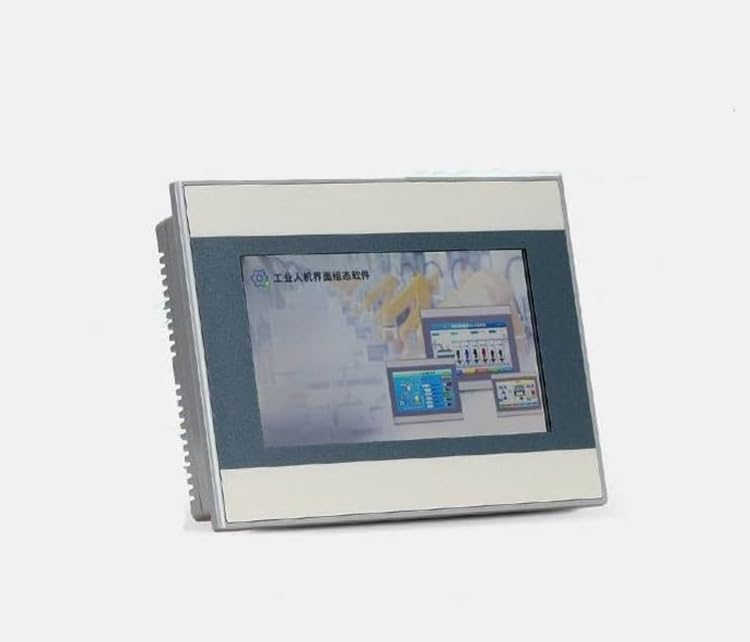
An image showing the front view of the Ning Xiang AMX-MT070IE Industrial Touch Screen HMI, highlighting its 7-inch display and compact design.
3. Features
- 7-inch Industrial Touch Screen: High-resolution display for clear data visualization and intuitive interaction.
- Ethernet Connectivity: For high-speed data transfer and network integration.
- Two Serial Ports: Supports various industrial communication protocols.
- One Network Port: Dedicated port for network connections.
- One USB Port: For data transfer, program updates, or peripheral connections.
- Robust Design: Engineered for demanding industrial environments.
4. Setup
4.1 Unpacking and Inspection
- Carefully remove the HMI from its packaging.
- Inspect the device for any signs of physical damage. If damage is found, contact your supplier immediately.
- Verify that all components listed in the packing list are present.
4.2 Mounting
The AMX-MT070IE is designed for panel mounting. Ensure adequate space for ventilation and cable connections. Refer to the mounting template (if provided separately) for precise cutout dimensions.
4.3 Wiring and Connections
- Power Connection: Connect the HMI to a stable DC power supply according to the voltage specifications. Ensure correct polarity.
- Ethernet/Network Ports: Connect standard Ethernet cables to integrate the HMI into your network or connect to PLCs/controllers.
- Serial Ports: Use appropriate serial cables (e.g., RS-232, RS-485) to connect to compatible devices.
- USB Port: Can be used for connecting USB storage devices or for programming/debugging purposes.
Caution: Ensure all power is disconnected before making any wiring connections to prevent electrical shock or damage to the device.
5. Operating Instructions
5.1 Powering On
After all connections are securely made, apply power to the HMI. The device will initiate its boot sequence, and the operating system or application interface will load.
5.2 Touch Screen Operation
The 7-inch display is a resistive touch screen. Use a finger or a non-sharp stylus to interact with the on-screen elements. Avoid using sharp objects that could damage the screen surface.
5.3 Software and Configuration
The HMI typically runs a pre-installed application or operating system. Configuration and project loading are usually performed using dedicated software on a PC, connected via Ethernet or USB. Refer to the software documentation for detailed instructions on project development and deployment.
5.4 Powering Off
To power off the device, it is recommended to use the proper shutdown procedure within the HMI's operating system or application, if available. Otherwise, disconnect the power supply. Avoid abrupt power cuts during critical operations to prevent data corruption.
6. Maintenance
6.1 Cleaning
- Screen: Use a soft, lint-free cloth lightly dampened with a mild, non-abrasive cleaner (e.g., screen cleaner or water). Do not spray liquid directly onto the screen.
- Casing: Wipe the casing with a soft, dry cloth. Avoid harsh chemicals or solvents.
6.2 Environmental Considerations
Ensure the HMI operates within its specified temperature and humidity ranges. Keep ventilation openings clear of obstructions to prevent overheating.
6.3 Firmware Updates
Periodically check the manufacturer's website for firmware updates. Follow the provided instructions carefully when performing updates to ensure system stability and access to new features.
7. Troubleshooting
- No Power:
- Check power supply connections and ensure the power source is active.
- Verify correct voltage and polarity.
- Screen Not Responding:
- Perform a soft reset (if available) or power cycle the device.
- Ensure the screen is clean and free from obstructions.
- Communication Issues:
- Verify cable connections (Ethernet, serial).
- Check network settings (IP address, subnet mask) and serial port parameters (baud rate, parity).
- Ensure the connected device is powered on and configured correctly.
- System Freezes/Crashes:
- Restart the device.
- Ensure the HMI's internal storage is not full.
- Consider updating firmware or reinstalling the application.
If problems persist, consult the manufacturer's support resources or contact technical support.
8. Specifications
| Feature | Specification |
|---|---|
| Model Number | AMX-MT070IE |
| Display Size | 7 inches |
| Manufacturer | Ning Xiang |
| Connectivity | Ethernet, 2 Serial Ports, 1 Network Port, 1 USB Port |
| Date First Available | August 17, 2023 |
9. Warranty and Support
For warranty information, please refer to the terms and conditions provided at the time of purchase or contact your vendor. Technical support can be obtained through the official Ning Xiang channels or your authorized distributor. Please have your model number (AMX-MT070IE) and purchase details ready when contacting support.