
SHARE SUNSHINE computer mouse wireless
Wireless Mouse Transparent Bluetooth Tri-Mode User Manual
Model: computer mouse wireless
Introduction
Thank you for choosing the SHARE SUNSHINE Wireless Transparent Bluetooth Tri-Mode Mouse. This innovative mouse offers versatile connectivity options (Bluetooth 5.1, Bluetooth 5.1, and 2.4GHz wireless), a unique transparent design, and silent clicks for a comfortable and efficient user experience. This manual provides detailed instructions on setting up, operating, and maintaining your new mouse.
Safety Information
Please read the following safety guidelines carefully before using the device:
- Do not expose the mouse to extreme temperatures or humidity.
- Avoid dropping or subjecting the mouse to strong impacts.
- Do not attempt to disassemble or repair the mouse yourself. This may void the warranty and cause damage.
- Keep the mouse away from water and other liquids.
- Use only the provided USB cable for charging.
Package Contents
Ensure all items are present in the package:
- 1 x Transparent Wireless Mouse
- 1 x Welcome Guide
- 1 x USB Receiver
- 1 x USB Charging Cable
Product Overview
The SHARE SUNSHINE Wireless Mouse features a unique transparent design, allowing you to see its internal components. It is equipped with multiple buttons and indicators for seamless operation.

Figure 1: Product Components and Functions. This diagram highlights the key parts of the transparent mouse, including the left and right buttons, scroll wheel, DPI adjustment, battery status lights, and the USB receiver storage slot.
Video 1: Cool Transparent Tri-Mode Mouse. This video demonstrates the intricate internal design and assembly of the transparent mouse, showcasing its unique aesthetic and functional components.
Setup
1. Charging the Mouse
Before first use, fully charge the mouse. Connect the provided USB charging cable to the Type-C port on the front of the mouse and plug the other end into a USB power source (e.g., computer, wall adapter). The LED battery indicator will show charging status.
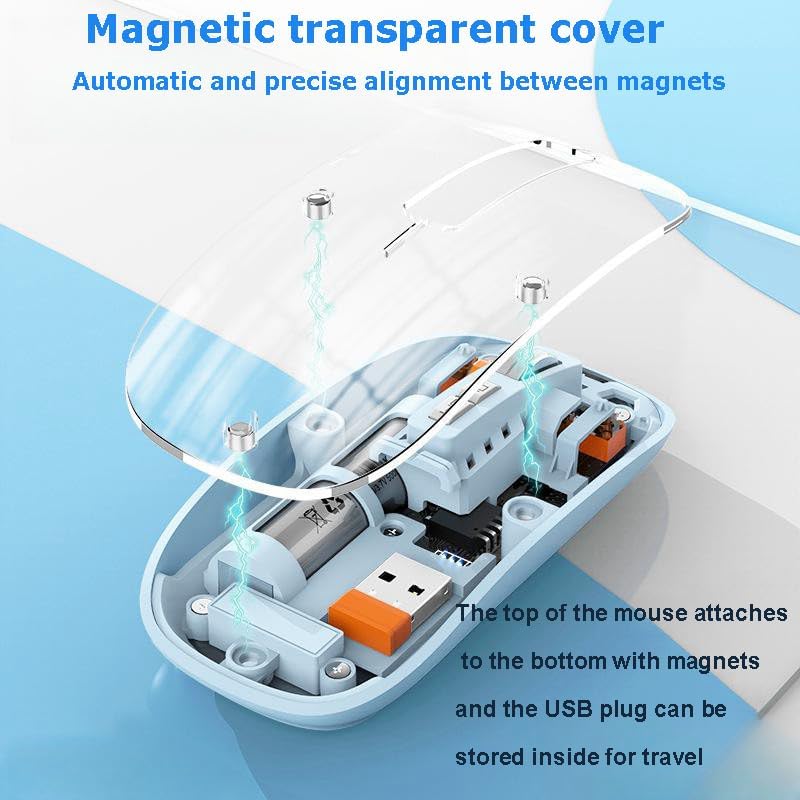
Figure 2: Charging the Mouse. The image shows the mouse connected to a charging cable, highlighting the convenient Type-C charging interface.
2. Connecting the Mouse (Tri-Mode Connectivity)
Your mouse supports three connection modes: 2.4GHz wireless via USB receiver, Bluetooth 1 (BT1), and Bluetooth 2 (BT2). You can switch between these modes using the button on the bottom of the mouse.

Figure 3: Tri-Mode Connection. This illustration demonstrates the mouse's ability to connect to three different devices simultaneously using 2.4G wireless and two separate Bluetooth 5.1 channels.
Video 2: Transparent Wireless Mouse Connection. This short video demonstrates the quick and easy process of connecting the mouse to various devices, including inserting the USB receiver and switching between Bluetooth modes.
2.1. 2.4GHz Wireless Connection:
- Locate the USB receiver inside the mouse. The magnetic top cover can be easily removed to access it.
- Plug the USB receiver into an available USB port on your computer or laptop.
- Turn on the mouse using the ON/OFF switch on the bottom.
- Switch the mode button on the bottom of the mouse to the "2.4G" position. The mouse will automatically connect.
2.2. Bluetooth Connection (BT1 / BT2):
- Turn on the mouse using the ON/OFF switch on the bottom.
- Switch the mode button on the bottom of the mouse to either "BT1" or "BT2" position.
- Press and hold the mode button for 3-5 seconds until the indicator light flashes rapidly, indicating pairing mode.
- On your device (PC, Mac, Laptop, iPad, etc.), go to Bluetooth settings and search for "BT5.1 Mouse" or similar.
- Select the mouse to pair. Once connected, the indicator light will stop flashing.
- Repeat steps for BT2 if connecting to a second Bluetooth device.
Operating Instructions
1. Switching Between Connected Devices
To switch between your connected devices (2.4G, BT1, BT2), simply press the mode button on the bottom of the mouse. The corresponding indicator light will illuminate to show the active connection.
Video 3: Transparent Rechargeable Mute Bluetooth Mouse. This video demonstrates how to easily switch between the different connectivity modes (Bluetooth 1, Bluetooth 2, and 2.4G wireless) using the button on the mouse's underside.
2. DPI Adjustment
The mouse features adjustable DPI (Dots Per Inch) settings, allowing you to customize cursor sensitivity. Press the "DPI loop+/-" button (refer to Figure 1) to cycle through available DPI settings. Each press will change the sensitivity, adapting to your preference for precision or speed.
3. Silent Clicks
The SHARE SUNSHINE mouse is designed with silent click technology, significantly reducing click noise. This feature ensures a quiet working environment, ideal for offices, libraries, or late-night use, without disturbing others.

Figure 4: Silent Click Feature. This image illustrates the benefit of the mouse's silent click design, allowing for quiet operation without disturbing others.
Maintenance
To ensure the longevity and optimal performance of your mouse, follow these maintenance tips:
- Cleaning: Use a soft, dry cloth to wipe the surface of the mouse. For stubborn dirt, slightly dampen the cloth with water or a mild cleaning solution. Avoid harsh chemicals or abrasive materials.
- Storage: When not in use for extended periods, store the mouse in a cool, dry place.
- Battery Care: Avoid fully discharging the battery frequently. Charge the mouse regularly to maintain battery health.
Troubleshooting
If you encounter any issues with your mouse, please refer to the following table for common problems and solutions:
| Problem | Possible Cause | Solution |
|---|---|---|
| Mouse not responding | Low battery; Incorrect connection mode; USB receiver not plugged in (2.4G); Bluetooth not paired. | Charge the mouse; Switch to the correct connection mode (2.4G, BT1, BT2); Ensure USB receiver is securely plugged in; Re-pair Bluetooth connection. |
| Cursor movement is erratic or slow | Low DPI setting; Dirty optical sensor; Unsuitable surface. | Increase DPI setting; Clean the optical sensor with a soft cloth; Use on a clean, non-reflective mouse pad or surface. |
| Bluetooth connection drops frequently | Interference; Device too far from mouse; Low battery. | Move closer to the device; Remove other wireless devices causing interference; Charge the mouse. |
| Buttons not clicking | Software issue; Physical damage. | Restart your computer; Check for driver updates; If physical damage, contact support. |
Specifications
| Feature | Detail |
|---|---|
| Connectivity Technology | Bluetooth 5.1 (BT1, BT2), 2.4GHz Wireless (USB Receiver) |
| Movement Detection Technology | Optical |
| Special Features | Transparent Design, Rechargeable, Silent Clicks, LED Lights, Portable, Lightweight |
| Item Weight | 3.87 ounces |
| Package Dimensions | 4.65 x 3.11 x 1.18 inches |
| Compatibility | Office computers, PCs, Macs, Laptops, Apple devices, iPads |
Warranty and Support
The SHARE SUNSHINE Wireless Mouse comes with a one-year worry-free warranty from the date of purchase. This warranty covers manufacturing defects and ensures your satisfaction with the product.

Figure 5: One Year Warranty. This badge signifies the product's included one-year warranty, providing peace of mind for your purchase.
For technical support, warranty claims, or any questions regarding your SHARE SUNSHINE product, please contact our customer service team through the retailer's platform or visit the official SHARE SUNSHINE brand store for more information.
We are committed to providing high-quality products and excellent customer service.