
1. Introduction
Thank you for choosing the Upperizon 15.6 inch 4K UHD OLED Touchscreen Portable Monitor. This manual provides essential information for setting up, operating, and maintaining your new monitor. Please read it thoroughly before use to ensure optimal performance and longevity of the product.
This portable monitor features a 15.6-inch OLED UHD 4K (3840 x 2160) display, offering a 100% DCI-P3 color gamut, 100,000:1 contrast ratio, 350 cd/m² brightness, and a 178° wide viewing angle with a 60 Hz refresh rate. Its ultra-slim design and integrated kickstand make it ideal for various applications, including professional color grading, extended desktop use, and portable gaming.

Image 1.1: The Upperizon portable monitor showcasing its 4K UHD OLED display with 100% DCI-P3 color accuracy.
2. Package Contents
Please check the box for the following items:
- 1 × Upperizon Portable Monitor (Model P156UHT-R)
- 2 × USB-C to USB-C Cable (full-featured)
- 1 × HDMI to Mini HDMI Cable
- 1 × USB-A to USB-C Cable
- 1 × 45W Wall Charger
- 1 × Sleeve Case
3. Product Features
- OLED 4K UHD Display: 3840 x 2160 resolution for super clear visuals.
- High Color Accuracy: 100% DCI-P3 color gamut, ideal for professional color grading and graphic design.
- High Contrast: 100,000:1 contrast ratio for deep blacks and bright whites.
- Fast Response Time: 1ms response time for smooth motion.
- Touchscreen Functionality: 10-point multi-touch support for Windows devices.
- Portable Design: Ultra-slim (0.17 inch at slimmest point) and lightweight (1.9 lbs) with an integrated, adjustable kickstand.
- Versatile Connectivity: Two USB-C ports (for video & power), one Mini HDMI port, and one USB-C OTG port.
- Built-in Speakers: For audio output.
- Eye Comfort Features: Blue light filter and low reflection screen.

Image 3.1: Visual comparison highlighting the superior contrast and color reproduction of OLED technology compared to ordinary LED displays.
4. Connections and Ports
The monitor is equipped with multiple ports for various devices:
- USB-C (Full-featured): Two ports for video signal, power delivery, and touchscreen data (depending on device).
- Mini HDMI: For video signal input from devices with HDMI output.
- USB-C OTG: For connecting peripherals like a keyboard or mouse. Do not use this port for power input.
- 3.5mm Audio Jack: For connecting external headphones or speakers.

Image 4.1: Overview of the monitor's rich interface options for connecting various devices.
5. Setup Guide
5.1 Powering the Monitor
Always ensure the monitor receives sufficient power. Use the included 45W wall charger and a full-featured USB-C to USB-C cable for optimal performance.
5.2 Connecting via USB-C (Full-featured)
For devices with a full-featured USB-C port (supporting DisplayPort Alternate Mode and Power Delivery):
- Connect one end of the full-featured USB-C to USB-C cable to your device's USB-C port.
- Connect the other end to one of the monitor's full-featured USB-C ports.
- If your device cannot provide enough power, connect the 45W wall charger to the other full-featured USB-C port on the monitor.
Note: Ensure your laptop has a Thunderbolt 3/4 or full-featured USB-C port for single-cable operation.

Image 5.1: USB-C connection setup for video, power, and touch functionality.
5.3 Connecting via HDMI
For devices with an HDMI output:
- Connect one end of the HDMI to Mini HDMI cable to your device's HDMI port.
- Connect the Mini HDMI end to the monitor's Mini HDMI port.
- Connect the 45W wall charger to one of the monitor's full-featured USB-C ports for power.
- For touchscreen functionality with Windows laptops/PCs, connect the USB-A to USB-C cable from your computer's USB-A port to the monitor's full-featured USB-C port.
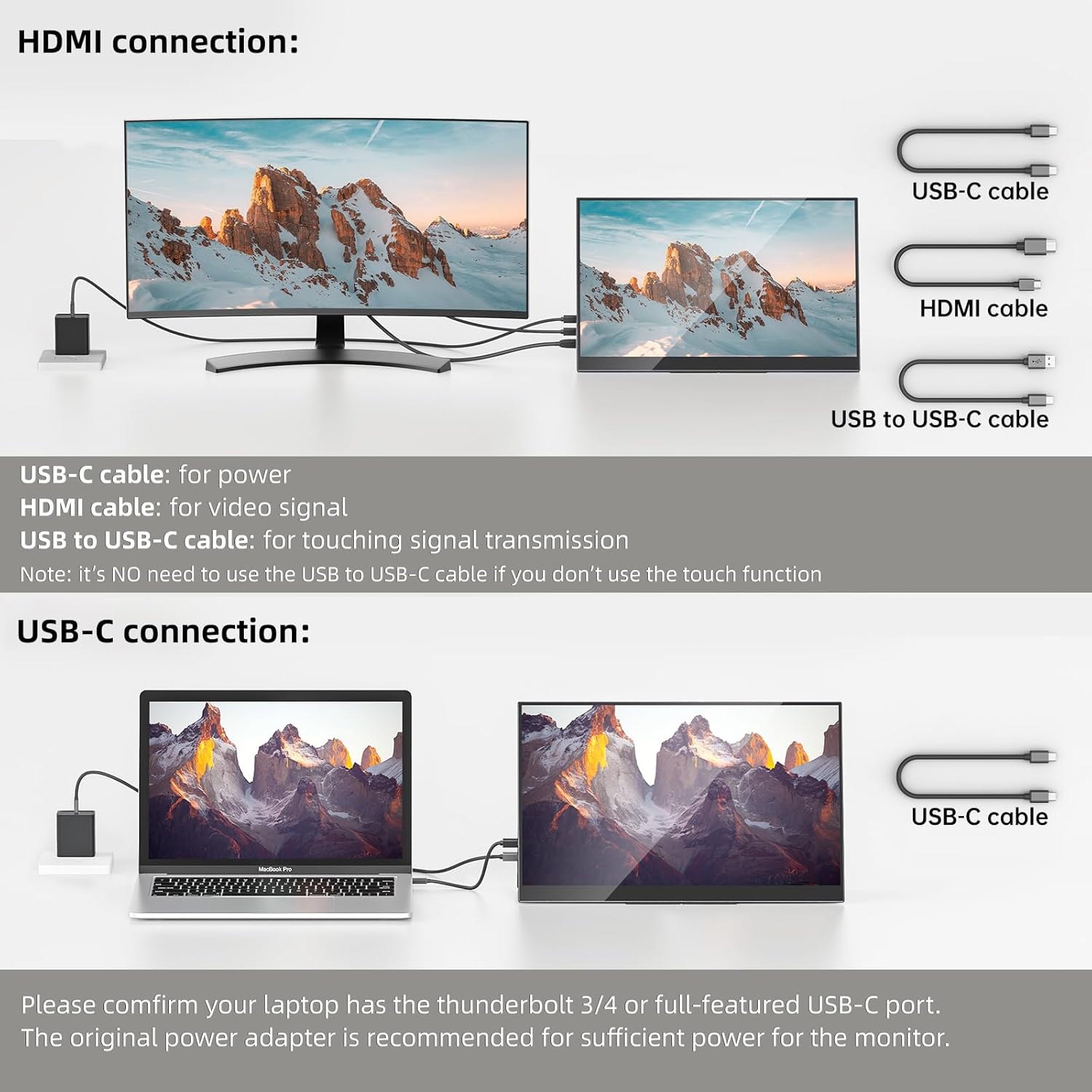
Image 5.2: HDMI connection setup, including separate power and touch signal cables.
6. Operating Instructions
6.1 Display Modes
The monitor supports various display modes:
- Duplicated Mode: Mirrors your primary screen, useful for presentations.
- Extended Mode: Extends your desktop, increasing workspace and productivity.
- Portrait Mode: The integrated kickstand allows for easy setup in portrait orientation.

Image 6.1: Examples of duplicated, extended, and portrait display configurations.
6.2 Touchscreen Functionality
The monitor features touchscreen capabilities with specific compatibility:
- Windows Laptops/PCs: Supports 10-point multi-touch. Requires a USB-A to USB-C cable connection for touch signal when using HDMI for display.
- MacOS (MacBook, Mac mini, iMac): Supports single-point touch only. 10-point multi-touch is NOT supported.
- iPad, iPhone, Game Consoles (PS4, PS5, Xbox, etc.): Touchscreen functionality is NOT supported.

Image 6.2: Touchscreen compatibility matrix for various devices.
6.3 On-Screen Display (OSD) Menu
The OSD menu allows you to adjust various display settings. Access it using the physical buttons on the monitor. Typical settings include brightness, contrast, color temperature, input source, and audio volume.
7. Maintenance
To ensure the longevity and optimal performance of your monitor:
- Cleaning: Use a soft, lint-free cloth to gently wipe the screen. For stubborn marks, slightly dampen the cloth with water or a screen-safe cleaning solution. Avoid harsh chemicals or abrasive materials.
- Storage: When not in use, store the monitor in its sleeve case to protect it from dust and scratches.
- Handling: Avoid applying excessive pressure to the screen or dropping the monitor.
- Ventilation: Ensure the monitor's vents are not obstructed to prevent overheating.
8. Troubleshooting
| Problem | Possible Cause | Solution |
|---|---|---|
| No display/"No Signal" | Incorrect cable connection, insufficient power, incorrect input source. | Check all cable connections (USB-C, HDMI). Ensure the monitor is receiving adequate power (use 45W adapter). Select the correct input source via the OSD menu. Verify your device's USB-C port supports video output. |
| Touchscreen not working | Missing USB-A to USB-C connection (for HDMI), incompatible device, driver issue. | For HDMI connections, ensure the USB-A to USB-C cable is connected for touch signal. Confirm your device (Windows) supports touchscreen functionality. Check device settings for touch input. MacOS only supports single touch. Touch is not supported for iPads, iPhones, or game consoles. |
| Flickering screen | Cable issue, power fluctuation, refresh rate mismatch. | Try a different cable. Ensure stable power supply. Check display settings on your device for refresh rate. |
| No audio from monitor | Volume too low, incorrect audio output device selected. | Increase monitor volume via OSD. Check your device's audio settings to ensure the monitor is selected as the output device. |
9. Specifications
| Feature | Specification |
|---|---|
| Brand | Upperizon |
| Model Number | P156UHT-R |
| Screen Size | 15.6 Inches |
| Resolution | 4K UHD (3840 x 2160p) |
| Display Type | OLED |
| Refresh Rate | 60 Hz |
| Response Time | 1 Millisecond |
| Contrast Ratio | 100,000:1 |
| Brightness | 350 Candela (cd/m²) |
| Color Gamut | 100% DCI-P3 |
| Viewing Angle | 178 Degrees |
| Connectivity | 2x USB-C (Full-featured), 1x Mini HDMI, 1x USB-C OTG |
| Additional Features | Touchscreen, Built-In Speakers, Blue Light Filter, Kickstand |
| Item Weight | 1.9 Pounds |
| Dimensions (D x W x H) | 0.2"D x 14"W x 8.8"H |
10. Warranty and Support
The Upperizon Portable Monitor P156UHT-R comes with a 2-year manufacturer warranty. For technical support, warranty claims, or any inquiries, please contact Upperizon customer service. Refer to the contact information provided with your product or visit the official Upperizon website for assistance.
Warranty Coverage: This warranty covers defects in materials and workmanship under normal use. It does not cover damage caused by accident, misuse, abuse, neglect, improper installation, or unauthorized repairs.