
1. Introduction
This manual provides detailed instructions for the installation, operation, and maintenance of your BITEPASS P8 Smart Wireless Doorbell Camera. Please read this manual thoroughly before using the product to ensure proper functionality and safety. Keep this manual for future reference.
2. Product Overview
The BITEPASS P8 Smart Wireless Doorbell Camera is designed to enhance your home security with advanced features. It offers high-definition video, two-way audio communication, and infrared night vision for clear visibility day and night. The doorbell includes AI human detection to minimize false alerts and is built with IP65 weather resistance for outdoor use. It operates on 2.4GHz Wi-Fi and supports cloud storage for video recordings.

Image: The BITEPASS P8 Smart Wireless Doorbell Camera, highlighting features such as AI Human Detection, Night Vision, HD Video, Ultra Wide Angle Lens, Two-way Audio, Instant Alert, Cloud Storage, and Battery Powered.
Video: An official overview of the BITEPASS Smart Wireless Doorbell Camera, demonstrating its features and benefits.
3. Package Contents
Verify that all items are present in your package:
- BITEPASS P8 Smart Wireless Doorbell Camera
- Wireless Chime
- Rechargeable Batteries (pre-installed or separate)
- USB Charging Cable
- Wall Mount Bracket
- Mounting Screws and Anchors
- Adhesive Tape for mounting
- User Manual (this document)

Image: A detailed view of the doorbell camera and its components, including the doorbell receiver and product labels.
4. Setup Instructions
4.1. Charging and Battery Installation
Ensure the doorbell camera's batteries are fully charged before initial use. If batteries are separate, insert them into the designated compartment. Connect the USB charging cable to the doorbell and a power source until the indicator light shows a full charge.

Image: A person's hands inserting rechargeable batteries into the back compartment of the doorbell camera.
4.2. App Download and Account Creation
Download the "Aiwiit" app from the Apple App Store or Google Play Store. Follow the in-app instructions to create an account and log in.

Image: A visual guide showing the steps to download the Aiwiit app, connect the doorbell, set up, and install it.
4.3. Wi-Fi Connection
Open the Aiwiit app and follow the prompts to connect your doorbell camera to your home's 2.4GHz Wi-Fi network. Ensure your smartphone is connected to the 2.4GHz network during the setup process.
4.4. Mounting the Doorbell Camera
Choose a suitable location near your front door. The doorbell can be mounted using either the provided adhesive tape or screws.
- Adhesive Mounting: Clean the mounting surface thoroughly. Apply the adhesive tape to the back of the doorbell bracket and firmly press the doorbell onto the desired location.
- Screw Mounting: Use the wall mount bracket as a template to mark drill holes. Drill pilot holes, insert wall anchors if necessary, and secure the bracket with screws. Attach the doorbell camera to the mounted bracket.

Image: A hand applying the doorbell camera to a wall using adhesive tape.

Image: A hand securing the doorbell camera to a wall using screws.
5. Operating Instructions
5.1. Live View
Open the Aiwiit app to access the live video feed from your doorbell camera at any time. This allows you to monitor your front door remotely.
5.2. Two-Way Audio
When a visitor presses the doorbell or motion is detected, you will receive a notification on your smartphone. Tap the notification to open the live view and use the two-way audio feature to speak with your visitor. This allows for clear communication with guests or delivery personnel.

Image: A delivery person at the door and a user communicating via the doorbell's two-way audio feature through a smartphone app.
5.3. AI Human Detection and Alerts
The doorbell camera features AI human detection, which intelligently identifies human shapes and reduces false alarms from pets or inanimate objects. When human motion is detected, you will receive instant alerts on your smartphone.

Image: The AI Human Detection feature in action, showing the doorbell camera detecting a child while ignoring pigeons, with a notification alert.
5.4. Night Vision
The doorbell camera is equipped with IR night vision, allowing it to capture clear video footage even in low-light conditions or complete darkness. The camera automatically switches between day and night vision modes.

Image: A split image demonstrating the doorbell camera's clear day vision and its effective IR night vision in darkness.
5.5. Cloud Storage
Recorded video clips are stored securely in the cloud (subscription may be required). You can access, view, download, and share these recordings through the Aiwiit app. This ensures you never miss important events at your door.

Image: An illustration of the cloud storage feature, showing recorded video clips accessible via a smartphone app.
Video: An official video demonstrating the features of the BITEPASS Video Doorbell Camera, including cloud storage and remote access.
5.6. Wireless Chime
The included wireless chime plugs into any standard wall outlet and provides an audible alert inside your home when the doorbell button is pressed. Pair the chime with the doorbell according to the instructions in the app.

Image: The wireless chime unit plugged into a wall outlet, indicating it's producing sound when the doorbell is pressed.
6. Maintenance
6.1. Battery Charging
The doorbell camera is powered by rechargeable batteries. When the battery level is low, you will receive a notification via the app. Remove the doorbell from its mount and charge it using the provided USB cable. A full charge typically takes several hours.
6.2. Cleaning
To maintain optimal performance, periodically clean the camera lens and the doorbell's exterior with a soft, damp cloth. Avoid using harsh chemicals or abrasive materials that could damage the device.
6.3. Weather Resistance
The BITEPASS P8 doorbell camera has an IP65 weather resistance rating, meaning it is protected against dust and low-pressure water jets. It is designed to operate in temperatures ranging from 14°F to 140°F (-10°C to 60°C). While robust, avoid submerging the device in water or exposing it to extreme weather conditions beyond its rated limits.
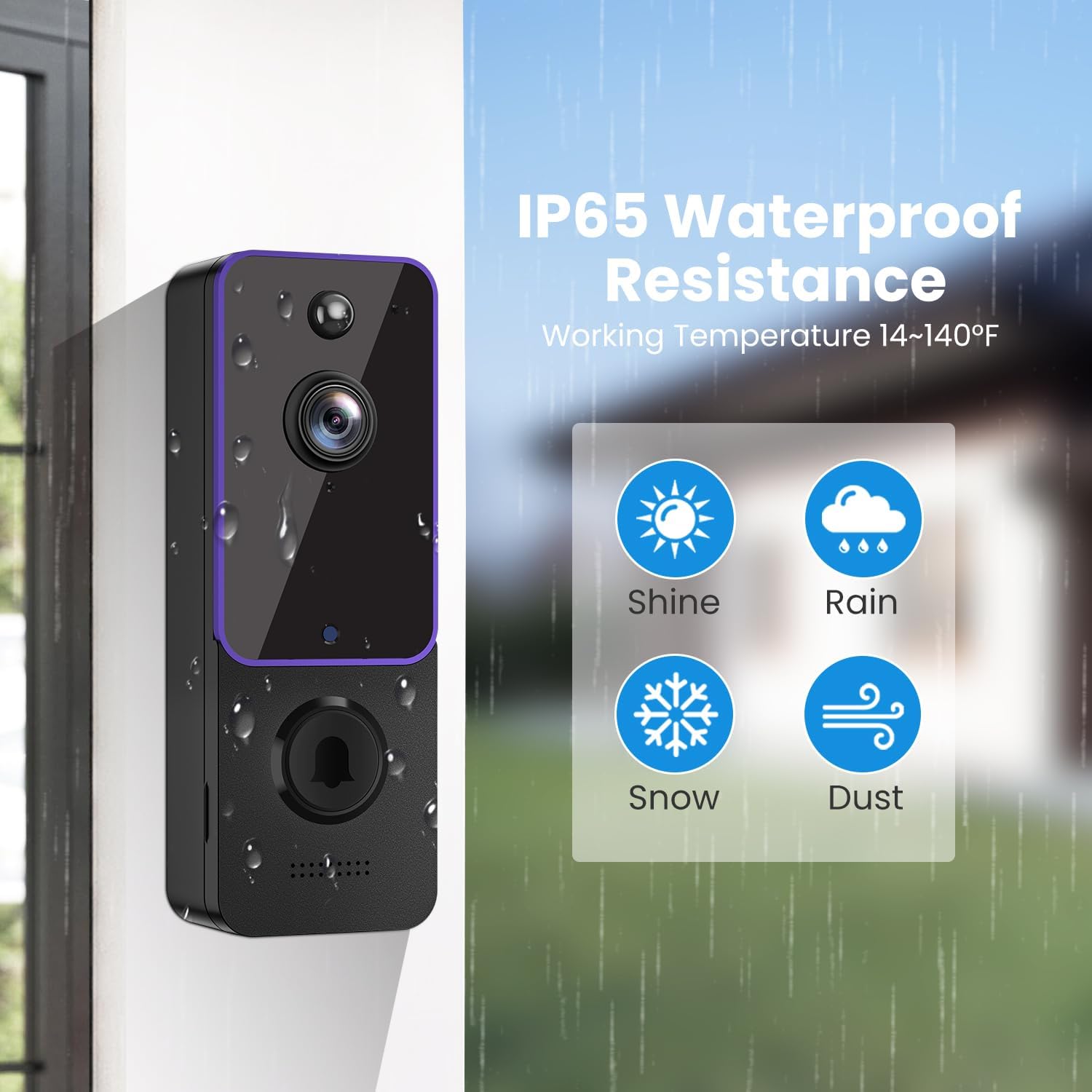
Image: The doorbell camera shown with water droplets, illustrating its IP65 waterproof resistance and ability to withstand various weather conditions like shine, rain, snow, and dust.
7. Troubleshooting
| Problem | Possible Cause | Solution |
|---|---|---|
| Doorbell not connecting to Wi-Fi | Incorrect Wi-Fi password; connected to 5GHz network; weak signal. | Ensure correct 2.4GHz Wi-Fi password. Move doorbell closer to router. Restart router and doorbell. |
| No motion detection alerts | Motion detection disabled; sensitivity too low; app notifications off. | Check app settings for motion detection and sensitivity. Enable app notifications. |
| Poor video quality | Weak Wi-Fi signal; dirty camera lens. | Improve Wi-Fi signal strength. Clean the camera lens with a soft cloth. |
| Short battery life | Frequent motion events; extreme temperatures; old batteries. | Adjust motion detection sensitivity. Ensure operating within recommended temperature range. Fully charge batteries. |
| Chime not ringing | Chime not paired; chime unplugged; volume too low. | Re-pair chime with doorbell via app. Ensure chime is plugged in and powered. Check chime volume settings. |
8. Product Specifications
| Feature | Detail |
|---|---|
| Brand | BITEPASS |
| Model Number | P8 |
| Connectivity Technology | Wireless (2.4GHz Wi-Fi) |
| Special Features | 2-Way Audio, Night Vision, AI Human Detection |
| Indoor/Outdoor Usage | Indoor, Outdoor |
| Waterproof Rating | IP65 |
| Power Source | Battery Powered (6700 Milliamp Hours) |
| Item Dimensions | 2 x 1.5 x 5.3 inches |
| Video Encoding | MPEG-4 |
| Night Vision Type | Night Color (Infrared) |
9. Warranty and Support
For warranty information, technical support, or any inquiries regarding your BITEPASS P8 Smart Wireless Doorbell Camera, please refer to the contact information provided on the product packaging or visit the official BITEPASS website. Keep your purchase receipt as proof of purchase for warranty claims.