
EUNIVON EV5S
EUNIVON 55'' 4K UHD Smart Whiteboard
Instruction Manual
Introduction
The EUNIVON 55'' 4K UHD Smart Whiteboard (Model EV5S) is a versatile interactive display designed for various professional and educational environments, including offices, meeting rooms, classrooms, and home use. This electronic whiteboard integrates advanced technology to provide a seamless and intuitive user experience.
Key functionalities include multi-touch interaction, 4K Ultra High-Definition display, robust Android-based operating system, and comprehensive connectivity options for screen sharing and video conferencing.
What's in the Box
- Smart Board
- Stylus
- Wall Mount
Note: Additional accessories such as a mobile stand may be sold separately.
Technical Specifications
| Brand | EUNIVON |
| Model Number | IWB55EV5S |
| Size | 55 inches |
| Display Resolution | 4K UHD |
| Operating System | Android 14 |
| Processor | Cortex-A55 *8 CPU (8-Core A55) |
| RAM | 8GB |
| Storage | 128GB |
| Material Type | Aluminum |
| Item Weight | 74.8 pounds |
| Product Dimensions | 55 x 55 x 55 inches |
| Mounting Type | Wall Mount (Included) |
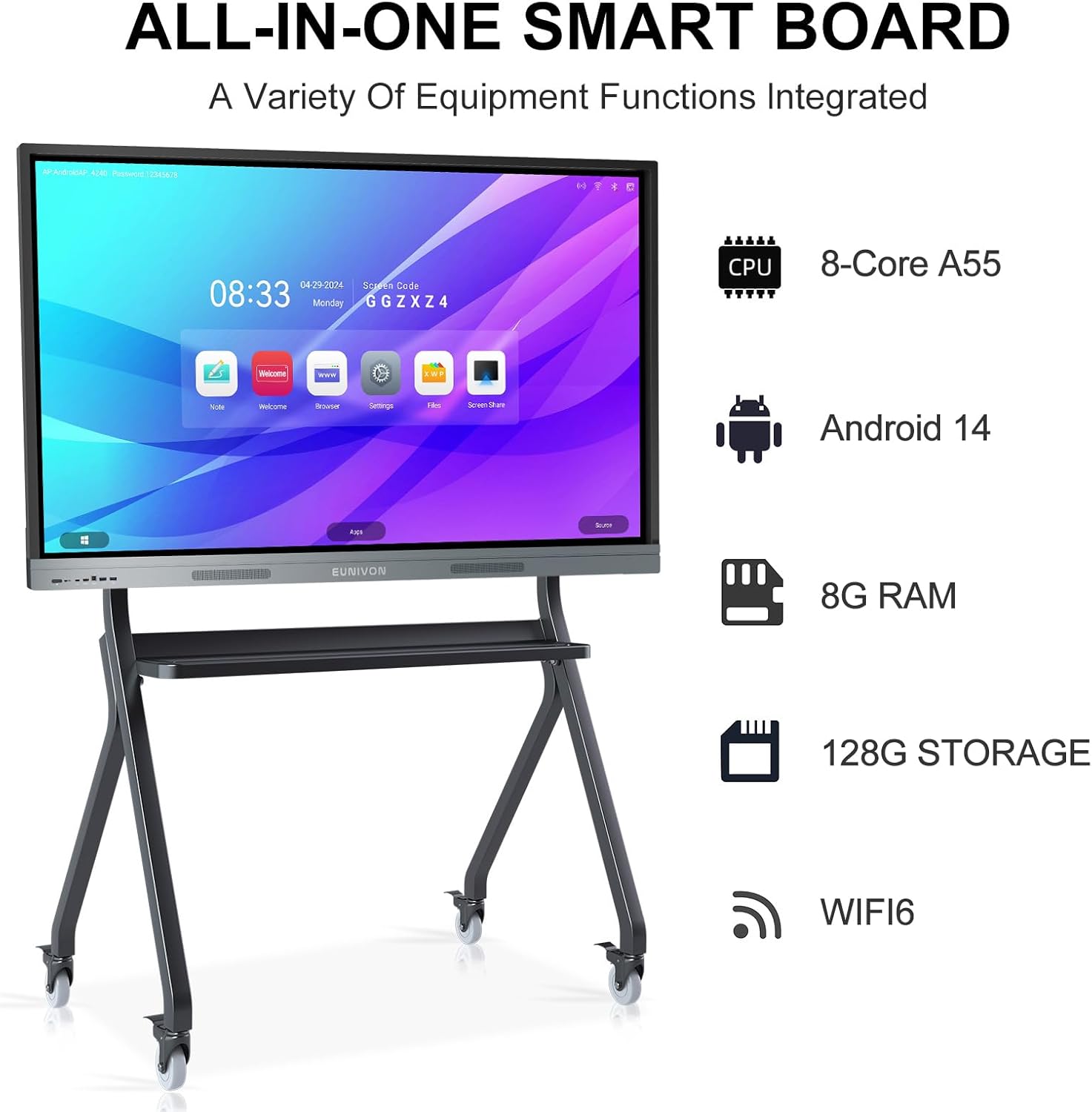
Figure 1: Overview of the EUNIVON Smart Board's core specifications.

Figure 2: The powerful 8-Core A55 CPU ensures smooth and efficient operation.

Figure 3: High-capacity 8GB RAM and 128GB storage for seamless multitasking and ample file storage.
Setup
1. Unpacking and Placement
Carefully remove all components from the packaging. Place the smart board in your desired location. The included wall mount allows for secure installation on a suitable wall. If using a mobile stand (sold separately), ensure it is assembled correctly and the board is securely attached.

Figure 4: The EUNIVON Smart Board can be wall-mounted or placed on a mobile stand for flexible deployment.
2. Power Connection
Connect the power cable to the smart board's power input and then to a standard electrical outlet. Press the power button located on the side or bottom of the board to turn it on. The screen will illuminate, displaying the EUNIVON logo followed by the main interface.
3. Initial Setup and Network Configuration
Upon first boot, follow the on-screen prompts to complete the initial setup, including language selection, time zone, and network configuration. Connect to a stable Wi-Fi network for full functionality, including app downloads and online features.
Operating the Smart Board
1. Basic Navigation and Interface
The EUNIVON Smart Board features a highly responsive touch screen. Navigate the interface by tapping icons, swiping to scroll, and pinching to zoom, similar to a large tablet. The main screen provides quick access to essential applications like Note, Browser, ScreenShare, and Finder.
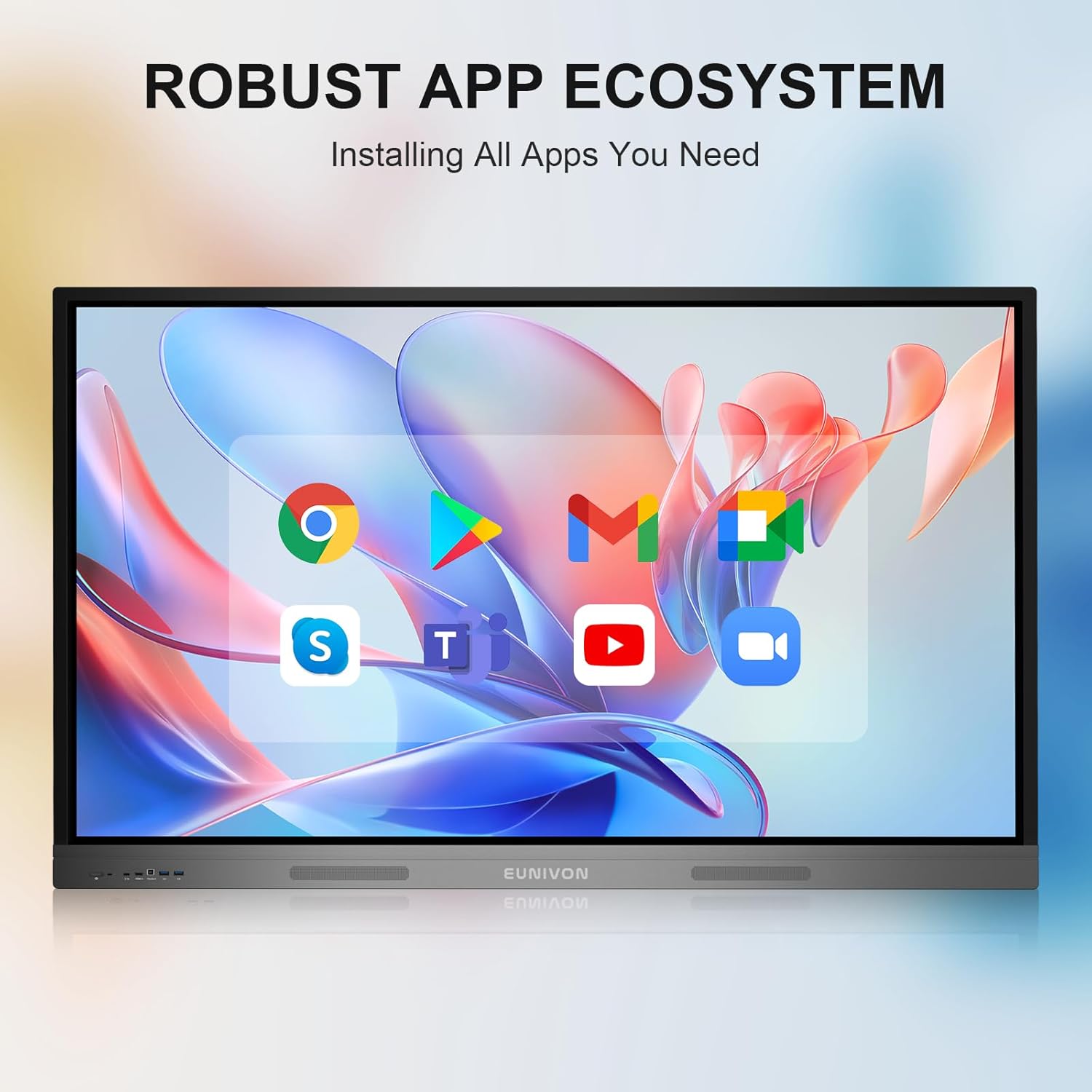
Figure 5: The robust app ecosystem allows for installation of various Android applications.
2. Using the Digital Whiteboard (Note App)
Access the digital whiteboard function through the "Note" application. Use the included stylus for precise writing and drawing. The board supports smooth handwriting and offers various tools such as different pen colors, shapes, rulers, and sticky notes. You can save your work or clear the canvas as needed.

Figure 6: The magnetic stylus provides a smooth and accurate writing experience.

Figure 7: Multi-touch functionality allows for intuitive interaction with the display.
Video 1: This video provides a general introduction to the EUNIVON Smart Board, showcasing its basic operation, including power-on, stylus use, and interface navigation.
Video 2: This video highlights key features of the EUNIVON Smart Board, demonstrating advanced writing tools, shape recognition, and browser functionality.
3. Screen Sharing and Connectivity
The smart board supports various methods for screen casting from external devices:
- Wireless Screen Sharing: Use the "ScreenShare" application to wirelessly cast content from Mac, Windows, iOS, or Android devices. This feature supports up to 4K resolution and low latency, allowing for simultaneous sharing from multiple devices.
- Wired Connectivity: Connect devices via HDMI, USB, or Type-C ports for direct display and interaction. The Type-C port supports activated reverse control, allowing you to control your laptop directly from the smart board's touch screen.
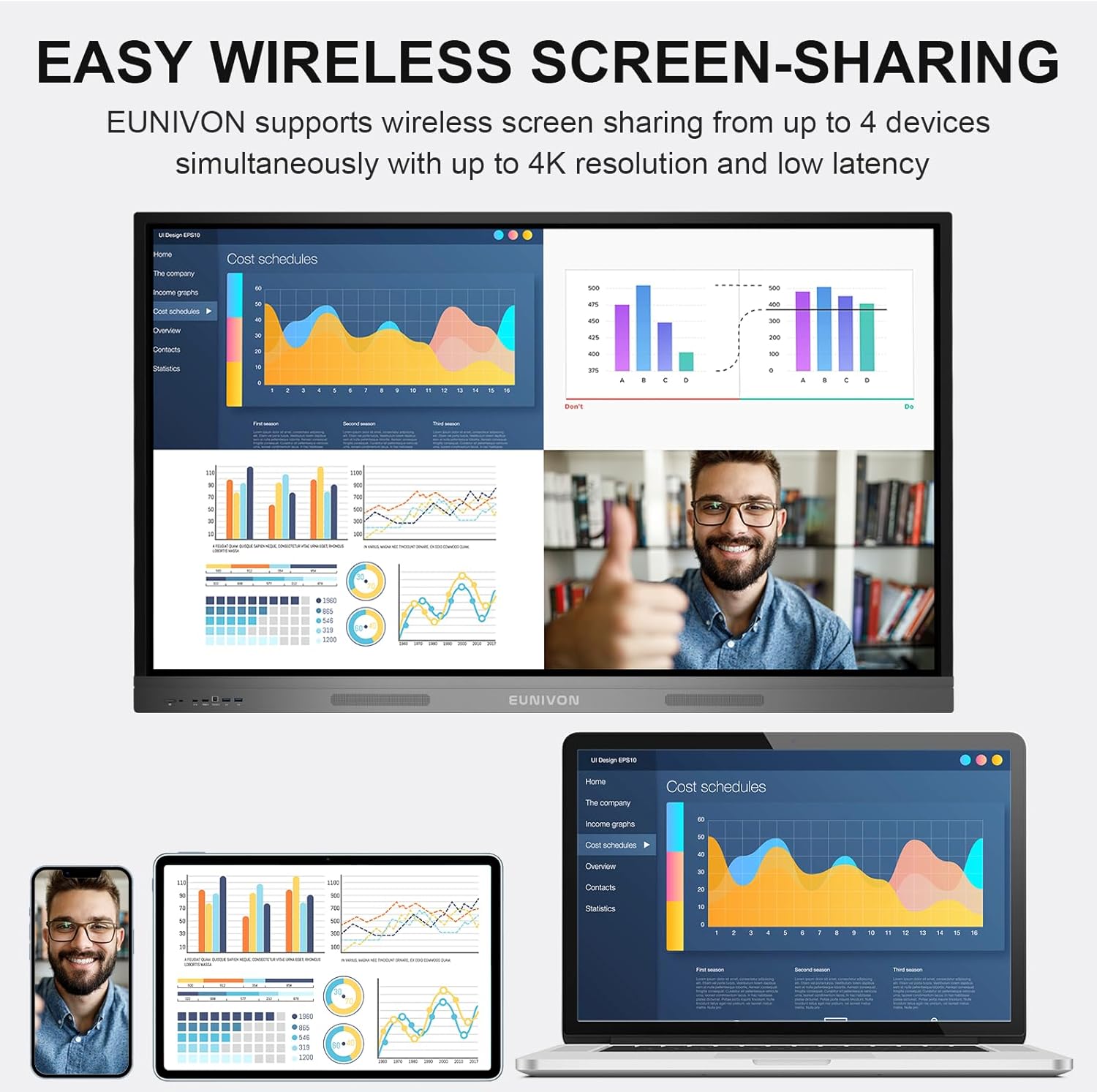
Figure 8: Seamless wireless screen sharing from various devices for enhanced collaboration.
Video 3: This video demonstrates the screen casting capabilities, including wired Type-C connection with reverse control and wireless screen sharing from an iPad, highlighting real-time annotation.
4. Video Conferencing
The smart board is ideal for video conferencing, especially when paired with an external camera (not included). Its large display and integrated audio capabilities facilitate clear communication and visual presentations during remote meetings. It is recommended to run video conferencing software on a connected Windows device for optimal performance.

Figure 9: The smart board enhances video conferencing with its large display and clear visuals.
Maintenance
1. Cleaning the Screen
To clean the screen, use a soft, lint-free cloth specifically designed for electronic displays. Lightly dampen the cloth with a screen cleaning solution (avoiding harsh chemicals or abrasive materials). Gently wipe the screen in one direction to remove dust, fingerprints, and smudges. Do not spray liquid directly onto the screen.

Figure 10: The smart board features a durable screen designed for frequent interaction.
2. General Care
Keep the smart board in a dry, well-ventilated area away from direct sunlight and extreme temperatures. Avoid placing heavy objects on the board or applying excessive force to the screen. Regularly check cable connections to ensure they are secure.
Troubleshooting
1. No Power / No Display
- Ensure the power cable is securely connected to both the board and the power outlet.
- Verify the power outlet is functional by plugging in another device.
- Press the power button firmly. If the issue persists, contact support.
2. Touch Screen Not Responding
- Restart the smart board.
- Ensure the screen is clean and free of debris that might interfere with touch detection.
- If connected to an external device, ensure all necessary drivers are installed and the touch cable (if applicable) is connected.
3. Screen Sharing Issues
- For wireless sharing, ensure both the smart board and the sharing device are on the same Wi-Fi network.
- Check that the "ScreenShare" application is open and active on the smart board.
- For wired connections (HDMI, Type-C), ensure cables are fully inserted and the correct input source is selected on the smart board.
Warranty and Support
EUNIVON products are designed for reliability and performance. For specific warranty details and terms, please refer to the warranty card included with your product or visit the official EUNIVON website. In case of any issues not covered in this manual, or for technical assistance, please contact EUNIVON customer support.
Customer Support: For assistance, please visit the EUNIVON Store on Amazon or contact their dedicated support channels.
Returns: The product is eligible for 30-day easy returns. Please refer to your purchase platform's return policy for detailed instructions.
Related Documents - EV5S
 |
EUNIVON EV7S/EV7S PRO WiFi Module Installation Guide Instructions for installing the WiFi module on EUNIVON EV7S and EV7S PRO interactive whiteboards. Ensure your device has a WiFi module for network connectivity. |