1. Introduction
This manual provides detailed instructions for the setup, operation, and maintenance of your Dexnor Floating Cantilever Magnetic Stand Trackpad Backlit Keyboard Case. This accessory is designed to enhance your Samsung Galaxy Tab experience by providing a laptop-like functionality with a precise trackpad, comfortable backlit keyboard, and versatile magnetic stand.
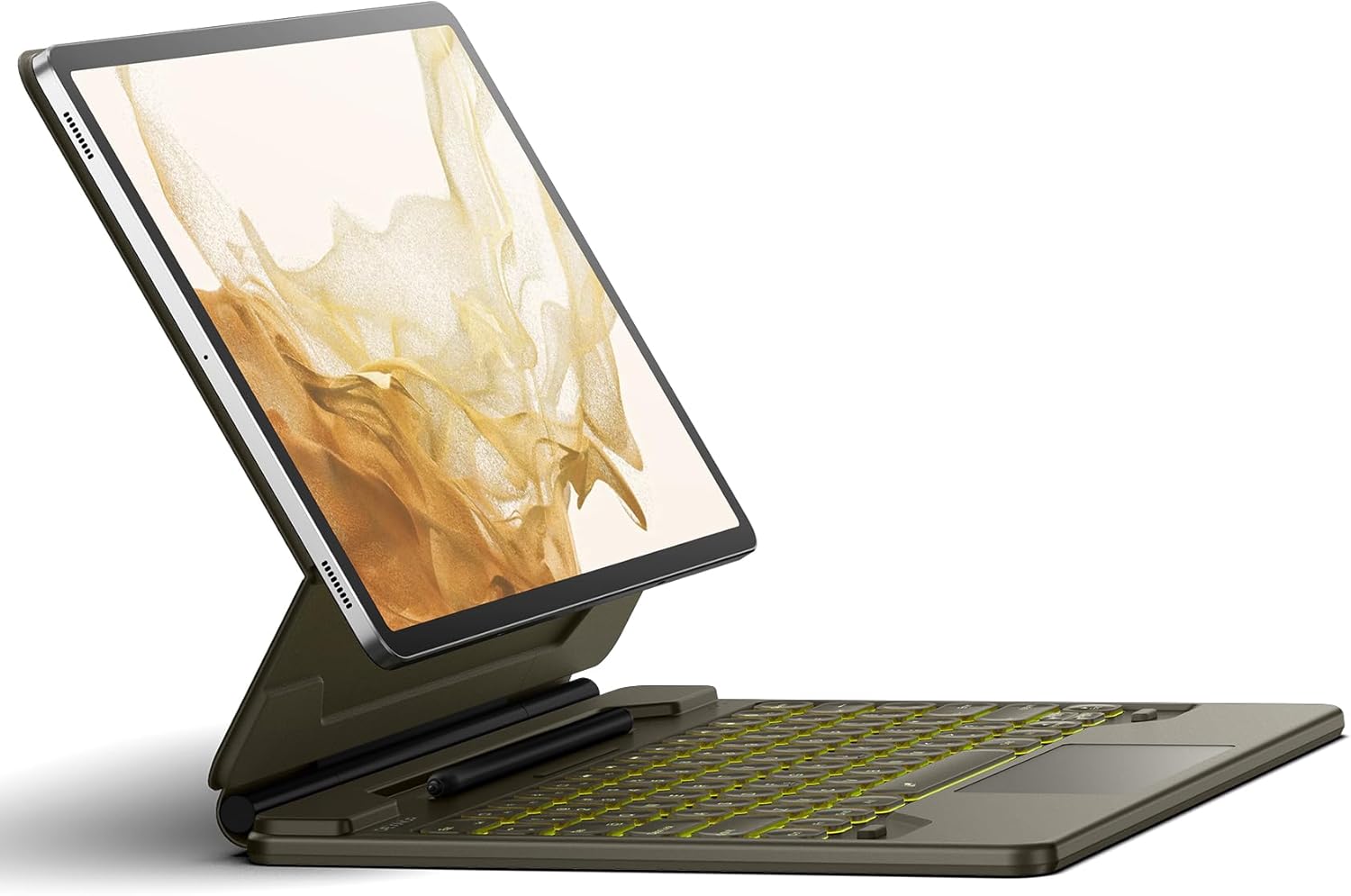
Image 1.1: The Dexnor Keyboard Case with a tablet in the floating cantilever position, showcasing the backlit keyboard and trackpad.
2. Compatibility
This keyboard case is specifically designed for 12.4-inch Samsung Galaxy Tab models. Please verify your tablet model before use to ensure proper fit and functionality.
- Samsung Galaxy Tab S10+ Plus (2024 Release)
- Samsung Galaxy Tab S9+ Plus (2023 Release)
- Samsung Galaxy Tab S9 FE+ Plus (2023 Release)
- Samsung Galaxy Tab S8+ Plus (Model SM-X800/X806/X808) (2022 Release)
- Samsung Galaxy Tab S7 FE (Model SM-T730/T733/T735/T736/T738) (2021 Release)
- Samsung Galaxy Tab S7+ Plus (Model SM-T970/T975/T976/T978) (2020 Release)
Note: This keyboard case is NOT compatible with Samsung Galaxy Tab S9 11-inch or S9 FE 10.9-inch models.

Image 2.1: Visual guide to compatible Samsung Galaxy Tab S series models, all featuring a 12.4-inch screen size.
3. Package Contents
Upon opening the package, please ensure all the following items are present:
- Dexnor Bluetooth Keyboard Case for Samsung Galaxy Tab
- USB-C Charging Cable
- Quick-start Guide
- User Manual (this document)
4. Setup
4.1 Initial Charging
Before first use, fully charge the keyboard. Connect the provided USB-C charging cable to the keyboard's charging port and a compatible USB power adapter (not included). The charging indicator light will show the charging status.
4.2 Attaching Your Tablet
The keyboard case features a strong magnetic attachment system. Align your Samsung Galaxy Tab with the magnetic area on the back cover of the case. The magnets will securely hold the tablet in place, transforming it into a laptop-like setup.

Image 4.1: Illustration of the strong magnetic attachment points between the tablet and the keyboard case, ensuring a secure connection.
4.3 Bluetooth Pairing
- Ensure the keyboard is charged.
- Turn on the keyboard by sliding the power switch. The Bluetooth indicator light will begin to flash, indicating it is in pairing mode.
- On your Samsung Galaxy Tab, go to Settings > Connected devices > Bluetooth.
- Turn on Bluetooth and search for available devices.
- Select "Dexnor Keyboard" (or similar name) from the list of found devices.
- Follow any on-screen prompts to complete the pairing process. The Bluetooth indicator light on the keyboard will turn solid when successfully paired.
5. Operating Instructions
5.1 Floating Cantilever Stand
The durable aluminum alloy hinge allows for smooth adjustment of the tablet's viewing angle. Simply push or pull the tablet to achieve your desired angle for typing, drawing, viewing, or reading. The stand supports a wide range of angles for optimal comfort.

Image 5.1: The floating cantilever design allows for a comfortable viewing angle, adjustable up to 120 degrees.
5.2 High-Precision Trackpad
The integrated trackpad supports multi-finger gestures, providing a precise and responsive navigation experience similar to a laptop mouse. Common gestures include:
- Single Tap: Left-click.
- Two-finger Tap: Right-click (context menu).
- Two-finger Scroll: Scroll up/down or left/right.
- Pinch to Zoom: Zoom in/out with two fingers.
- Three-finger Swipe Up: View recent apps.
- Three-finger Swipe Down: Go to home screen.

Image 5.2: A hand demonstrating the use of the multi-touch trackpad for precise navigation on the tablet screen.
5.3 Backlit Keyboard
The keyboard features 7 solid color backlights with 3 adjustable brightness levels, allowing for comfortable typing in various lighting conditions, including low-light environments. Use the dedicated backlight key (often represented by a light bulb icon or Fn + a specific key) to cycle through colors and brightness levels.
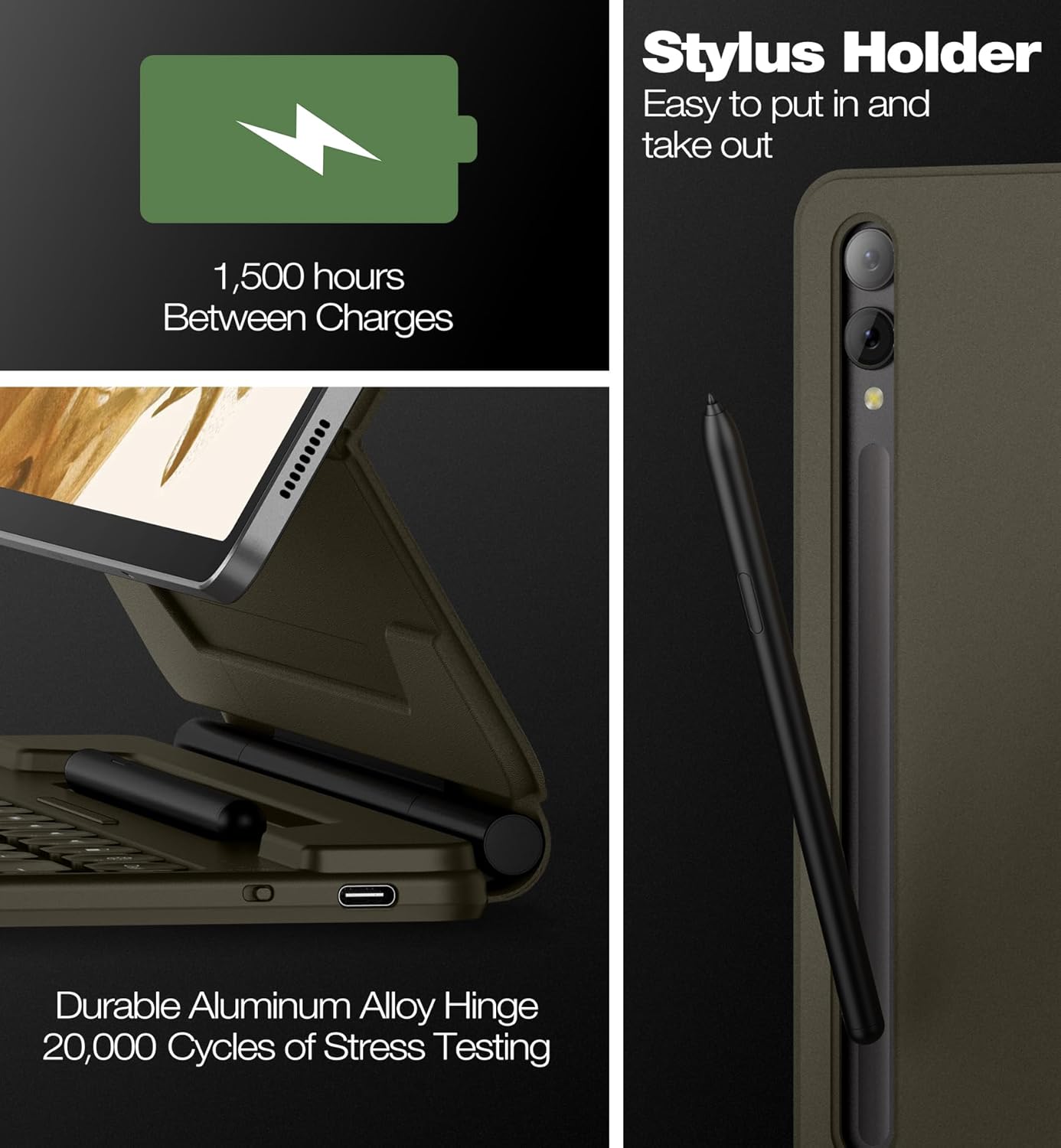
Image 5.3: A close-up view of the backlit keys, illustrating the illumination for typing in dark conditions.
5.4 S Pen Holders
The keyboard case includes two convenient S Pen storage options:
- Built-in Magnetic Holder: Located within the keyboard assembly, this holder is for secure storage of your S Pen when not in use.
- Cut-out Slot on Back Cover: This slot allows for both charging and storage of your S Pen, ensuring it is always ready for use and prevents loss.

Image 5.4: The integrated stylus holder on the keyboard case, designed for easy access and secure storage of the S Pen.
5.5 Auto Wake/Sleep Function
The case supports auto wake/sleep functionality. Opening the case will automatically wake your tablet, and closing it will put the tablet to sleep, helping to conserve battery life for both the tablet and the keyboard.
6. Maintenance
To ensure the longevity and optimal performance of your Dexnor keyboard case, follow these maintenance guidelines:
- Cleaning: Use a soft, dry, lint-free cloth to wipe the surface of the keyboard and case. For stubborn stains, slightly dampen the cloth with water or a mild, non-abrasive cleaner. Avoid excessive moisture.
- Battery Care: To maximize battery lifespan, avoid fully discharging the keyboard frequently. Recharge the battery when the low battery indicator appears. Store the keyboard in a cool, dry place if not used for extended periods.
- Avoid Extreme Conditions: Do not expose the keyboard to extreme temperatures, direct sunlight, or high humidity.
- Handle with Care: While the case offers protection, avoid dropping or subjecting it to strong impacts.
7. Troubleshooting
If you encounter issues with your Dexnor keyboard case, refer to the following common problems and solutions:
| Problem | Possible Cause | Solution |
|---|---|---|
| Keyboard not connecting via Bluetooth. | Low battery; Bluetooth off on tablet; Not in pairing mode; Interference. | Charge the keyboard. Ensure Bluetooth is enabled on your tablet. Put the keyboard into pairing mode. Move closer to the tablet and away from other wireless devices. |
| Trackpad not responding. | Bluetooth connection lost; Trackpad disabled (if applicable); Software glitch. | Reconnect Bluetooth. Restart the tablet and keyboard. Check tablet settings for trackpad options. |
| Backlight not working or changing. | Low battery; Incorrect key combination. | Charge the keyboard. Ensure you are using the correct key combination (e.g., Fn + backlight key) to adjust settings. |
| Tablet not waking/sleeping automatically. | Tablet not properly seated; Feature disabled in tablet settings. | Ensure the tablet is correctly aligned and seated in the case. Check your tablet's display settings for auto wake/sleep options. |
If the problem persists after trying these solutions, please contact customer support for further assistance.
8. Specifications
| Feature | Detail |
|---|---|
| Model | DK001 |
| Connectivity | Bluetooth |
| Battery Capacity | 800mAh (Lithium Polymer) |
| Working Time | Up to 320 hours (without backlight) |
| Standby Time | Up to 1500 hours |
| Charging Time | Approximately 4 hours |
| Backlight Colors | 7 solid colors (RGB support) |
| Brightness Levels | 3 adjustable levels |
| Material | PU Leather, Aluminum, Polycarbonate, Acrylonitrile Butadiene Styrene |
| Product Dimensions | 29.03 x 23.29 x 2.16 cm |
| Item Weight | 920 g |
| Special Features | Floating Cantilever Design, Precision Touchpad, S Pen Holders, Auto Wake/Sleep, Durable Aluminum Alloy Hinge |
9. Warranty and Support
All Dexnor keyboard cases are guaranteed with a one-year manufacturer's warranty from the date of purchase. This warranty covers defects in materials and workmanship under normal use. It does not cover damage caused by accident, misuse, abuse, neglect, or unauthorized modification.
For technical support, warranty claims, or any questions regarding your product, please contact Dexnor customer service through the retailer's platform or the official Dexnor website. Please have your purchase receipt and product model number (DK001) ready when contacting support.


