
Introduction
Thank you for choosing the Karlak 7-inch Multifunctional Car MP5 Player, Model F7018. This device is designed to enhance your in-car entertainment and connectivity experience with features such as Bluetooth, FM radio, smartphone integration (CarPlay, Android Auto, MirrorLink), and multimedia playback. This manual provides essential information for proper installation, operation, and maintenance of your new car MP5 player. Please read it thoroughly before use.

Image: The Karlak 7-inch Car MP5 Player displaying its main interface and highlighting key features like reversing camera support, Bluetooth, FM radio, wiring protection, CarPlay, Android Auto, MirrorLink, USB playback, TF card support, 7 colored lights, AUX input, and steering wheel learning.
Safety Information
- Always operate the device responsibly and in accordance with local traffic laws. Distracted driving can lead to accidents.
- Ensure proper installation by a qualified professional to prevent damage to the vehicle or the device.
- Do not attempt to disassemble or modify the unit. This may cause damage and void the warranty.
- Keep the device away from water, moisture, and extreme temperatures.
- Use only approved accessories and cables.
Setup and Installation
Package Contents
Before installation, please verify that all items are present in the package:
- 1 x Karlak 7-inch Car MP5 Player (Host)
- 1 x User Manual (this document)
- 1 x Car Power Cable
- 1 x Remote Control (battery not included)
- 1 x Installation Tool Set
Wiring Instructions
Correct wiring is crucial for the safe and proper operation of your MP5 player. This unit features built-in wiring protection to prevent damage from incorrect power connections.
- Connect the power cable according to your vehicle's wiring diagram.
- Ensure the positive and negative poles are connected correctly. If connected inversely, the device's automatic power-off protection will activate, preventing damage. Reconnect correctly to power on the unit.
- Connect the speaker wires, antenna, and any auxiliary inputs/outputs as required.
- If installing an optional reversing camera, connect it to the designated input.
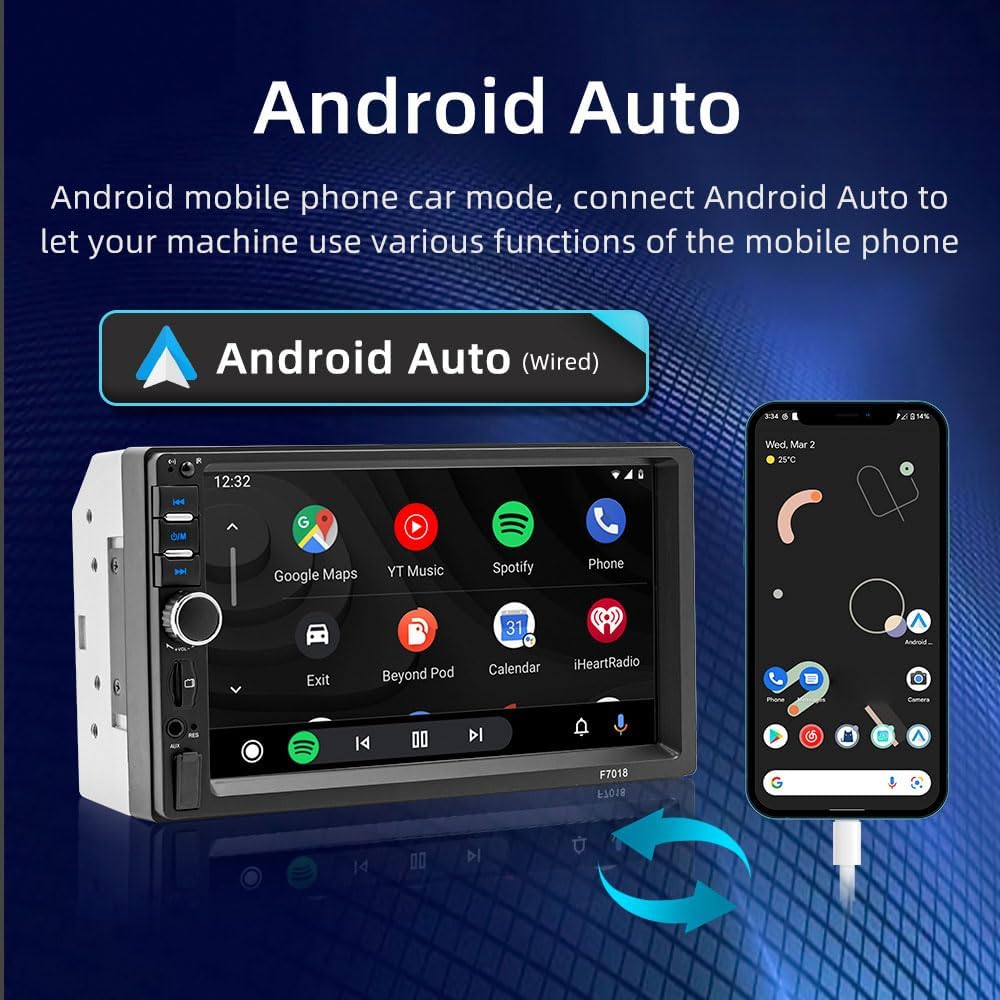
Image: A diagram illustrating the wiring protection feature. It shows that with wiring protection, incorrect power connections will not burn the circuit board or fuse, whereas without it, the machine circuit board or fuse would typically burn out.
Installation Dimensions
- Installation Size: 178 x 105 mm (7.0 x 4.1 inches)
- Panel Size: 179 x 103 mm (7.0 x 4.1 inches)
- Host Depth: 55 mm (2.2 inches)
Ensure your vehicle's dashboard opening is compatible with these dimensions for a proper fit.
Operating Instructions
Basic Controls
The unit features a 7-inch touch screen and physical buttons for easy operation. Common controls include power on/off, volume adjustment, mode selection, and track/station navigation.
- Power Button: Press and hold to turn the unit on or off. Short press to mute/unmute.
- Volume Knob: Rotate to adjust the volume level.
- Mode Button (M): Cycle through available modes (Radio, Bluetooth, USB, TF Card, AUX, PhoneLink).
- Navigation Buttons (<< / >>): Skip tracks, fast forward/rewind, or change radio stations.
FM Radio
Access the FM radio mode to listen to local broadcasts, real-time traffic updates, news, and weather forecasts.
- Frequency Range: 87.5-108.0 MHz
- Scanning: Use the search function to automatically scan and save available stations.
- Preset Stations: Manually save your favorite stations for quick access.
Bluetooth 5.1 Connectivity
The built-in Bluetooth 5.1 module provides a stable and fast connection for hands-free calling and audio streaming.
- Enable Bluetooth on your smartphone.
- On the MP5 player, go to the Bluetooth menu.
- Search for available devices and select "Karlak F7018" (or similar name).
- Confirm the pairing code if prompted.
- Once connected, you can make/receive calls and play music wirelessly.
Smartphone Interconnection (CarPlay, Android Auto, MirrorLink)
Connect your smartphone to the MP5 player to access various phone functions directly on the unit's screen, including navigation, music, calls, and messages.
Apple CarPlay (Wired Connection)
Connect your Apple iPhone via a USB cable to enable CarPlay. This allows you to use iOS apps optimized for driving on the MP5 player's screen.

Image: The Karlak MP5 Player screen showing the Apple CarPlay interface with icons for Phone, Music, Maps, Messages, and other applications, connected to an iPhone via a wired connection.
Android Auto (Wired Connection)
Connect your Android smartphone via a USB cable to enable Android Auto. This provides access to Android apps and services tailored for in-car use.

Image: The Karlak MP5 Player screen showing the Android Auto interface with icons for Google Maps, YouTube Music, Spotify, Phone, and other applications, connected to an Android phone via a wired connection.
MirrorLink (Screen Mirroring)
MirrorLink allows you to cast your smartphone's screen onto the MP5 player. For Apple phones, connect via data cable for one-way screen touch. For Android phones, install the required mirroring software for two-way screen touch control.
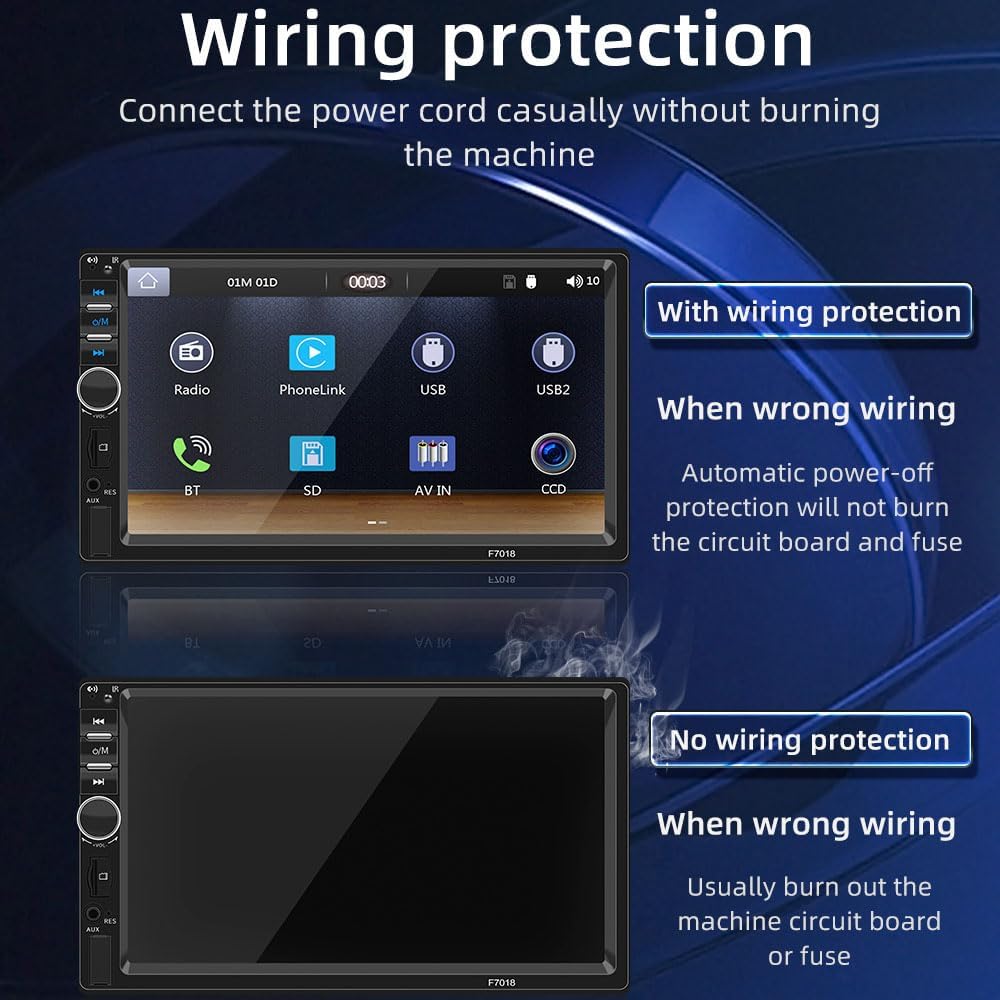
Image: The Karlak MP5 Player screen mirroring a smartphone display, showing a landscape image. Text indicates that Apple phones connect via data cable for one-way screen touch, while Android phones require mirroring software for two-way screen touch.
USB and TF Card Playback
Play your favorite audio, video, and image files directly from a USB drive or TF (microSD) memory card.
- Insert the USB drive into the USB port or the TF card into the TF card slot.
- Select the appropriate source (USB or TF Card) from the main menu or by pressing the Mode button.
- Browse and select your desired media files for playback.
Steering Wheel Control Learning
The unit supports learning functions for your vehicle's steering wheel controls, allowing for safer operation without taking your hands off the wheel.
- Access the "Steering Wheel Control" settings menu on the MP5 player.
- Follow the on-screen instructions to assign functions (e.g., volume up, next track) to your steering wheel buttons.
- Test the assigned functions to ensure they work correctly.
Reversing Camera Support (Optional)
If an optional reversing camera is connected, the MP5 player will automatically display the rear view when the vehicle is put into reverse gear, assisting with safer parking and maneuvering.

Image: The Karlak MP5 Player screen showing a full-screen reversing image with parking guidelines, indicating the support for an optional reversing camera for safe maneuvering.
7-Color Button Lighting
Customize the aesthetic of your MP5 player with 7 different button lighting colors. You can set it to cycle through colors or select a single preferred color.

Image: A series of images showing the Karlak MP5 Player's physical buttons illuminated in different colors (red, green, blue, yellow, cyan, purple, white), demonstrating the 7-color button lighting feature.
Maintenance
- Cleaning the Screen: Use a soft, lint-free cloth to gently wipe the touch screen. For stubborn smudges, slightly dampen the cloth with water or a screen-safe cleaner. Avoid harsh chemicals.
- General Cleaning: Wipe the unit's exterior with a dry or slightly damp cloth. Do not use abrasive cleaners.
- Software Updates: Periodically check the manufacturer's website for any available software updates to ensure optimal performance and new features.
Troubleshooting
| Problem | Possible Cause | Solution |
|---|---|---|
| Unit does not power on. | Incorrect wiring (positive/negative reversed). Blown fuse in vehicle or unit. Loose power connection. |
Check wiring for correct polarity; the unit has protection against reverse connection. Verify vehicle and unit fuses. Ensure power cables are securely connected. |
| No sound. | Volume too low or muted. Speaker wires disconnected. Incorrect audio source selected. |
Increase volume or unmute. Check speaker connections. Ensure the correct audio source (FM, BT, USB, etc.) is selected. |
| Bluetooth connection issues. | Bluetooth not enabled on phone/unit. Device not paired. Interference. |
Ensure Bluetooth is active on both devices. Re-pair the devices. Move closer to the unit or away from other wireless devices. |
| Smartphone interconnection (CarPlay/Android Auto/MirrorLink) not working. | Faulty USB cable. Phone software not updated. Required app not installed (for Android MirrorLink). |
Use a high-quality, certified USB data cable. Ensure your smartphone's operating system and relevant apps are up to date. Install the necessary mirroring app for Android devices. |
Specifications
| Feature | Detail |
|---|---|
| Model | F7018 |
| Screen Size | 7 inches |
| Resolution | 1024 x 600 |
| Bluetooth Version | 5.1 |
| FM Frequency Range | 87.5 - 108.0 MHz |
| Output Power | 60W x 4 |
| Working Voltage | 12 - 14.4 V |
| Working Temperature | -10 to 60 ℃ (14 to 140 ℉) |
| Installation Size | 178 x 105 mm (7.0 x 4.1 inches) |
| Panel Size | 179 x 103 mm (7.0 x 4.1 inches) |
| Host Depth | 55 mm (2.2 inches) |
| Supported Languages | English, Chinese, Spanish, Portuguese, Russian, German, French, Dutch, Turkish, Arabic, Hebrew, Italian, Czech, Japanese, Korean |
| Manufacturer Reference | SGNBRK21931 |
Warranty and Support
For warranty information, please refer to the documentation provided at the time of purchase or contact your retailer. Karlak is committed to providing quality products and customer satisfaction.
If you encounter any issues or have questions not covered in this manual, please contact Karlak customer support through the retailer's platform or the official brand website for assistance.