
B.FRIENDIT K2BW - Space Gray
B.FRIENDIT Large Print Backlit Bluetooth Keyboard User Manual
Model: K2BW - Space Gray
Brand: B.FRIENDIT
Introduction
This manual provides detailed instructions for the setup, operation, maintenance, and troubleshooting of your B.FRIENDIT Large Print Backlit Bluetooth Keyboard. Designed for enhanced visibility and comfort, this keyboard features large print keys, multi-device Bluetooth connectivity, and customizable backlighting. Please read this manual thoroughly to ensure optimal performance and longevity of your device.
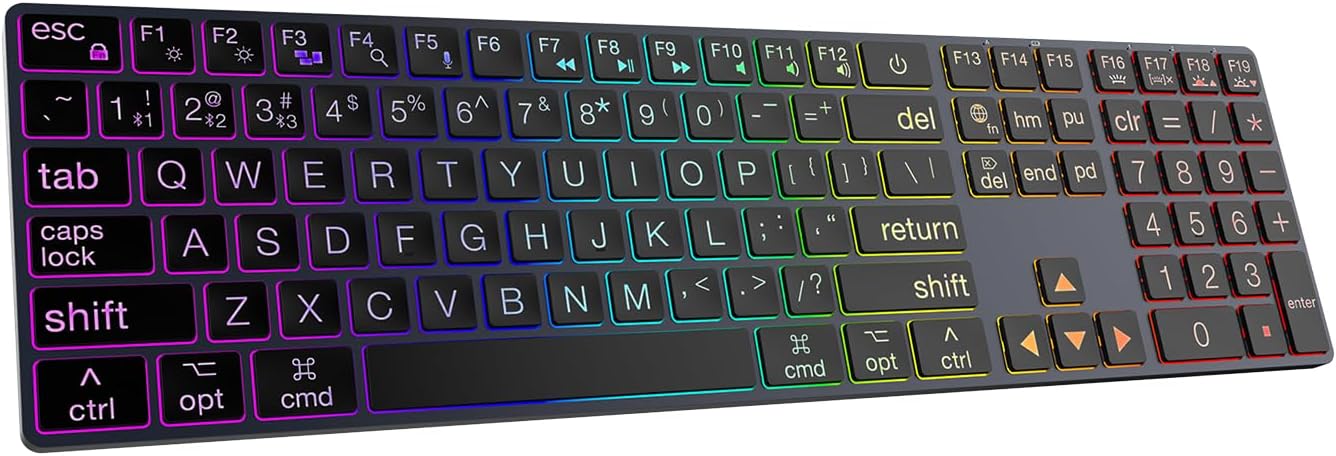
Figure 1: B.FRIENDIT Large Print Backlit Bluetooth Keyboard
Key Features

Large Print Keys: The keyboard features characters that are 4X larger than standard keyboards, making it ideal for users with visual impairments, seniors, or anyone desiring enhanced readability. This design significantly improves typing efficiency and reduces eye strain.

Ultra Slim & Modern Design: With its sleek profile and aluminum construction, the keyboard offers a professional and aesthetic addition to any desktop setup, optimizing space without compromising functionality.

Quiet, Light, and Efficient Typing: Equipped with a professional scissor switch structure, the keys offer a short travel distance (2mm +/- 0.2mm) for a comfortable, quiet, and precise typing experience, similar to a laptop keyboard.
Package Contents
Please verify that all items are present in your package:
- 1 x B.FRIENDIT Large Print Backlit Bluetooth Keyboard
- 1 x Type-C Cable
- 1 x User Manual (this document)
Setup Guide
1. Charging the Keyboard
Before first use, ensure the keyboard is fully charged. Use the provided Type-C cable to connect the keyboard to a USB power source (e.g., computer USB port, USB wall adapter).
- Locate the Type-C charging port on the keyboard.
- Connect one end of the Type-C cable to the keyboard and the other end to a USB power source.
- The charging indicator light will illuminate. A full charge typically takes approximately 3.5 hours.

Figure 2: Charging Port and Power Switch Location
Note: The keyboard features an energy-saving mode and will enter sleep after 10 minutes of inactivity. A full charge provides up to 30 days of use without the backlight.
2. Wired Connection
For a direct and stable connection, you can use the provided Type-C cable to connect the keyboard to your computer.
- Ensure the keyboard's power switch is in the "OFF" position.
- Connect the Type-C cable to the keyboard's charging port and the other end to a USB port on your computer.
- The keyboard will be automatically recognized by your system.

Figure 3: Wired Mode Connection
3. Bluetooth Connection (Multi-Device Pairing)
The keyboard supports Bluetooth 5.0 and can seamlessly switch between up to 4 devices.
- Turn on the keyboard using the power switch located on the side.
- Press and hold the Fn key simultaneously with one of the Bluetooth channel keys (F1, F2, F3, or F4) for 3-5 seconds until the indicator light for the selected channel flashes rapidly. This indicates pairing mode.
- On your device (Mac, iPhone, iPad, etc.), go to Bluetooth settings and search for "B.FRIENDIT Keyboard" or a similar name.
- Select the keyboard to connect. The indicator light will stop flashing once successfully paired.
- To switch between paired devices, simply press Fn + F1/F2/F3/F4 (short press). The keyboard will automatically connect to the last paired device on that channel.
Figure 4: Bluetooth Mode Connection

Figure 5: Multi-Device Bluetooth Connectivity
Operation
1. Backlight Control
The keyboard features 7 backlight colors and 6 backlight modes with 8 levels of brightness.
- F16: Switch between 7 Backlight modes (including 6 Rainbow Effects and 7-Color Backlit).
- F17: Switch backlight On/Off.
- F18: Increase brightness (3 levels).
- F19: Decrease brightness (3 levels).
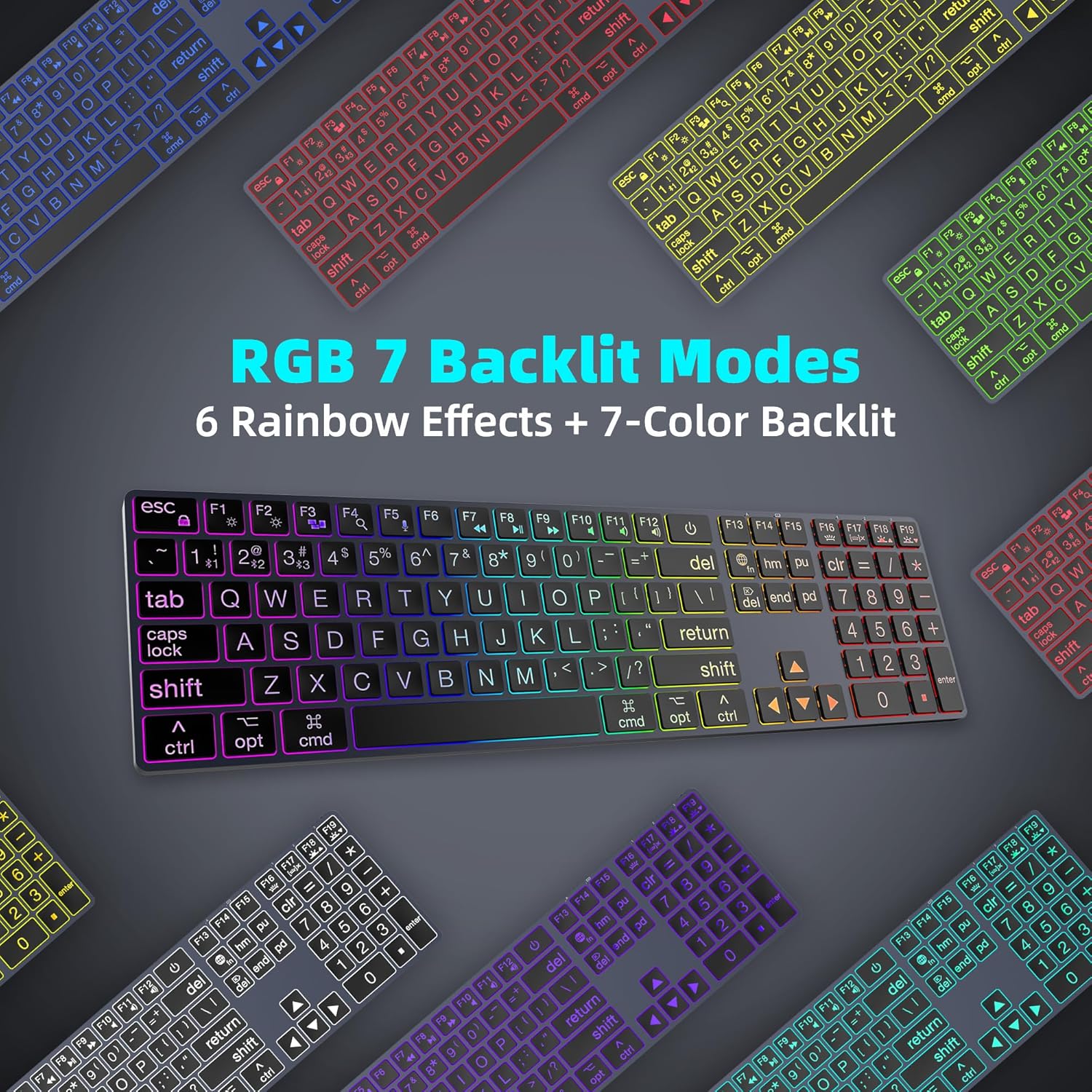
Figure 6: RGB Backlight Modes

Figure 7: Backlight Function Keys
The backlight has a power-off memory function, retaining your last setting.
2. Multimedia Keys and Function Keys
The keyboard includes 12 multimedia keys (F1-F12) for quick access to various functions. These keys are designed for Mac OS systems but may have varying functionality on other operating systems.
- F1: Brightness Decrease
- F2: Brightness Increase
- F3: Mission Control
- F4: Search
- F5: Dictation
- F6: Fn Lock
- F7: Previous Track
- F8: Play/Pause
- F9: Next Track
- F10: Mute
- F11: Volume Decrease
- F12: Volume Increase
To use these functions, simply press the corresponding F key. Some functions may require pressing the Fn key simultaneously depending on your system settings.

Figure 8: Mac Function Keys Overview
3. Power Management
The keyboard features a dedicated power button and automatic power-saving features.
- Power Button (located above F12):
- Short press: Enters sleep mode.
- Long press: Shuts down or restarts the computer (functionality may vary by OS).
- Automatic Sleep Mode: The keyboard will enter sleep mode after 10 minutes of inactivity to conserve battery. Press any key to wake it up.
Maintenance
Proper maintenance ensures the longevity and optimal performance of your keyboard.
- Cleaning:
Gently wipe the keyboard surface with a soft, damp, lint-free cloth. Avoid using harsh chemicals, abrasive cleaners, or excessive moisture. For cleaning between keys, use compressed air or a soft brush.
- Battery Care:
To maximize battery life, avoid fully discharging the battery frequently. Charge the keyboard regularly, especially if it will be stored for an extended period. Store in a cool, dry place.
- Storage:
When not in use for a long time, turn off the keyboard to save battery. Store it away from extreme temperatures, direct sunlight, and high humidity.
Troubleshooting
If you encounter issues with your keyboard, please refer to the following common problems and solutions:
| Problem | Possible Cause | Solution |
|---|---|---|
| Keyboard not connecting via Bluetooth. | Low battery, not in pairing mode, device Bluetooth off, interference. | Charge the keyboard. Ensure keyboard is in pairing mode (Fn + F1/F2/F3/F4 long press). Turn Bluetooth on your device. Move closer to the device. Remove previous pairings and re-pair. |
| Keys not responding. | Keyboard off, low battery, connection issue. | Turn on the keyboard. Charge the keyboard. Reconnect via Bluetooth or wired connection. |
| Backlight not working or dim. | Backlight off, brightness set too low, low battery. | Press F17 to turn on/off backlight. Press F18 to increase brightness. Charge the keyboard. |
| Lag or delayed input. | Bluetooth interference, distance from device, multiple devices connected. | Reduce distance to device. Minimize other Bluetooth devices. Ensure strong signal. |
Specifications
| Feature | Detail |
|---|---|
| Model Number | K2BW - Space Gray |
| Dimensions | 16.9 x 4.6 x 0.5 inches |
| Weight | 1.25 pounds |
| Connectivity | Bluetooth 5.0, USB-C Wired |
| Battery | 1 Lithium Ion (included) |
| Number of Keys | 104 |
| Backlight | RGB (7 colors, 6 modes, 8 brightness levels) |
| Key Type | Membrane (Scissor Switch Structure) |
| Compatibility | Mac OS (Macbook, Mac Mini, Mac Pro, iMac, iPad, iPhone), PC (Windows functionality may vary) |
| Country of Origin | China |
Warranty and Support
Warranty Information
B.FRIENDIT products are manufactured with high-quality standards. For specific warranty details regarding your Large Print Backlit Bluetooth Keyboard, please refer to the warranty card included with your purchase or visit the official B.FRIENDIT website. Keep your purchase receipt as proof of purchase for warranty claims.
Customer Support
If you require further assistance or have questions not covered in this manual, please contact B.FRIENDIT customer support through their official website or the contact information provided on your product packaging. When contacting support, please have your product model number (K2BW - Space Gray) and purchase details ready.
You can also visit the B.FRIENDIT Store on Amazon for more product information and updates.
Ask a question about this manual
Ask about setup, troubleshooting, compatibility, parts, safety, or missing instructions. Manuals+ will review the question and use this page’s manual context to help answer it.