Thank you for choosing the POWZAN RF425S Backlit Wireless Keyboard and Mouse Combo. This manual provides detailed instructions for setting up, operating, and maintaining your new wireless peripheral set. Please read this manual thoroughly before use to ensure optimal performance and longevity of your product.
Image: The POWZAN RF425S Backlit Wireless Keyboard and Mouse Combo, showcasing the full-size keyboard with illuminated keys and the ergonomic mouse, along with the USB receiver.
Package Contents
Please check the package contents upon opening to ensure all items are present:
1 x POWZAN RF425S Backlit Wireless Keyboard
1 x POWZAN Wireless Mouse
1 x USB Receiver (stored in the mouse battery compartment)
1 x USB-C Charging Cable
1 x User Manual (this document)
Setup Guide
Follow these simple steps to set up your POWZAN wireless keyboard and mouse combo:
Locate the USB Receiver: The 2.4G USB receiver is typically stored in the battery compartment of the wireless mouse for safe keeping during transit. Open the mouse battery cover to retrieve it.
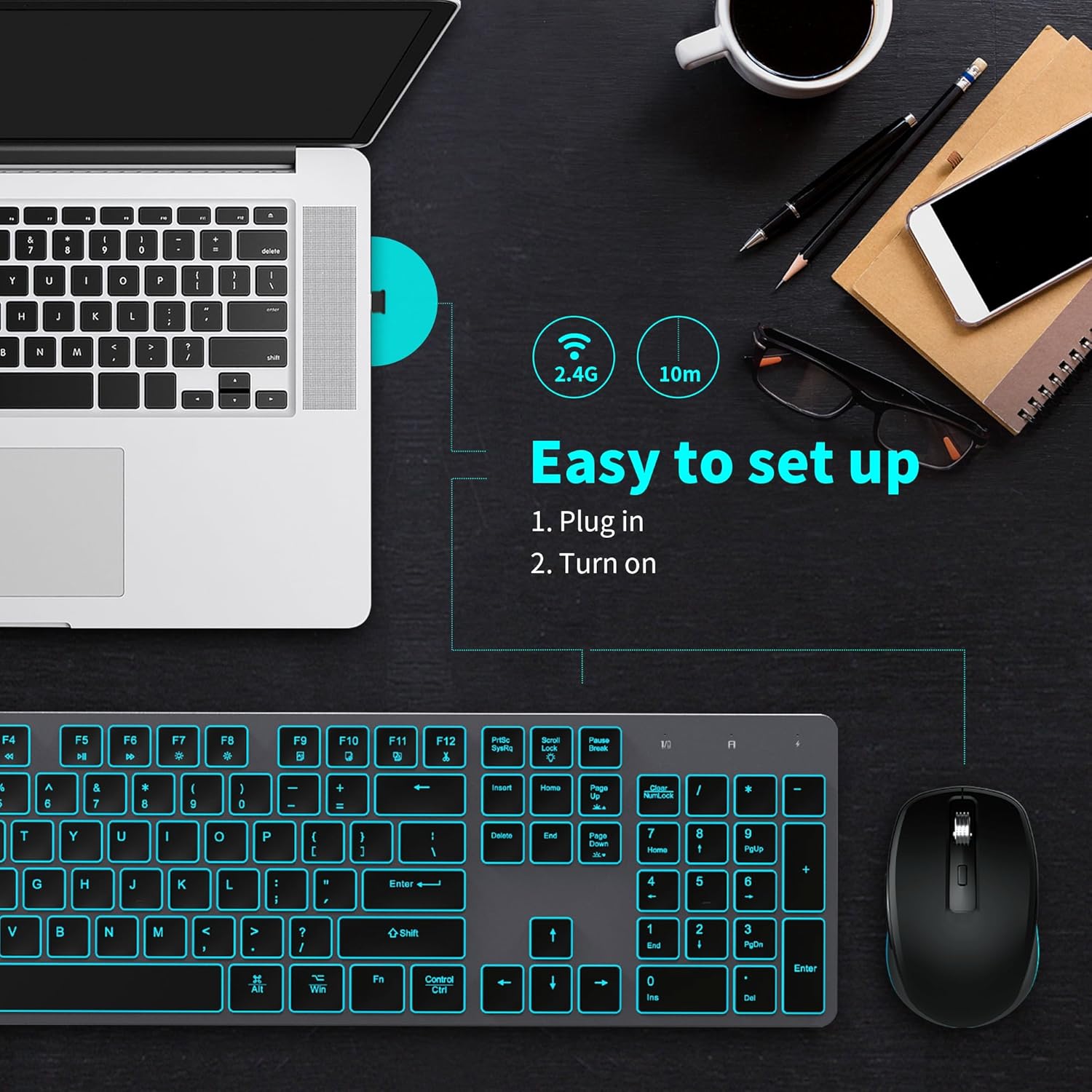
Plug in the Receiver: Insert the USB receiver into an available USB port on your computer (desktop, laptop, or Mac).
Power On the Devices:
For the keyboard: Locate the power switch on the top edge of the keyboard and slide it to the "ON" position.
For the mouse: Locate the power switch on the bottom of the mouse and slide it to the "ON" position.
Automatic Connection: The keyboard and mouse are designed for plug-and-play functionality. They should automatically connect to your computer within a few seconds. No additional drivers are typically required.
System Compatibility: The keyboard will automatically switch to Mac or Windows mode based on your connected device.
Image: Diagram illustrating the simple two-step setup process: 1. Plug in the USB receiver. 2. Turn on the keyboard and mouse. Shows the keyboard and mouse connected to a laptop via the 2.4G wireless receiver.
Operating Instructions
Keyboard Backlight Control
The keyboard features a splendid 7-color LED backlight with adjustable brightness levels for comfortable typing in various lighting conditions.
Switch Backlight Color: Press Fn + Scroll Lock to cycle through the 7 available backlight colors.
Adjust Backlight Brightness: Press Fn + Page Up to increase brightness and Fn + Page Down to decrease brightness. There are 3 levels of brightness.
Image: Close-up of the keyboard keys highlighting the "7 Colors LED Backlit" feature and showing the key combinations for switching backlight color (Fn + Scroll Lock) and adjusting brightness (Fn + Page Up/Page Down).
Video: This video demonstrates the features of the POWZAN Wireless Keyboard and Mouse, including the backlight functionality, typing experience, and mouse usage. It shows how to adjust the backlight colors and brightness.
Mouse Jiggler Function
The mouse includes a convenient jiggler function to keep your PC active, preventing it from going to sleep or showing you as inactive during breaks or downloads.
Activate Jiggler Mode: Hold the DPI button on the mouse for 3 seconds. The cursor will begin to move randomly on its own.
Deactivate Jiggler Mode: Hold the DPI button for another 3 seconds to turn off the jiggler function.
Image: Visual representation of the mouse jiggler function, showing scenarios where it can be useful, such as reading charts, attending conferences, downloading files, or temporarily stepping away from the PC.
Charging the Devices
Both the keyboard and mouse are rechargeable and come with a built-in battery.
Charging the Keyboard: Connect the provided USB-C charging cable to the charging port on the keyboard (located on the top edge) and plug the other end into a USB power source (e.g., computer USB port, wall adapter). The charging indicator light will show charging status.
Charging the Mouse: Connect the provided USB-C charging cable to the charging port on the mouse and plug the other end into a USB power source. The mouse's scroll wheel light may indicate charging status.
Image: Illustration showing the Type-C charging port on the keyboard and the charging cable connected, indicating the ease of recharging the built-in battery.
Windows/Mac Mode Switching
The keyboard is designed to be compatible with both Mac and Windows operating systems and will automatically adapt to your device.
When connected to a Windows PC, the keyboard operates in Windows mode.
When connected to a Mac, the keyboard automatically switches to Mac mode, adjusting key functions accordingly.
Image: A split image showing a computer monitor displaying both Windows and Mac operating systems, with the keyboard below, illustrating its compatibility with both platforms.
Maintenance
Cleaning
To clean the keyboard and mouse, use a soft, lint-free cloth.
For stubborn dirt, slightly dampen the cloth with water or a mild, non-abrasive cleaning solution.
Avoid using harsh chemicals, solvents, or abrasive materials, as these can damage the surface.
Ensure the devices are powered off and disconnected from any power source before cleaning.
Battery Care
Charge the devices regularly to maintain battery health.
Avoid fully discharging the battery frequently, as this can reduce its lifespan.
If storing the devices for an extended period, charge them to about 50% before storage and recharge every few months.
Do not expose the devices to extreme temperatures (hot or cold), as this can affect battery performance and safety.
Troubleshooting
Problem
Possible Solution
Keyboard/Mouse not responding.
1. Ensure the USB receiver is securely plugged into a working USB port.
2. Check if the keyboard and mouse are powered on.
3. Recharge the keyboard and mouse if their batteries are low.
4. Try plugging the USB receiver into a different USB port.
5. Restart your computer.
Backlight not working or dim.
1. Ensure the keyboard is powered on.
2. Adjust brightness using Fn + Page Up.
3. Recharge the keyboard. Low battery can affect backlight performance.
Mouse cursor moves erratically or not at all.
1. Ensure the mouse is powered on and charged.
2. Check for obstructions on the mouse sensor.
3. Ensure the mouse jiggler function is not accidentally activated (hold DPI button for 3 seconds to toggle).
4. Try using the mouse on a different surface.
Wireless connection is unstable.
1. Ensure the devices are within the 10m effective wireless range.
2. Avoid placing the receiver near strong interference sources (e.g., other wireless devices, large metal objects).
3. Try plugging the USB receiver into a front USB port or a USB hub closer to the devices.
Specifications
Feature
Detail
Product Dimensions
16.93 x 5.28 x 2.17 inches
Item Weight
0.952 ounces
Manufacturer
POWZAN
ASIN
B0CFQHF83D
Country of Origin
China
Batteries
1 Lithium Ion batteries required. (included)
Connectivity Technology
2.4G Wireless (USB Receiver)
Special Feature
Rechargeable, 7-Color LED Backlight, Mouse Jiggler Function, Quiet Scissor-Switch Keys
Compatible Devices
Laptop, Personal Computer (Mac and Windows systems)
Warranty and Support
POWZAN is committed to providing high-quality products and excellent customer service. Your product is backed by a 360-day warranty.
If you encounter any issues or have questions regarding your POWZAN RF425S Backlit Wireless Keyboard and Mouse Combo, please do not hesitate to contact our professional service team. We aim to provide a response within 24 hours.
For support, please refer to the contact information provided with your product packaging or visit the official POWZAN store on Amazon: POWZAN Amazon Store.