
1. Introduction
This manual provides detailed instructions for the installation, operation, and maintenance of your FusyTuly WiFi Tuya IP68 Waterproof RFID Access Control Keypad. This device integrates WiFi connectivity with Tuya app support, RFID card reading (125 kHz and 13.56 MHz), and password entry for secure access management. It is designed for both indoor and outdoor use due to its IP68 waterproof rating.
2. Safety Information
- Ensure the power supply is disconnected before installation or maintenance to prevent electric shock.
- The device operates on 12V DC. Using an incorrect power supply may damage the unit.
- Do not expose the device to extreme physical impact or corrosive substances.
- Installation should be performed by qualified personnel if you are unsure about wiring electrical components.
- Keep RFID key fobs and passwords secure to prevent unauthorized access.
3. Package Contents
Verify that all items are present in the package:
- 1 x FusyTuly WiFi Tuya Access Control Keypad
- 10 x 125 kHz RFID Key Fobs
- Mounting Screws and Wall Plugs
- User Manual (this document)

Image: Included RFID Key Fobs, typically blue, used for access.
4. Product Features
- WiFi Tuya Integration: Manage access, add users, and view records remotely via the Tuya app.
- Dual-Frequency RFID: Supports both 125 kHz (EM compatible) and 13.56 MHz (MF 1K compatible) RFID cards.
- Multiple Identification Methods: RFID card, password, RFID card + password, and Tuya app remote unlock.
- High User Capacity: Supports up to 10,000 users.
- IP68 Waterproof: Suitable for outdoor installation, resistant to rain and storms.
- Touch Screen Keypad: Modern design with blue backlight for visibility in low light.
- Temporary and One-Time Passwords: Generate time-limited or single-use passwords via the app.
- Wiegand Output: WG26/34 signal output for connection to additional card readers.
- Wired Doorbell Support: Connect an external wired doorbell.

Image: Front and back view of the access control keypad with dimensions (140mm H x 70mm W x 16mm D) and icons representing features like Tuya App Unlock, Temporary Password, Records Query, RFID Card, Password, Touch Screen, Waterproof, 1000 Users (note: product description states 10,000 users), Backlight Keypad, and Door Bell.

Image: The access control keypad mounted on an exterior wall during rain, demonstrating its IP68 waterproof rating and suitability for outdoor installation. It also shows temperature resistance from -30 to 70 degrees Celsius.
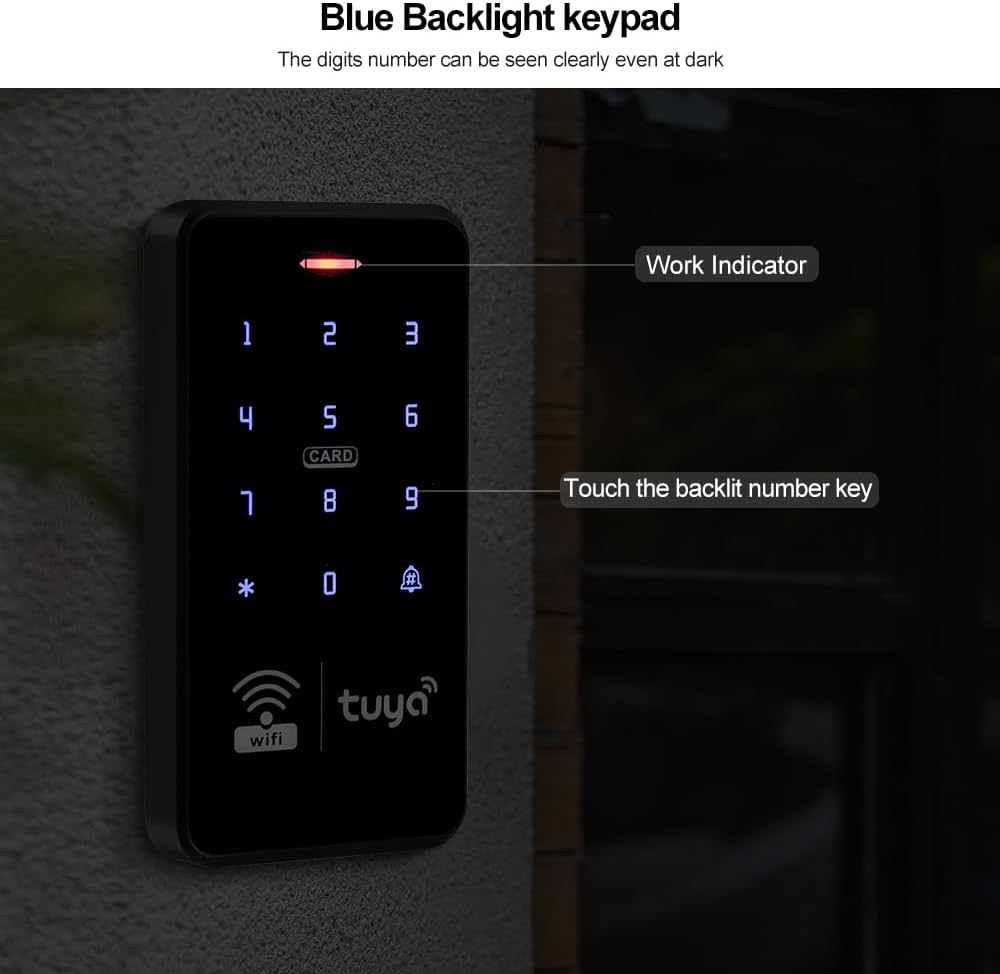
Image: Close-up of the keypad showing the blue backlight illuminating the numbers, ensuring visibility in dark conditions. A red work indicator light is also visible at the top.
5. Specifications
| User Capacity | 10,000 users |
| Material | High-quality ABS Plastic |
| Panel | Touch Screen |
| Operating Frequency | 125 kHz & 13.56 MHz |
| Card Reading Type | EM and MF 1K compatible |
| Card Reading Distance | 0-5 cm |
| Identification Methods | RFID Card, Password, RFID Card + Password, Tuya App Remote Unlock |
| Backlight | Blue Backlight |
| Waterproof Rating | IP68 |
| Wiegand Signal | WG26/34 Output |
| Operating Voltage | 12V DC |
| Operating Current | ≤ 3 A |
| Door Opening Time | 0-99 seconds (adjustable) |
| Operating Temperature | -20 °C to 70 °C |
| Operating Humidity | 10% ~ 90% |
| Product Dimensions (L x W x H) | 140 x 70 x 16 mm |
6. Setup
6.1 Physical Installation
- Choose a suitable mounting location, ensuring it is flat and stable. For outdoor installations, consider a location with minimal direct exposure to harsh weather, despite the IP68 rating.
- Use the provided screws and wall plugs to securely mount the keypad to the wall.
6.2 Wiring Diagram
The keypad requires a 12V DC power supply and can be connected to various access control components such as electric locks (magnetic locks, electric bolts), exit buttons, and wired doorbells. Refer to the internal component diagram and wiring examples below.

Image: An exploded view of the access control keypad showing its internal components, including the high-quality relay, power cable socket, full PC glue for waterproofing, Tuya APP module, and speaker. Key wiring points are indicated.

Image: A wiring diagram illustrating the connection of the access controller to a power supply, a 180KG magnetic lock, and an exit button. The Tuya WiFi logo indicates app connectivity.
General Wiring Guidelines:
- Connect the 12V DC power supply to the designated power input terminals on the keypad.
- For electric locks, connect the lock's power wires to the NO (Normally Open) or NC (Normally Closed) terminals and the COM (Common) terminal, depending on your lock type and desired operation.
- Connect an exit button to the EXIT and COM terminals.
- For a wired doorbell, connect it to the BELL terminals.
- Ensure all connections are secure and insulated.
6.3 Tuya App Setup
- Download the "Tuya Smart" or "Smart Life" app from your smartphone's app store (iOS or Android).
- Register or log in to your Tuya account.
- Power on the access control keypad. The WiFi indicator on the keypad should blink, indicating it's in pairing mode. If not, refer to the keypad's specific instructions to enter pairing mode (usually by holding a specific key or sequence).
- In the Tuya app, tap the "+" icon to add a device. Select "Security & Video Surveillance" > "Access Control" or search for the device type.
- Follow the on-screen instructions in the app to connect the keypad to your home WiFi network. This typically involves entering your WiFi password.
- Once connected, the WiFi indicator on the keypad will become solid. You can now control and manage the keypad via the Tuya app.

Image: A smartphone displaying the Tuya app interface for remote unlocking, positioned next to the access control keypad. This illustrates the remote access capability via WiFi.
7. Operating Instructions
7.1 Adding Users (RFID Cards & Passwords)
Users can be added via the Tuya app or directly on the keypad.
Via Tuya App:
- Open the Tuya app and select your access control keypad.
- Navigate to the "Member Management" or "User" section.
- To add an RFID card: Select "Add Card" and follow the prompts to present the RFID card to the keypad's card reading area.
- To add a password: Select "Add Code" and enter the desired password. You can also generate random passwords.
- Assign user names and set access permissions or validity periods as needed.
Via Keypad (Master Code required):
Consult your specific keypad model's programming guide for detailed steps on adding users directly. Typically, this involves entering a master code, followed by a command to add a user, then presenting the card or entering the new password.

Image: A series of Tuya app screenshots demonstrating various functions, including access control status, member management, temporary code creation, viewing unlock logs, adding members, and instructions for adding cards and codes.
7.2 Unlocking Methods
- RFID Card: Present a registered RFID card to the "CARD" area on the keypad. The door will unlock if the card is valid.
- Password: Enter your registered password on the touch keypad, then press the '#' key (or designated confirmation key). The door will unlock if the password is correct.
- RFID Card + Password: Present your RFID card, then enter your password and press '#'. This provides an additional layer of security.
- Tuya App Remote Unlock: Open the Tuya app, select your keypad, and tap the unlock button. The door will unlock remotely.

Image: A collage demonstrating various ways to unlock the door: via the Tuya app on a smartphone, by presenting an RFID card to the keypad, by entering a password on the keypad, and by combining an RFID card with a password.
7.3 Temporary and One-Time Passwords
The Tuya app allows for the creation of temporary and one-time passwords:
- Periodic Passwords: Set a password that is valid for a specific duration (e.g., for guests or service personnel).
- One-Time Passwords: Generate a password that expires after a single use within a 6-hour window.
- These passwords can be shared via WeChat, email, or SMS directly from the app.

Image: A user interacting with the Tuya app on a smartphone to generate a temporary password, which is then entered on the access control keypad. The image also shows options for sharing the password via email or other messaging services.
7.4 Viewing Unlock Records
The Tuya app provides a log of all unlock events, including the method used (card, password, app) and the time. Access this feature through the app's main interface for the keypad.
8. Maintenance
- Cleaning: Wipe the keypad surface with a soft, damp cloth. Avoid abrasive cleaners or solvents that could damage the touch panel.
- Firmware Updates: Periodically check the Tuya app for available firmware updates for your device to ensure optimal performance and security.
- Power Supply: Ensure a stable 12V DC power supply. Fluctuations can affect device operation.
- Backup Access: Always have a backup method of entry in case of power failure or device malfunction.
9. Troubleshooting
- Keypad not responding: Check the 12V DC power supply connection. Ensure the power is on.
- RFID card not working: Ensure the card is registered in the system. Try presenting the card directly to the "CARD" area. Verify the card frequency (125 kHz or 13.56 MHz) matches the keypad's capabilities.
- Password not working: Double-check the entered password. Ensure the password is active and not expired (for temporary passwords).
- Cannot connect to Tuya App: Ensure your WiFi network is 2.4GHz (5GHz is often not supported by smart home devices). Check your WiFi signal strength at the keypad's location. Restart the keypad and try the pairing process again.
- Door does not unlock: Check the wiring to the electric lock. Ensure the lock is receiving power and the correct signal from the keypad. Verify the door opening time setting (0-99 seconds).
- Keypad backlight not working: Check settings in the Tuya app or keypad programming for backlight control.
10. Warranty and Support
FusyTuly provides a 2-Year Quality Guarantee for this product. In case of any issues, please contact our professional after-sales team.
- Returns Policy: 30-Day Free Returns Policy.
- After-Sales Email: service@acyitoo.com
- Our support team is available 24/7 to assist you.

Image: Graphic detailing FusyTuly's after-sales warranty, including 24/7 professional support, a 30-day free returns policy, and a 2-year quality guarantee, along with the support email address.