
PowerColor RX7800XT 16G-E/OC
PowerColor Red Devil AMD Radeon RX 7800 XT Graphics Card User Manual
Model: RX7800XT 16G-E/OC | Brand: PowerColor
Introduction
This manual provides essential information for the installation, operation, and maintenance of your PowerColor Red Devil AMD Radeon RX 7800 XT 16GB GDDR6 Graphics Card. Please read this manual thoroughly before proceeding with installation to ensure optimal performance and longevity of your product.
Key Features
- Video Memory: 16GB GDDR6 for high-resolution gaming and demanding applications.
- Stream Processor: 3840 Units for powerful parallel processing.
- Game Clock: 2255 MHz (OC) / 2210 MHz (Silent) for balanced performance.
- Boost Clock: 2565 MHz (OC) / 2520 MHz (Silent) for peak performance when needed.
- Memory Clock: 19.5 Gbps for rapid data access.
- Dual BIOS: Toggle between OC (Overclocking) and Silent modes for flexible performance and acoustics.
- Advanced Cooling: Features a robust cooling solution with multiple fans and heatpipes to maintain optimal temperatures.
- Personalized ARGB Lighting: Customizable RGB lighting effects to match your system's aesthetic.
What's in the Box
The PowerColor Red Devil AMD Radeon RX 7800 XT package includes the following items:
- PowerColor Red Devil AMD Radeon RX 7800 XT Graphics Card
- User Manual / Quick Installation Guide
- Red Devil Metal Badge / Sticker
- PowerColor Branded USB Drive (or similar accessory)
- GPU Support Bracket Components
- ARGB Sync Cable
Video: This official product demonstration video showcases the unboxing of the PowerColor Red Devil AMD Radeon RX 7800 XT, detailing all included accessories and the graphics card itself.
Setup & Installation
Before installing your new graphics card, ensure your system is powered off and unplugged from the wall outlet. It is recommended to wear an anti-static wrist strap to prevent electrostatic discharge (ESD) damage.
- Prepare Your System: Open your computer case and locate an available PCI Express x16 slot on your motherboard.
- Remove Old Graphics Card (if applicable): Unscrew any retaining screws and unclip the old card from the PCIe slot. Gently pull the card straight out.
- Install New Graphics Card: Align the PowerColor Red Devil RX 7800 XT with the PCIe x16 slot. Press down firmly and evenly until the card is fully seated and the retaining clip locks into place. Secure the card with screws to the case.
- Connect Power Cables: This graphics card requires two 8-pin PCIe power connectors. Connect these cables from your power supply unit (PSU) to the corresponding ports on the top edge of the graphics card. Ensure a secure connection.
- Connect Display Cables: Connect your monitor(s) to the DisplayPort or HDMI outputs on the graphics card.
- Close Case and Power On: Close your computer case, plug in the power cord, and power on your system.

Image: Side view of the PowerColor Red Devil RX 7800 XT, highlighting the dual 8-pin power connectors required for operation.
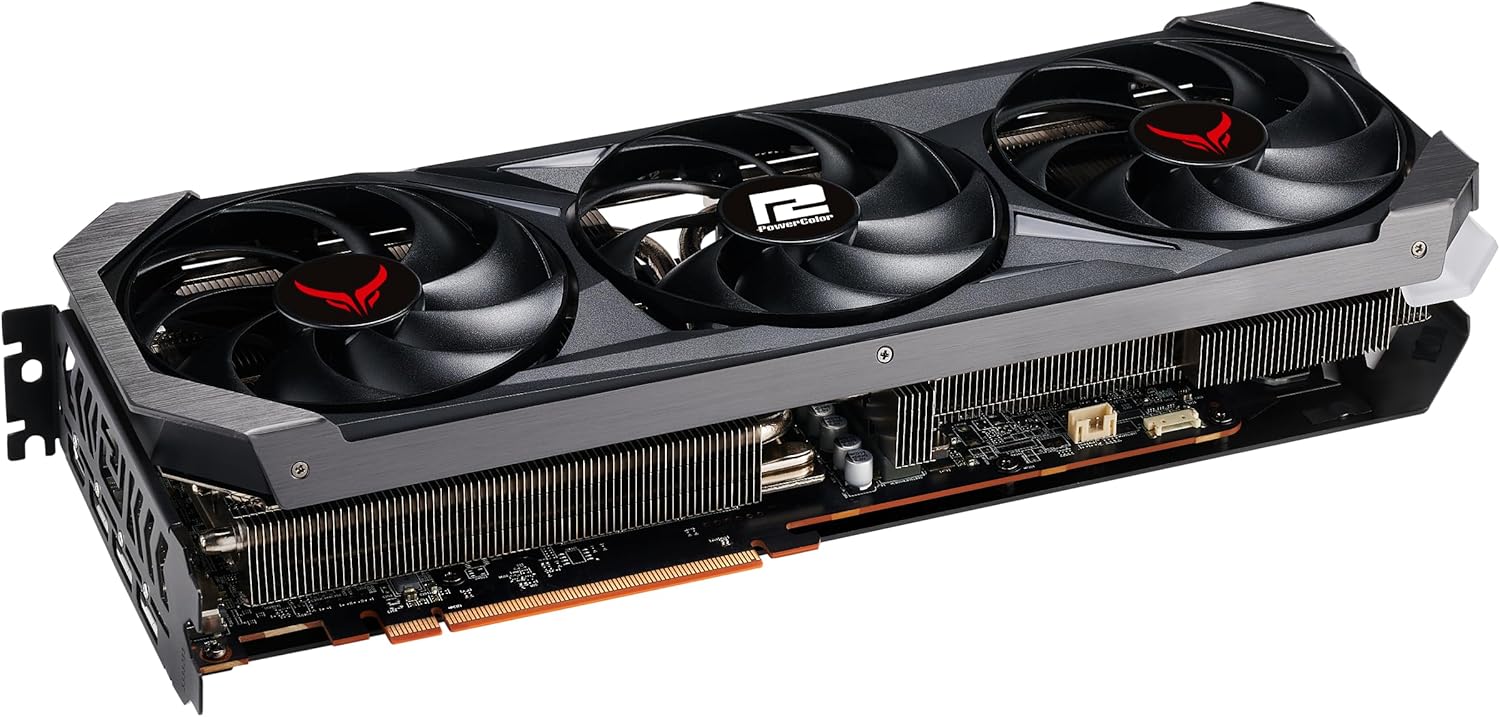
Image: Rear view of the PowerColor Red Devil RX 7800 XT, showing the various display output ports (DisplayPort and HDMI).
For detailed installation instructions, please refer to the official Installation Manual (PDF) provided by PowerColor.
Operating Instructions
- Driver Installation: After physical installation, boot into your operating system. Download and install the latest AMD Radeon drivers from the official AMD website. This is crucial for optimal performance and stability.
- AMD Adrenalin Software: The AMD Adrenalin Software suite provides a comprehensive interface for managing your graphics card settings, including game optimization, performance monitoring, and fan control. Install this software after driver installation.
- Dual BIOS Switch: Your graphics card features a Dual BIOS switch, typically located near the PCIe power connectors.
- OC Mode (Overclocking): Provides higher clock speeds for maximum performance.
- Silent Mode: Prioritizes quieter operation by reducing fan speeds and slightly lower clock speeds.
Switching between modes requires a system restart to take effect. Ensure the system is powered off before changing the BIOS switch position.
- ARGB Lighting Control: Utilize compatible motherboard software or PowerColor's dedicated software (if available) to customize the Addressable RGB (ARGB) lighting effects on your graphics card. Connect the included ARGB sync cable to your motherboard's ARGB header.
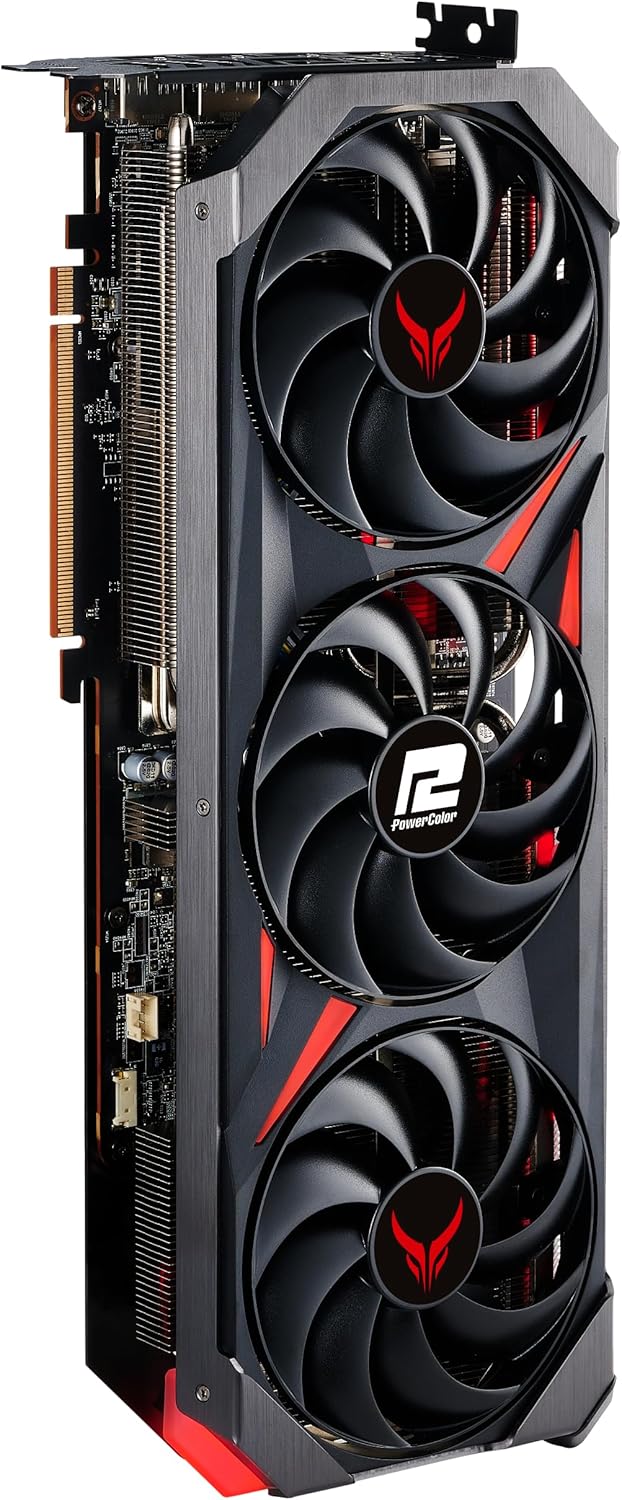
Image: The PowerColor Red Devil RX 7800 XT graphics card shown installed within a computer case, demonstrating its physical presence and lighting capabilities.

Image: A diagram illustrating the location and function of the Dual BIOS switch on the graphics card, allowing users to select between OC and Silent modes.
Maintenance
Regular maintenance helps ensure the longevity and optimal performance of your graphics card.
- Keep Drivers Updated: Periodically check the official AMD website for the latest graphics drivers. Updated drivers often include performance improvements, bug fixes, and compatibility enhancements.
- Clean Fans and Heatsink: Over time, dust can accumulate on the fans and heatsink, impeding airflow and increasing temperatures.
- Power off your system and unplug it.
- Carefully open your computer case.
- Use compressed air to gently blow dust out of the fan blades and heatsink fins. Hold the fan blades in place to prevent over-spinning.
- Perform this cleaning every 3-6 months, or more frequently in dusty environments.
- Monitor Temperatures: Use monitoring software (e.g., AMD Adrenalin Software) to keep an eye on your GPU temperatures during heavy loads. Excessive temperatures can indicate insufficient cooling or dust buildup.

Image: A view of the graphics card's backplate and cooling fins, illustrating the areas where dust can accumulate and require cleaning.
Troubleshooting
If you encounter issues with your graphics card, consider the following common troubleshooting steps:
- No Display Output:
- Ensure all power cables (PCIe and monitor) are securely connected.
- Verify the graphics card is fully seated in the PCIe slot.
- Try a different display cable or monitor.
- Check if your monitor is set to the correct input source.
- Performance Issues / Low FPS:
- Ensure you have the latest graphics drivers installed.
- Check GPU temperatures; overheating can lead to performance throttling.
- Verify your system meets the game's minimum requirements.
- Adjust in-game graphics settings to a lower preset.
- Confirm the Dual BIOS switch is in the desired mode (OC for performance).
- Fan Noise / Overheating:
- Clean dust from fans and heatsink as described in the Maintenance section.
- Ensure adequate airflow within your PC case.
- Consider switching to Silent BIOS mode if noise is a primary concern.
- System Instability / Crashes:
- Reinstall graphics drivers using a clean installation method (e.g., DDU).
- Ensure your power supply unit (PSU) has sufficient wattage for your system, especially the graphics card.
- Check for any conflicting software or background applications.
If these steps do not resolve your issue, please contact PowerColor customer support or consult their official website for further assistance.
Specifications
| Feature | Detail |
|---|---|
| Brand | PowerColor |
| Series | 7800 XT Red Devil |
| Model Number | RX7800XT 16G-E/OC |
| Graphics Coprocessor | AMD Radeon RX 7800 XT |
| Chipset Brand | AMD |
| Video Memory | 16 GB GDDR6 |
| Memory Speed | 1.95 GHz (19.5 Gbps effective) |
| GPU Clock Speed (Game) | 2255 MHz (OC) / 2210 MHz (Silent) |
| GPU Clock Speed (Boost) | 2565 MHz (OC) / 2520 MHz (Silent) |
| Stream Processors | 3840 Units |
| Video Output Interface | DisplayPort, HDMI |
| Item Weight | 3.3 pounds |
| Product Dimensions (LxWxH) | 13.58 x 5.95 x 0.1 inches |
Warranty and Support
PowerColor products are backed by a manufacturer's warranty. For specific warranty terms and conditions, please refer to the warranty information included with your product or visit the official PowerColor website. For technical support, driver downloads, and frequently asked questions, please visit the PowerColor Store on Amazon or their official support portal.
Ask a question about this manual
Ask about setup, troubleshooting, compatibility, parts, safety, or missing instructions. Manuals+ will review the question and use this page’s manual context to help answer it.