1. Product Overview
This document provides instructions for the Generic replacement remote control designed for use with specific projector models. This remote functions as an infrared (IR) controller, enabling basic operation of compatible devices.
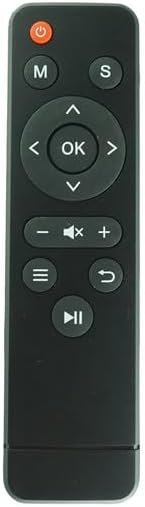
Image 1.1: Front view of the remote control. This image displays the layout of all primary control buttons.
2. Compatibility Information
This remote control is specifically designed as a replacement for the following projector models:
- Wimius S6 5G Wi-Fi Mini LED Portable DLP Android Projector
- Forever MLP-100 V1 5G Wi-Fi Mini LED Portable DLP Android Projector
Important: Ensure your projector's model number precisely matches those listed above. This replacement remote may not function correctly with other models, even if they appear similar.
3. Setup: Battery Installation
The remote control requires two (2) AAA batteries for operation. Batteries are not included with the remote and must be purchased separately.
- Locate the battery compartment cover on the back of the remote control.
- Gently slide the cover downwards or press the latch (if present) to open the compartment.
- Insert two AAA batteries, ensuring the positive (+) and negative (-) terminals align correctly with the markings inside the compartment. Incorrect insertion can prevent the remote from functioning.
- Slide the battery compartment cover back into place until it clicks securely.

Image 3.1: Back view of the remote control, highlighting the battery compartment.
4. Operating Instructions
Point the remote control directly at the projector's IR receiver for optimal performance. Obstructions between the remote and the projector may interfere with signal transmission.
Button Functions:
- Power Button (Red circle with line): Turns the projector on or off.
- M Button: Typically accesses the main menu or mode selection.
- S Button: Often used for source input selection or settings menu.
- Directional Pad (Up, Down, Left, Right arrows): Navigates through menus and options.
- OK Button (Center of directional pad): Confirms selections or enters sub-menus.
- Volume Buttons (− ☒ +): Adjusts the audio volume. The crossed-out speaker icon typically mutes/unmutes sound.
- Menu/List Button (Three horizontal lines): Opens a context-sensitive menu or displays a list.
- Back/Return Button (Curved arrow): Returns to the previous screen or menu.
- Play/Pause Button (Triangle with two vertical lines): Controls media playback (play/pause).
5. Product Specifications
| Feature | Detail |
|---|---|
| Brand | Generic |
| Connectivity Technology | Infrared (IR) |
| Controller Type | Button Control |
| Power Source | 2 x AAA Batteries (not included) |
| Special Feature | Replacement compatible with listed models |
6. Troubleshooting Guide
- Remote not responding:
- Ensure fresh AAA batteries are correctly installed.
- Verify there are no obstructions between the remote and the projector's IR receiver.
- Confirm that your projector model is one of the compatible models listed in Section 2.
- Limited range or intermittent response:
- Replace the batteries with new ones.
- Ensure you are within a reasonable distance and have a clear line of sight to the projector.
7. Important Notes
- This is a replacement remote control and may not offer all the advanced functionalities or exact button layouts of an original equipment manufacturer (OEM) remote.
- Functionality is dependent on the projector's IR receiver and its compatibility with standard IR signals.
- No additional instructions beyond this manual are provided with the product.