
1. Introduction
This manual provides detailed instructions for the installation, operation, and maintenance of your Real HD A-Series 16 Channel PoE IP Camera System. This system includes the ARN-1610S 4K H.265 NVR and 12 ANV-L7012R 4MP IP Dome Weatherproof Cameras. Please read this manual thoroughly before using the product to ensure proper setup and functionality.
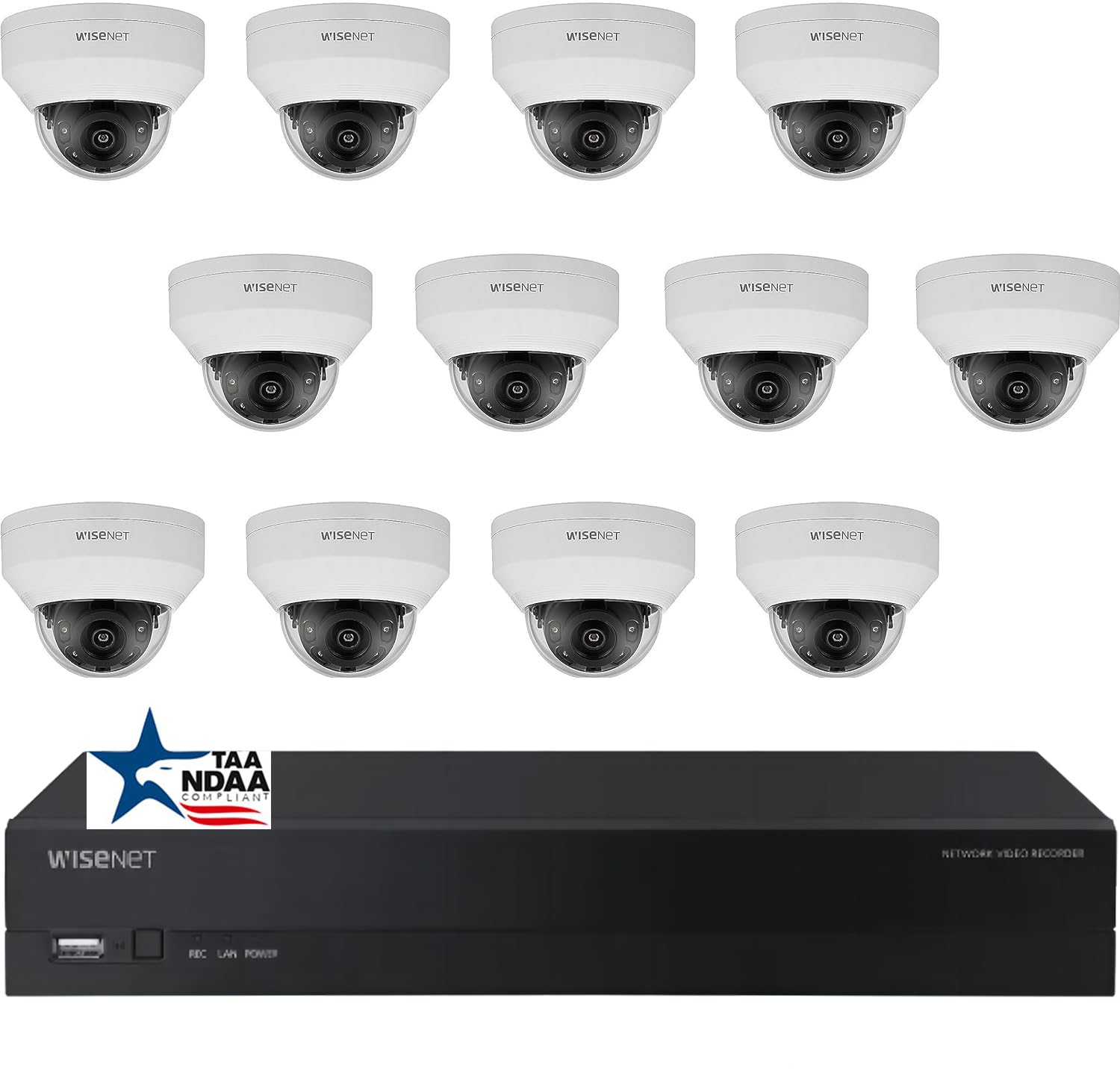
Image: Overview of the Real HD A-Series 16 Channel PoE IP Camera System, showing the NVR and dome cameras.
2. Safety Information
Always follow basic safety precautions when using this product to reduce the risk of fire, electric shock, and injury to persons. Keep this manual for future reference.
- Use only the power adapter specified for this device.
- Do not expose the NVR to rain or moisture.
- Ensure proper ventilation for the NVR to prevent overheating.
- Do not attempt to disassemble or modify the product.
- Installation should be performed by qualified personnel if you are unsure about any steps.
3. Package Contents
Verify that all items listed below are included in your package. If any items are missing or damaged, contact your retailer.
- 1 x ARN-1610S 16 Channel PoE NVR with 4TB HDD
- 12 x ANV-L7012R 4MP IP Dome Weatherproof Cameras
- Power Adapter for NVR
- USB Mouse
- Quick Start Guide
- Mounting Screws and Plugs for Cameras
Note: Ethernet cables for connecting cameras to the NVR are not included and must be purchased separately.
4. Setup
4.1 NVR Overview

Image: Front view of the ARN-1610S NVR, showing LED indicators and USB ports.

Image: Rear view of the ARN-1610S NVR, displaying PoE ports, VGA, HDMI, LAN, and power input.
4.2 Camera Overview

Image: Front view of the ANV-L7012R 4MP IP Dome Camera.
4.3 System Connection
Follow these steps to connect your NVR and cameras:
- Connect Monitor/TV: Connect a monitor or TV to the NVR's HDMI or VGA port. For optimal performance, a 1080P monitor/TV is recommended.
- Connect Mouse: Plug the included USB mouse into one of the NVR's USB ports.
- Connect Cameras: Connect the IP cameras to the NVR's PoE ports using Ethernet cables. The NVR provides power and data through these ports.
- Connect Router (Optional for Remote Access): Connect the NVR's LAN port to your network router using an Ethernet cable for remote viewing capabilities.
- Connect Power: Plug the NVR's power adapter into the NVR and then into a power outlet.

Image: Connection diagram illustrating how to connect the NVR to a monitor, mouse, cameras, router, and power source.
4.4 Mobile App Setup (Wisenet Mobile)
To access your surveillance system remotely, download the Wisenet Mobile app:
- Scan the QR code below with your smartphone or tablet.
- Download and install the Wisenet Mobile app from Google Play Store or Apple App Store.
- Follow the in-app instructions to add your NVR by scanning the QR code displayed on the NVR's monitor interface.

Image: QR codes for downloading the Wisenet Mobile app from Google Play and Apple App Store.
5. Operating Instructions
5.1 NVR Interface Basics
Upon powering on, the NVR will boot up and display the live view from connected cameras. Use the USB mouse to navigate the on-screen menus. Right-click to access the main menu, which includes options for live view, playback, recording settings, system configuration, and more.
5.2 Recording Modes
The NVR supports various recording modes:
- Continuous Recording: Records 24/7.
- Motion Detection Recording: Records only when motion is detected in the camera's view.
- Scheduled Recording: Records during specific times of the day or week.
- Alarm Recording: Records when an alarm event (e.g., sensor trigger) occurs.
Configure these settings in the NVR's menu under Record > Schedule or Event > Motion Detection.
5.3 Advanced Image Features
Your cameras are equipped with advanced image processing features to enhance video quality:
- WDR (Wide Dynamic Range): Balances extremely bright and dark areas in the same scene to provide clear images.
- 3DNR (3D Digital Noise Reduction): Reduces image noise, especially in low-light conditions, for clearer video.
- BLC (Backlight Compensation): Improves the visibility of objects in front of a strong backlight.
- Smart IR: Automatically adjusts the intensity of the infrared LEDs to prevent overexposure of objects close to the camera, ensuring clear night vision.

Image: Visual comparison demonstrating the effects of WDR, 3DNR, and BLC on video quality.

Image: Comparison illustrating the improved clarity and balanced illumination provided by Smart IR compared to ordinary IR night vision.
6. Maintenance
6.1 Cleaning
- Cameras: Periodically clean the camera lens with a soft, damp cloth. Avoid abrasive cleaners.
- NVR: Keep the NVR free from dust. Ensure ventilation openings are not blocked.
6.2 Firmware Updates
Check the manufacturer's website periodically for firmware updates. Firmware updates can improve performance, add new features, or fix bugs. Follow the instructions provided with the firmware update carefully.
6.3 Hard Drive Management
The NVR is equipped with a 4TB surveillance-grade hard drive. The system is configured to overwrite the oldest recordings when the hard drive is full. You can adjust recording retention settings in the NVR menu.
7. Troubleshooting
| Problem | Possible Cause | Solution |
|---|---|---|
| No video display on monitor | Loose cable connection, incorrect input source, NVR not powered on. | Check HDMI/VGA cable, ensure monitor is on correct input, verify NVR power. |
| Camera not showing video | Ethernet cable issue, camera not powered, camera fault. | Check Ethernet cable connection to NVR PoE port, try a different port/cable. |
| Cannot access NVR remotely | NVR not connected to router, network configuration issues, app setup error. | Ensure NVR is connected to router, check network settings on NVR, re-add NVR to mobile app. |
| Poor night vision | Dirty lens, IR obstruction, camera placement. | Clean camera lens, ensure no objects are blocking the IR illuminators, adjust camera angle. |
8. Specifications
ARN-1610S NVR
- Channels: 16 Channel PoE
- Video Compression: H.265
- Video Output: 4K (3840 x 2160 pixels)
- Storage: 4TB Surveillance Hard Drive (Pre-installed)
- USB Ports: 2
- Hardware Interface: Ethernet
- Operating System: Hanwha A Series NVR OS
- Power Source: Corded Electric
- Dimensions: 18 x 20 x 16 inches
ANV-L7012R IP Dome Camera
- Resolution: 4MP (2560 x 1440 pixels)
- Lens: 2.8mm Fixed Lens
- Field of View: 100° Horizontal Field of View (HFoV), 108° Viewing Angle
- Night Vision Range: Up to 65 Feet
- Weatherproof Rating: IP67
- Special Features: Night Vision, Built-in Microphone, WDR, 3DNR, BLC, Smart IR
- Operating Temperature: -30 °C to 60 °C (-22 °F to 140 °F)
- Optical Sensor Technology: CMOS
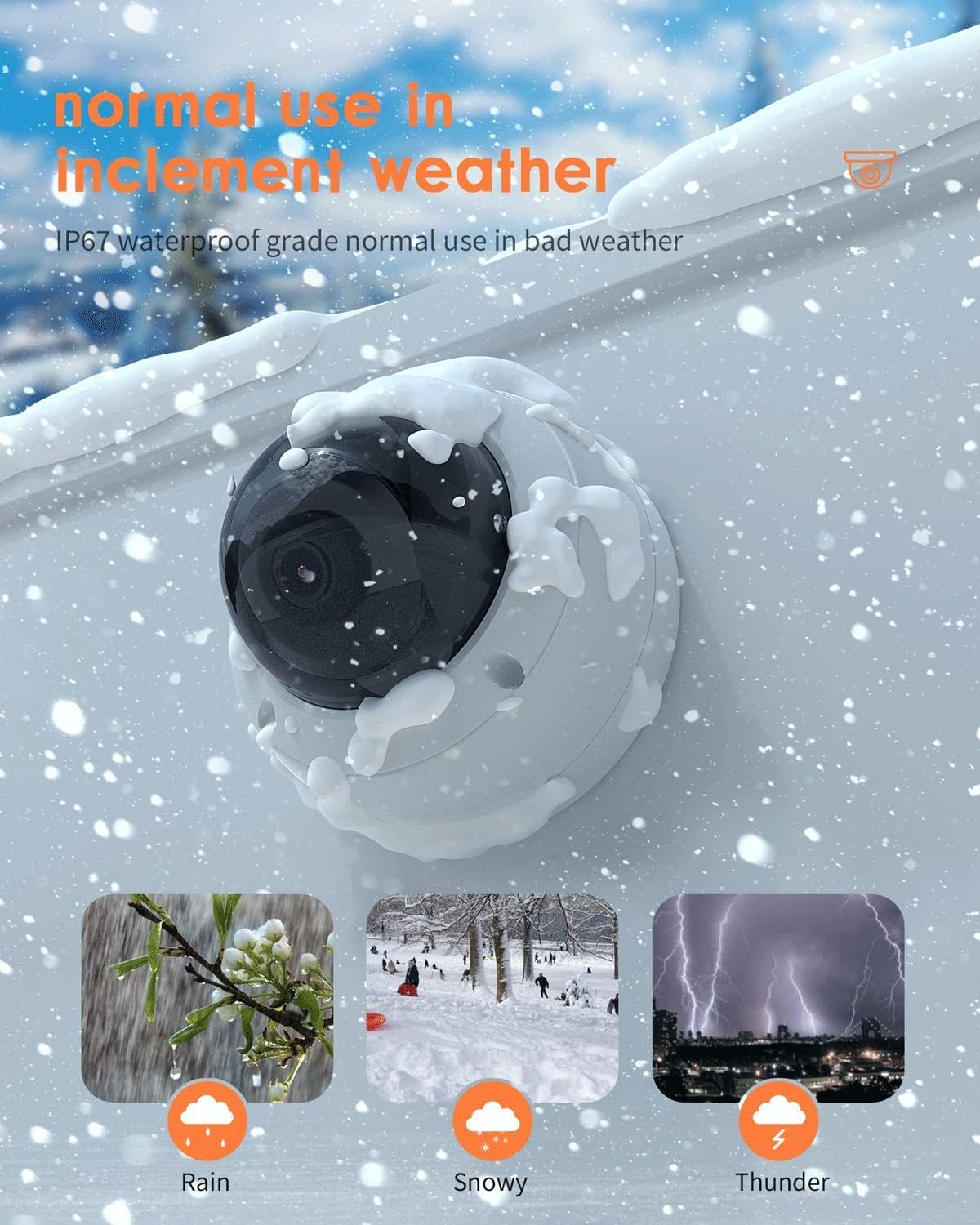
Image: The ANV-L7012R camera demonstrating its IP67 weatherproof capability in various conditions including rain, snow, and thunder.
9. Warranty and Support
9.1 Warranty Information
This product comes with a standard manufacturer's warranty. Please refer to the warranty card included in your package or visit the Real HD official website for detailed warranty terms and conditions. Keep your purchase receipt as proof of purchase for warranty claims.
9.2 Technical Support
If you encounter any issues that cannot be resolved using the troubleshooting guide, please contact Real HD customer support. Contact information can be found on the Real HD website or in your product packaging.

