
Introduction
This manual provides comprehensive instructions for the installation, operation, and maintenance of the 1 one enjoy PC Power Button Extension Cable (Model KG-01-5M). This device offers a convenient and accessible way to power on or off your computer, especially when the PC tower is in a hard-to-reach location, enhancing user convenience and accessibility.
Product Overview
The PC Power Button Extension is designed to simplify the process of turning your computer on and off from a remote location. It features a durable, tactile button with an integrated LED indicator and a generous 5-meter long cable, allowing for flexible placement on your desktop or any convenient surface.

Image: The 1 one enjoy PC Power Button Extension, showcasing the main button unit, the 5-meter coiled cable, and the three distinct motherboard connectors (POWER SW, POWER LED+, POWER LED-).

Image: A detailed view of the PC Power Button Extension, illustrating its compact dimensions (approximately 19mm x 19mm x 29mm for the button unit) and the full 5-meter cable length.
Installation Guide
Before commencing the installation process, it is crucial to ensure your computer is completely powered off and disconnected from the main power supply to prevent any electrical hazards or damage to components.
- Locate the front panel header on your ATX motherboard. If you are unsure of its exact location or pinout, please refer to your motherboard's user manual.
- Identify the following specific pins on the motherboard's front panel header:
- POWER SW (Power Switch)
- POWER LED+ (Power LED Positive)
- POWER LED- (Power LED Negative)

Image: A diagram illustrating a typical motherboard front panel header (often labeled JFP1), clearly showing the pin assignments for POWER SW, POWER LED+, and POWER LED- connections, which are essential for proper installation.
- Connect the corresponding connectors from the PC Power Button Extension cable to the identified pins on your motherboard. Ensure correct polarity for the LED connectors:
- Connect the "POWER SW" connector to the POWER SW pins.
- Connect the "POWER LED+" connector to the POWER LED+ pin.
- Connect the "POWER LED-" connector to the POWER LED- pin.
- Once all cables are securely connected, select a convenient and accessible location for the external power button unit.
- Utilize the pre-applied double-sided adhesive tape located on the bottom of the button unit to firmly secure it to your chosen surface.

Image: The underside of the PC Power Button Extension unit, clearly showing the circular double-sided adhesive pad ready for easy and secure mounting to any flat surface.
- After securing the button, carefully reconnect your computer to the main power supply and power it on.
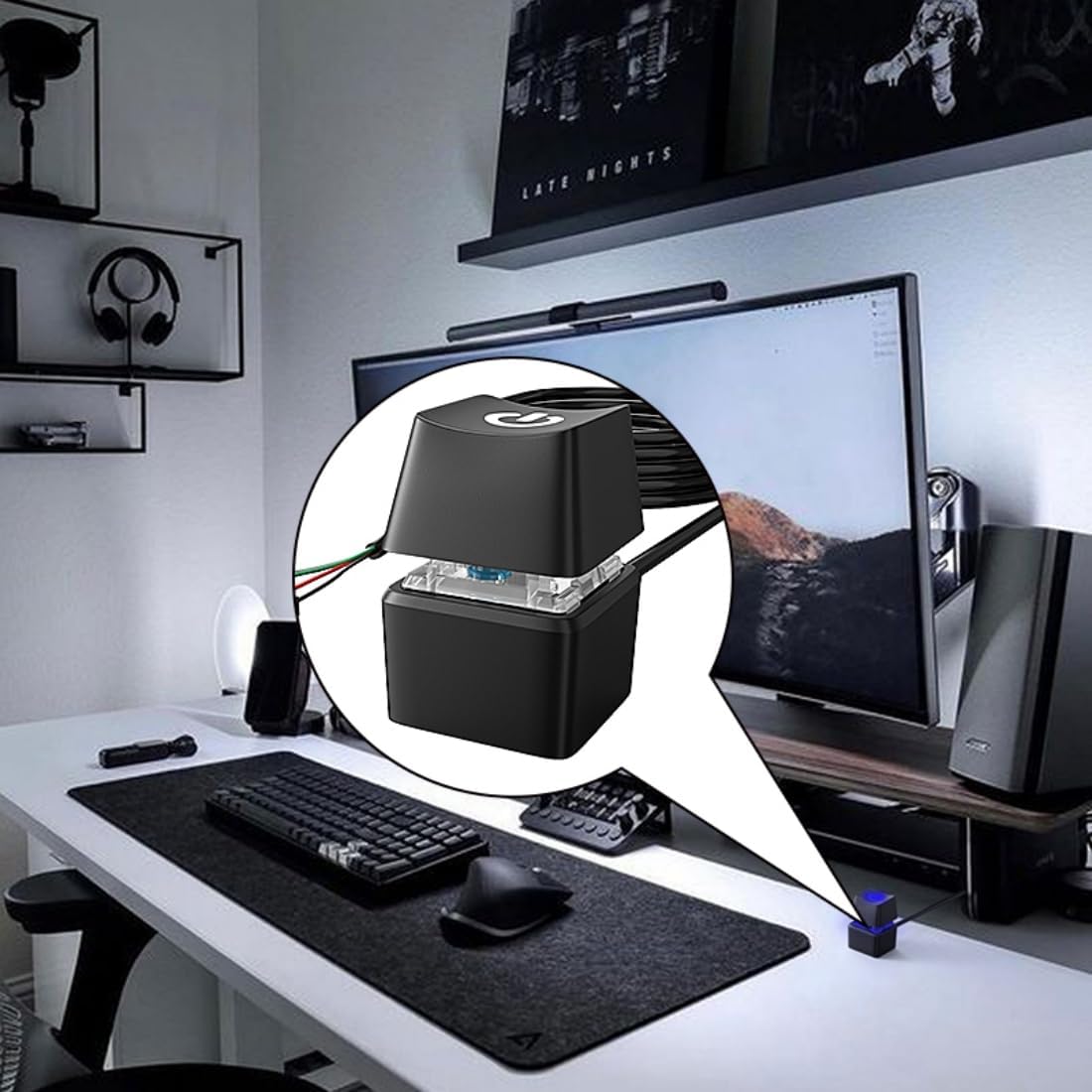
Image: The PC Power Button Extension conveniently placed on a desktop, demonstrating its practical application for easy access to power control in a typical computer workstation environment.
Operating Instructions
The PC Power Button Extension provides a straightforward and direct method for controlling your computer's power state, mirroring the functionality of your computer case's built-in power button.
- To turn on your computer: Press the button once. The built-in LED indicator will illuminate, signifying that the computer is powered on and operating.

Image: An exploded view of the PC Power Button Extension, clearly showing the internal blue LED component that provides visual feedback when the device is active and the computer is powered on.
- To turn off your computer: A quick press of the button will initiate a soft shutdown (similar to pressing the power button on your PC case). To force a hard shutdown, press and hold the button for approximately 4-5 seconds. The LED indicator will turn off as the computer shuts down.
The integrated LED indicator serves as a visual confirmation of your computer's power status, glowing when the system is on and turning off when it is shut down.
Maintenance
The 1 one enjoy PC Power Button Extension is designed for durability and requires minimal maintenance to ensure its longevity and optimal performance.
- Keep the button unit clean and free from dust and debris. Use a soft, dry cloth for gentle cleaning. Avoid abrasive materials or harsh chemicals.
- Avoid exposing the device to liquids, excessive moisture, or extreme temperatures, as these can damage the internal components.
- Ensure the cable is not kinked, sharply bent, or placed under heavy objects, which could lead to internal wire damage.
Do not attempt to disassemble the unit. Unauthorized disassembly may void any potential warranty and could result in damage to the product or personal injury.
Troubleshooting
If you encounter any issues with your PC Power Button Extension, please refer to the following troubleshooting steps:
- Button does not respond:
- Verify that all cable connections to the motherboard's front panel header are securely seated and connected to the correct pins (POWER SW, POWER LED+, POWER LED-).
- Confirm that your computer's original internal power button still functions. If it does not, the issue might be with the motherboard or power supply unit, not the extension cable.
- LED indicator does not light up:
- Ensure the POWER LED+ and POWER LED- connectors are correctly attached to the motherboard's corresponding pins. LED functionality is dependent on correct polarity.
- Confirm that the computer is actually powered on. The LED will only illuminate when the system is active.
- Intermittent functionality:
- Check for any loose connections at both the button unit and the motherboard header.
- Inspect the entire length of the cable for any visible damage, kinks, or pinches that could disrupt the connection.
If problems persist after performing these checks, please contact customer support for further assistance.
Specifications
| Feature | Detail |
|---|---|
| Brand | 1 one enjoy |
| Model | KG-01-5M |
| Cable Length | 5 meters |
| Compatible Devices | Personal Computer (ATX Motherboards) |
| Connector Type | ATX Front Panel Connectors (POWER SW, POWER LED+, POWER LED-) |
| Dimensions (Button Unit) | Approx. 19mm x 19mm x 29mm |
| Weight | 100 g |
| Features | Built-in LED indicator, Double-sided adhesive for mounting |
Warranty and Support
For detailed warranty information or technical support regarding your 1 one enjoy PC Power Button Extension (Model KG-01-5M), please refer to the product packaging or contact the manufacturer directly through their official channels. It is advisable to retain your purchase receipt as proof of purchase for any warranty claims.
Manufacturer: 1 one enjoy
Model: KG-01-5M


